Breadcrumbs Records Deletion
Overview
The Jenzabar SONIS Breadcrumbs feature is an optional tool that allows users with an administration account to track the pages they've been to during their current session and navigate back to them quickly if the Links function is enabled. In addition, once breadcrumbs have been activated, the User Breadcrumbs Report allows top-level admins to track other administrators usage of the SONIS system for accountability, troubleshooting, or research purposes. These records are stored in the institution's database as NMTRACK files. Keeping them for a period of time is necessary to run the User Breadcrumbs Report, but with every single pageview from every administrative user being logged, the database can quickly become unwieldy. For this reason, SONIS has created a notification assignment and paired scheduled task to periodically delete these files.
Notification Assignment
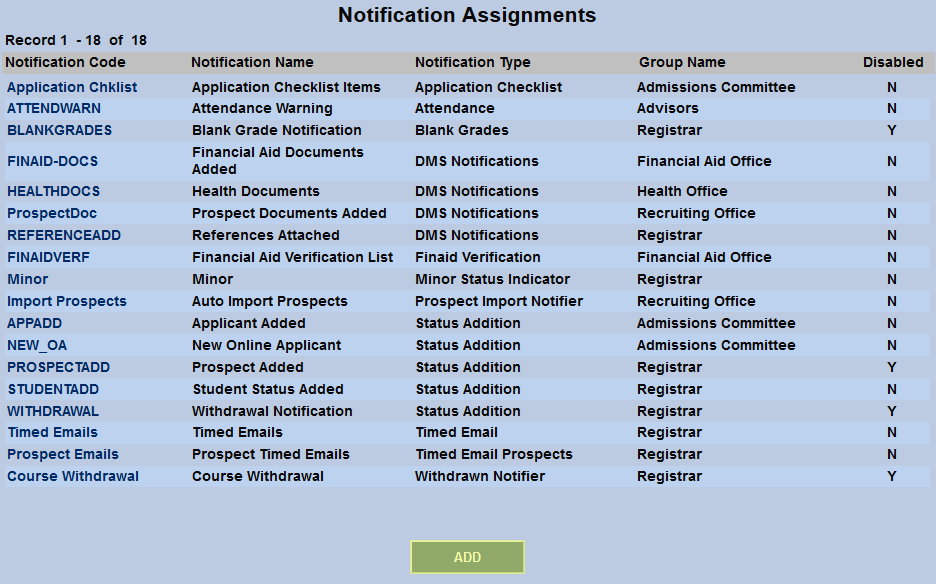
To begin, set up a notification assignment for NMTRACK records deletion by navigating to the Notification Assignments page in the Systems hub. Click the Add button to proceed.
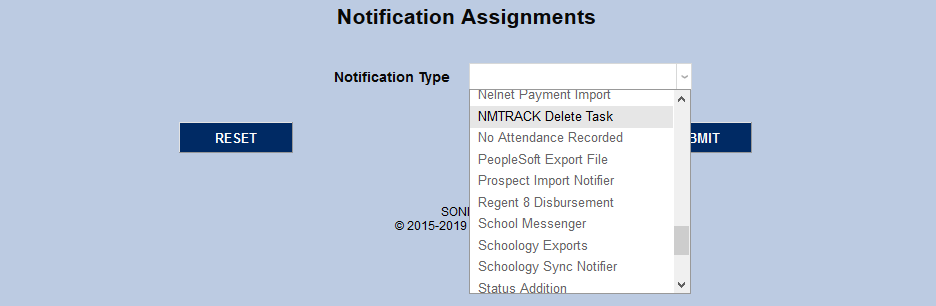
On the following page, select NMTRACK Delete Task from the Notification Type dropdown menu and click the Submit button.

Next, create a Notification Name, a descriptor of the notifier's purpose with a 50 character limit, and a Notification Code, a shorter version of this name with a 20 character limit that the SONIS system will use internally to identify the notifier.
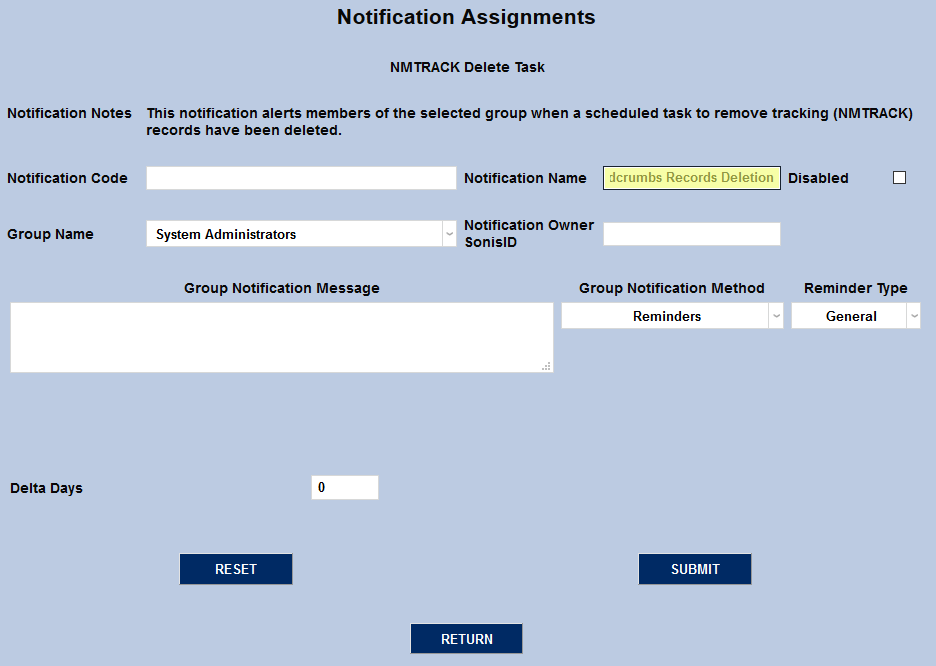
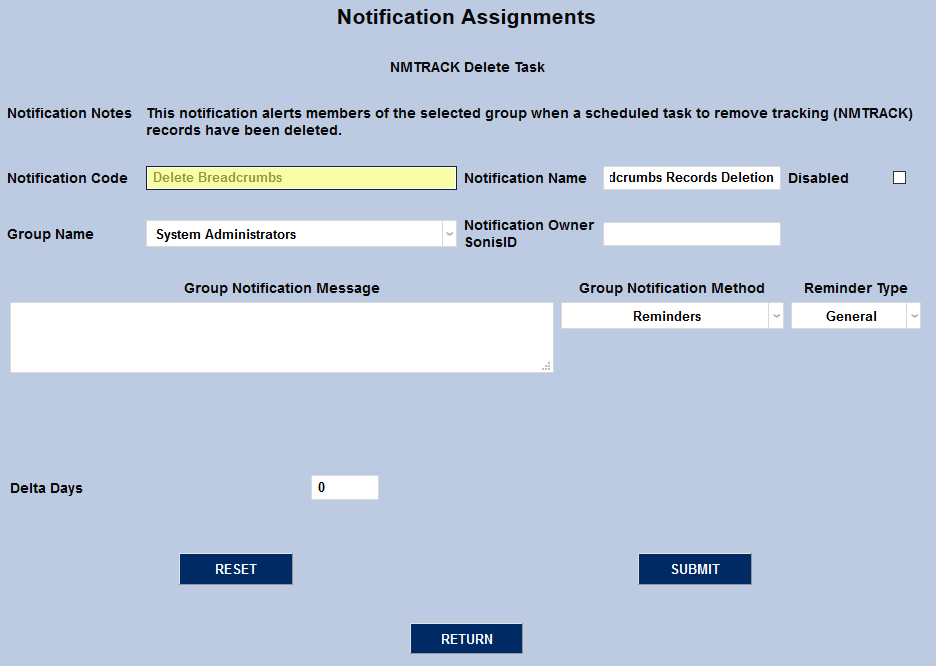
Select a group of staff/faculty to receive the notification from the Group Name dropdown menu. Groups can be added and edited through the Table Maintenance utility.
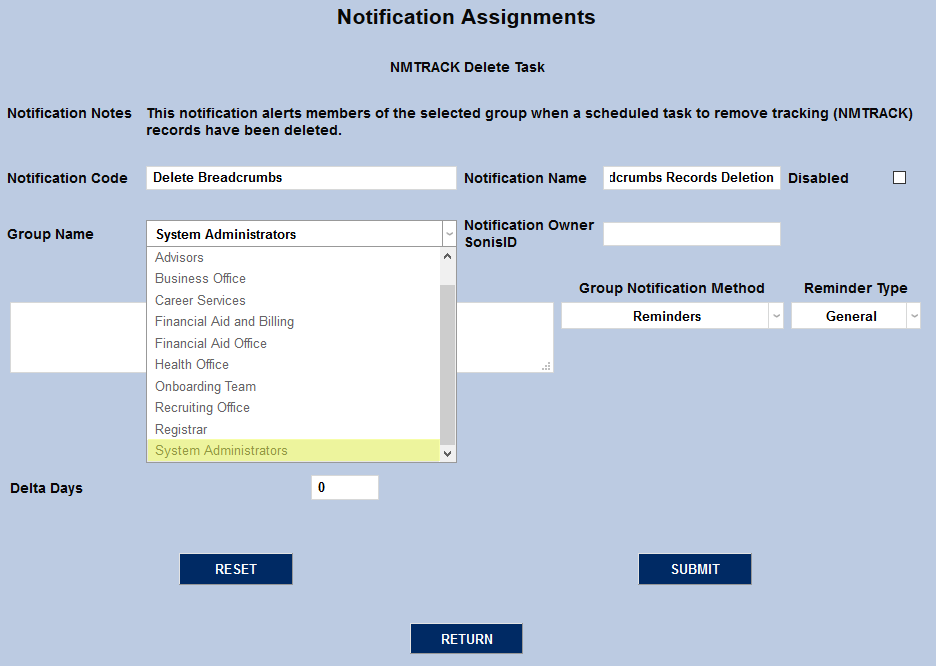
Enter the ID of the staff or faculty member who will be managing this notification in the Notification Owner SONIS ID field.
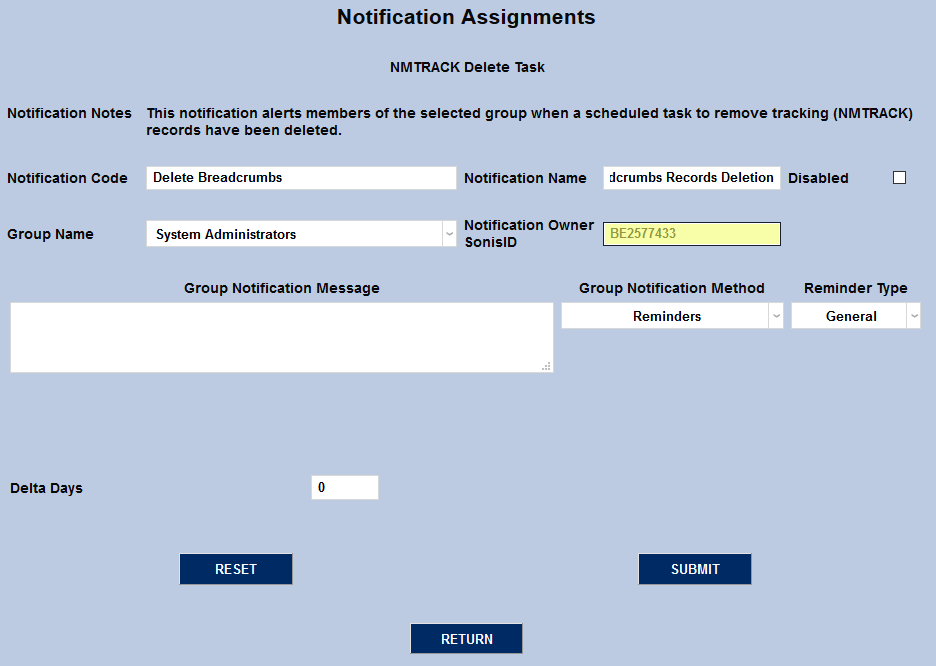
Create a Group Notification Message that will be sent to the group members when the task takes place.
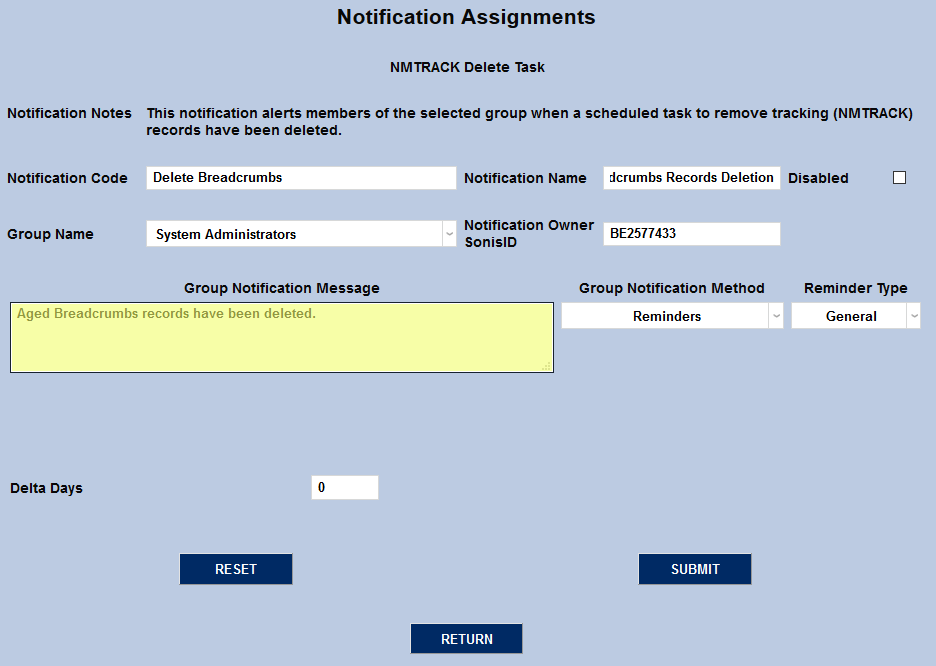
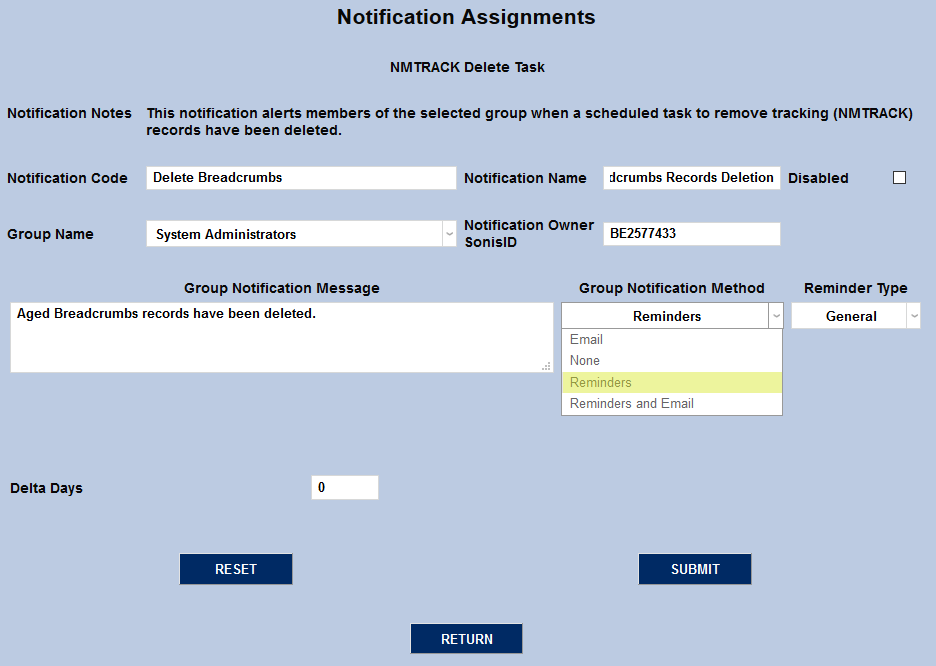
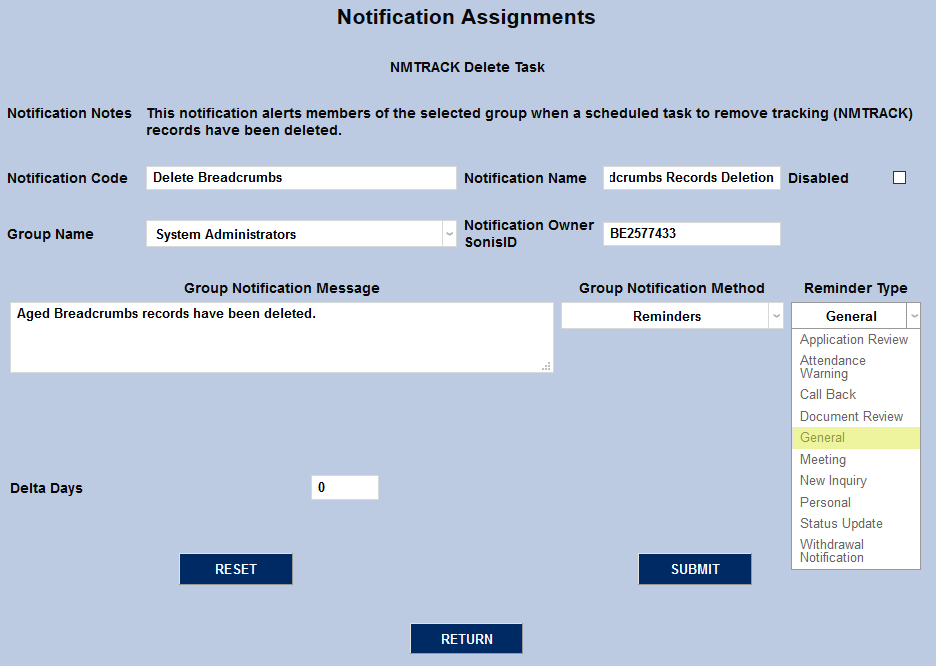
The Group Notification Method dropdown menu designates whether the group and individual users will receive an in-system reminder, an email, or neither when the notification is triggered. The Reminder Type dropdown can change how the in-system reminder displays. This list can be created and edited via the Table Maintenance utility. The User Notification Method and Reminder Type menus work in the same manner.
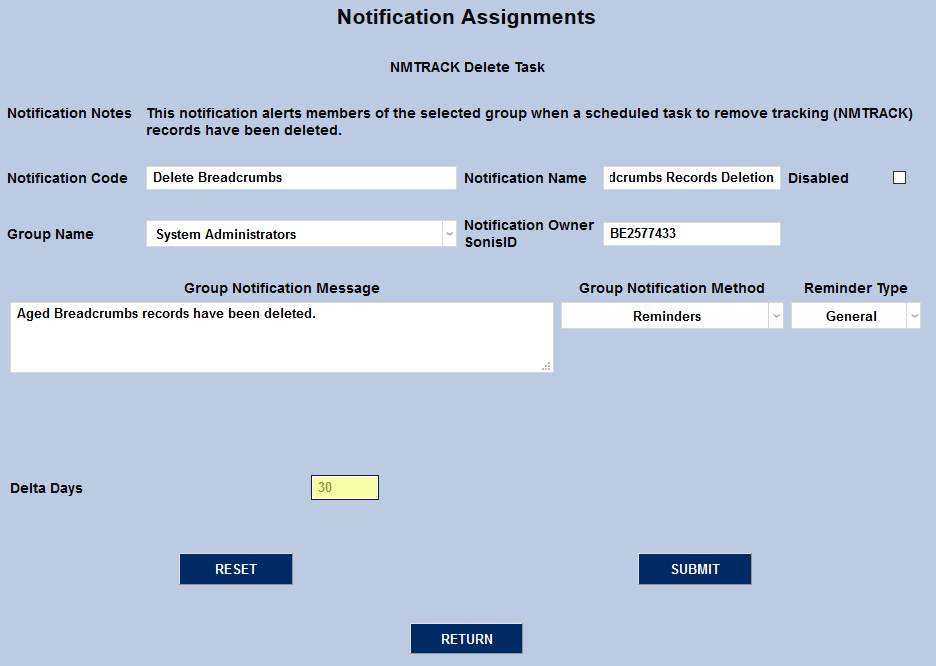
Finally, fill in the number of Delta Days. Once a record has been in the system for this number of days, it will be flagged for deletion. Keep in mind that whatever this number is set to will limit the period that the User Breadcrumbs Report will cover in the future.
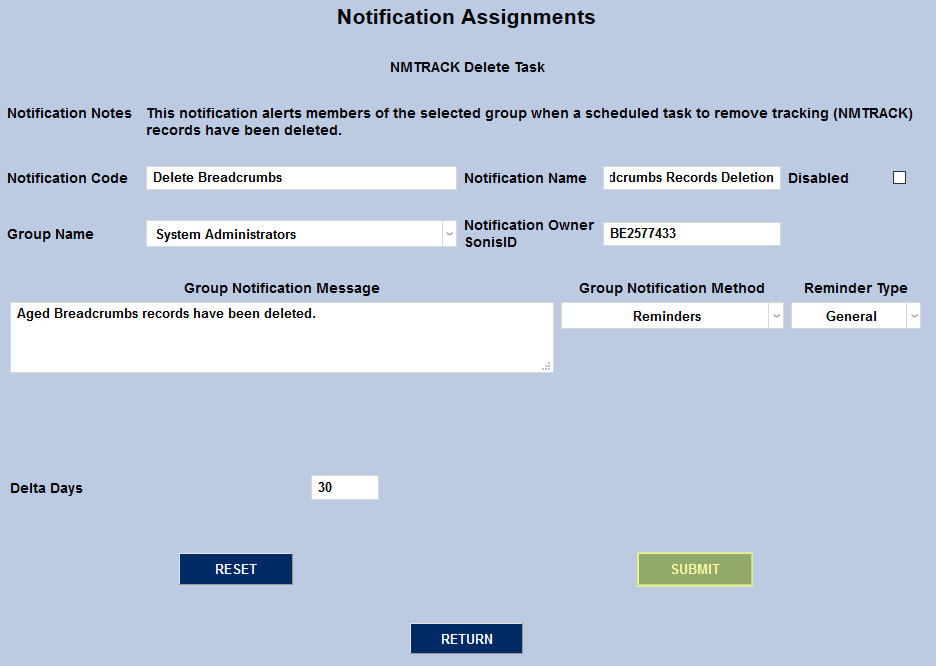
Click Submit to activate the notifier.
Timed Tasks Scheduler
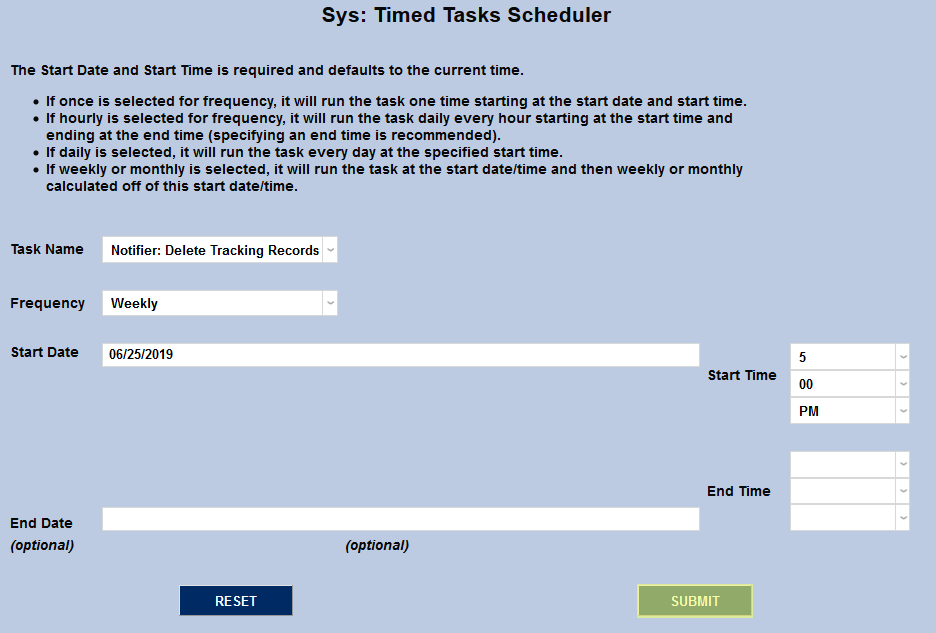
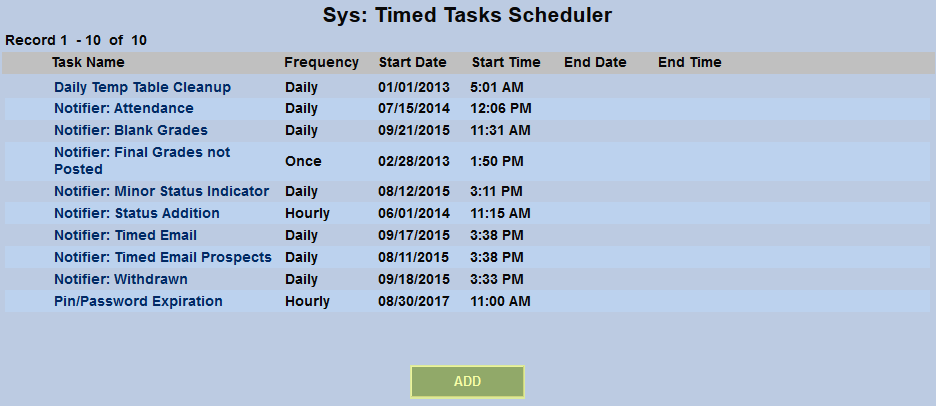
Once the notifier has been created, the task must be scheduled to take place. Navigate to the Timed Task Scheduler in the Systems hub and click Add to begin.
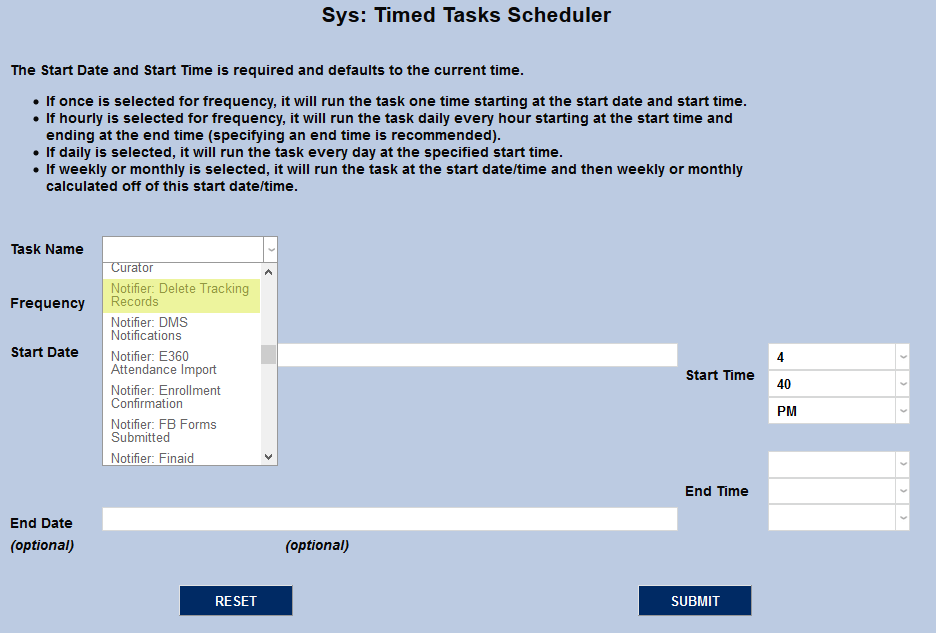
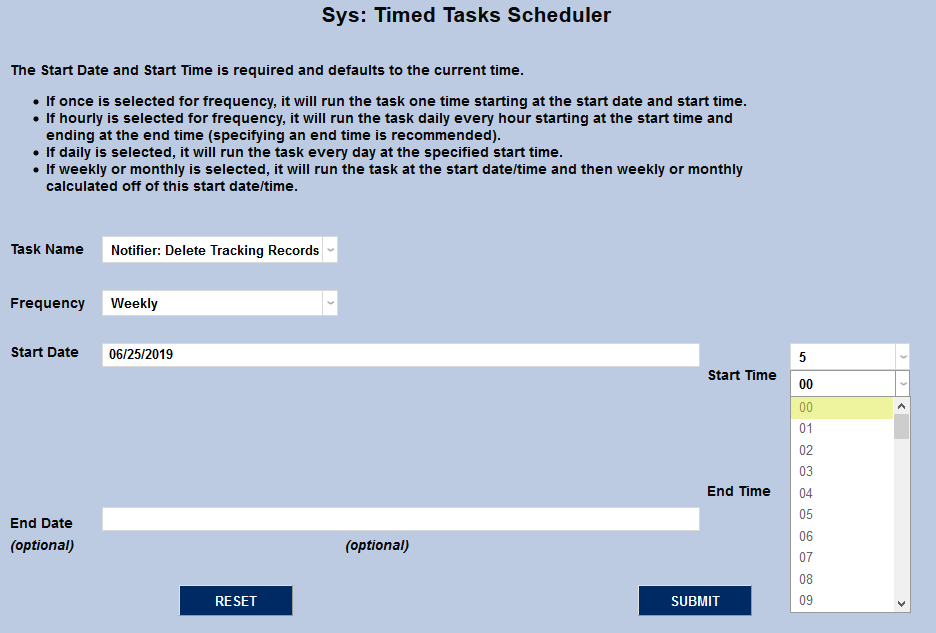
On the following page, select Notifier: Delete Tracking Records from the Task Name menu.
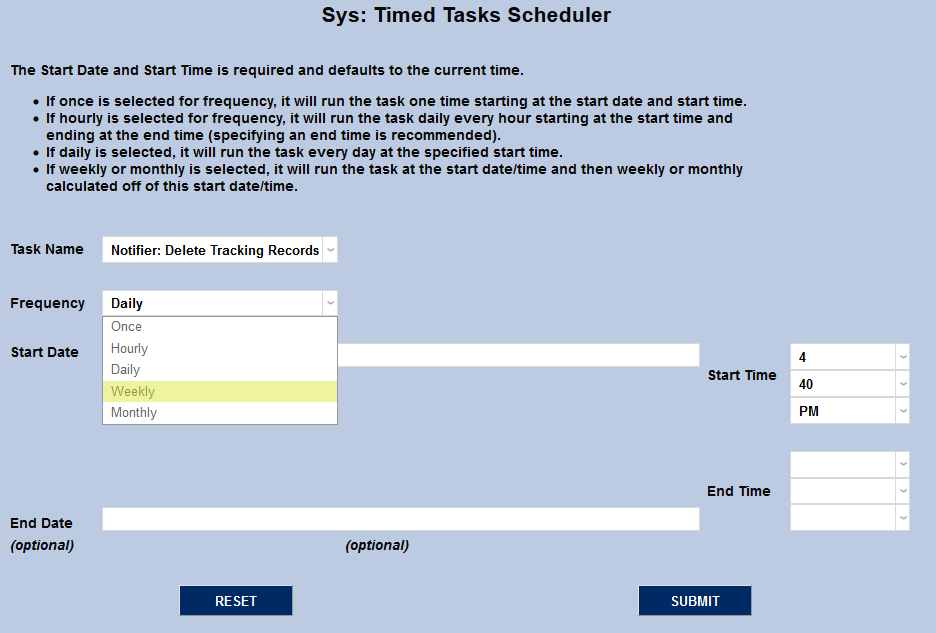
Select how often the task should occur with the Frequency dropdown. This particular task wouldn't need to take place any more frequently than daily since all records that had reached the previously specified number of delta days would be deleted during the first task and nothing would be left to delete on the next hour. Larger schools may want to schedule for daily deletion whereas smaller schools may want to configure longer intervals.
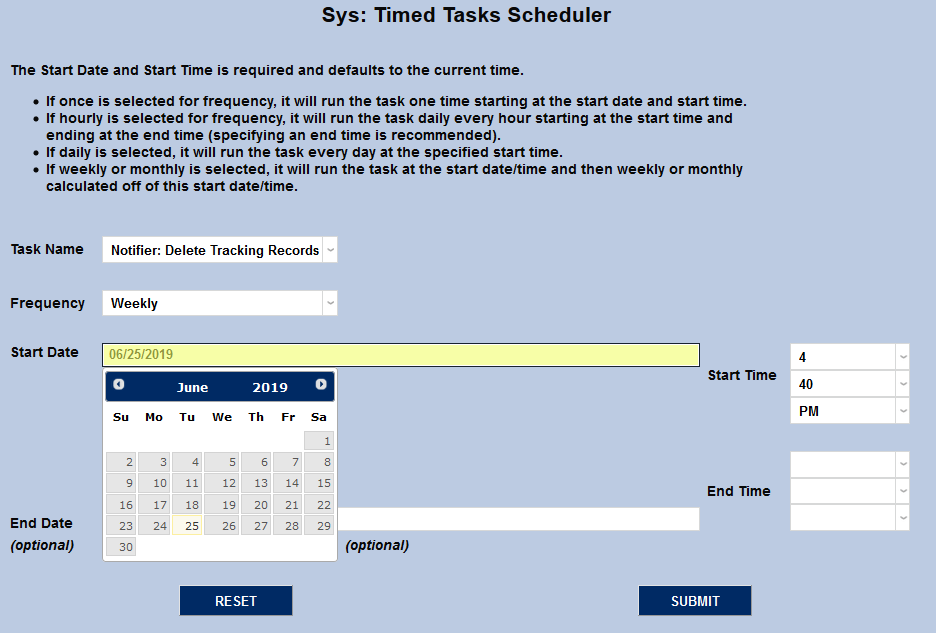
The Start Date and Start Time will automatically be set to the current date and time but can be changed to suit individual preferences. The End Date and End Time are optional.
Click the Submit button to create the scheduled task.