Bookmarks
Overview
The Jenzabar SONIS Bookmarks feature is similar in form and function to the bookmarks feature found on most web browsers. SONIS administrators can quickly save a link to the page they're on, making it easier and faster to return to later. The feature can be used to permanently tag commonly used pages or to temporarily bookmark pages that are part of a specific task that will no longer be needed once that task is completed.
Pages in the Financials, Systems, and Reports hubs are stored based on the splash page for each utility. Users and Courses pages are stored based on the specific user or course selected when the bookmark is added.
Note
The Bookmarks feature should not be confused with the Organization Favorites, which are part of the left-navigation menu and apply to everyone from your institution. These can be edited through the Page Add/Edit utility.
Bookmarking Pages
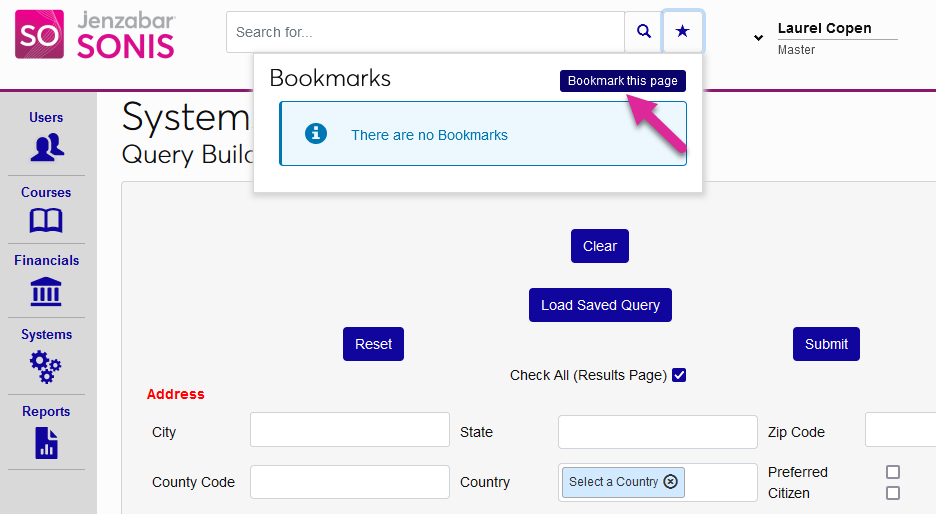
To bookmark the page you're on, click the star button next to the Global Search bar. Click Bookmark this page to add the page.
Once a bookmark has been added, click the star button again to open the Bookmarks menu and then click on the page name to return to that page.
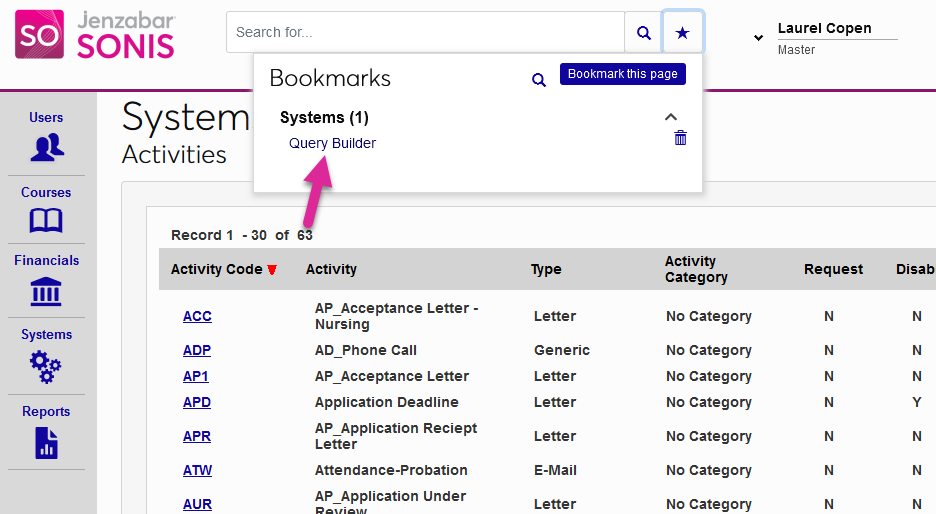
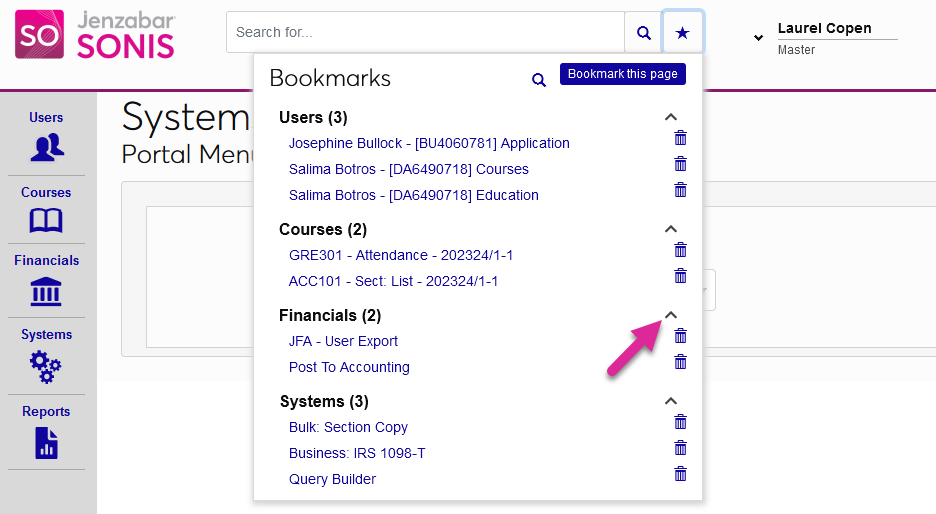
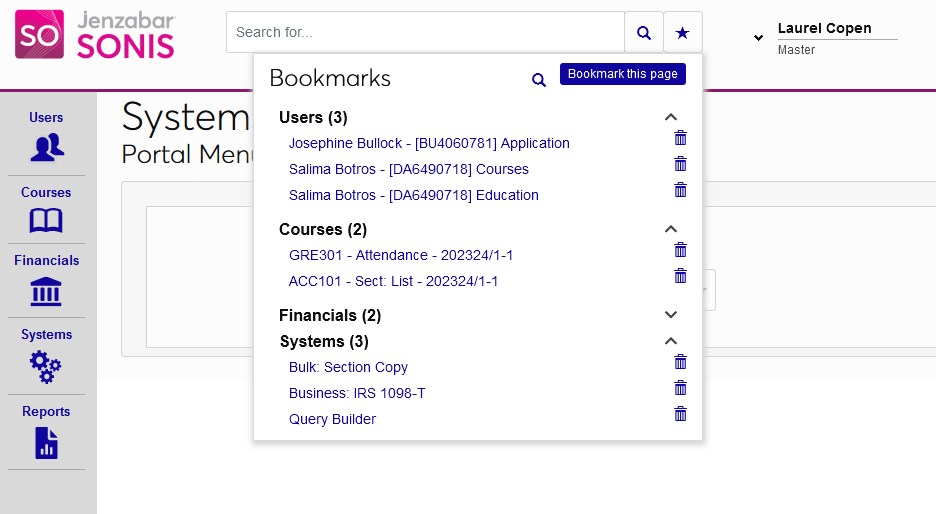
Bookmarks are categorized by their SONIS Hub area. You can click on the ^ to collapse or expand any of the hub categories.
Note
Bookmarks link to the splash page for the utility, so even if you're drilled down further when you bookmark the page, you'll be taken to the first page in the process when you return.
Bookmarks to Users and Courses pages are specific to the user or course selected. So if you bookmark Jane Doe's Education page, you will be taken to Jane Doe's Education page and she will become your currently selected student even if you had someone else selected.
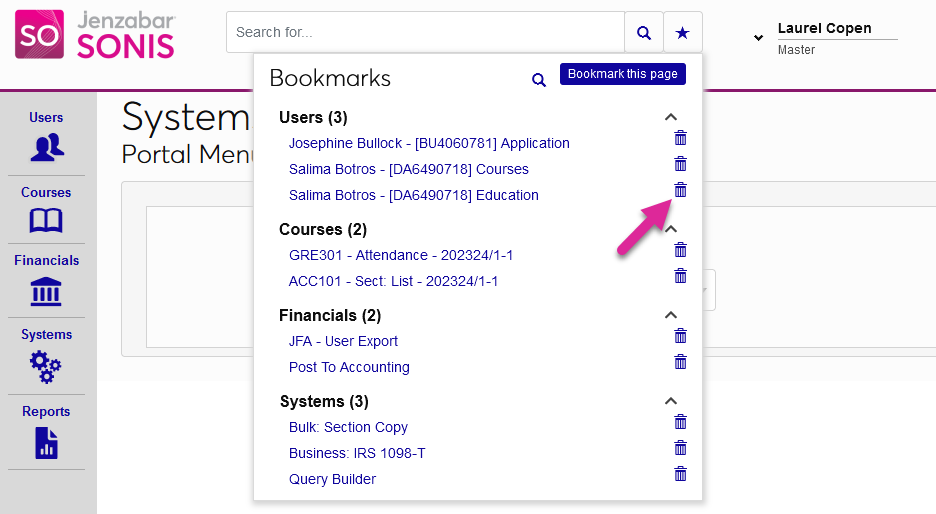
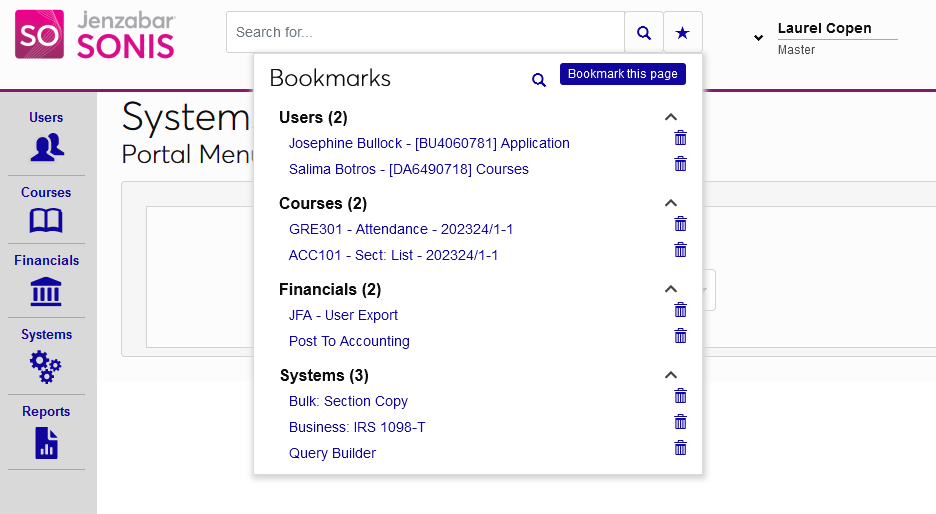
To delete a bookmark, click on the trash can icon next to the page name.