Import Programs
Overview
The Import Programs utility provides a quick and easy way to build Jenzabar SONIS program data. It is most useful when bringing in data from another student information system to SONIS, but it can be used any time a large number of programs need to be added at once. The page itself includes everything you need to get started, including a grid of the fields in the table and a downloadable file with the proper column headings.
Note that the import process can only be used to create new program data. It cannot be used to edit existing data. Programs imported through this utility must be edited or deleted from the Programs page.
Importing Programs
Importing Programs
Before preparing an import file, administrators should study the Programs Table Schema and use it to build their import file.
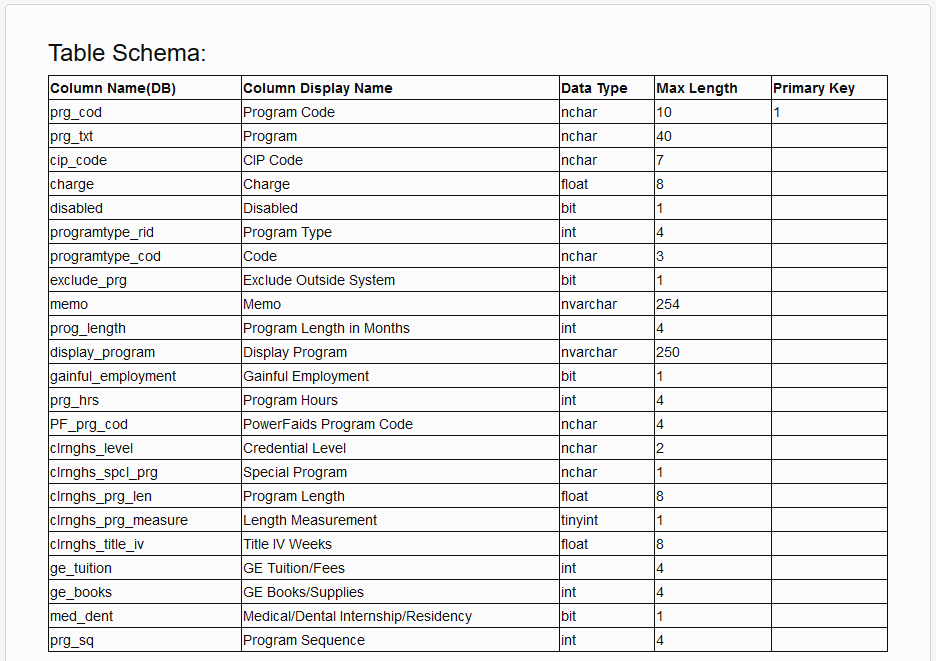
The Column Name is how the field is designated in the SONIS database. The Column Display Name is how the field is labeled on the frontend.
The Data Type column denotes the type of characters that can and should be stored in the field. Nvarchar and nchar fields will accept characters of any type except for some special characters that may be blocked to prevent errors. Int, tinyint, and float fields will accept any integer that meets the length requirements. Bit fields are used to turn things on and off and must be either a 0 to designate off or a 1 for on.
The Primary Key is the data that is used to name the program in the database. It cannot be edited once it's been created.
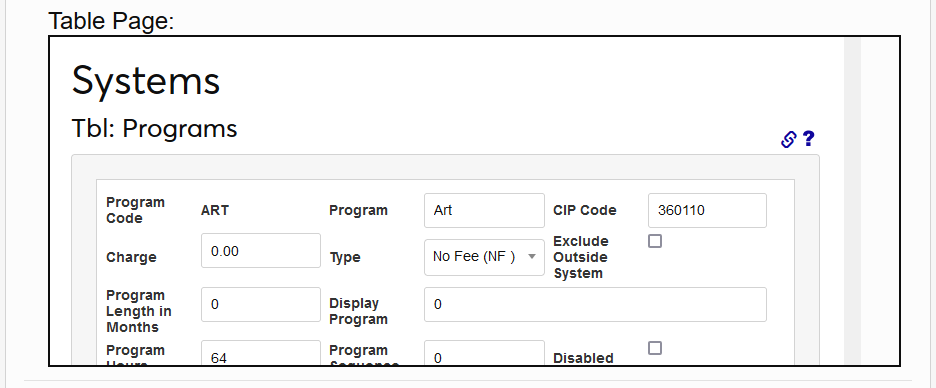
Just below the Table Schema is an image of the Programs page. This is meant as an example for informational purposes. The fields displayed cannot be edited from this page.
Preparing the File
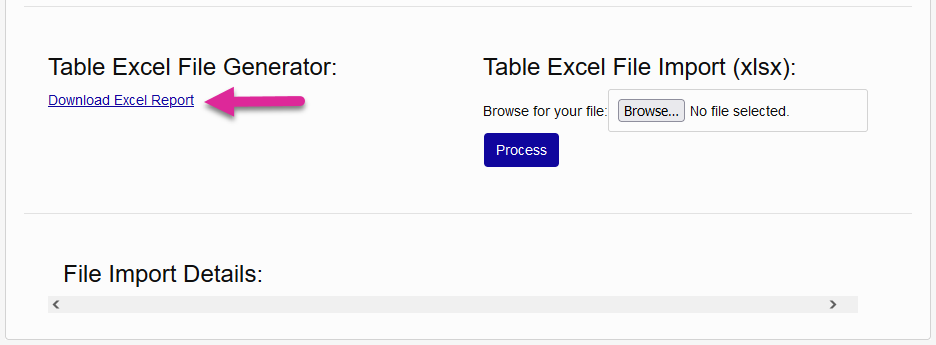
Click Download Excel Report for a blank copy of the file that will need to be uploaded to the SONIS system.
Fill out the form with the required data for each program based on the table schema, being sure to follow the Data Type and Max Length restrictions. Note that fields in the clrnghs_level column may need to be formatted differently to display two digits if the leading digit is a zero.
Importing Data
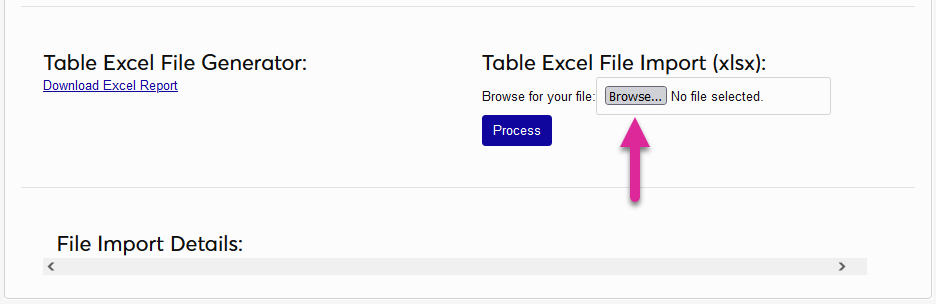
Click Browse and select the saved file. Then click Process to continue.
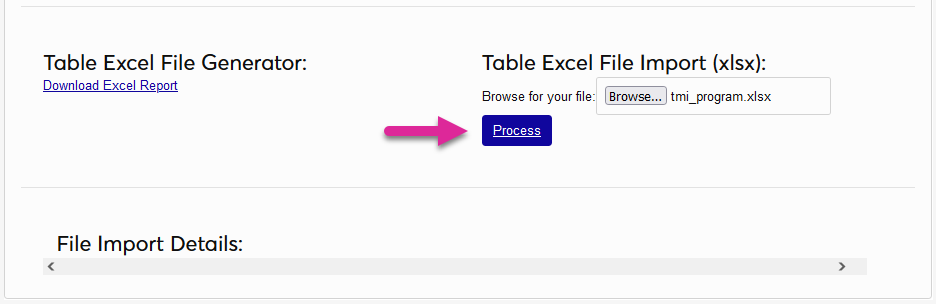
The data being imported is displayed in the File Import Details box. Any errors within the data are marked with a red X. Hover over the X to see the cause of the error.
Once the data is correct and there are no errors remaining, click Import to complete the process.
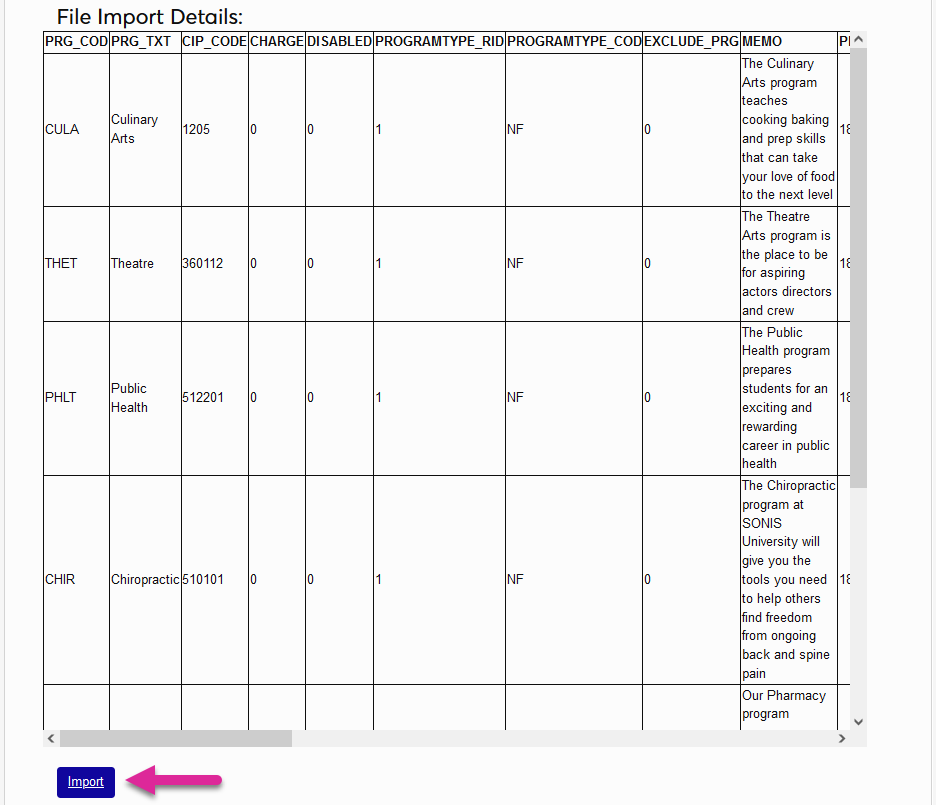
Once the page reloads, the results of the import are displayed at the bottom of the screen.
