Fees
Overview
The SONIS system provides numerous ways for clients to charge their students for taking courses. Some fees may apply to every student while others will only apply to a student in a specific program or course or course section. This document provides a listing of each type of fee that can be applied along where it's located and how it's set up. Click the link in embedded in a category for more details about the specific fee type and how it works.
Fee Types
The following types of fees are available to be charged:
Additional Fees
The SONIS Additional Fees utility allows institutions to charge repeating fees to students that are not part of the school's standard tuition. Fees can be assigned to groups of students based on their level, campus, division, and/or department and can be assigned once per semester or per credit hour. Fees are associated with a transaction code for record keeping. Click the above link for more details on the setup and use of additional fees.
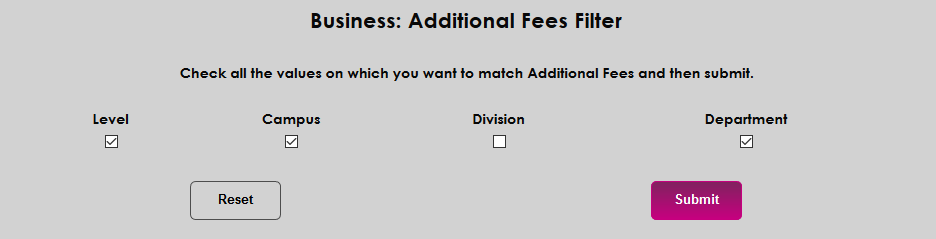
Before creating a fee, administrators must navigate to the Additional Fees Filter page to choose which filters will be active for use in narrowing down the recipients of the fee.
To add a fee, navigate to the Additional Fees utility under the Systems menu. Use the Add New Fee to create any necessary fees.
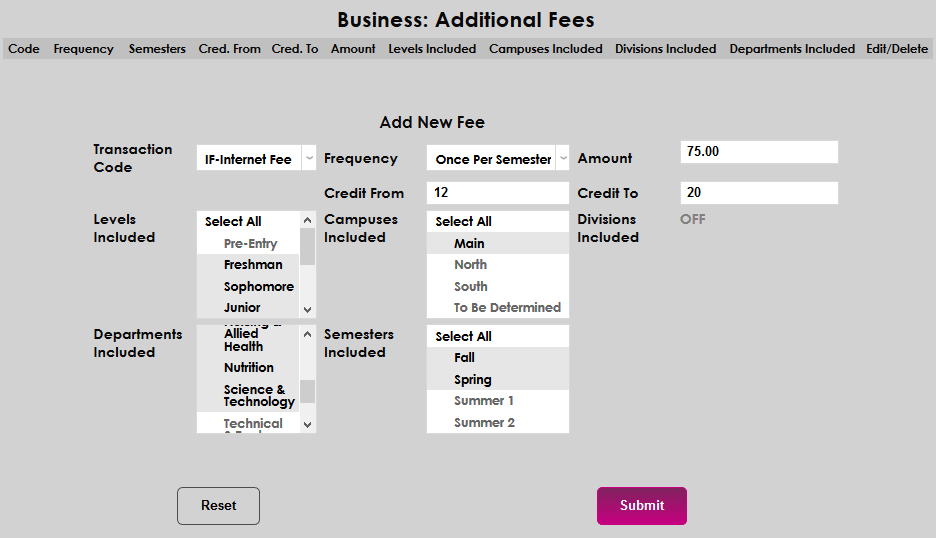
Once fees have been created, use the Edit and Delete links to make changes.

Application Fees
The Application Fees utility can be used to create an application fee that will be charged to applicants when they submit an Online Application. Clients can create more than one fee with different names if desired, though most create and use a single fee. All created fees will apply to all applications. Alternately, clients can use T-Code Pairing and the Credit Card Processing utility to institute an application fee.
To create an application fee, navigate to the Application Fees page under the Systems menu and select a Transaction Code for the fee.
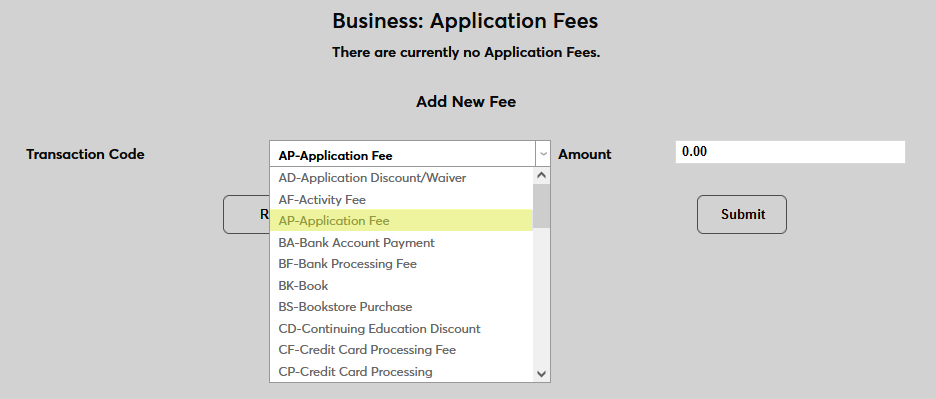
Next, set an Amount for the fee.
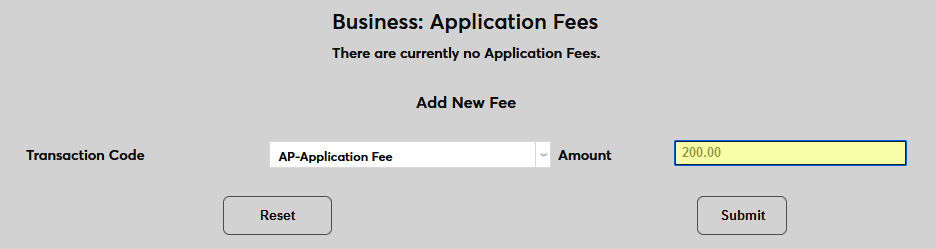
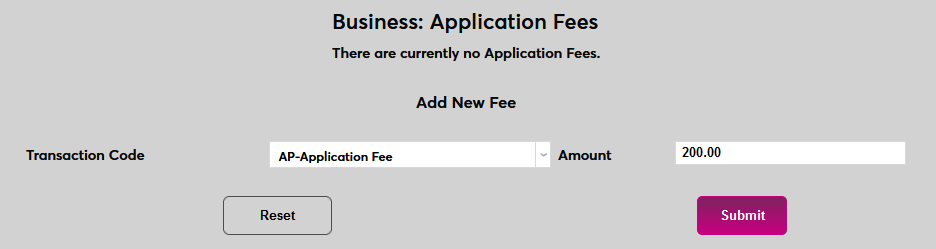
Click Submit to save and activate the fee.
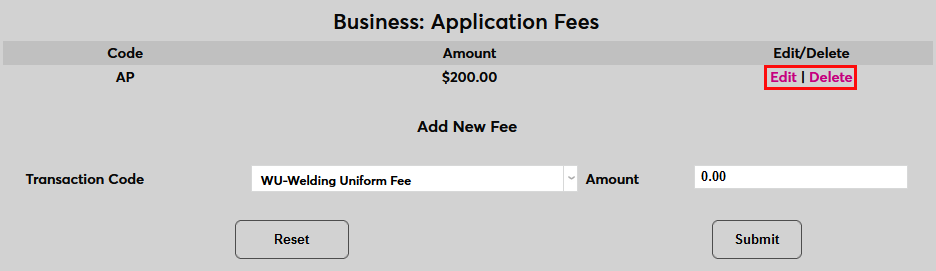
Once a fee is in place, click Edit or Delete to make changes.
Course Fees
Some courses may cost more for the institution to teach. For instance, there could be special equipment associated with the course or additional faculty required to teach it. While this increased cost can also be added by setting a higher per credit price on the Course: Add/Edit page, this price increase would not apply to students who meet the requirements for Flat Fee tuition. Additionally, there may be benefits to listing the course fees separately. For this reason, SONIS allows institutions to add additional an additional cost to a course using the Course Fees Add/Edit page. Click the above link for more detailed information about course fees.
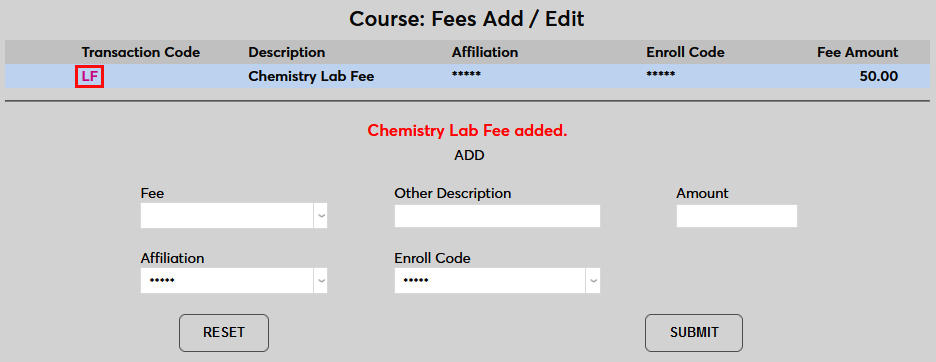
To add a course fee, select a course and navigate to the Course Fees Add/Edit page. Fill out all required fields and click Submit. The Description field, which designates what will appear on the student's bill, is optional. If the field is left blank, the selected T-code will display instead.
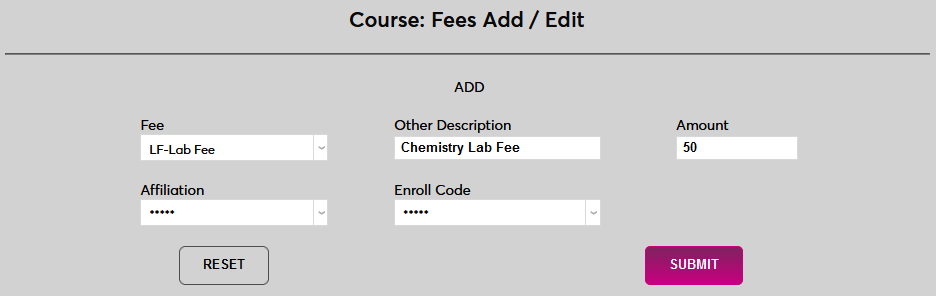
Additional fees can be added using the same method. Click the Transaction Code of an existing fee to remove it or make changes.
Course Section Fees
Some course sections may cost more for the institution to teach than other sections of the same course. For instance, a course could be taught by a visiting faculty member who commands a hefty fee or one section could offer more lab or clinical time or an extracurricular activity that the other sections don't offer. For this reason, SONIS allows institutions to add additional an additional cost to a course section using the Section Fees Add/Edit page. Click the above link for more detailed information.
To add a course section fee, select a course section and navigate to the Section Fees Add/Edit page. Fill out all required fields and click Submit. The Description field, which designates what will appear on the student's bill, is optional. If the field is left blank, the selected T-code will display instead.
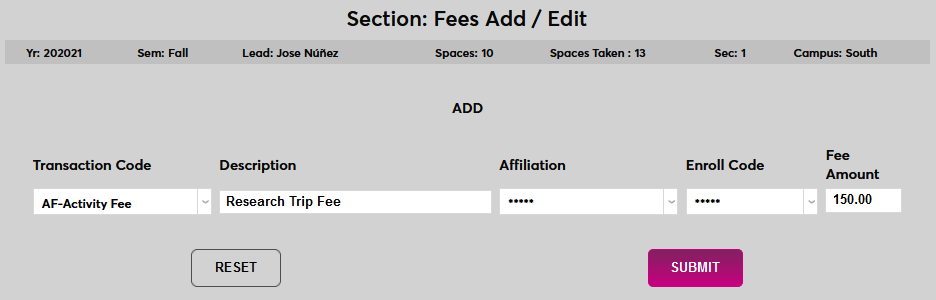
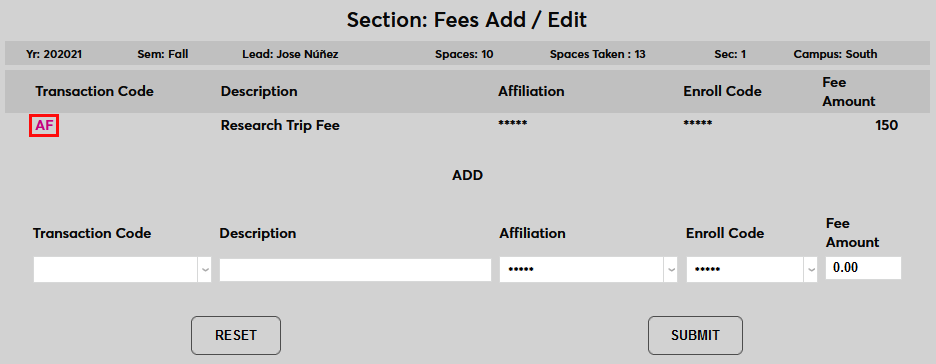
Additional section fees can be added using the same method. Click the Transaction Code of an existing fee to remove it or make changes.
Flat Fees
Flat fees or fixed charges are an alternative to credit-hour fees. Rather than incurring a separate charge for each course based on the number of credit hours in the course, the student simply pays one flat tuition for the term. Flat fees are optional and not all institutions use them. In order to qualify, students must meet certain requirements created by the institution using the Flat Fees utility. Click the above link for a more detailed explanation of how to use flat fees.
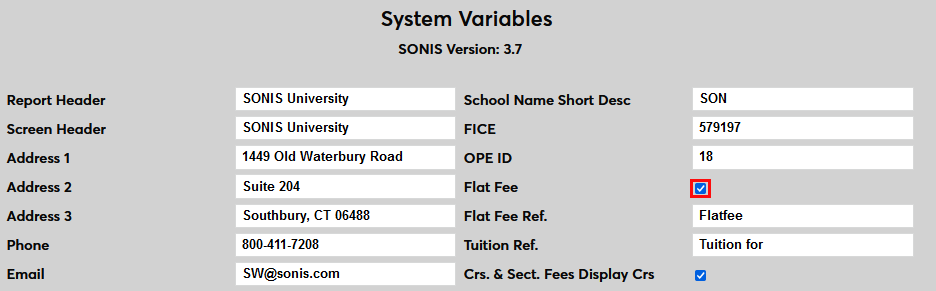
Before flat fees can be used, they must be activated on the System Variables page. Check the Flat Fee box to turn this feature on.
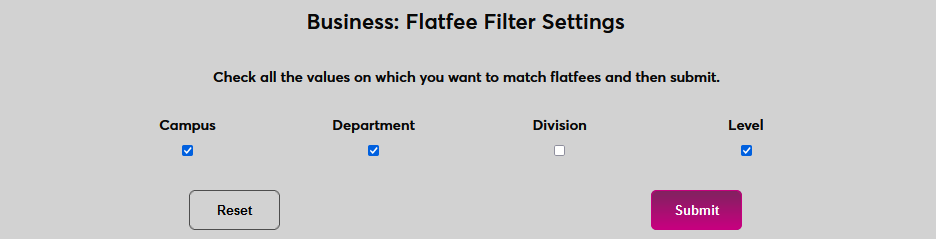
The client must then determine the filters that can be used to determine eligibility for flat fee tuition. To do this, navigate to Flat Fee Filter Settings under the Systems menu. Select the appropriate module status filters and click Submit.
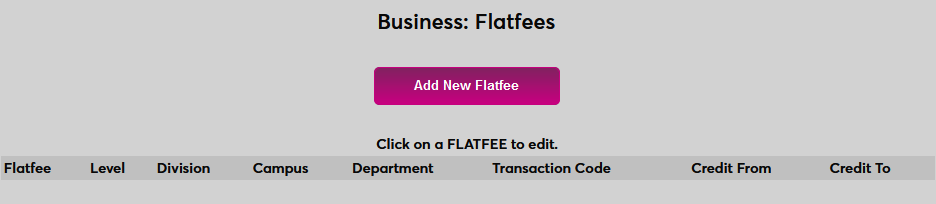
To create flat fees, navigate to the Flat Fees utility under the Systems menu. Click Add New Flat Fee to begin.
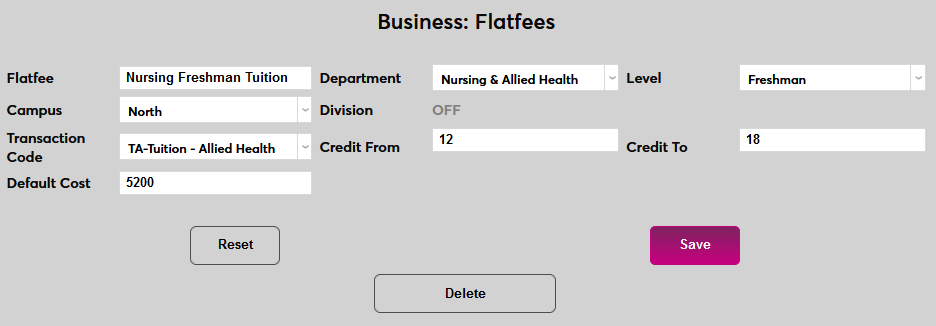
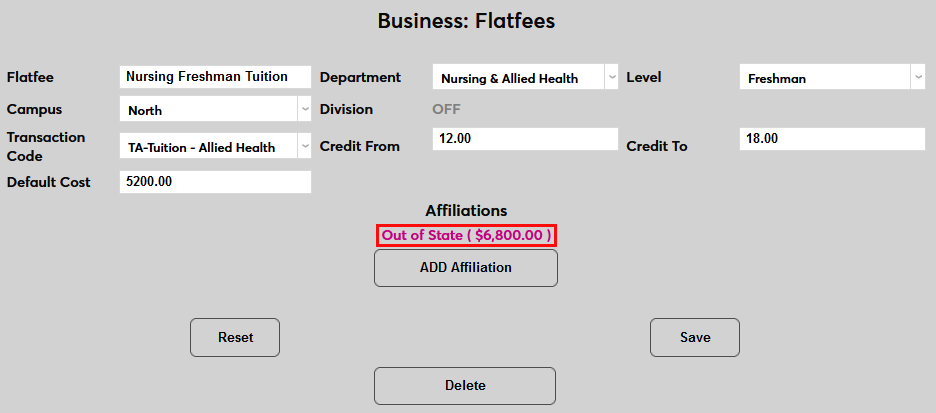
Fill out all fields, including the Default Cost, which sets the price of the fee and click Save. Note that module status filters that were not activated in the previous step will be marked as Off.
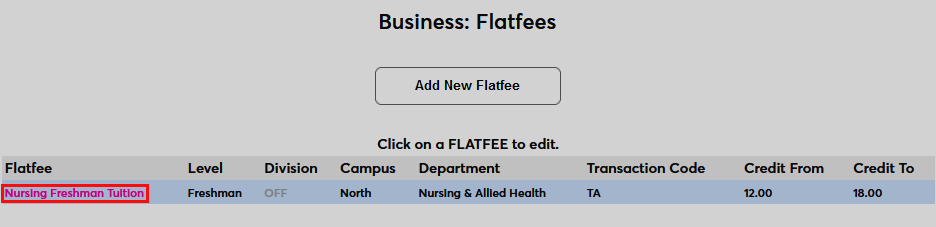
Once flat fees have been created, click on the fee to make changes and add [[:Category:Administration Affiliation (affiliation)|Affiliations. Adding an affiliation allows for certain groups of students such as nonresidents and school personnel to be charged a lower rate.
Housing Additional Fees
The Housing Additional Fees page is a utility that can be used to charge fees to students who live on campus in addition to their standard room cost. This can include things like meal plans, deposits, utilities, and miscellaneous upkeep fees. The standard cost for renting the room is set through the Rooms and Buildings table. Click the above link for more details on the process.
Each housing fee that's created must have a corresponding transaction code. These codes must be created in the Transaction Codes table and marked with an h to designate that they are housing T-codes. Only transaction codes with a type of H will be available to be selected in the Housing Additional Fees utility.
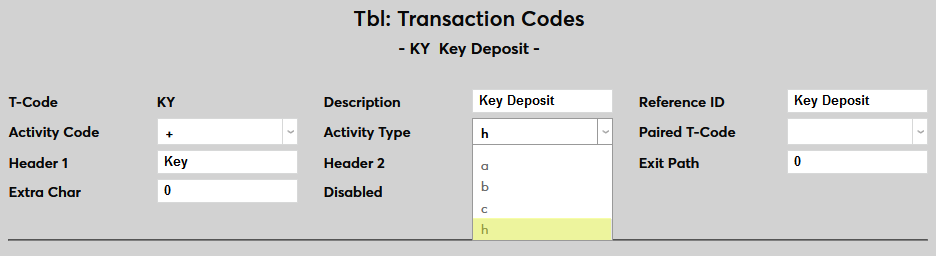
To create an additional housing fee, navigate to Housing Additional Fees under the Systems menu. Begin by selecting a Transaction Code.

Next, set the Amount for the fee.

Click Submit to create and activate the fee.

Program Fees
Some Programs may be more costly to administer than others. This could be due to a requirement for specialized equipment or a higher faculty to student ratio or some other reason. For this reason, clients can add fees that apply to students enrolled in these programs. Click the above link for additional details about program fees beyond the brief synopsis included here.
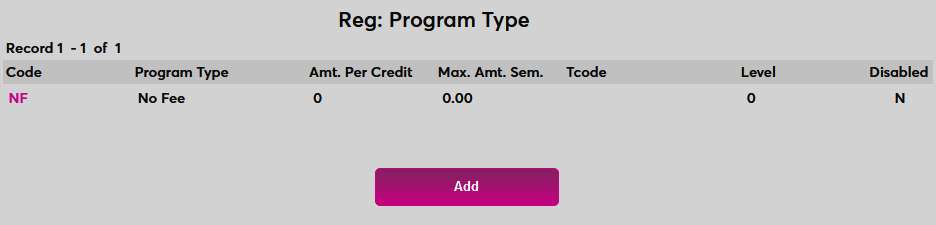
To add fees that will apply to any student enrolled in a particular program, navigate to the Program Type page and click Add to add a new program type.
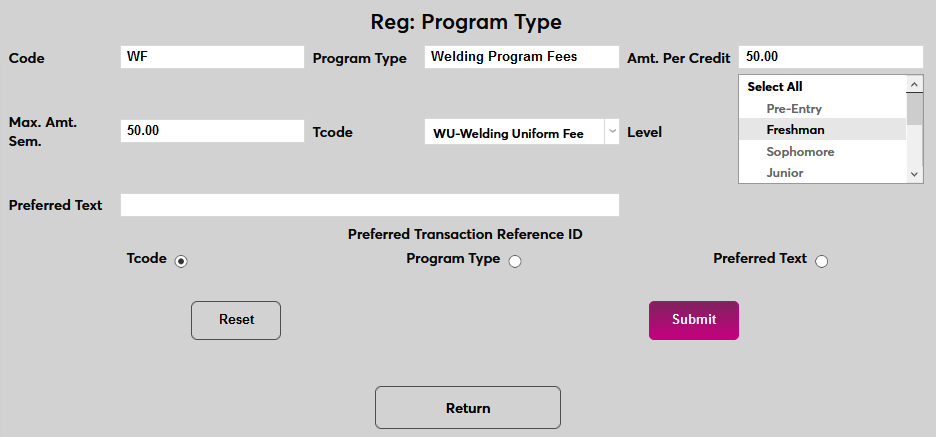
Fees can be added on a Per Credit basis or as Flat Fees that will apply equally to anyone enrolled in the program no matter how many credit hours they're taking. Once the fields on the page have all been filled click Submit to save and crate the Program Type fee.
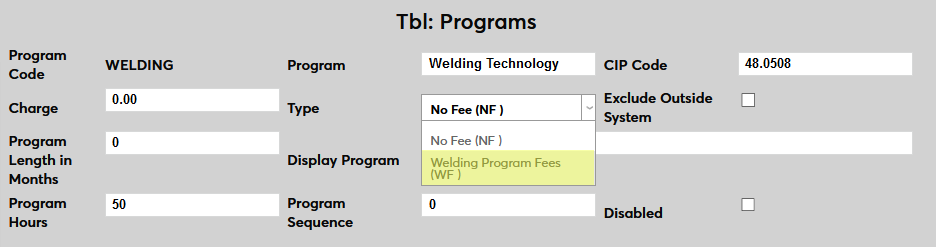
Once these fees have been created, they must be added to a program from the Programs utility.
Standard Fees
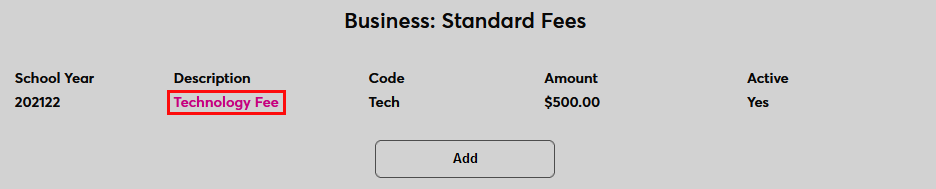
Standard fees are fees for student services that are charged to every active student regardless of their module status, affiliation, etc. They are created on a yearly basis and apply to every student who takes a course during that school year. They allow schools to recoup the cost of student services and other amenities with a separate fee that can be changed each year as costs increase or decrease without making frequent changes to tuition costs. Click the above link for a step-by-step breakdown of the process.
To create standard fees navigate to the Standard Fees page under the Systems menu and click Add to begin.

Complete all the fields and click Submit to save the changes and create the fee. The Active box can be checked to make the fee active immediately or left unchecked to create the fee for later activation.
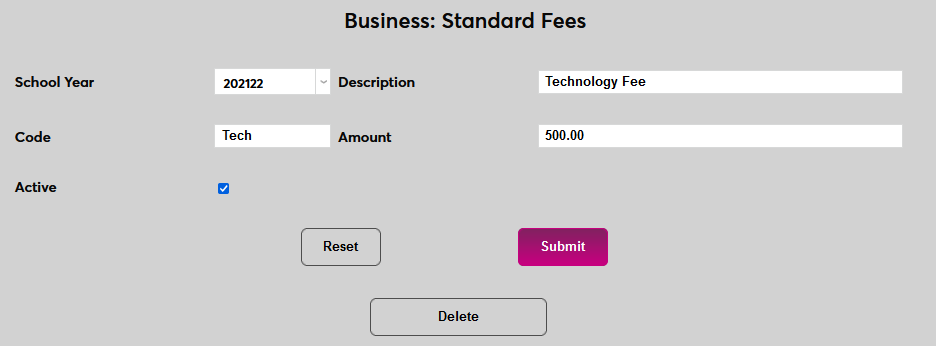
Once a fee has been created, click on the Description of the fee to make changes.