Master Profile
Overview
Master Profile is a Jenzabar SONIS utility that allows institutions to control which pages each administrator profile can access. Pages can be added as disabled or enabled and with access to make changes or as display only. Once pages have been added to a profile, access can be granted or removed by editing that profile with the Profile Utility.
Update from Weblist Template
Before the page list can be accessed, the master profile utility must be updated to display any recent changes. The weblist template is a file in the SONIS system that adds pages to the system. Click Update Master Profile from Weblist Template to update the master profile with any new pages that have been added through Page: Add/Edit or a script. Every available page is listed, organized by menu.

Summary Details
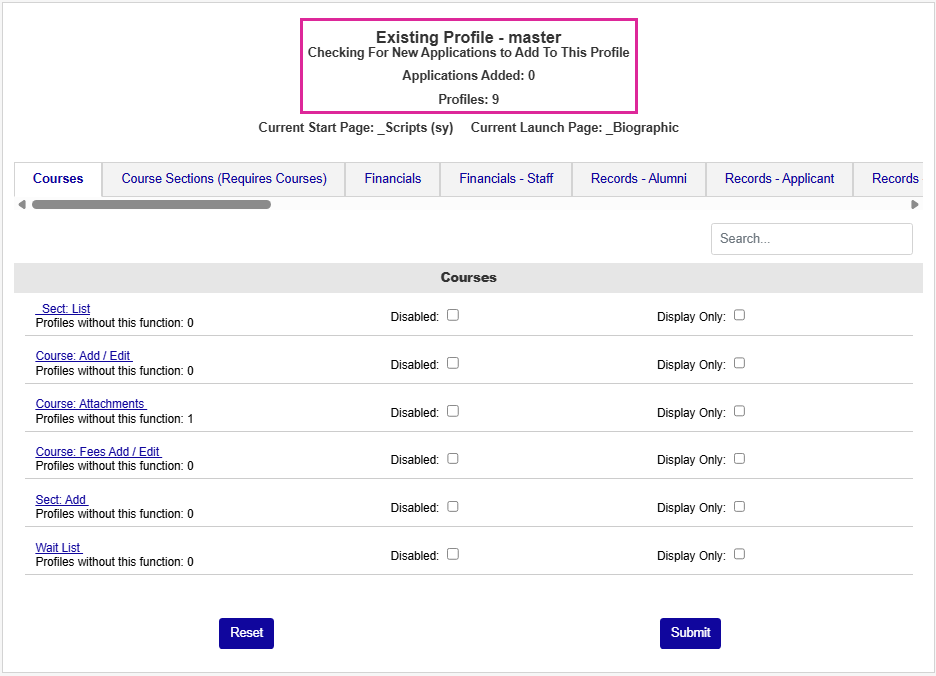
The Master Profile page displays a number of key details. The top of the page displays the new applications added this login along with the number of administrator profiles that currently exist in the system.
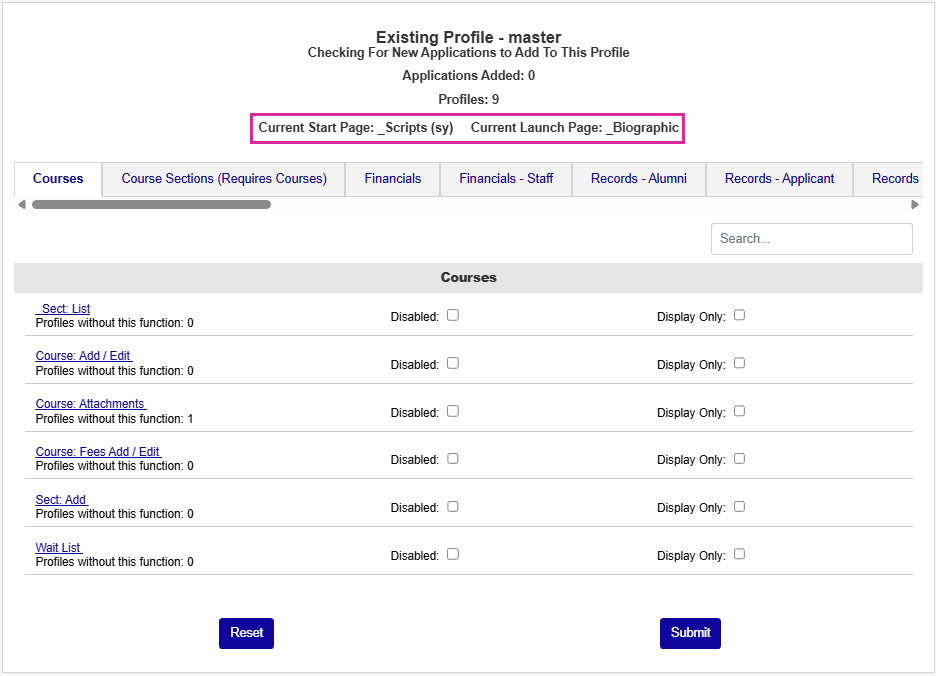
Just below that, the page displays the current Start Page and Launch Page for the master profile.
Master Profile Changes
Page Access
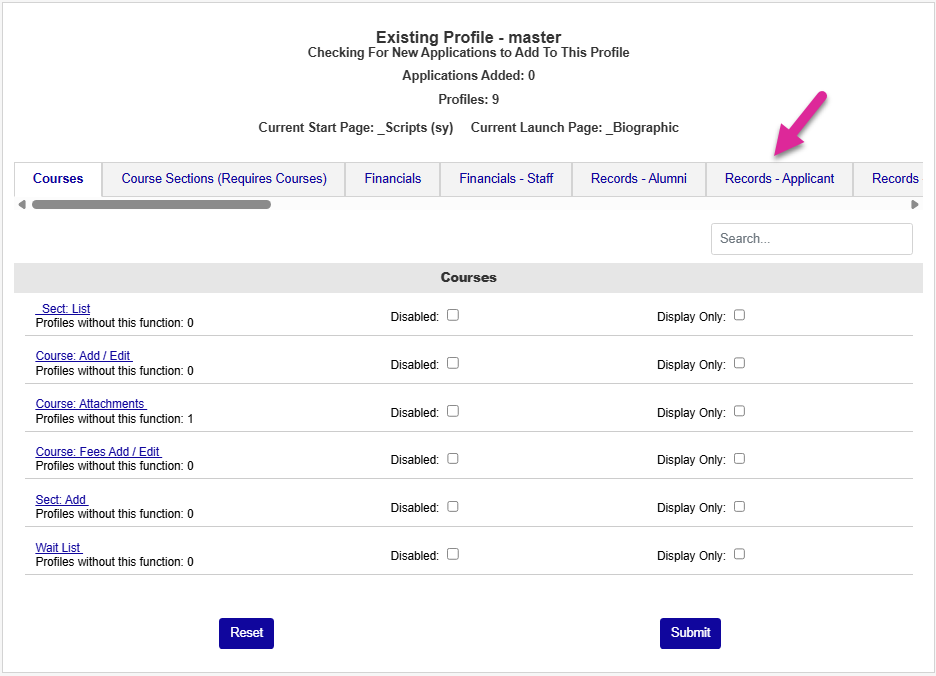
The checkboxes on the primary Master Profile page control the page access for anyone logged in with a master profile. The page list is organized into tabs that make it easier to navigate. Each tab corresponds to a different SONIS hub and user type. Select another tab to locate additional pages.
Note
When you've selected a tab with a long list, you can use the search box on the right to narrow down the list and find the page you're looking for more quickly.
Generally, you'll want to give your master profile access to every page, but there may be reasons to remove some of them. For example, you can remove pages that your school doesn't need such as integrations with third party applications your school doesn't use.
Check the Disabled box to remove access to a page. Disabled pages do not appear in the menu and cannot be accessed.
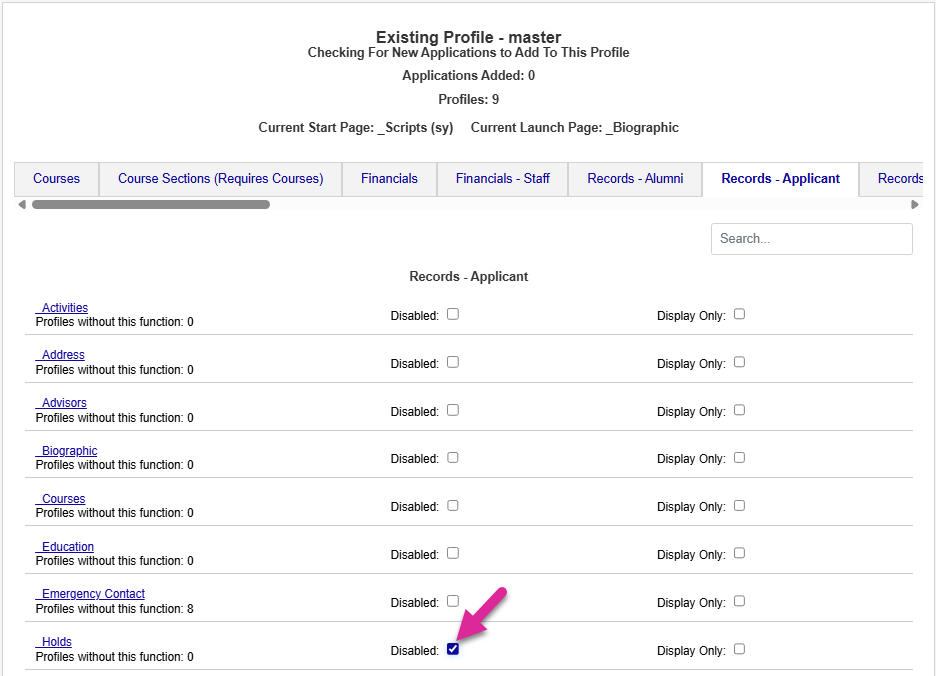
Some new pages that have been added to the system may be set as disabled by default. To turn this pages on, uncheck the Disabled box. Pages that have been added within the last two releases are marked with a green New tag.
Tip
You can use the search box to locate new pages on each tab quickly. Just type in "new" to display only new pages.
In other cases, system administrators may wish to allow master profile users to access pages but not alter anything. Check the Display Only checkbox to allow the master profile to view the page but not make changes.
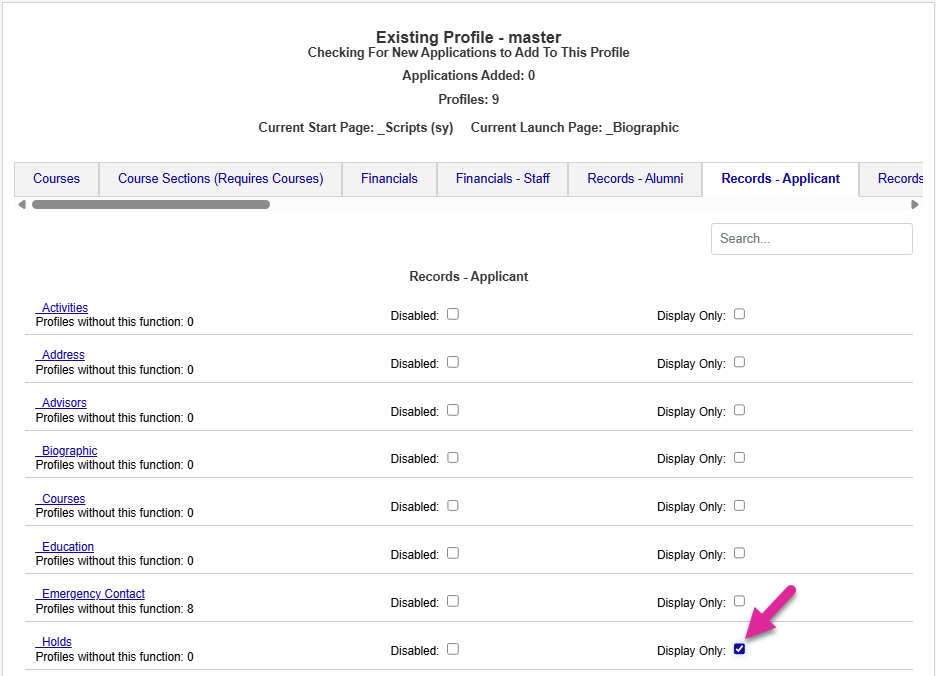
Click Submit to save all changes.
Start & Launch Pages
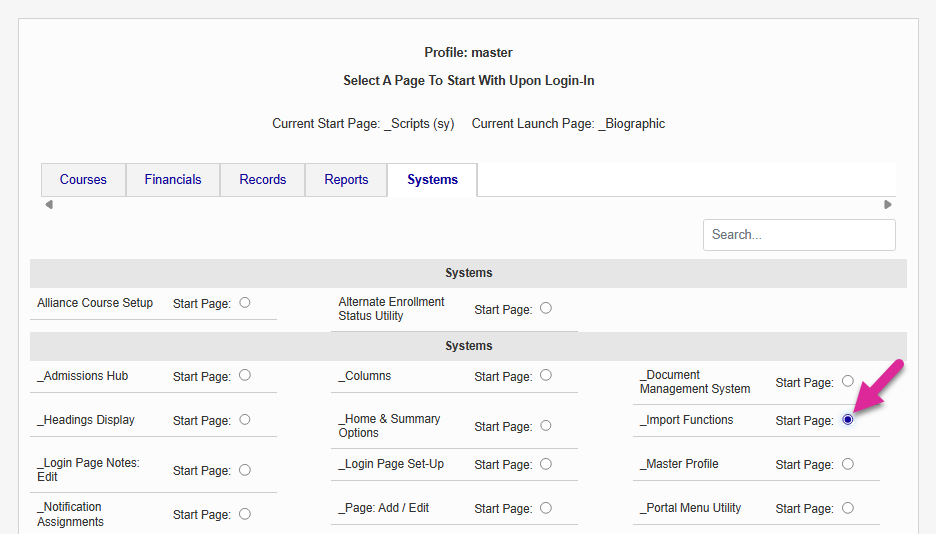
On the following page, you can change the start and launch pages for the master profile. This page mirrors the page in the Profile Utility but only controls the master profile rather than allowing for any admin profile to be selected.
The current start page and launch page are again listed at the top. However, a page must be selected even if no change is desired. Failing to select a page will result in an error.
Select a start page from the list of pages by clicking on the radio button. The start page is the first page the master profile user is taken to when they log in to the system. Click Submit Start Page and Continue to Launch Page to save the change and continue.
Tip
You can use the search box on the right-hand side of the page to help you find the page you want to use more quickly.
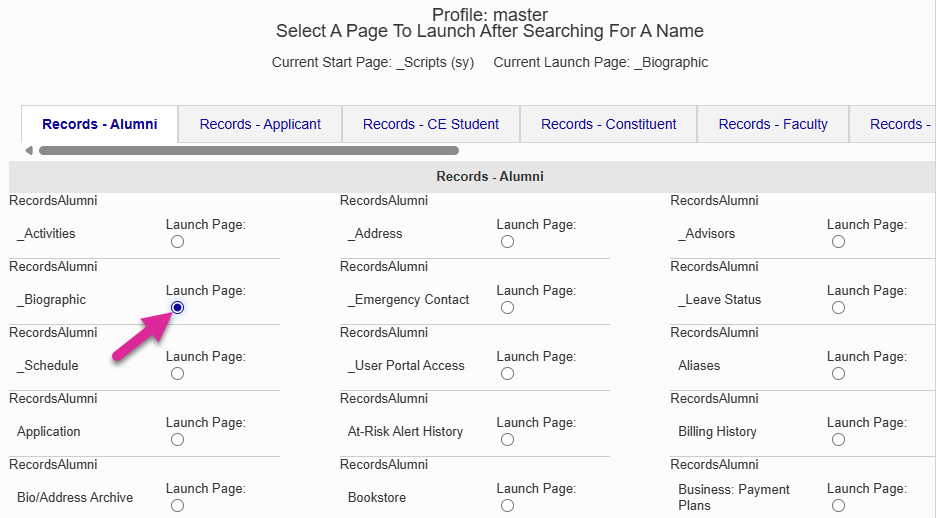
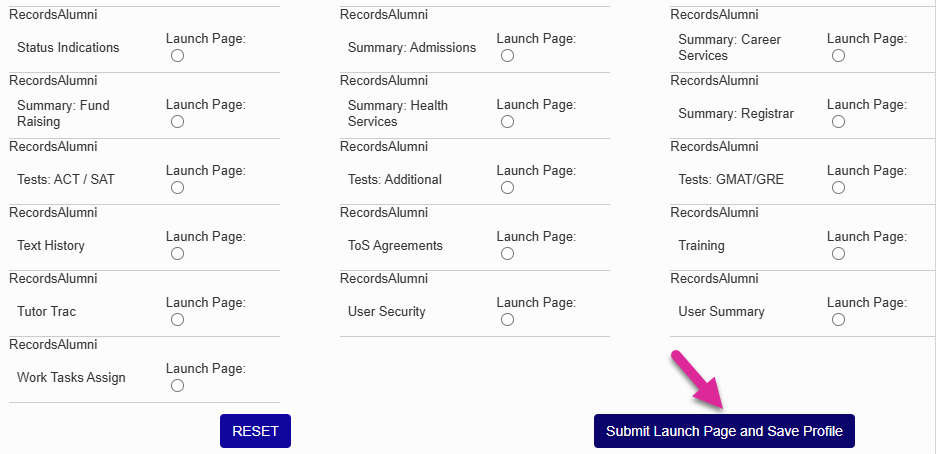
On the following page, select a launch page from the list of pages by clicking on the radio button. The launch page is the page where the master profile user is taken when they select a user's records using the User Search function. While the pages are separated by module status, the selection will apply to all module statuses.
Other Admin Profile Changes
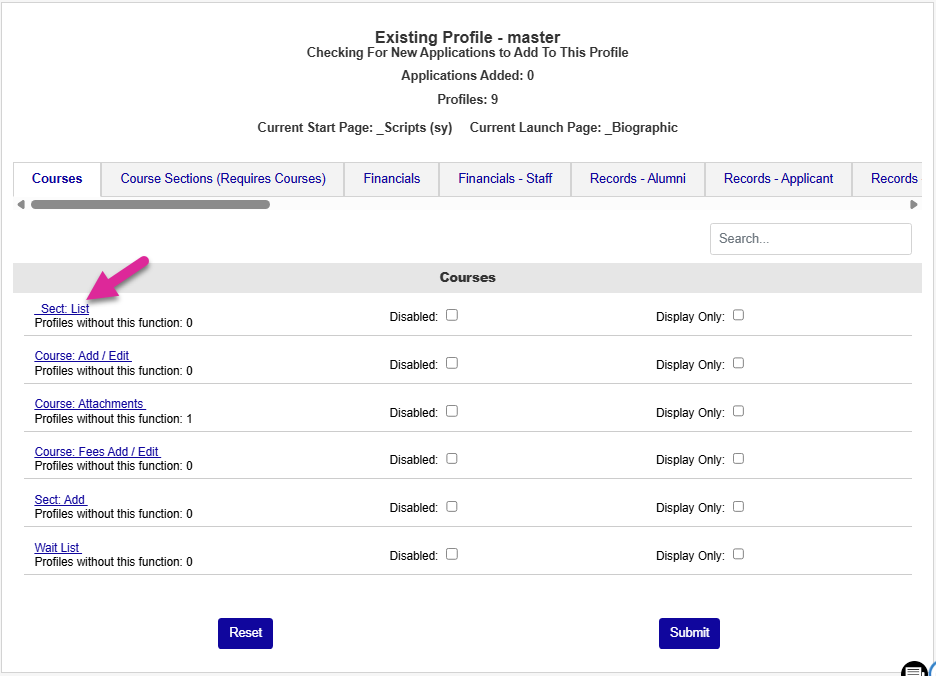
The Master Profile utility also allows system administrators the option to manage other admin profiles. Each page can be added or removed from each individual administrator profile. Click on the page name to make changes.
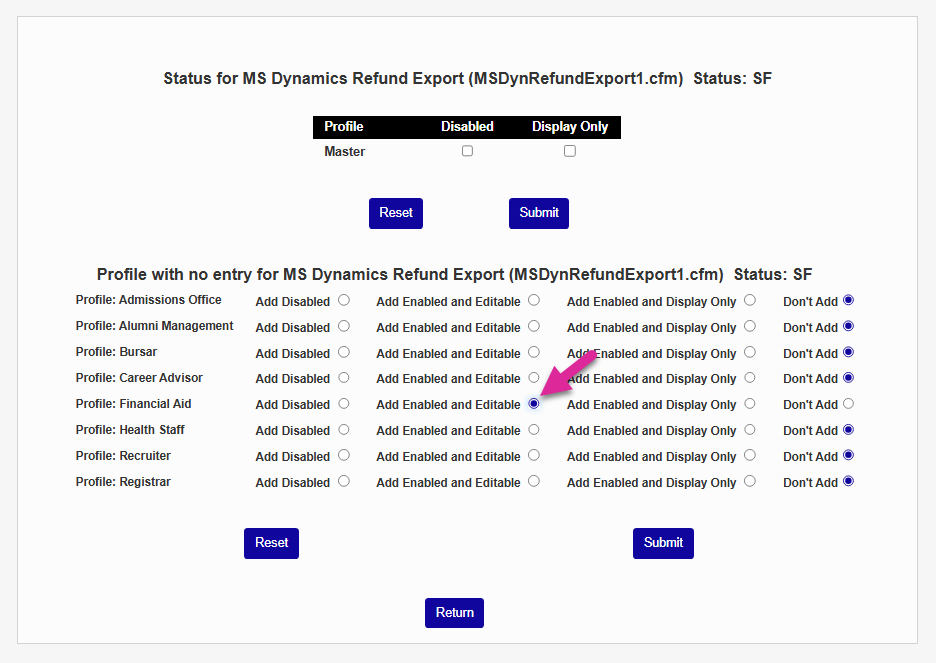
To add a page to a specific profile or profiles, select the appropriate radio button at the bottom of the page. The page can be added disabled, enabled and editable, or enabled and display only. Click Submit to save the changes.
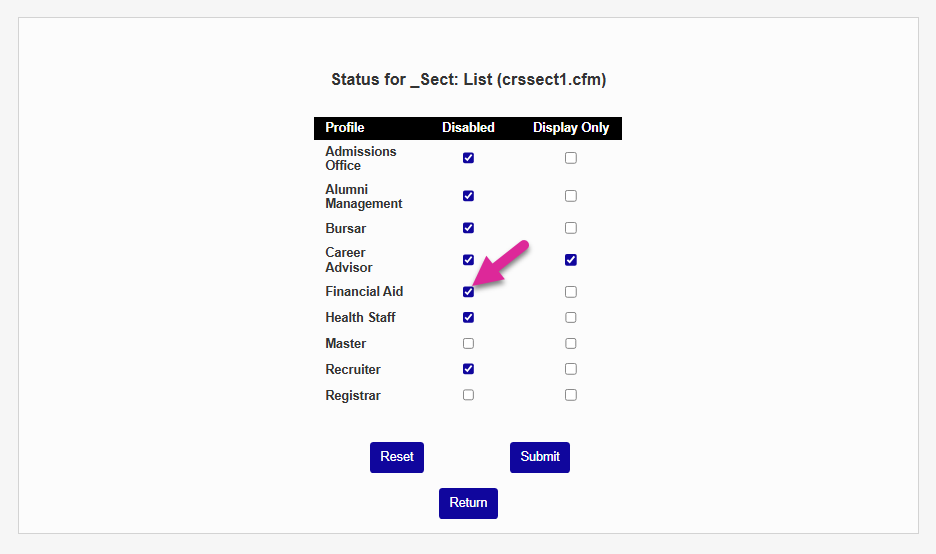
The profiles that have access to the page alerady are listed at the top of the page where changes can be made. Check or uncheck a box and click Submit to make changes to the type of access that each profile has.
Page access can also be controlled using the Profile Utility. For example, an administrator with access to the Master Profile utility could add a page to a profile disabled and allow another user with access to the Profile Utility only to turn it on or leave it off at their discretion, creating multiple levels of access control.