Two-Factor Authentication
Overview
Institutions wishing to utilize an extra layer of security for Jenzabar SONIS logins can turn on two-factor authentication, which requires a second layer of identification before a user can access SONIS. The secondary authentication can be provided through the Google Authenticator app if Google is chosen as the provider or through a phone call, a text message, or the Duo app if Duo is chosen as the provider. Once two-factor authentication has been activated, all login attempts will require a one-time use code provided by the Google or Duo in addition to the SONIS user ID and password.
The Google Authenticator app is available from the Google Play Store for Android users and the Apple Store for iPhone and iPad users.
The Duo app is also available from the Google Play Store for Android users and the Apple Store for iPhone and iPad users, though the Duo integration does not require users to download the app.
Web Options
To turn on two-factor authentication globally, navigate to the Web Options page in the Systems hub and check the Two-Factor Authentication checkbox. Click Submit to save the changes.

This setting overrides the individual Active settings in the Two-Factor Authentication utility.
Configuration
To setup the type of two-factor authentication to be used as well as control the portals where it will be active, navigate to the Two-Factor Configuration utility in the Systems hub.
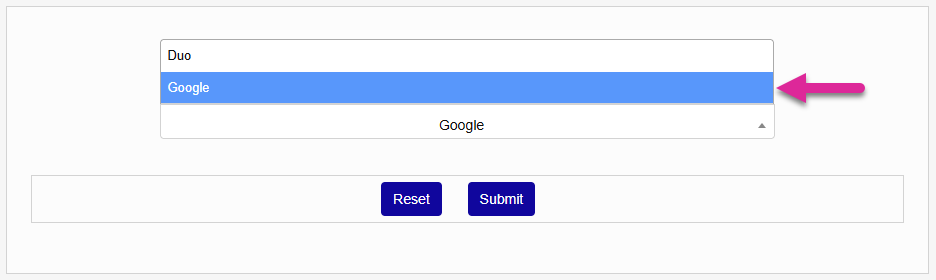
To set up two-factor authentication using the Google Authenticator app, select Google and click Submit to proceed.
On the following page, check the Active box to turn on Google authentication.
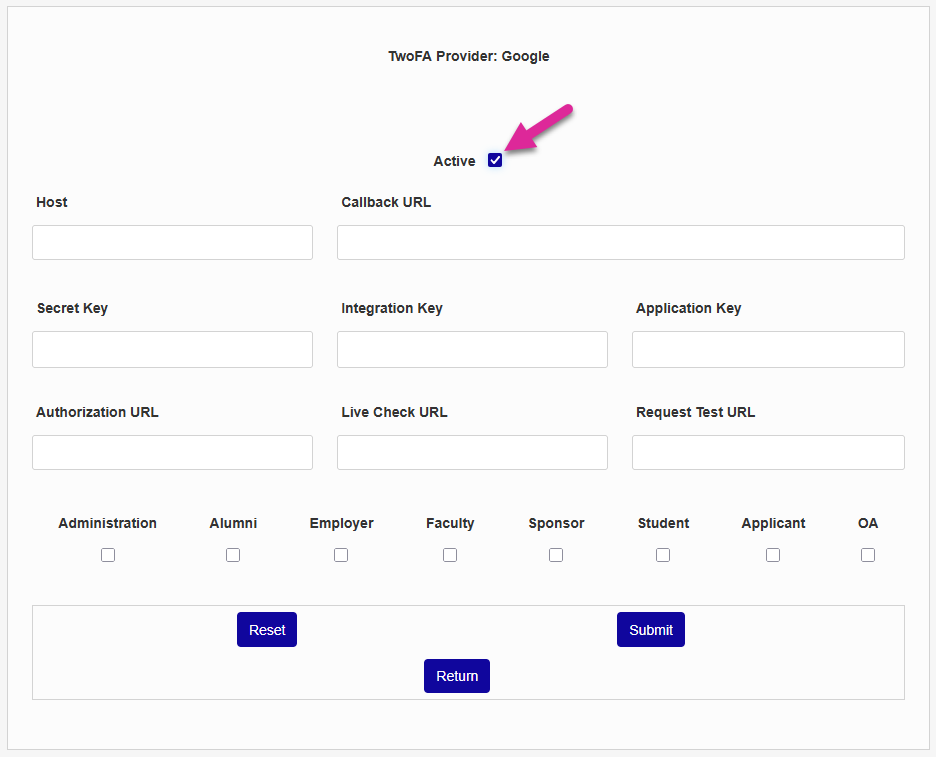
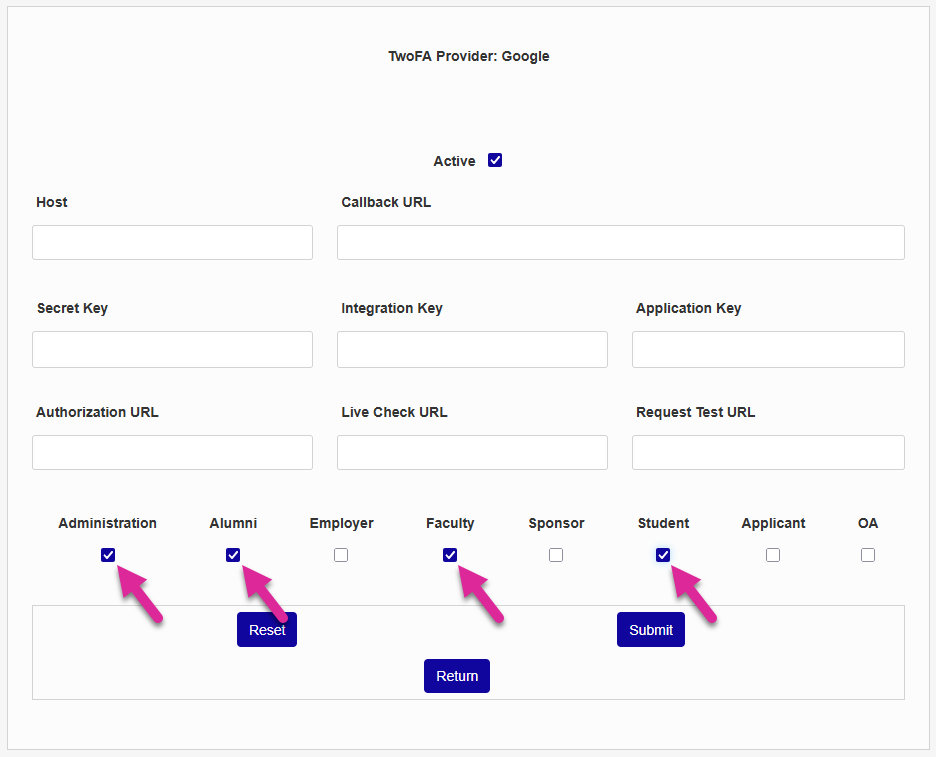
The remaining fields on the page are not being used at this time and can be left blank. Check the Administration, Alumni, Employer, Faculty, Sponsor, Student, Applicant, and/or OA boxes to choose which portals will require two-factor authentication.
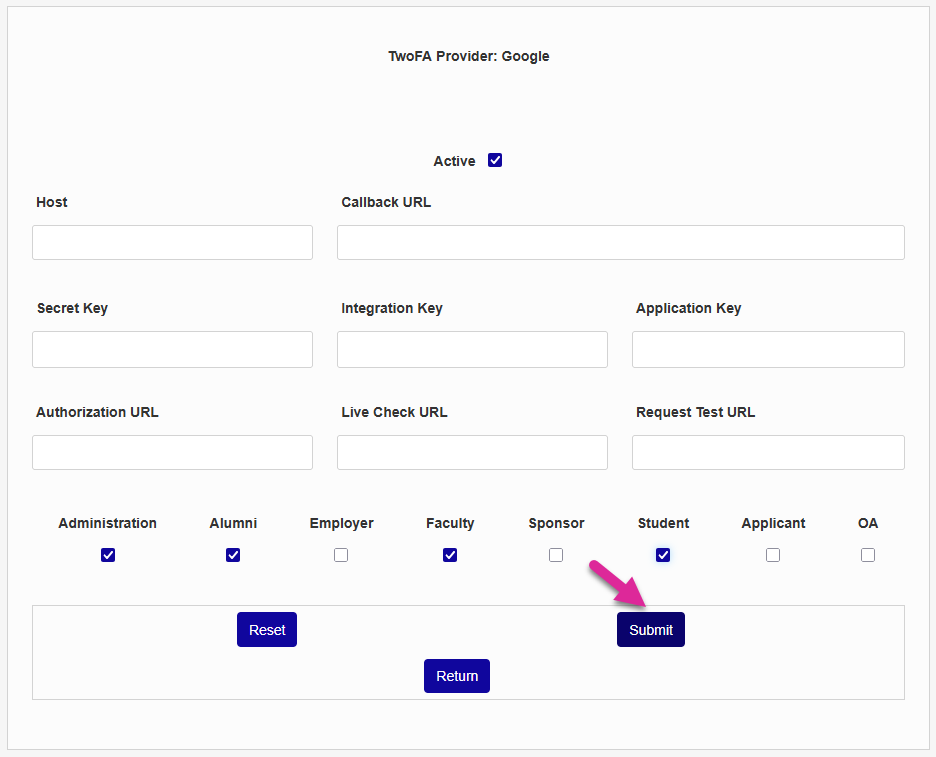
Click Submit to save the changes and activate two-factor authentication through Google.
Duo
Duo Setup
Before Duo can be implemented within the SONIS system, institutions must first create their own Duo account and authentication application. Visit https://duo.com to create an account.
Once logged into the Duo system, click Applications and Protect an Application in the left-nav menu.
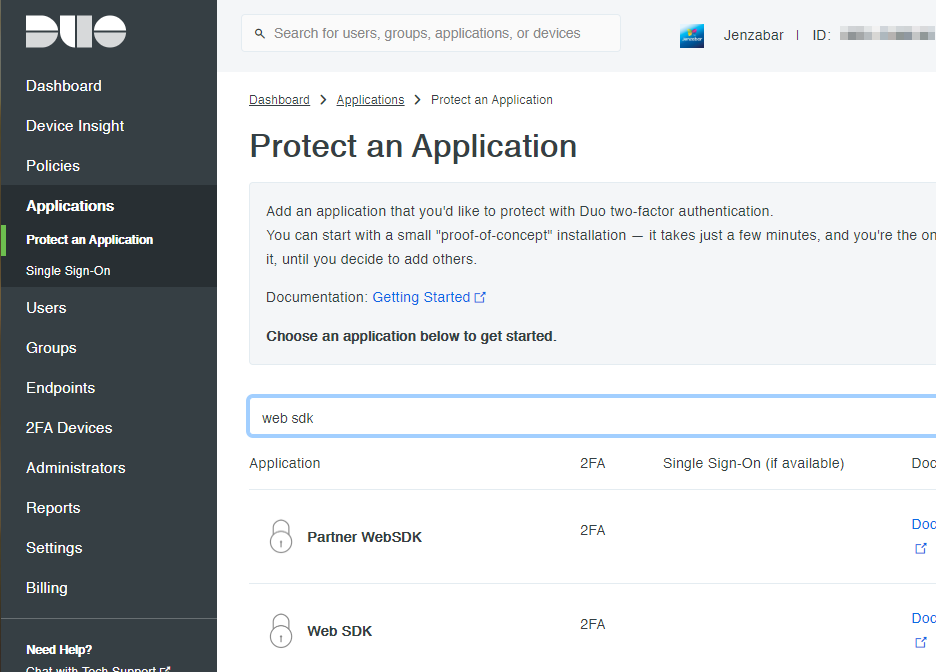
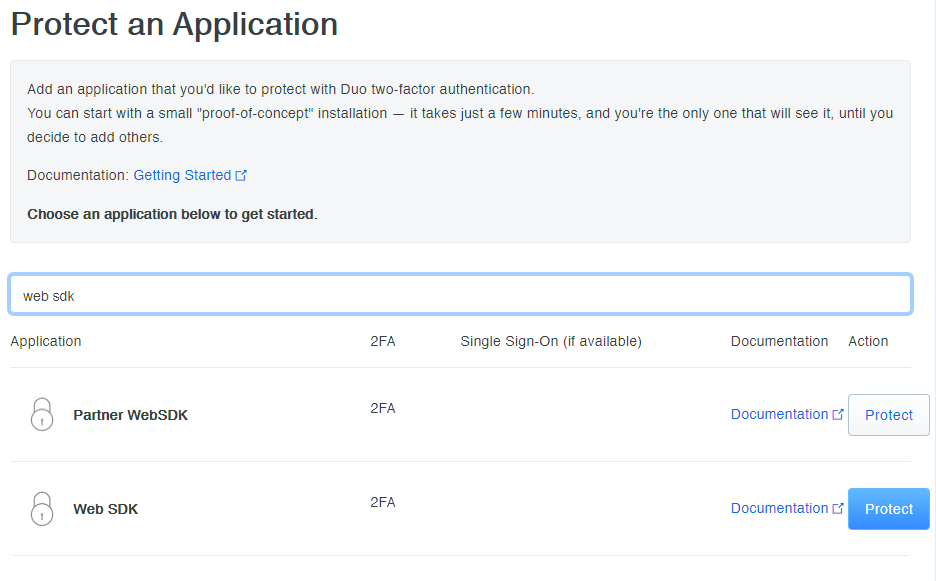
Search for Web SDK to locate the Web SDK application and then click Protect .
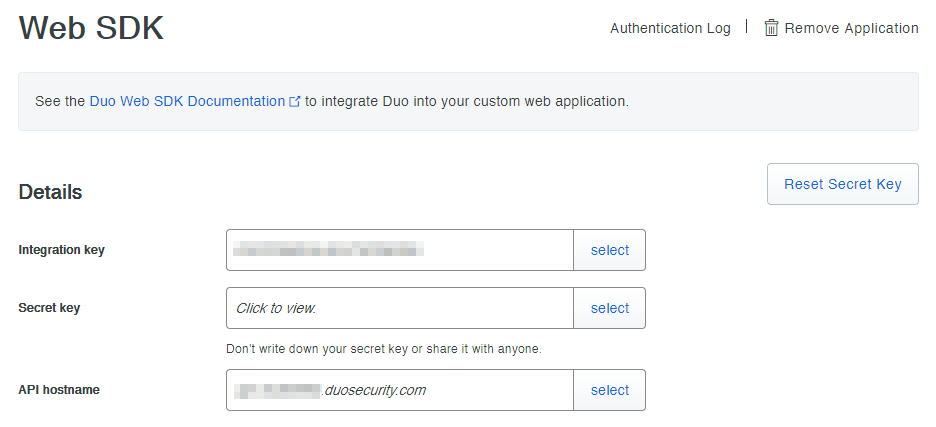
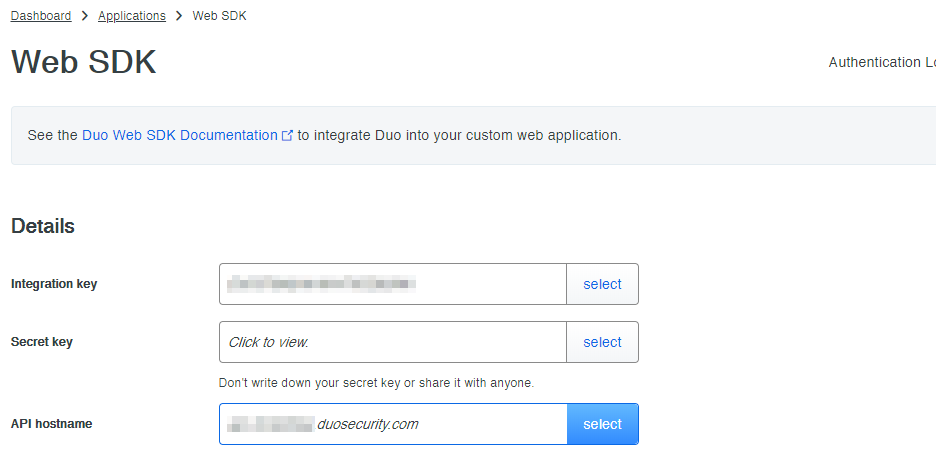
The value as the top of the page will be needed in SONIS. The Policy and other variables can be set as desired from the bottom of the page.
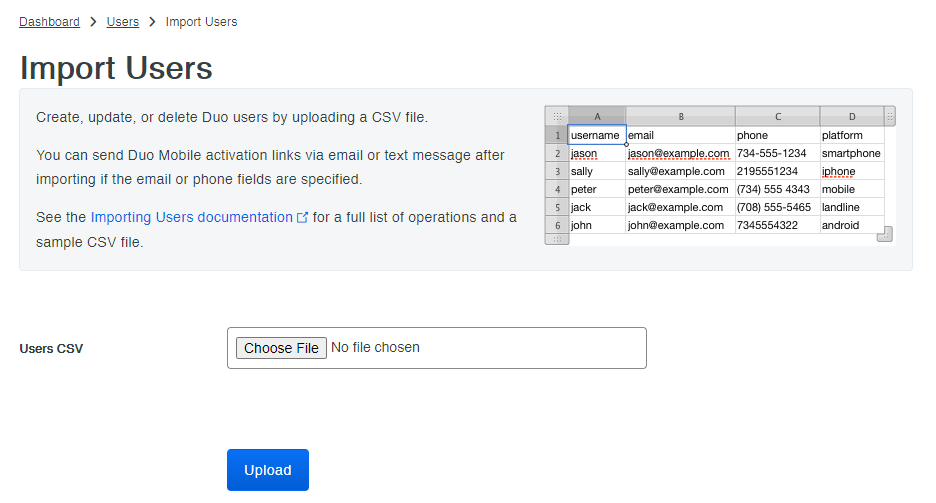
Once the application has been created, institutions have the option to add SONIS users to their Duo account to simplify the process for those users and allow for sign-on through text messaging. If a user's phone number is not already listed in the Duo system, they will be prompted to download the Duo app. Users can be entered in bulk using the Import User function in Duo. A CSV with the needed info can be created using SONIS Report Builder .
SONIS Setup
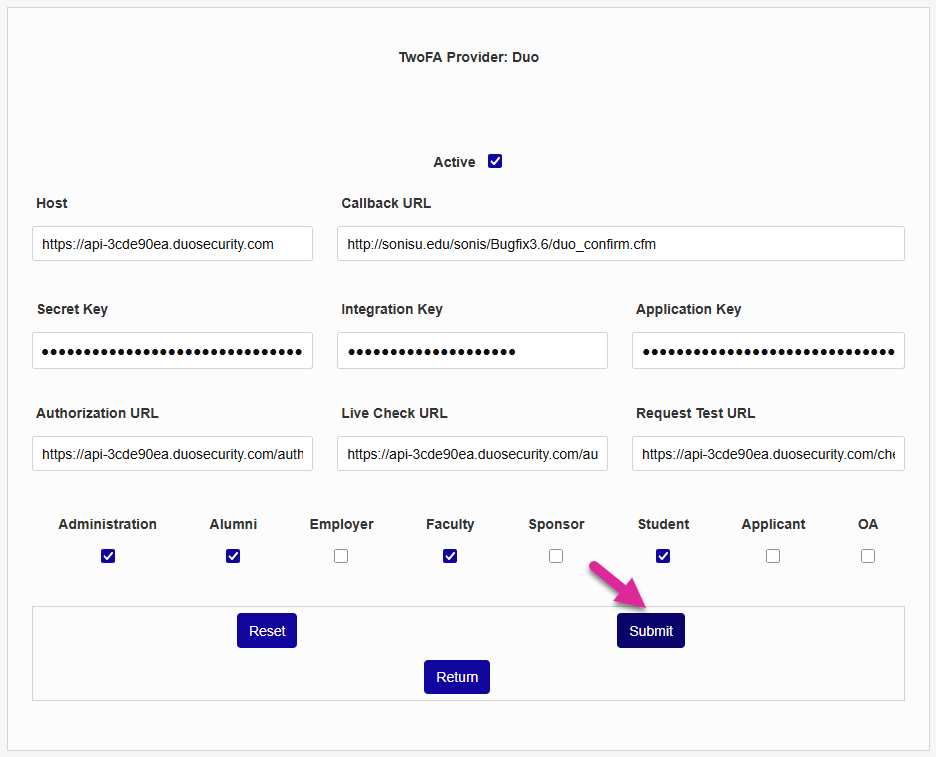
Once the Duo application has been set up, navigate to the Two-Factor Authentication utility in SONIS select Duo. Click Submit to proceed.
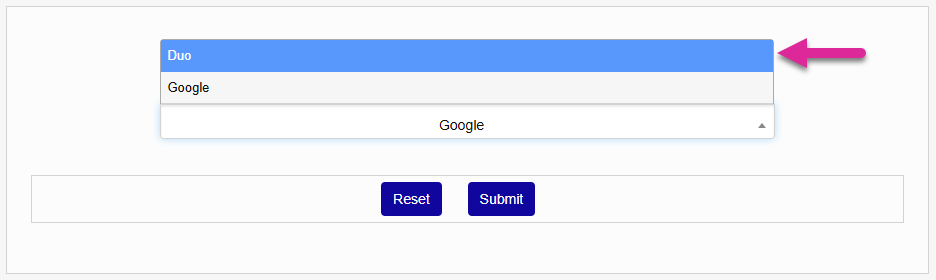
On the following page, check the Active box to turn on Duo authentication.
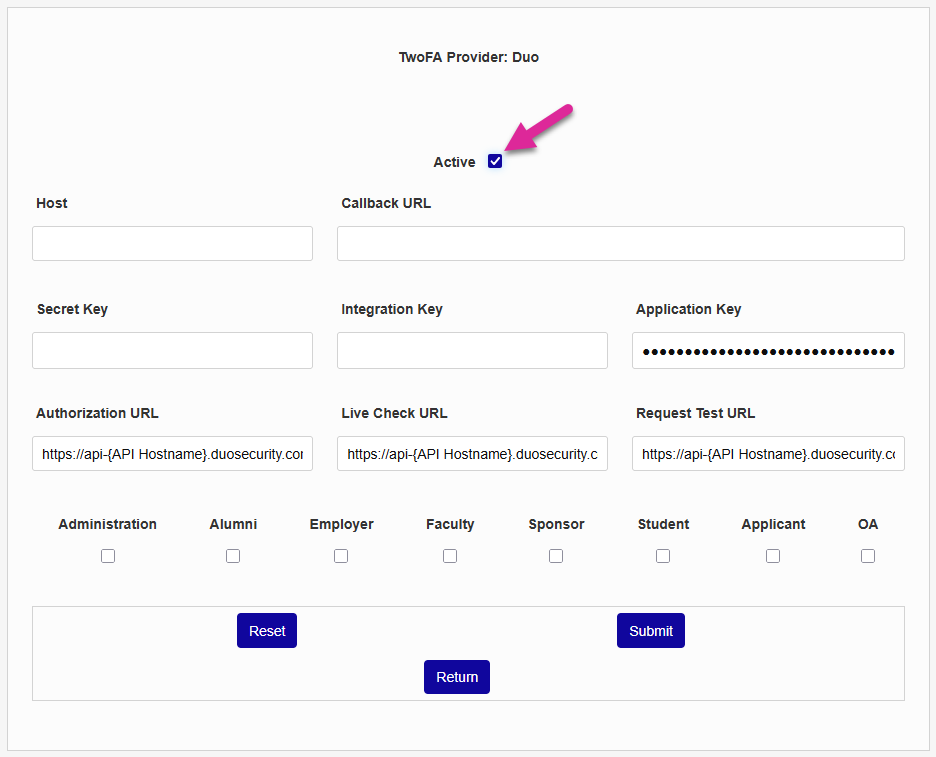
The value for the Host field is listed as the API Host in Duo. Click Select , copy the value from Duo, and paste it into SONIS.
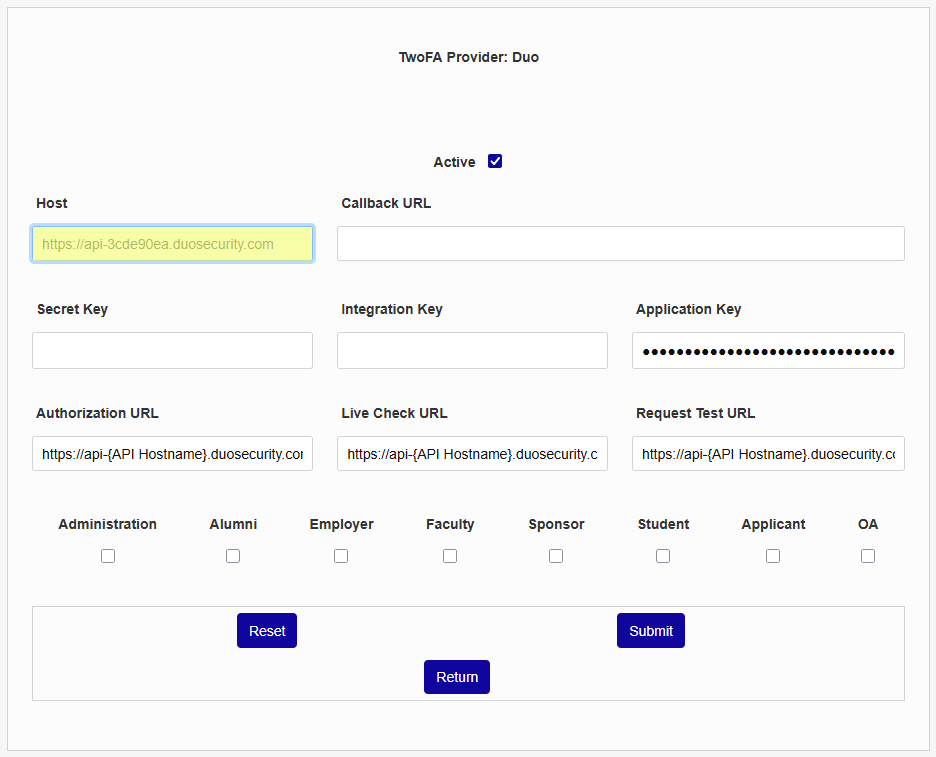
The callback URL is the page where the student is returned after successfully authenticating. The value should be http://<school url>/duo_confirm.cfm. The institution URL should include the location where SONIS is accessed.
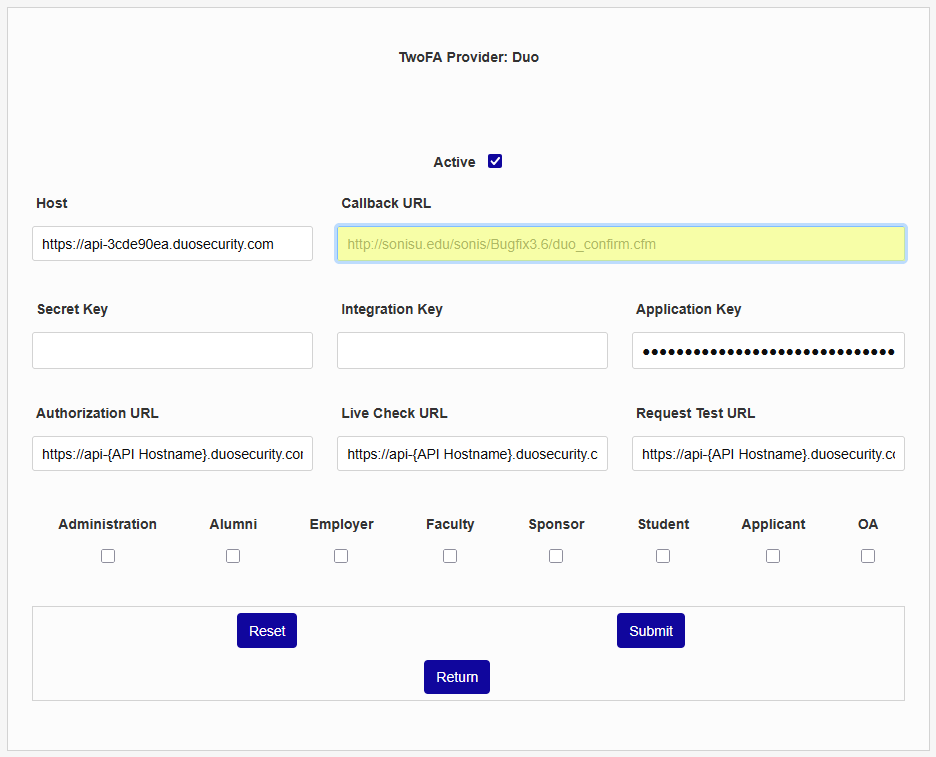
The Secret Key is listed with the Host on the Duo site. Click Select , copy the value from Duo, and paste it into SONIS.
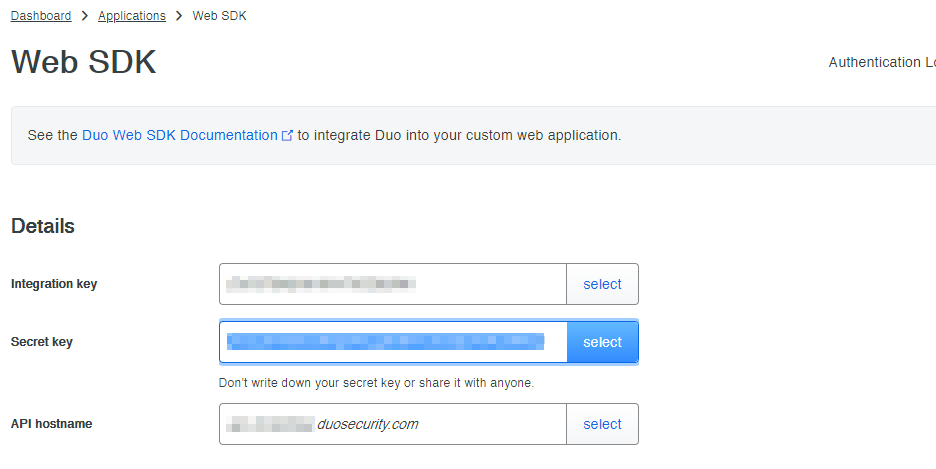
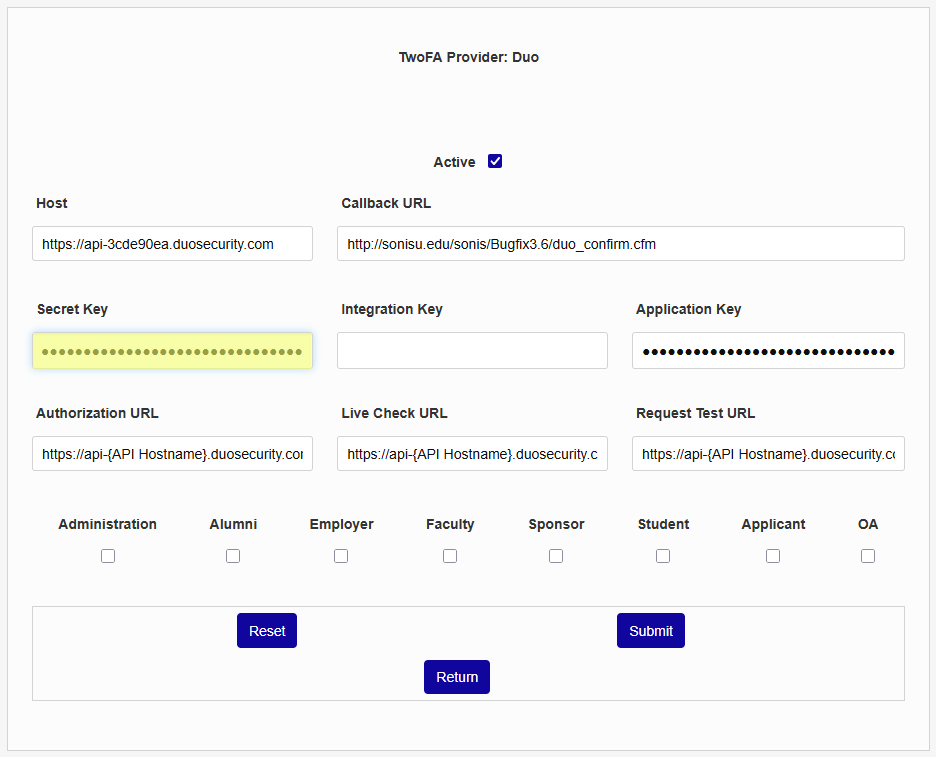
The Integration Key is located in the same location in the Duo system. Click Select , copy the value from Duo, and paste it into SONIS.
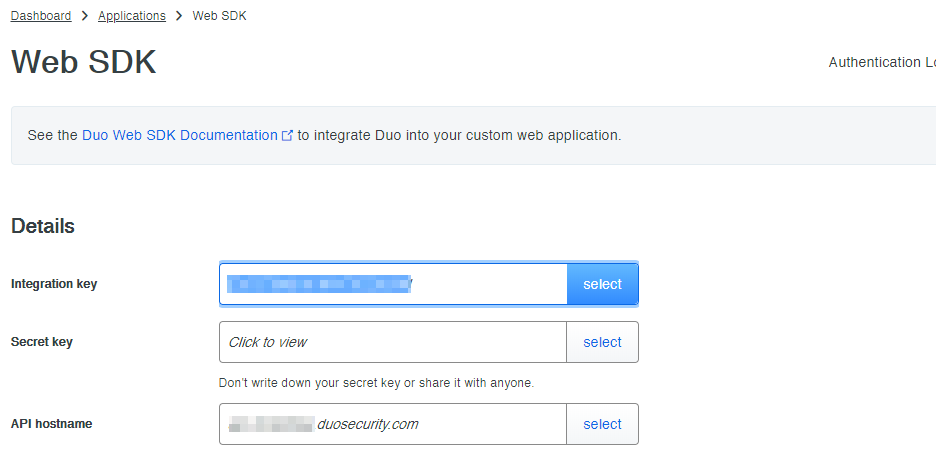
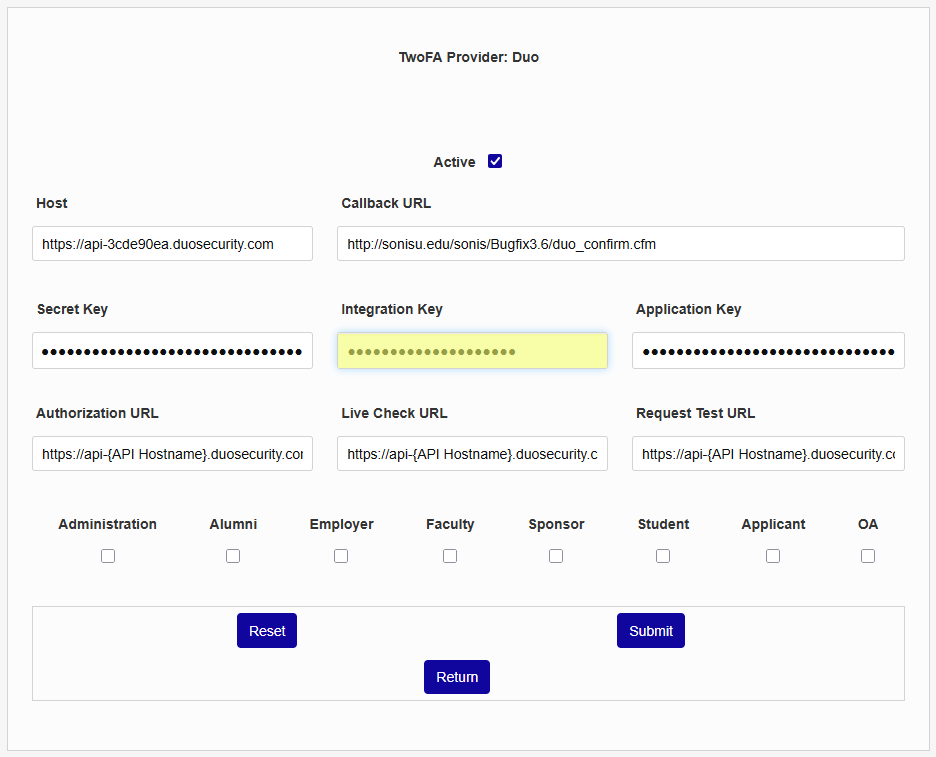
The Application Key is provided by SONIS and filled in automatically. This field should not be altered.
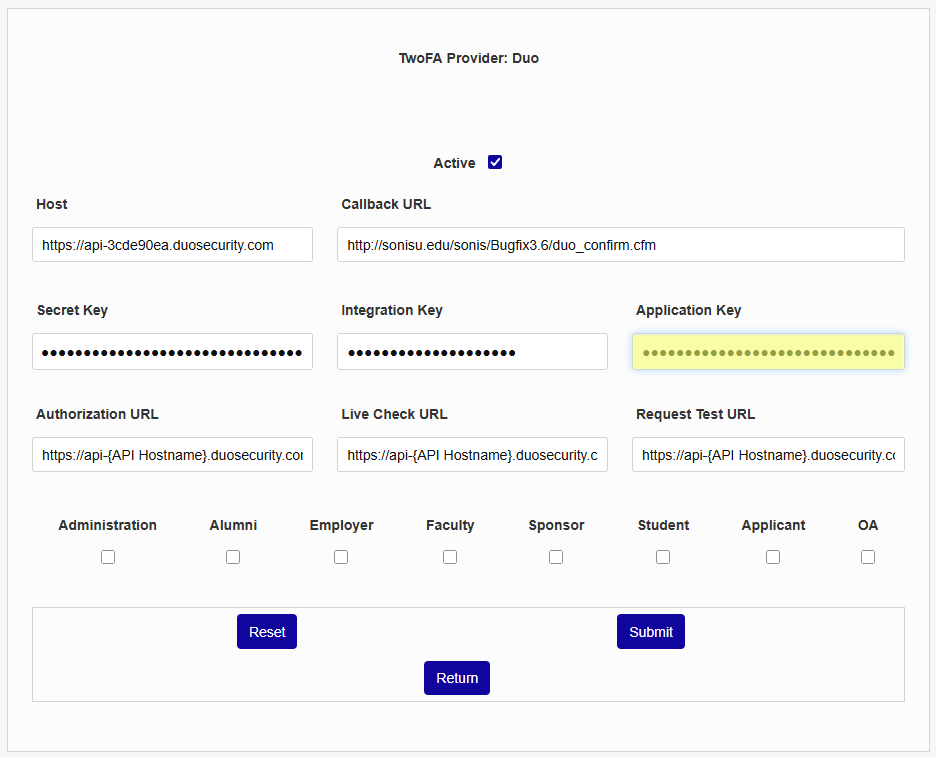
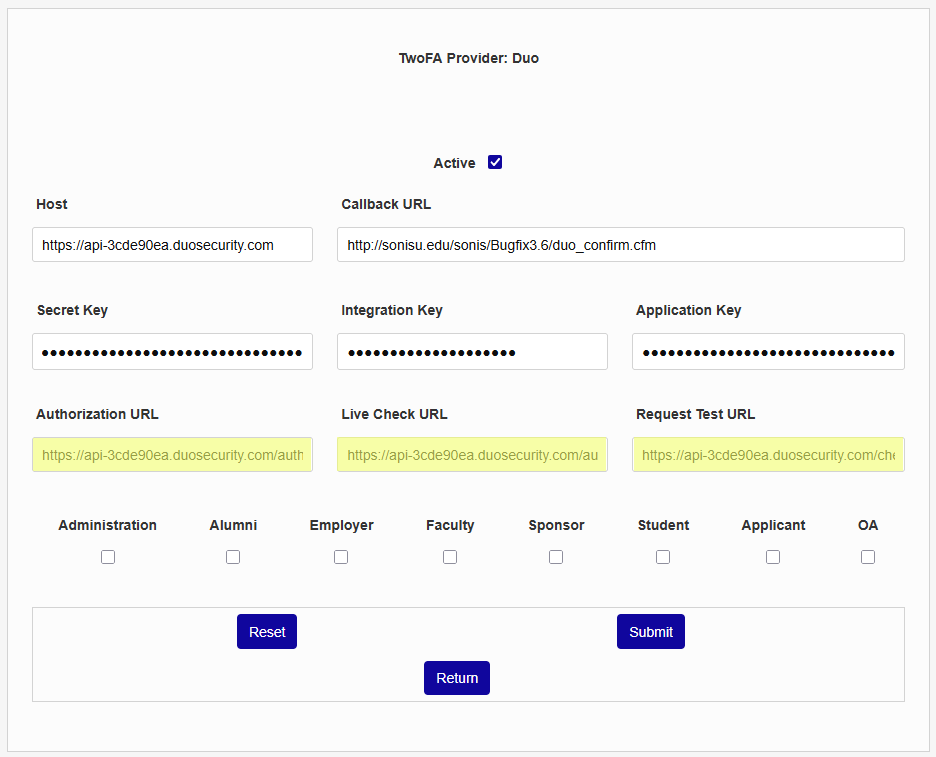
The Authorization URL , Live Check URL , and Request Test URL fields are partially filled out. Simply replace the {API Hostname} text with the part of the API Hostname from Duo that comes between api and .duosecurity.com .
Check the Administration , Alumni , Employer, Faculty, Sponsor, Student, Applicant, and/or OA boxes to choose which portals will require two-factor authentication.
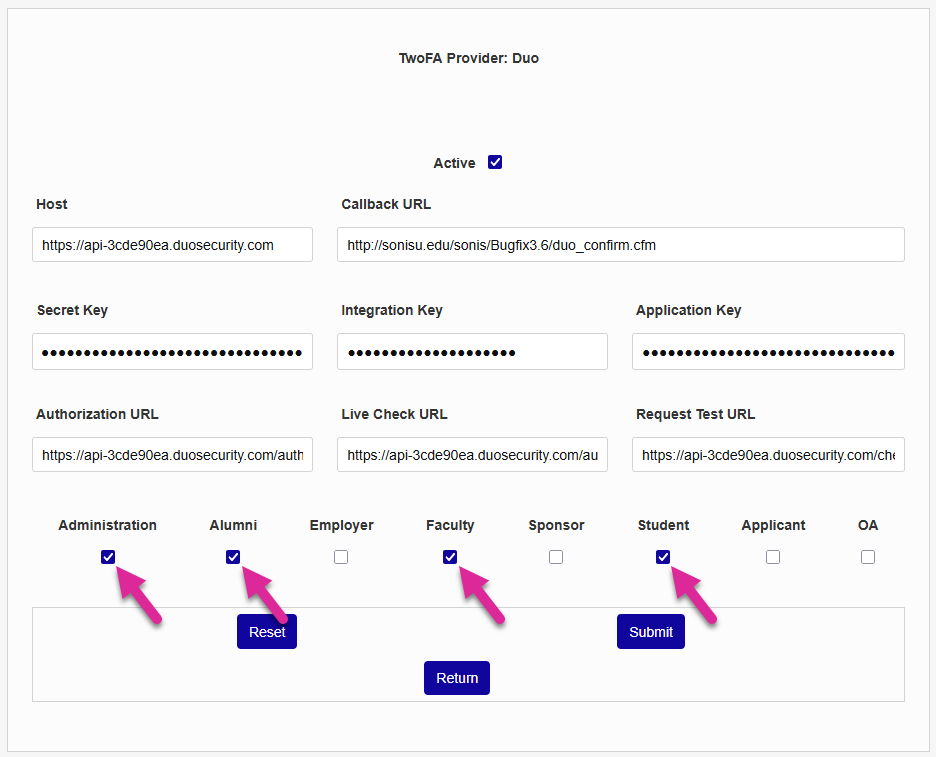
Click Submit to save the changes and activate two-factor authentication through Duo.
Logging in with Two-Factor Authentication
The first time a user attempts to login to SONIS with Google two-factor authentication turned on, they will be prompted to link their account to a device. To do so, the user must open their Google Authenticator app and click the + button in the lower right-hand corner.

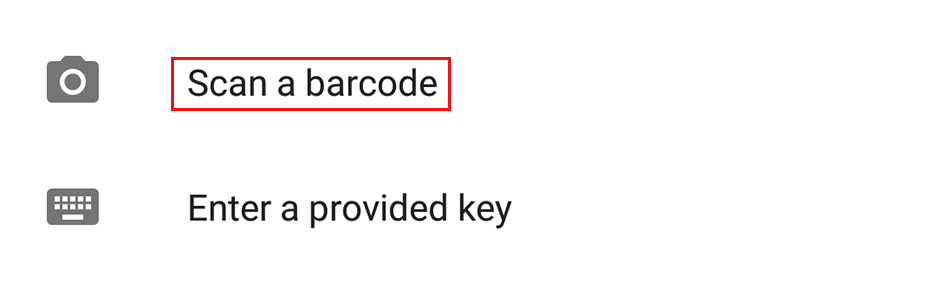
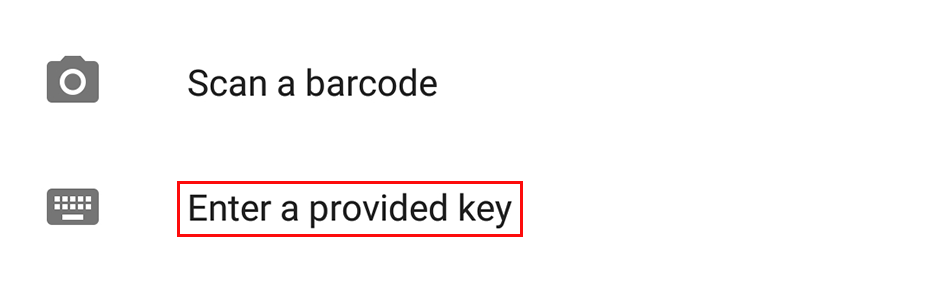
The authenticator app will prompt the user to either scan the barcode displayed on the screen using their device's camera, which will automatically create an account link, or set up the link manually by naming the account and typing in the code.
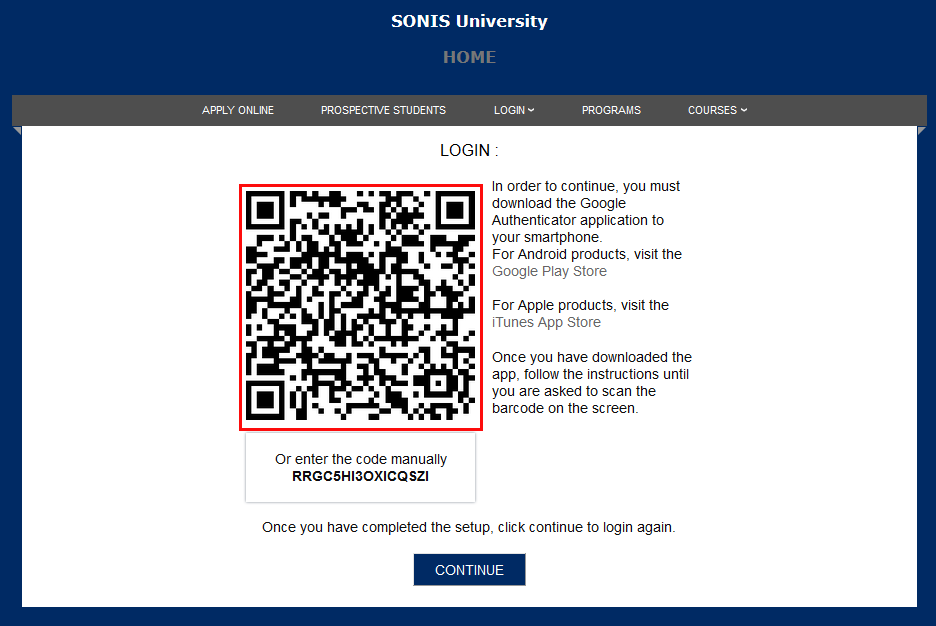
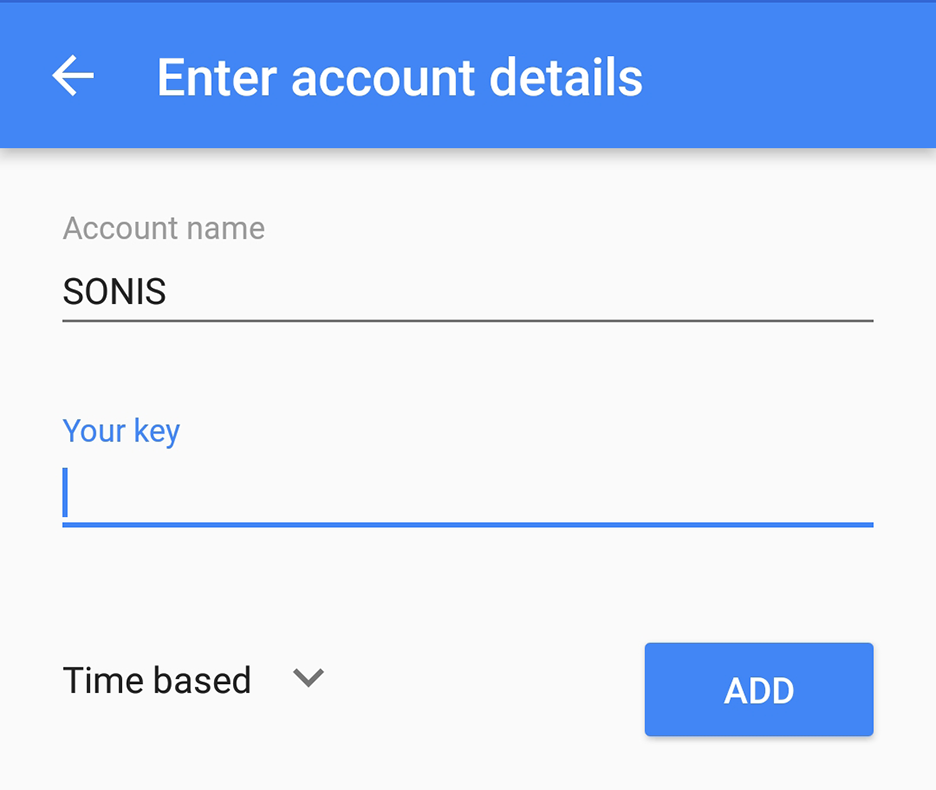
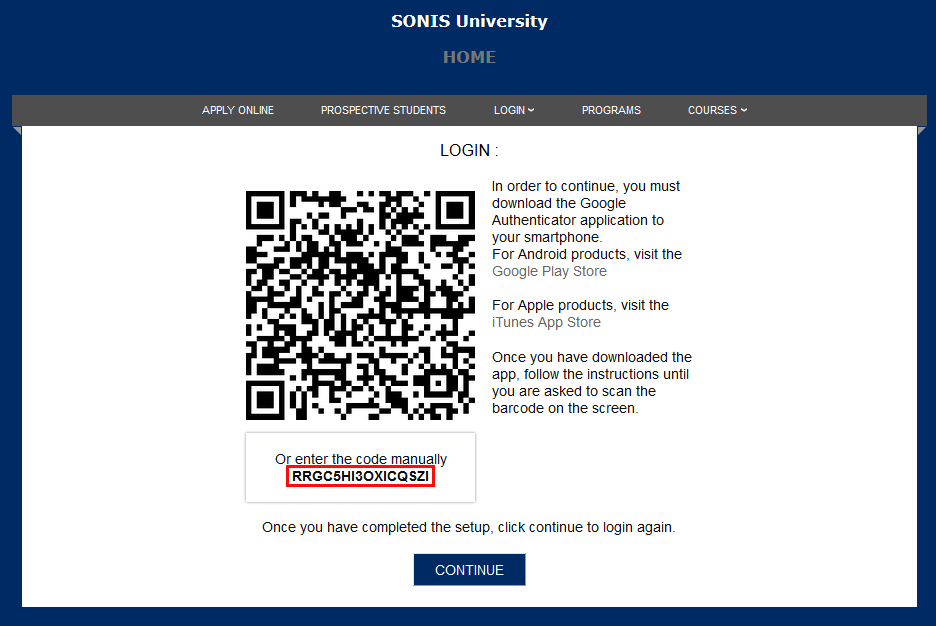
Note: Once the account has been linked, the user must have the linked device available every time they log in to SONIS.
Once a verification code has been generated, SONIS will automatically proceed to the next step and ask the user to enter the code.
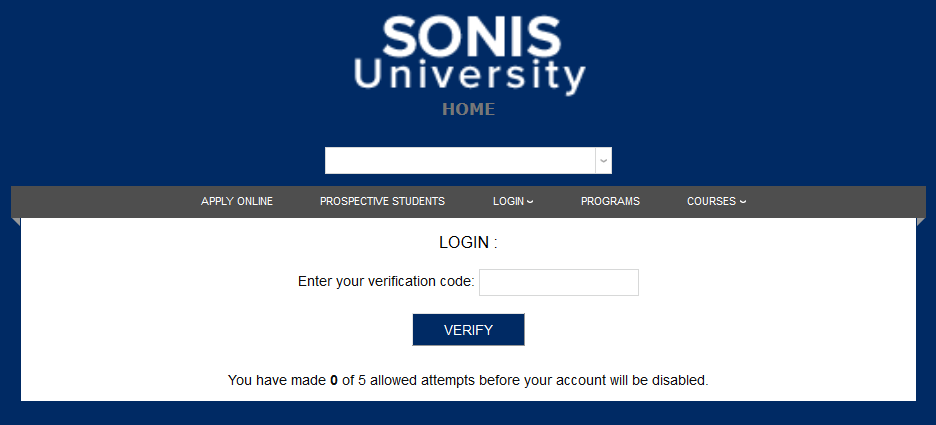
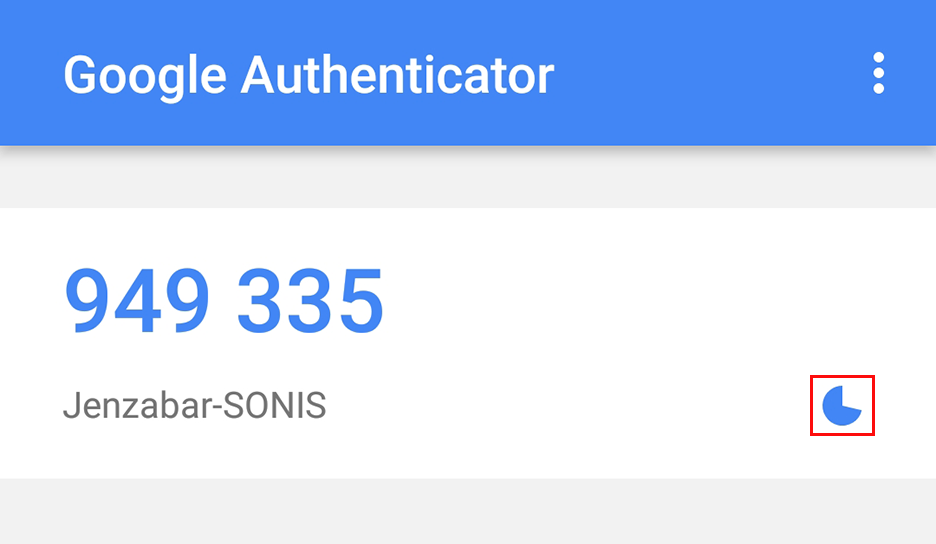
A verification code will appear on the Google Authenticator screen. The code is only valid for 30 seconds, after which time the Authenticator will automatically generate a new code. Users can see how much time they have left to use the current code by looking at the dwindling pie in the lower right-hand corner.
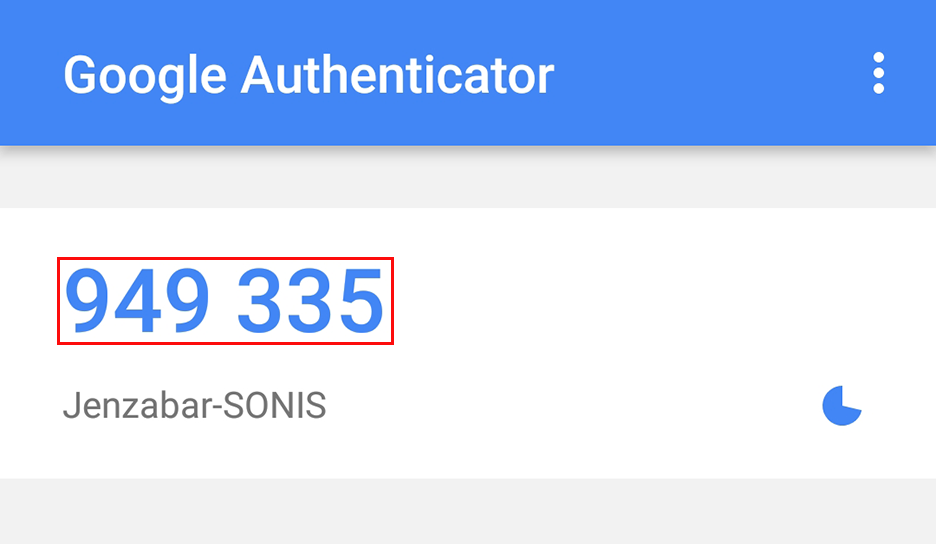
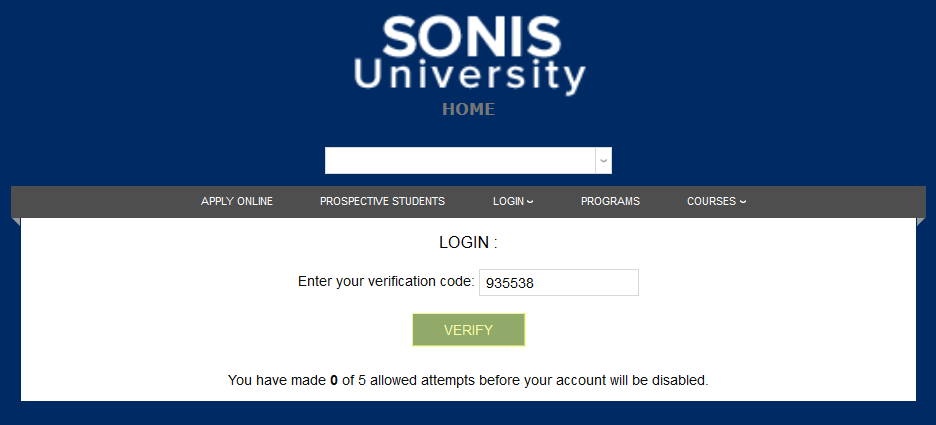
Enter the six-digit code and click the Verify button to finish logging in.
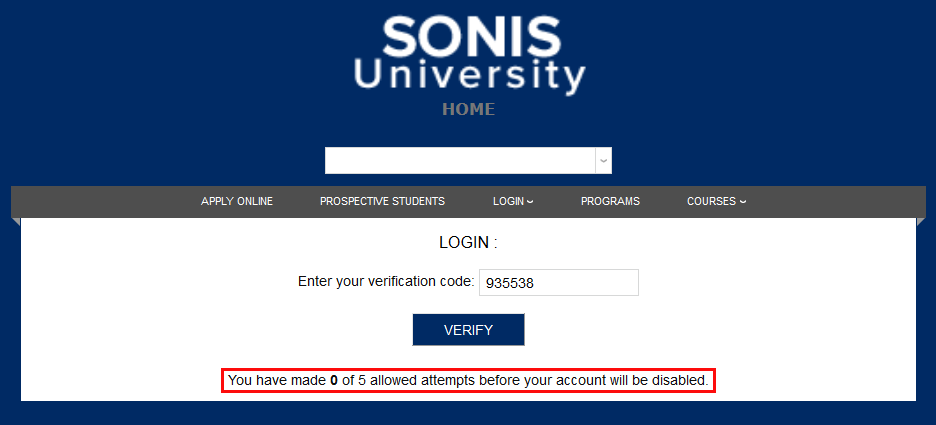
Each user gets five attempts to log in. If they give the wrong code on the fifth attempt, their account is automatically disabled and must be reactivated by an administrator before they can log in again.
Duo
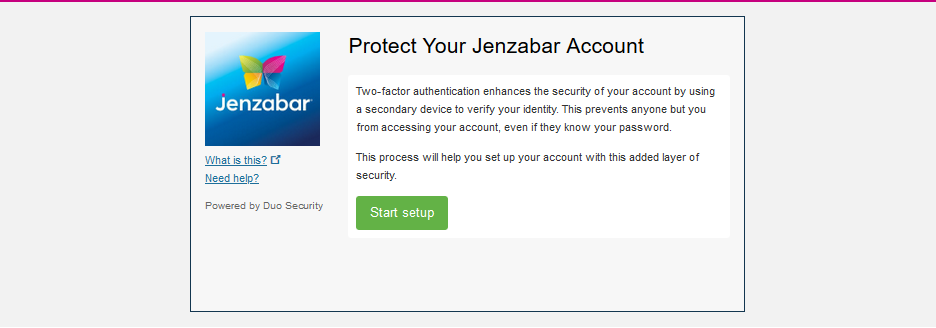
The first time a user attempts to login to SONIS with Duo two-factor authentication turned on, they will be prompted to set up their account if they haven't done so. The logo and institution name displayed here are based on the information provided to Duo. Click Start setup to proceed. These steps are for users who do not have their phone number added to Duo already.
On the next pages, the user is asked to select the kind of device they're adding and then to enter their mobile phone number and specify whether their device runs Android, Apple iOS, Windows, or another system.
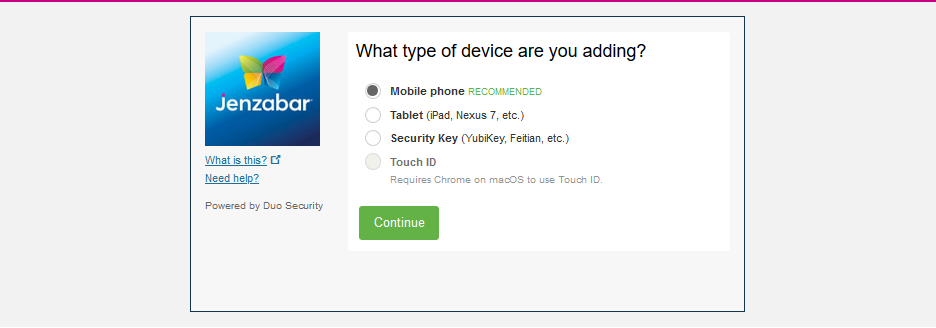
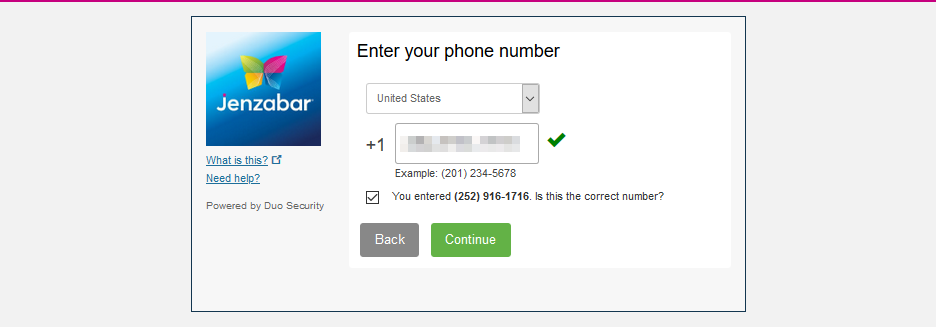
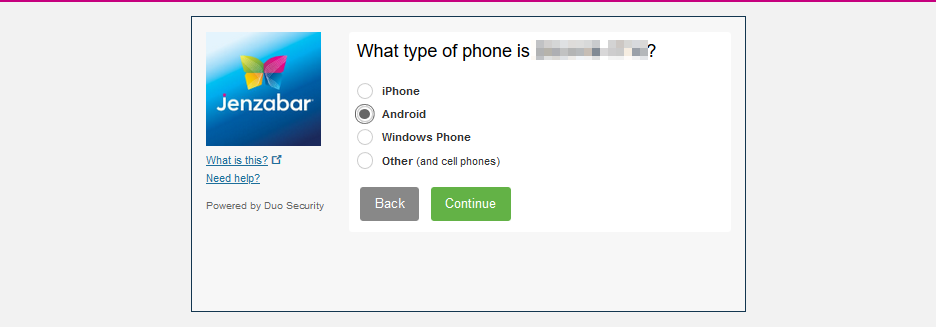
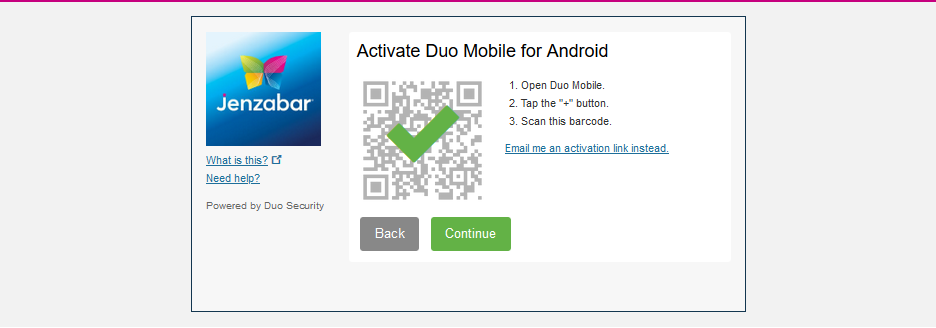
Finally, the user is prompted to download the Duo app and scan a barcode that appears on screen to connect the phone to the account.
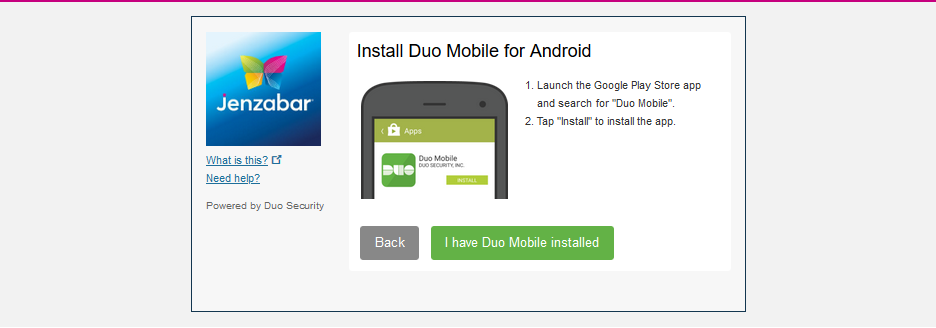
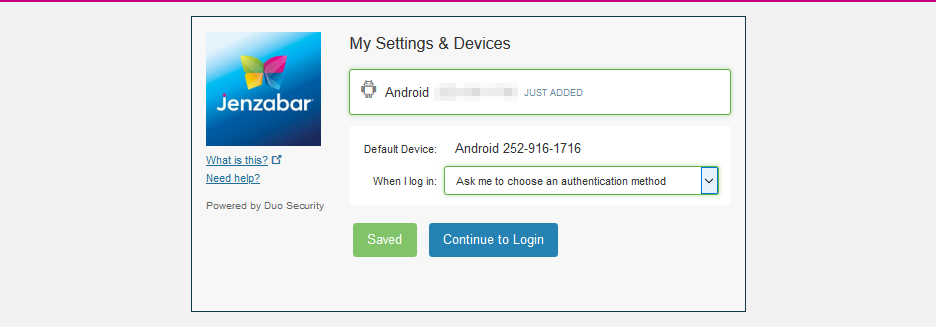
Finally, the user is prompted to choose how they would like to receive login requests in the future and can Continue to Login .
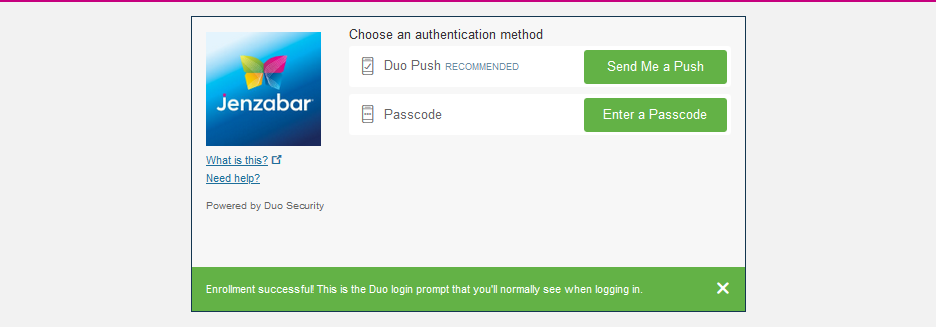
When the user logs in, they can opt to receive a push notification through their Duo app or enter a passcode from the app.
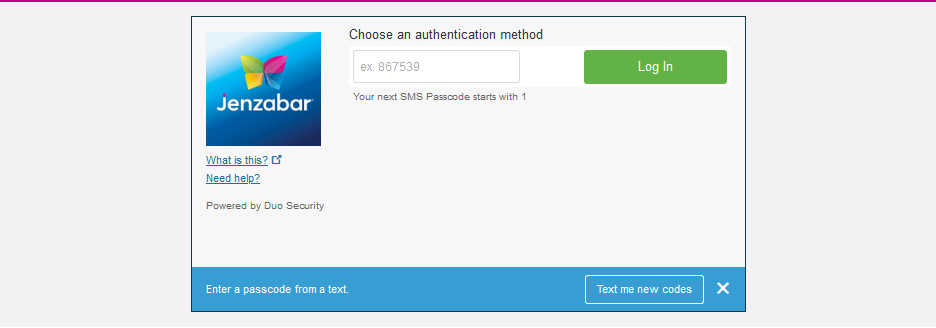
If the user's phone number has been synced with their account in Duo by administration, they can enter a passcode and receive new passcodes via text without downloading the Duo app. Passcodes can be set to expire or remain active in Duo's account Settings .
Resetting Account
By default, inorder to keep the account secure, once a user has linked their account to a device, the codes to make the link will not appear again. Otherwise, someone attempting to hack the account who already had the username and password could download Google Authenticator or Duo and create their own link to receive a login code on their own device. A one-time linking process prevents this scenario.
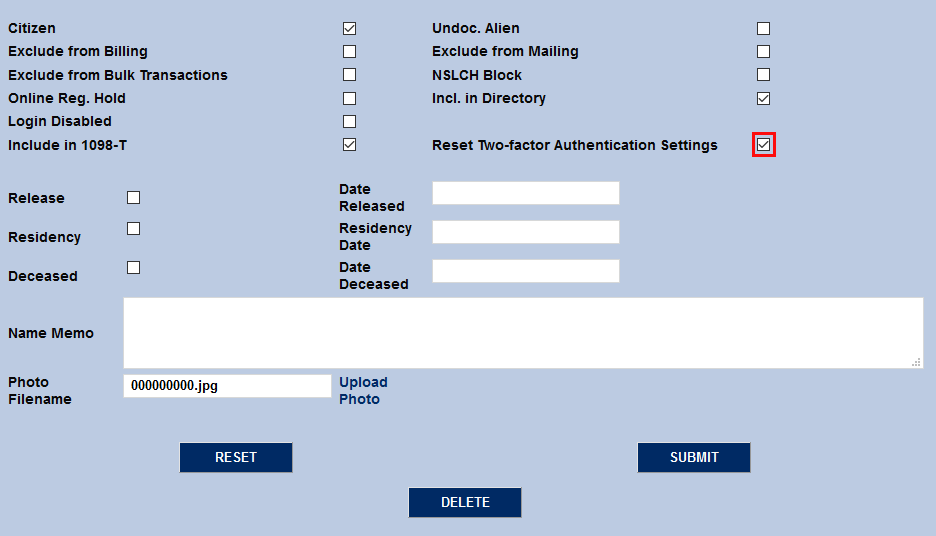
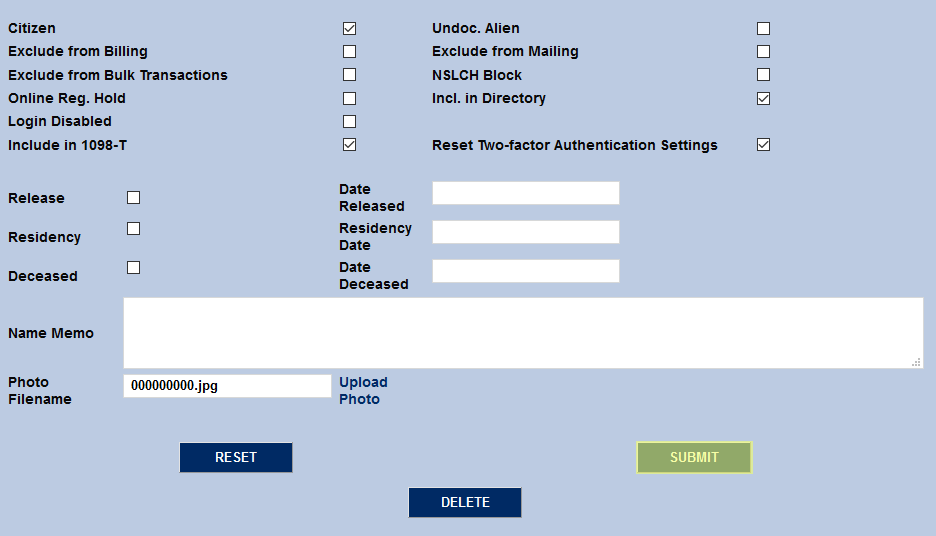
However, a user who loses their device or changes platforms may need to create a new link. For this reason, once Two-Factor Authentication has been turned on in Web Options, a new link will appear on each user's Biographic page allowing administrators to reset their account and allow for a new link to be created. Check the Reset Two-Factor Authentication Settings box and submit the page. The next time the user logs in, they will be prompted to link their account using the barcode or text code.
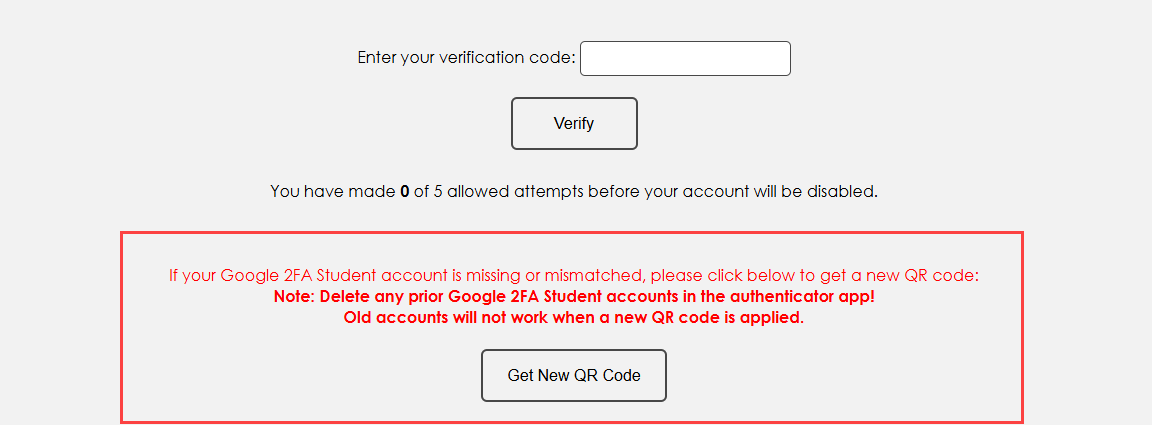
You can also choose to give your users access to reset their own two-factor authentication setup. This feature must be turned on by Jenzabar Support. When the feature is active, a Get New QR Code button appears on the login page.
Warning
This option may create additional security risk.