Career Major Re-Enrollment
Overview
The Career Major Re-Enrollment page is used by Oklahoma Tech Centers to reenroll students in career major courses. While other Jenzabar SONIS clients use our CMC functionality to designate competencies that students must complete before graduating, the Career Major Re-Enrollment utility is specifically designed for our Oklahoma schools and cannot be used without the Oklahoma functions being turned on. Additionally, CMCs must already be created through Table Maintenance and assigned through the CMC Assignment utility.
Setup
As previously noted, before the Re-Enrollment utility can be utilized, career major courses must be created and assigned to courses. Additionally, each course and section must have the proper Oklahoma state data attached. The data is created from within the Table Maintenance utility.
Course Add/Edit
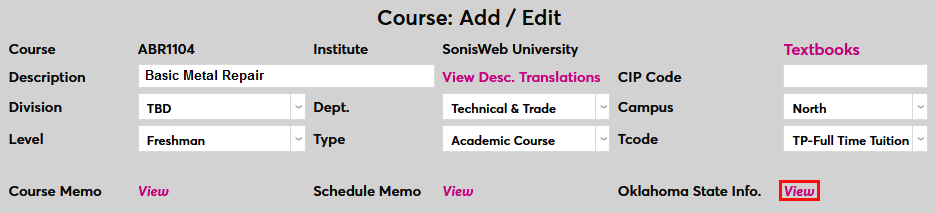
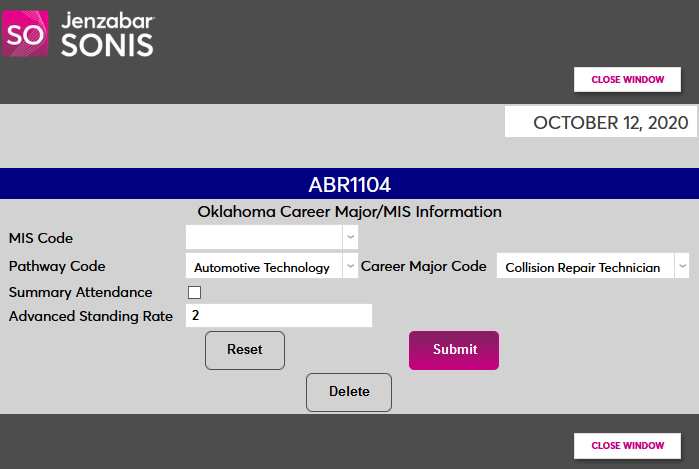
On the Course Add/Edit page, click the View link next to the Oklahoma State Info. label. A pop-up window will open.
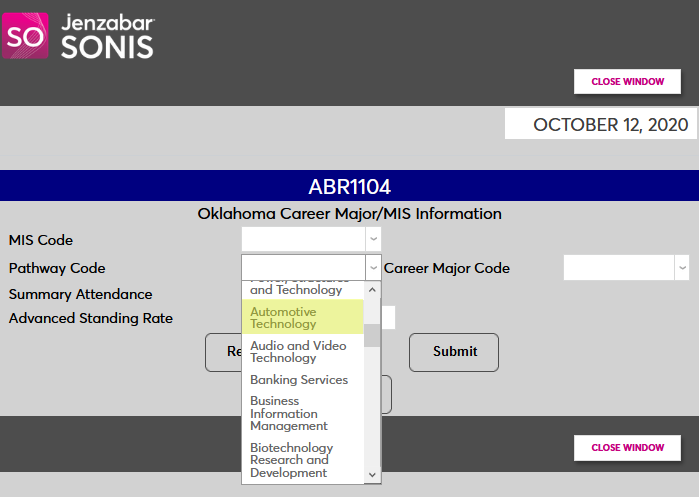
In the pop-up window, select the appropriate Pathway Code for the course.
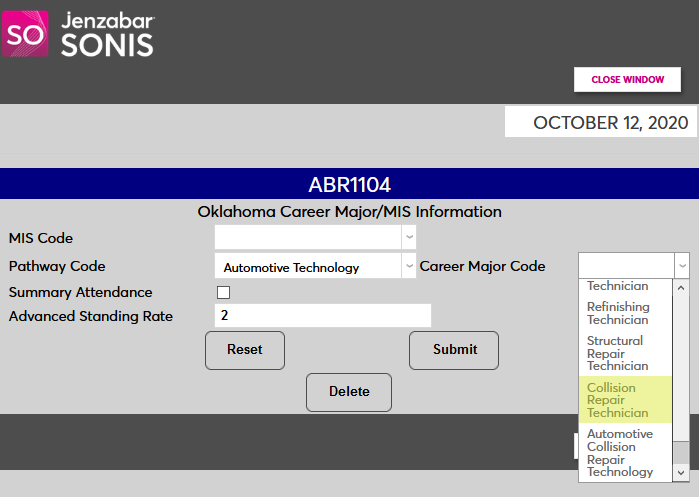
Next, select the Career Major Code for the course.
The other fields on this page may be needed for reporting and other SONIS functions, but are not required for courses to appear in the Career Major Re-Enrollment utility. Click Submit to save the changes.
Section Edit
Along with the correct course information, each course section to be included must have Oklahoma data as well. On the Section Edit page click the top View link next to the Oklahoma State Info. label. A pop-up window will open.

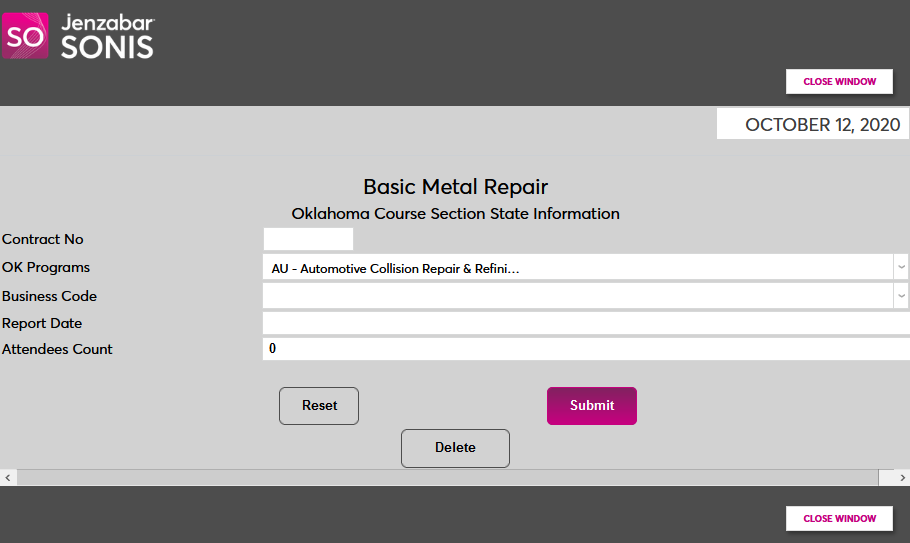
In the new window, select a program from the OK Programs field.
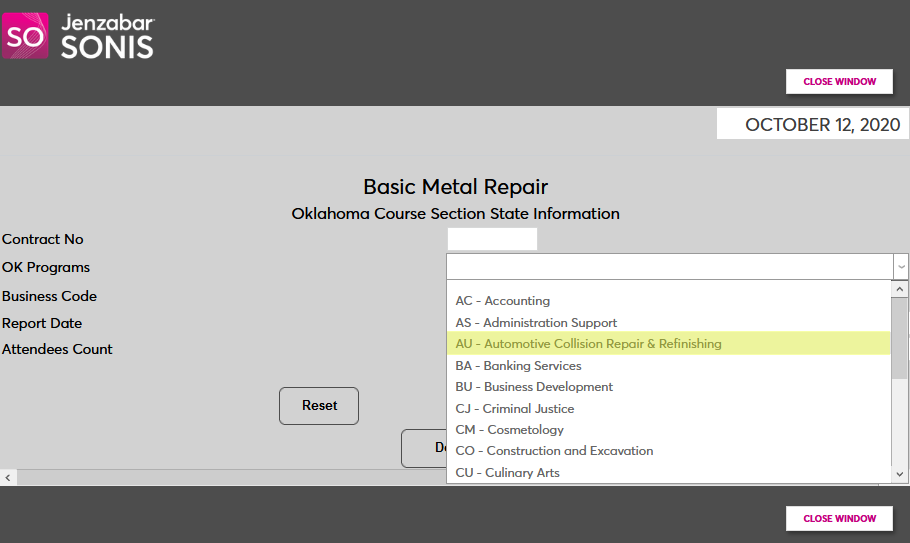
As with the Oklahoma information on the course page, other fields may be required for reporting and other functions, but the OK Programs field is the only field required by the Course Major Re-Enrollment utility. Click Submit to save the change.
Career Major Re-Enrollment
To reenroll students in a career major course, navigate to the Career Major Re-Enrollment utility in the Systems hub.
Display/Navigation
To view a previous or future semester, select a School Year and a Semester and click Submit.
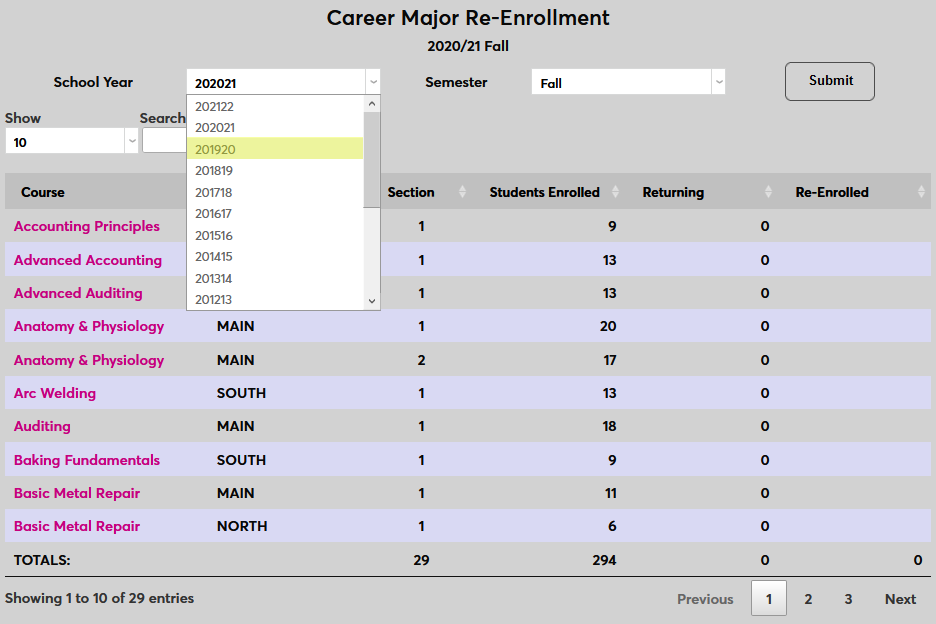
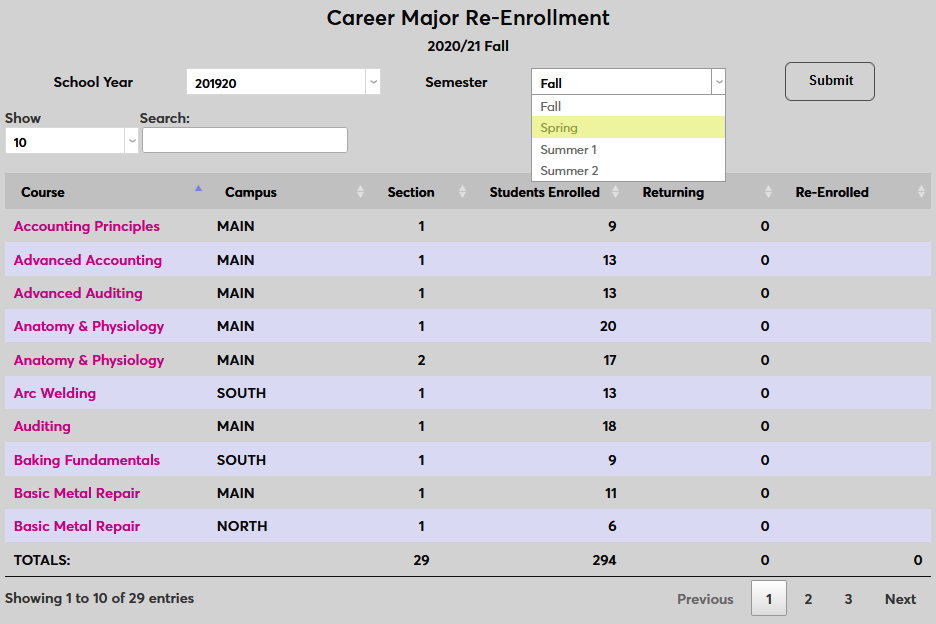
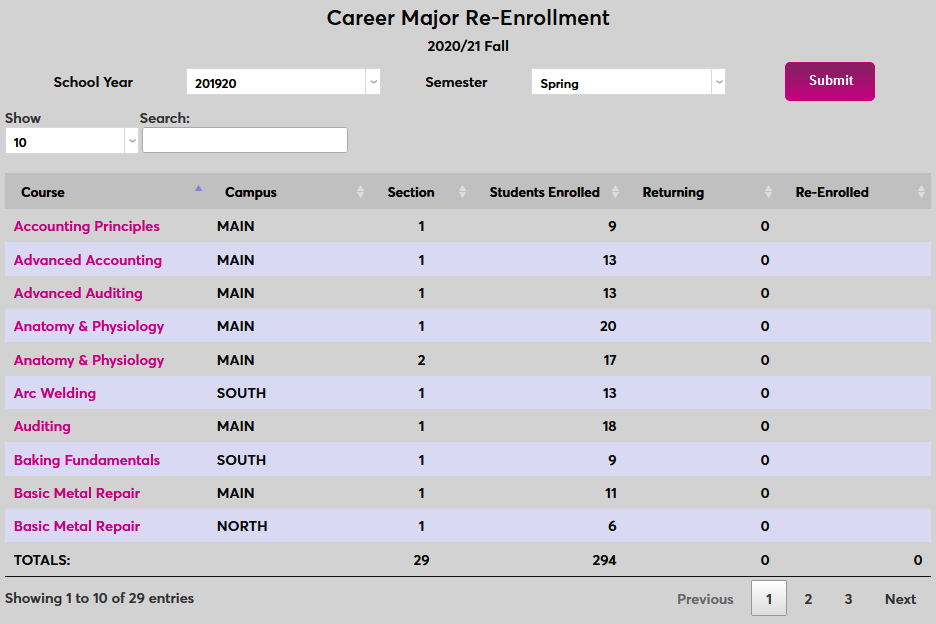
Viewing previous semesters makes it easier to find students who may have taken a semester or year off from the program. Keep in mind that actual re-enrollment will always be for a future semester, based on the current semester system setting.
The summary page details how many many students are enrolled in each course along with the number marked as Returning through the utility and the number who are Re-Enrolled in the course in the following semester. These numbers can differ if returning students were enrolled through another process. Click the up and down arrows on each column header to sort the page in ascending or descending order by that column.
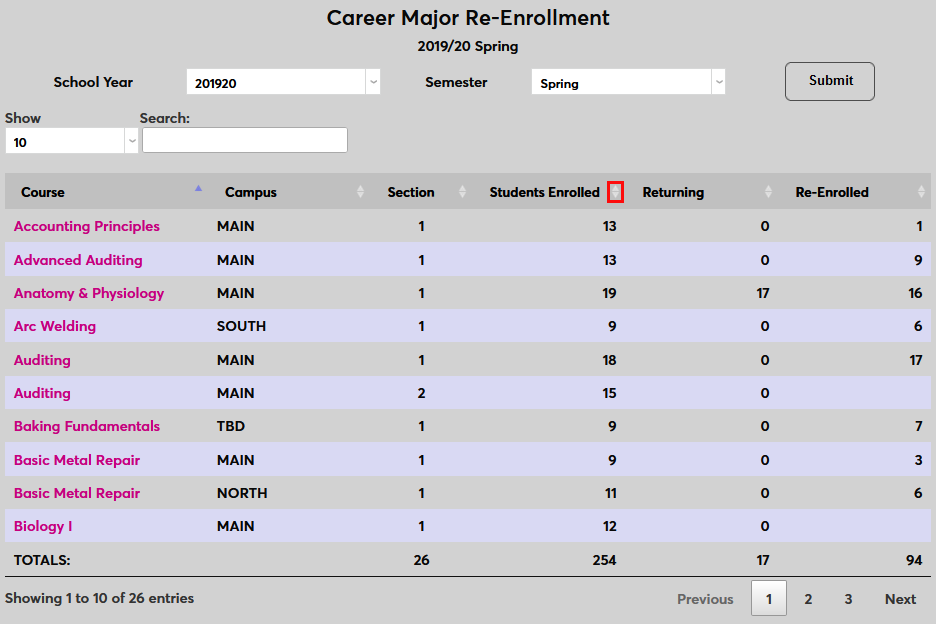
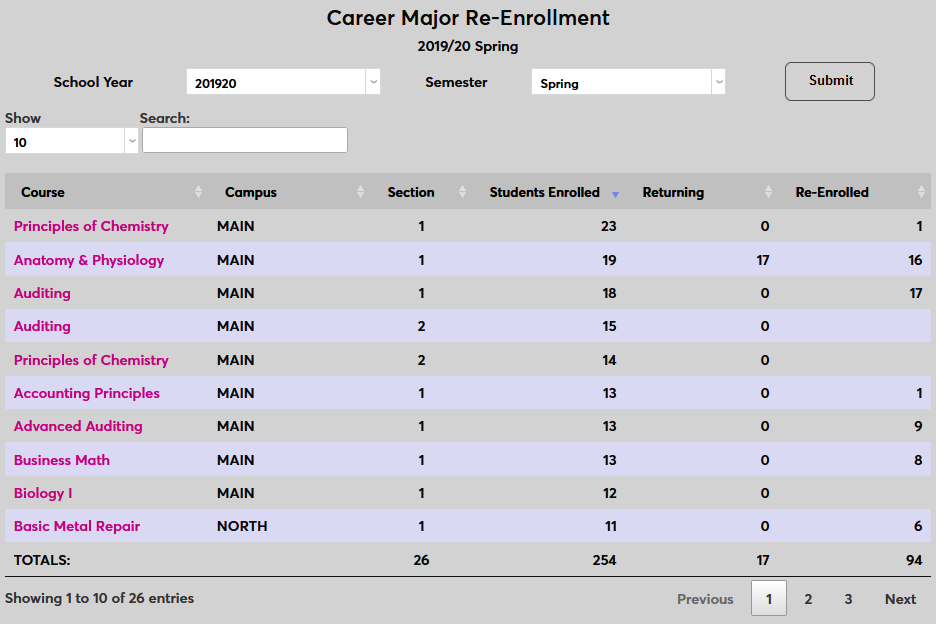
Use the Previous, Next, and page number buttons to navigate to additional pages and the Show menu to choose how many courses will display on the page.
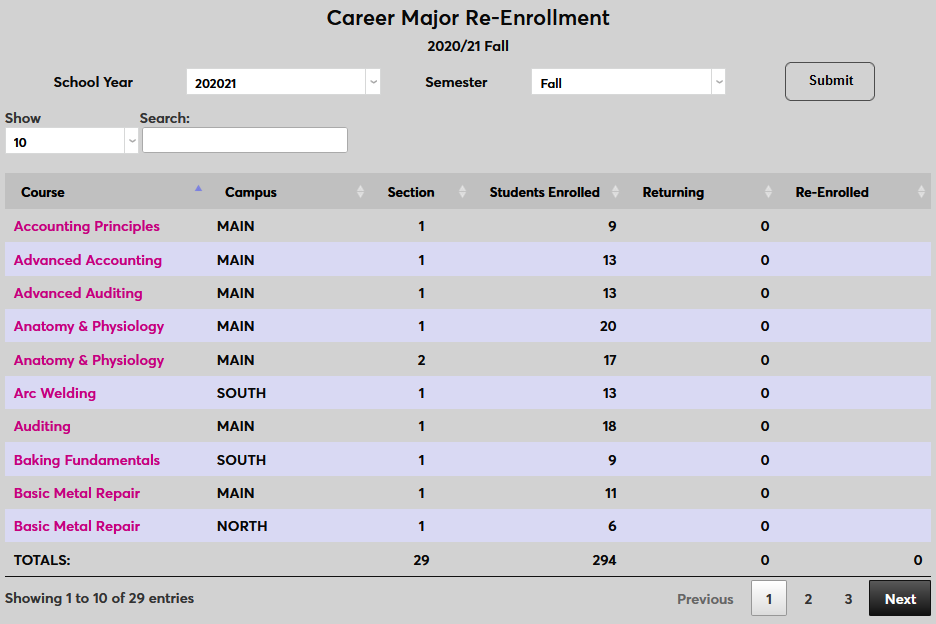
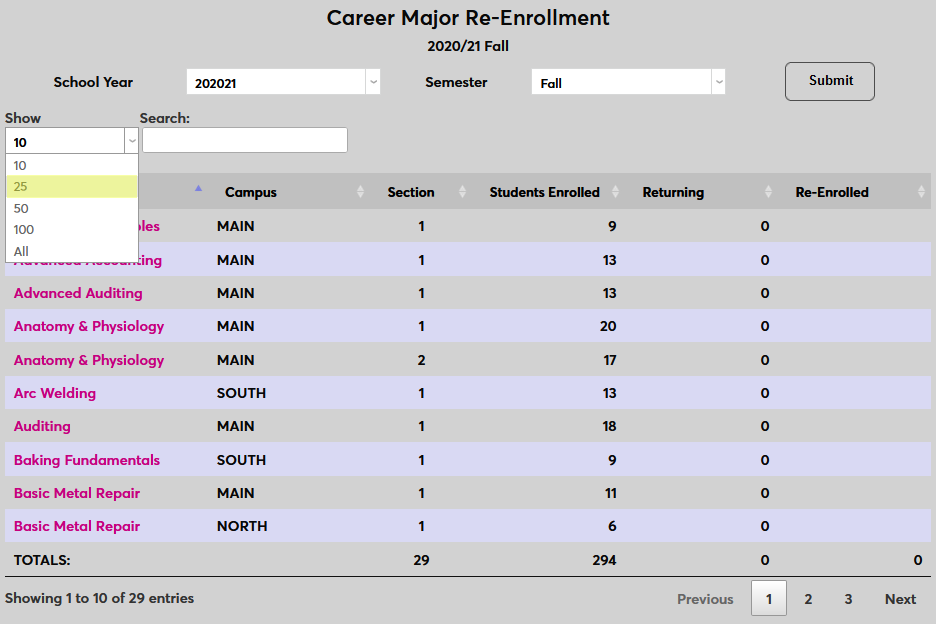
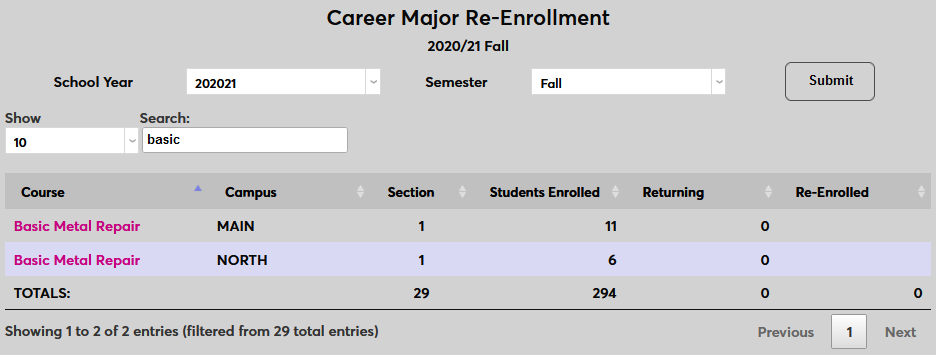
To search for a specific course or courses, type the course description into the Search box. The search field also searches the other columns, so administrators could search for all career major courses from a single campus or a specific section number, for example. The search results display in real time as characters are typed.
Reenrollment
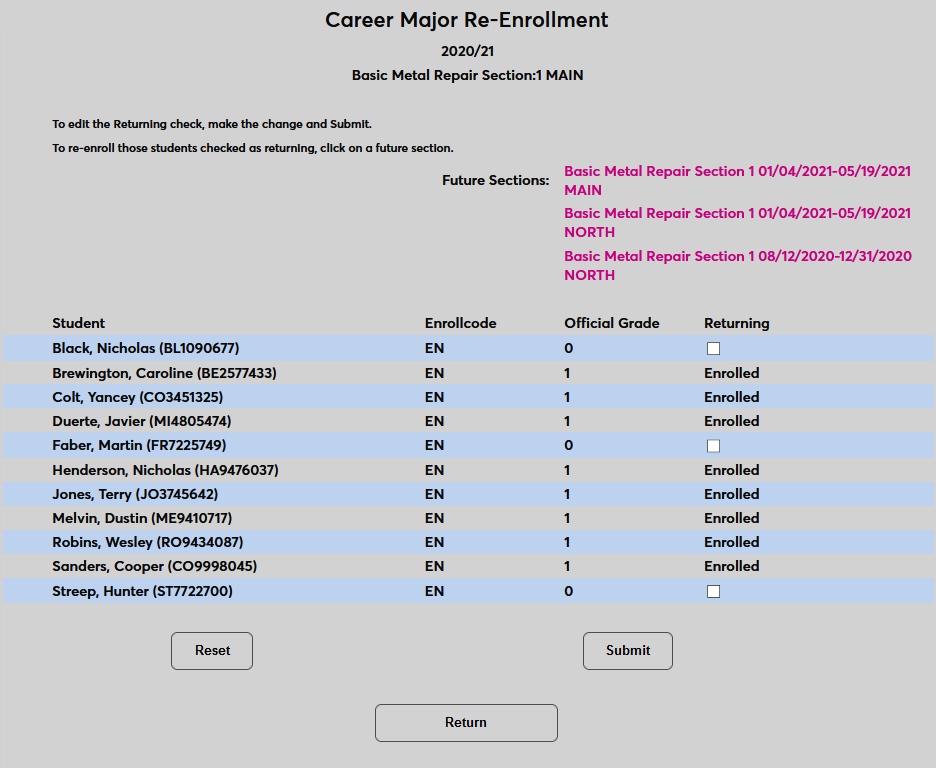
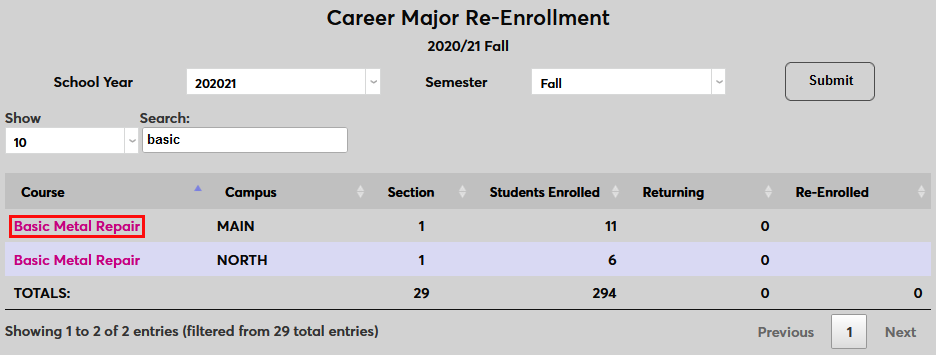
To begin the reenrollment process, click on the name of a course.
On the following page, check the box in the Returning column for each student who will return and click Submit.
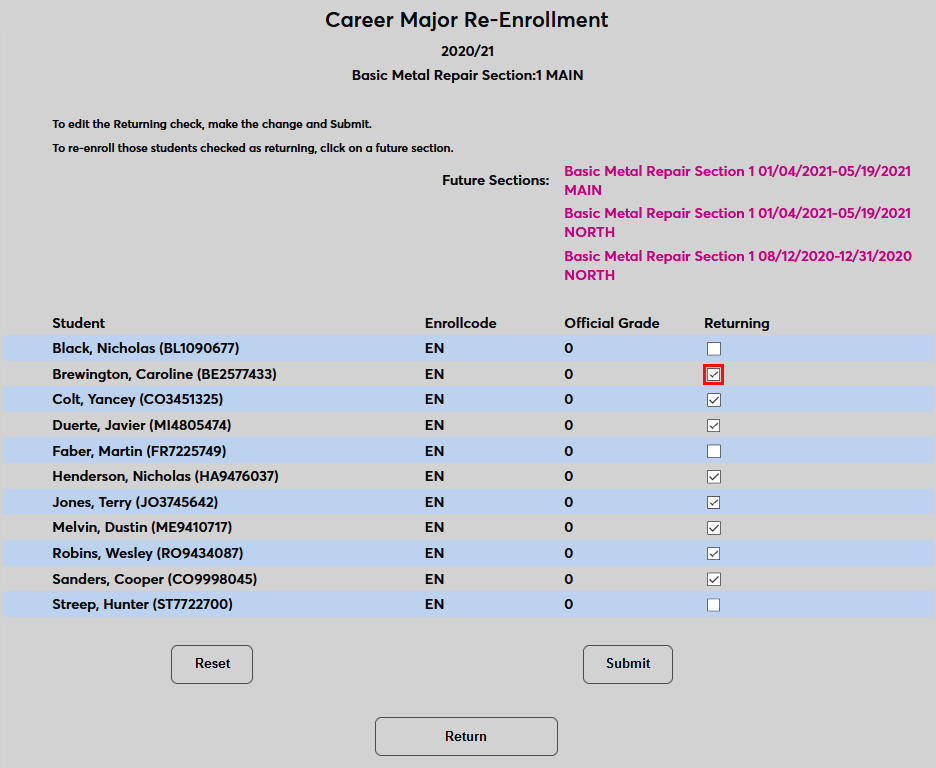
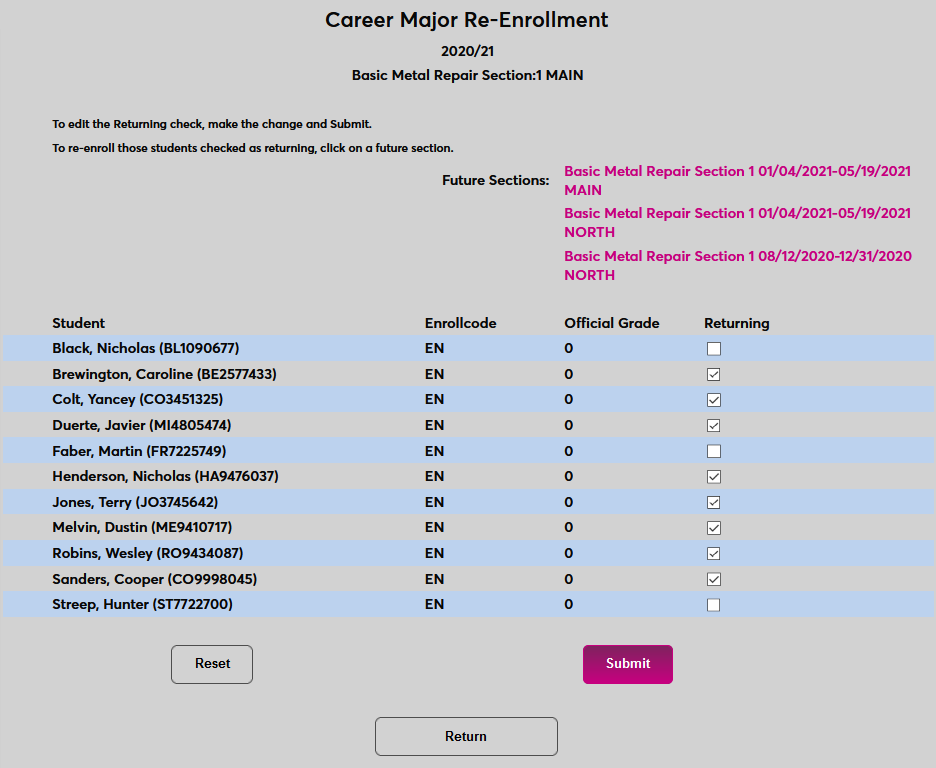
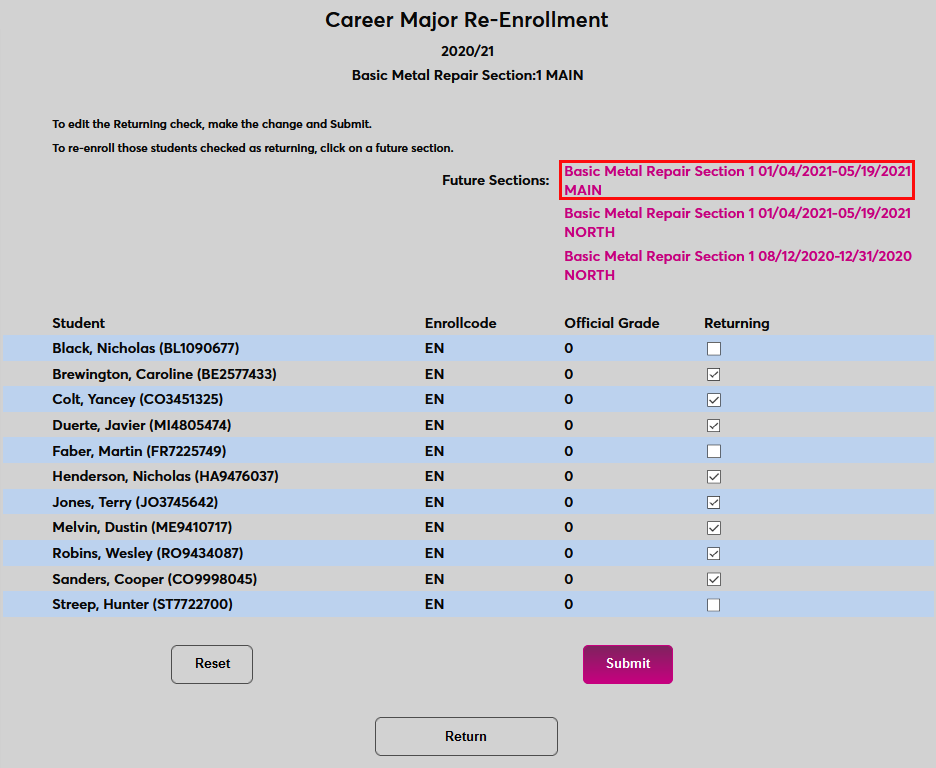
Next, choose a section to for enrollment by clicking the corresponding link. The sections are listed by section number, start and end dates, and campus.
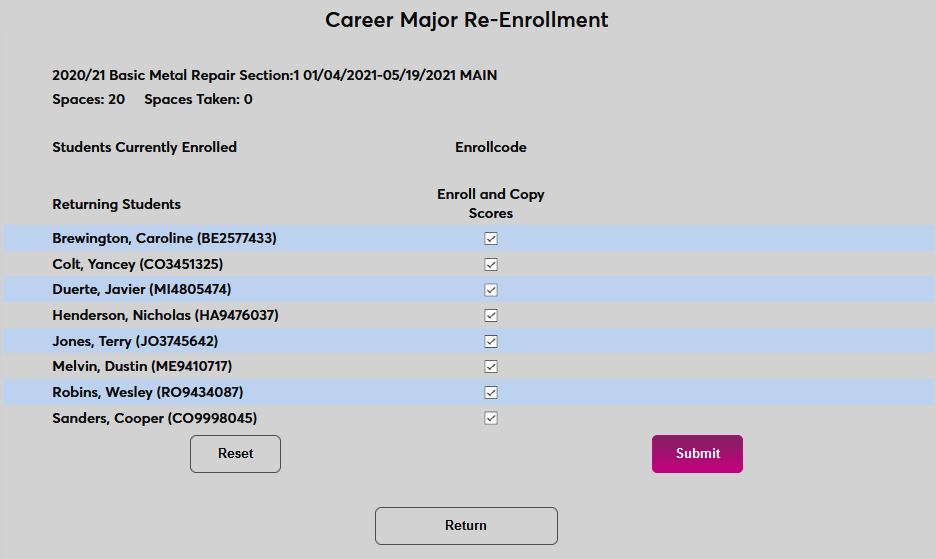
All students who were marked as returning will be included. If a student was marked as returning incorrectly, uncheck the Enroll and Copy Scores box for that student. When the correct students have been selected, click Submit to complete the process.
Students that have been reenrolled will now be marked as Enrolled on the course summary page. Students who were not reenrolled can still be enrolled through this process at a later date.