Programs
Overview
A student or applicant's current and historic programs display on the Users hub Programs page. Programs can be added and maintained here, as well as the Education page. Program completion or stoppage can be recorded. If the program information should not be sent to National Student Clearinghouse (NSC), it can be excluded on this page.
Use
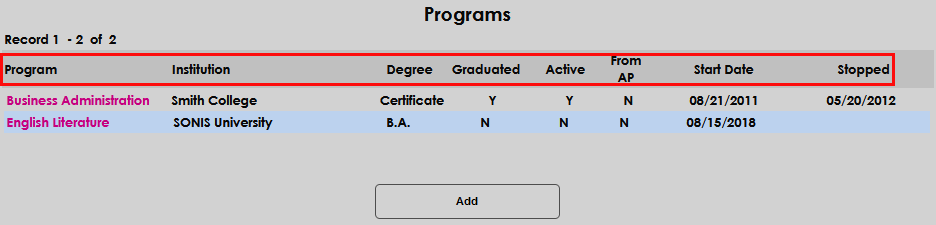
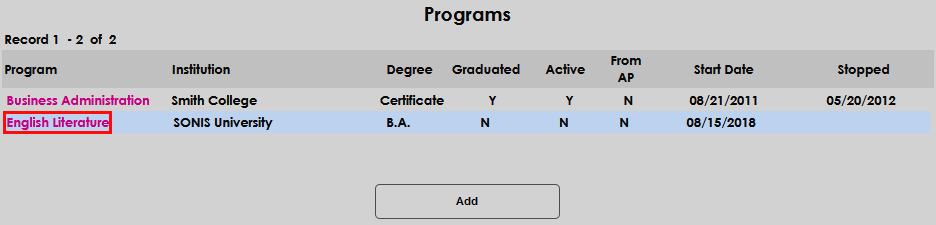
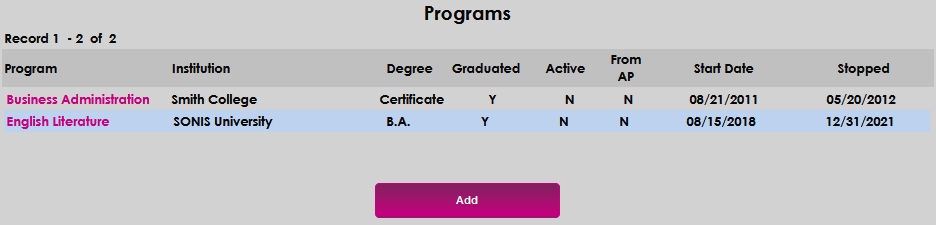
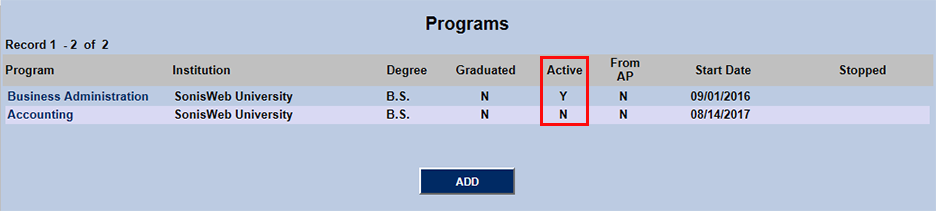
Programs previously associated with a user will display upon entering the Programs page from the Users menu. Along with the entered Program name, the Institution name, Degree level, Graduated status, Active status, whether or not the program is From AP course attendance, Start Date, and Stopped date display. Click the Program name to access further details and/or edit the entry.
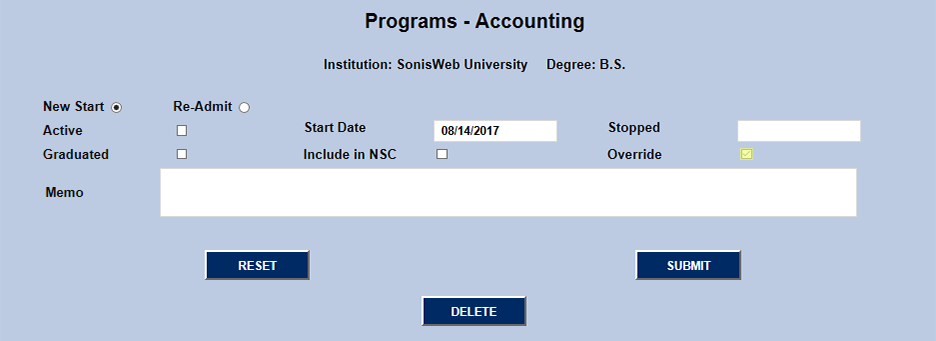
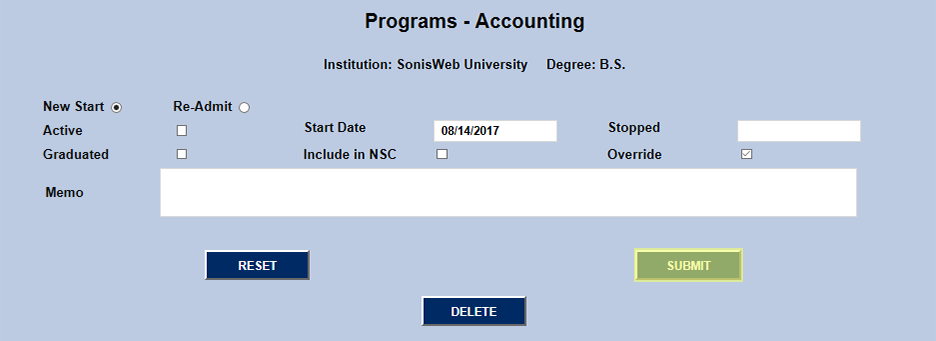
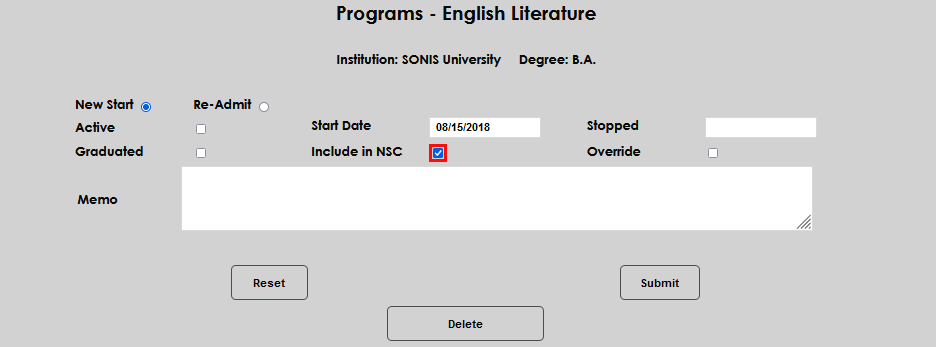
The page that opens displays the information from the previous page with the opportunity to view and/or edit specific fields, as well as Memo, Override, and Include in NSC fields. The Include in NSC box must be checked if the Program should be included in institutional National Student Clearinghouse (NSC) reporting.
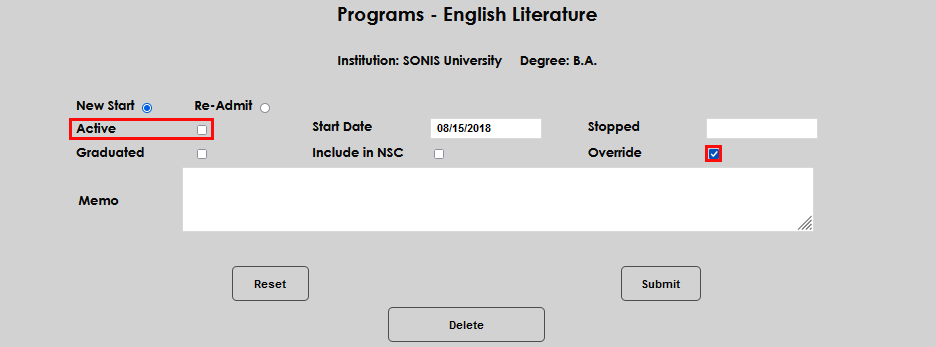
The Override box allows users to indicate that the student's program record should allow registration into courses that are restricted to only students in specific programs. For example, by clicking the override box for this inactive English Literature program, the student could register for any courses set to allow registration for only current English Literature students. (Because the Active box is not checked, this program is not active.)
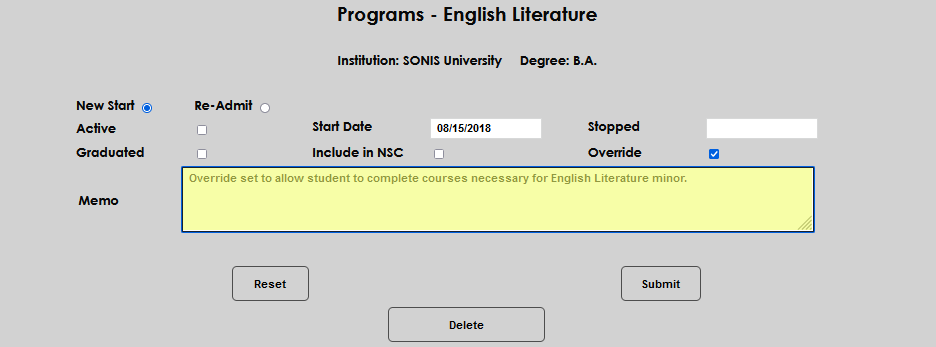
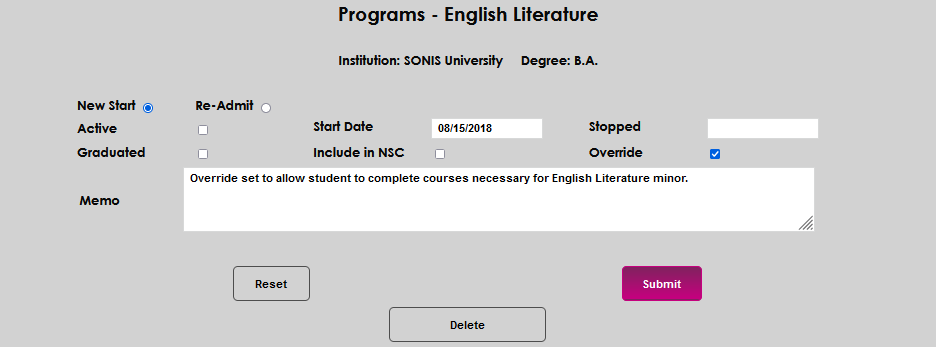
The Memo field provides the user a place to enter notes associated with the program and/or any program-related updates made to the record. Clicking Submit saves the updates.
Note
A drop-down menu labeled Export Enrollment Status also appears on this page. This field is only used as part of the Campus Ivy export process and will be empty if your school doesn't use Campus Ivy.
Adding a New Program
To add a new program the student is pursuing at the SONIS member institution using the Programs page, enter the page and click Add.
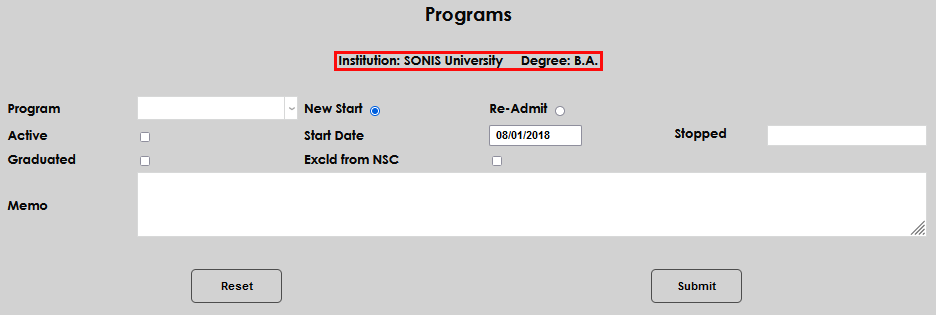
The Institution and Degree will auto-populate and display at the top of the page. These cannot be edited. If the Program being added does not correspond to the displayed Degree and/or Institution the program should be added using the Education page.
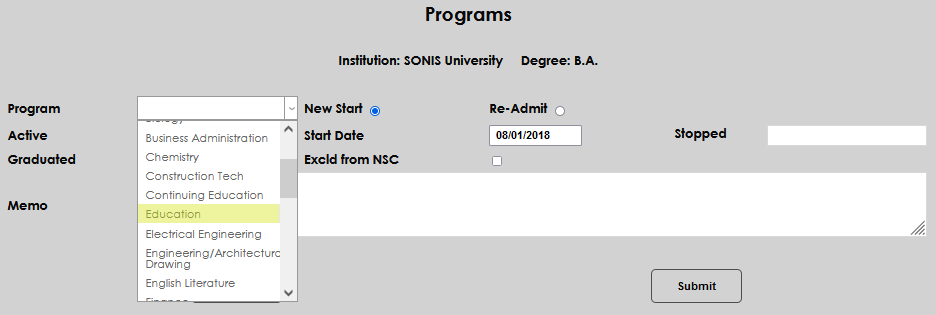
Select the desired Program from the drop-down menu, then select either the New Start or the Re-Admit radio button that corresponds to the student's situation.
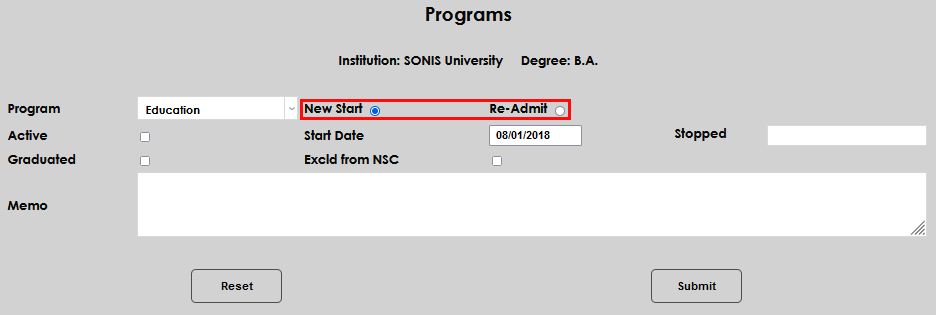
Make the Program active by click the Active checkbox. The Start Date will automatically populate with the date the student began pursuing a degree at the institution. Edit the date by clicking in the field and entering the desired date, if appropriate.
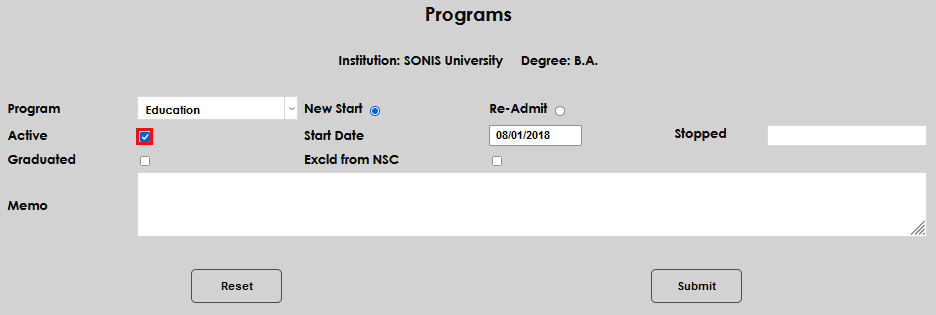
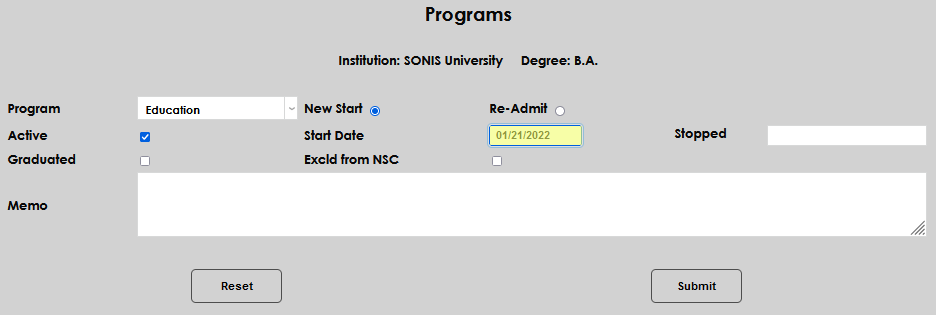
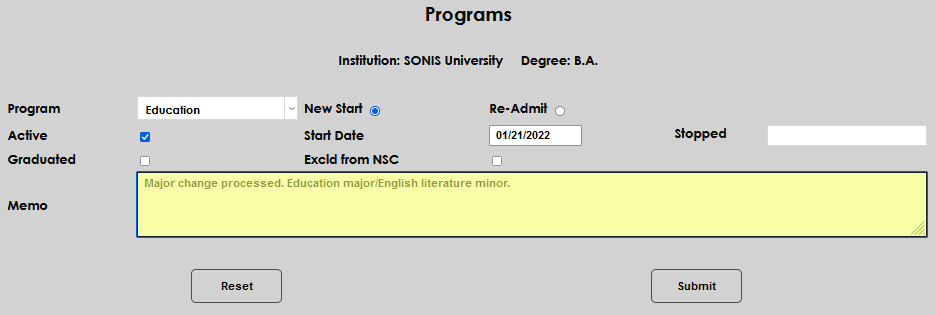
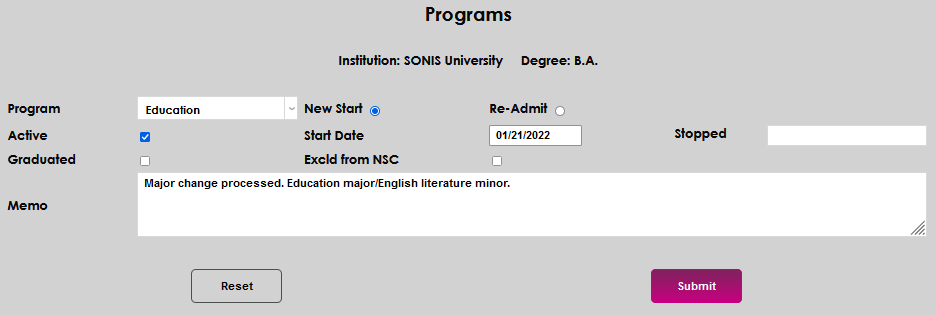
The Stopped, Graduated, and Excld from NSC fields should be skipped if a current program is being entered. If entering an historic record, enter the data, as appropriate. Enter any pertinent details in the Memo field and click Submit to save the entry.
Note
A drop-down menu labeled Export Enrollment Status also appears on this page. This field is only used as part of the Campus Ivy export process and will be empty if your school doesn't use Campus Ivy.
Program Specific Courses
Registration for specific courses is often restricted to students within a program or education plan. Generally, a student must have the course's program as their active program. This can cause problems, however, for students who have double majors, are seeking more than one degree concurrently, or have an education plan that requires a course outside of their active program. The solution is to check the Override box on the student's inactive program.
Setup
To give a student program override privileges and allow them to register for the course(s), first navigate to the Program page after selecting the student in the Users hub. The page will display the student's programs with a column showing which one is active.
Click on the inactive program and check the Override box in the second line. Submit to save the changes. The student will now have access to register for classes previously restricted by their inactive program. The process can be repeated for any additional inactive program(s) with remaining requirements.