Student Schedule Changes Notifier
Overview
The Student Schedule Changes notifier, available in the Systems hub, sends a notification to the members of the notification group of the students that have made changes to their schedule either by dropping, adding, or withdrawing from a course. The notification includes the date of the most recent schedule change along with the current number of enrolled credits. If the notification is set with Include Details flagged, the course information for each change will be included. Students who have made more than one change will only appear once. All schedule changes from the last time the process was run are included. The notifier can be limited by Division, Campus, Department, and/or Level. It is recommended that this notifier only be activated after the scheduling period has ended, during the drop/add period.
Creating a Notification Assignment
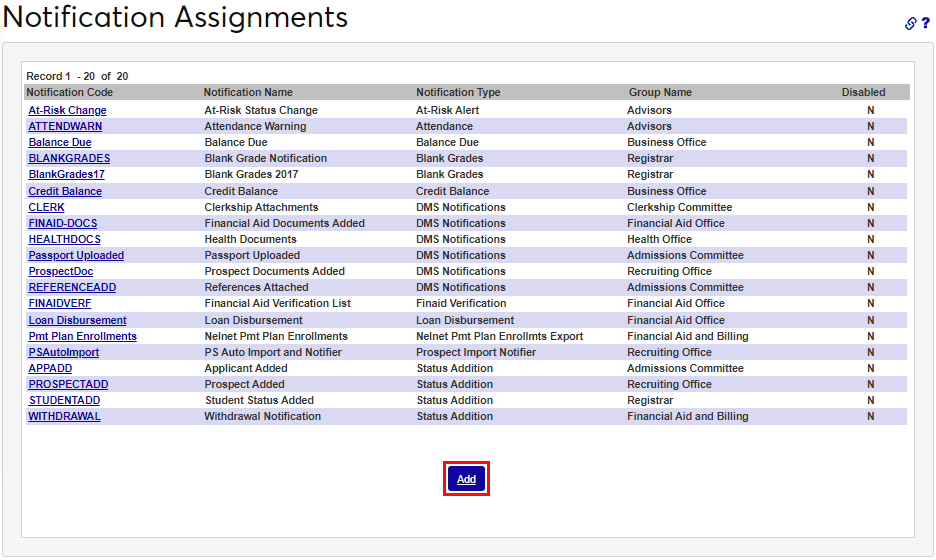
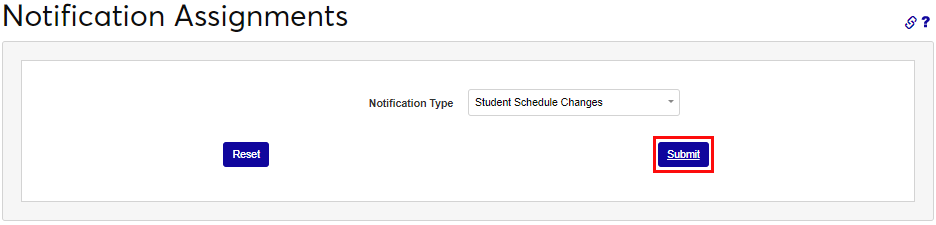
To add the notifier, click Add. Select the Student Schedule Changes notifier from the Notification Type dropdown.
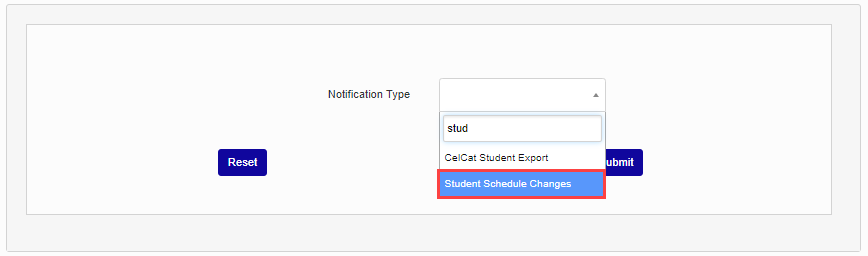
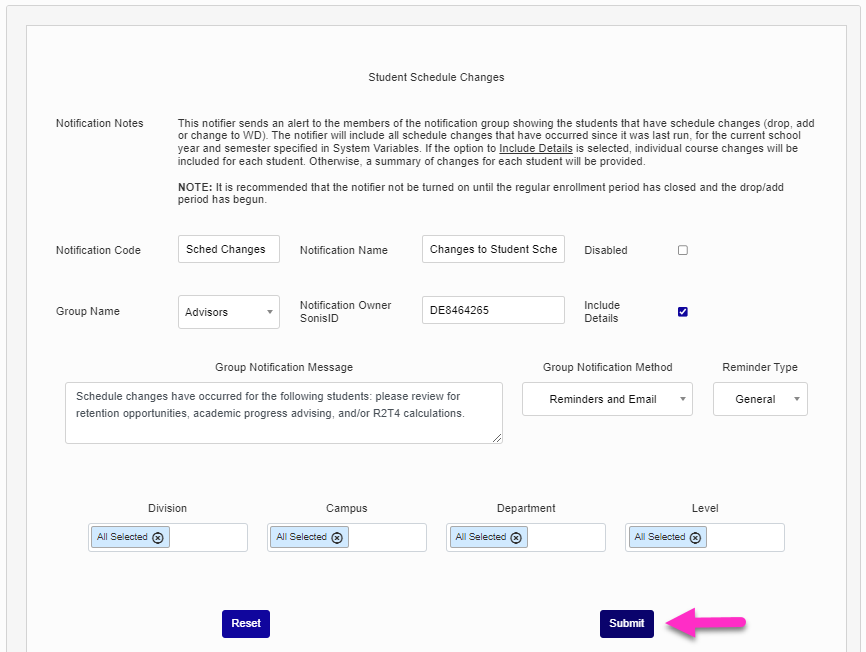
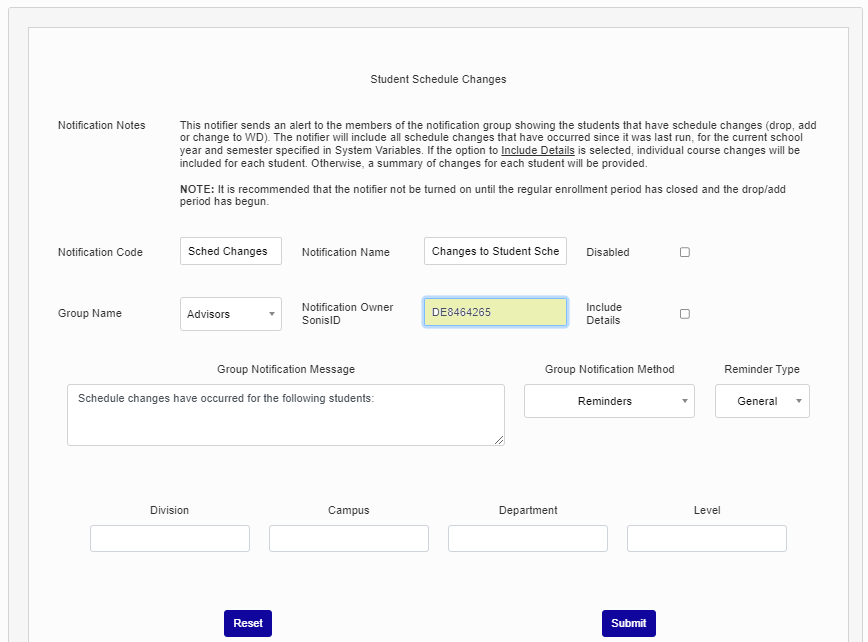
Click Submit to begin setting up the notifier. Enter up to 25 alphanumeric characters that represent the notifier in the Notification Code field.
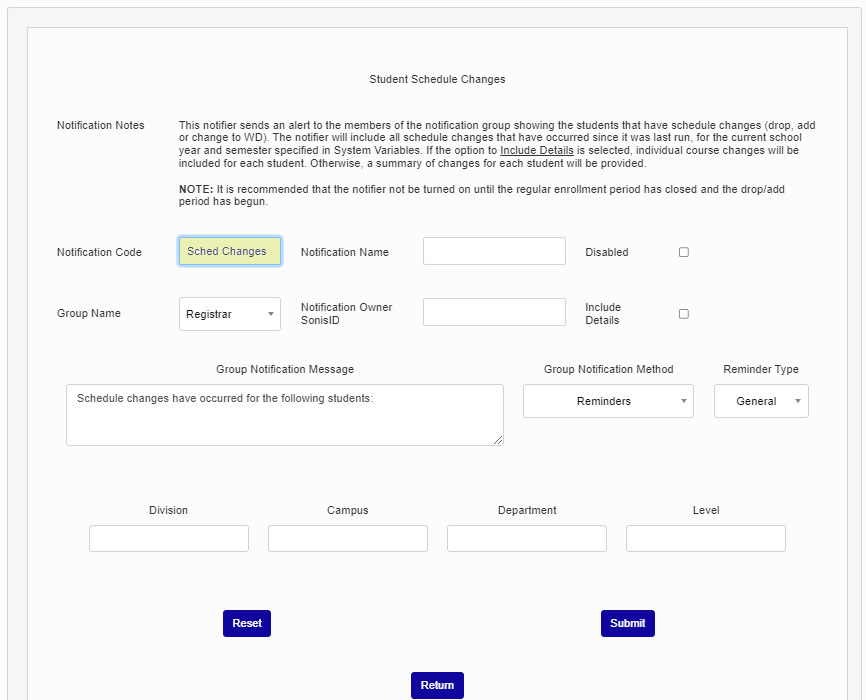
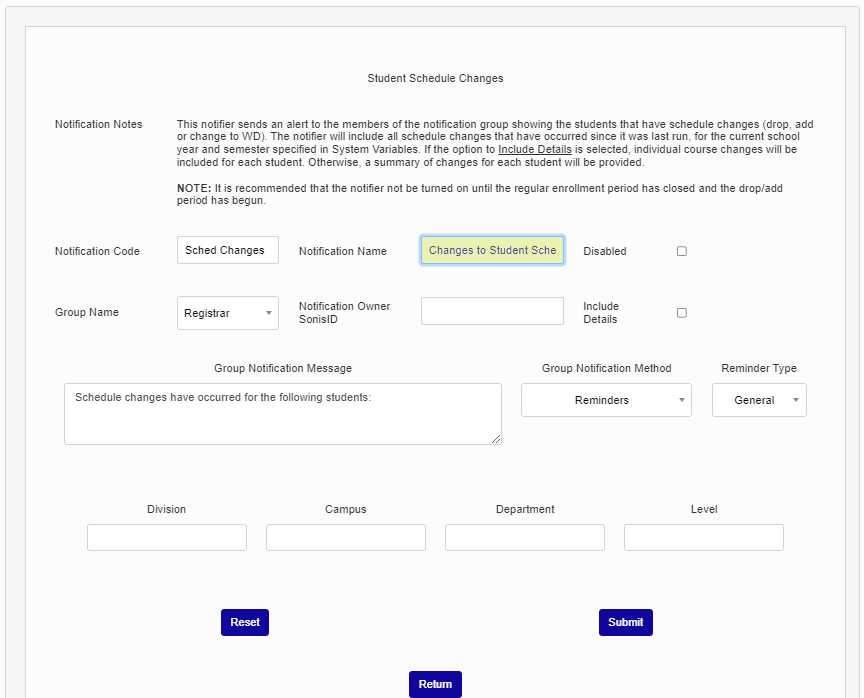
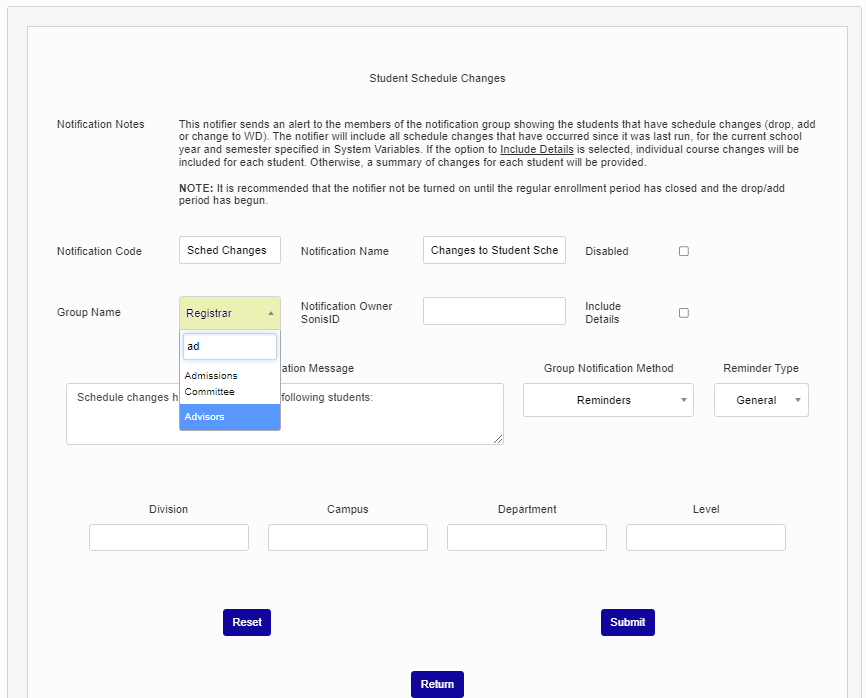
Enter up to 50 alphanumeric characters that will display to recipients as the Notification Name. Select the group that should receive the notification from the Group Name dropdown.
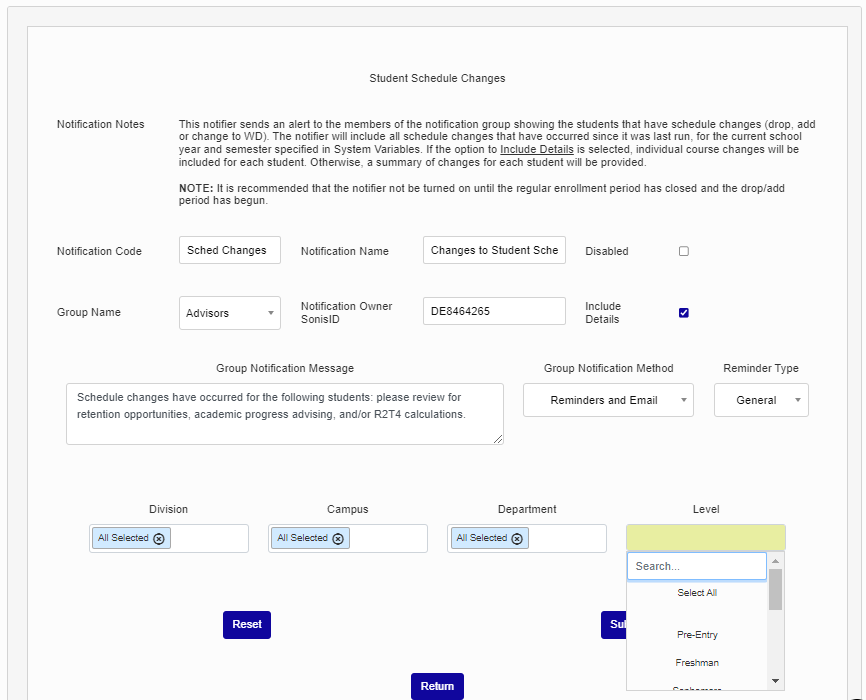
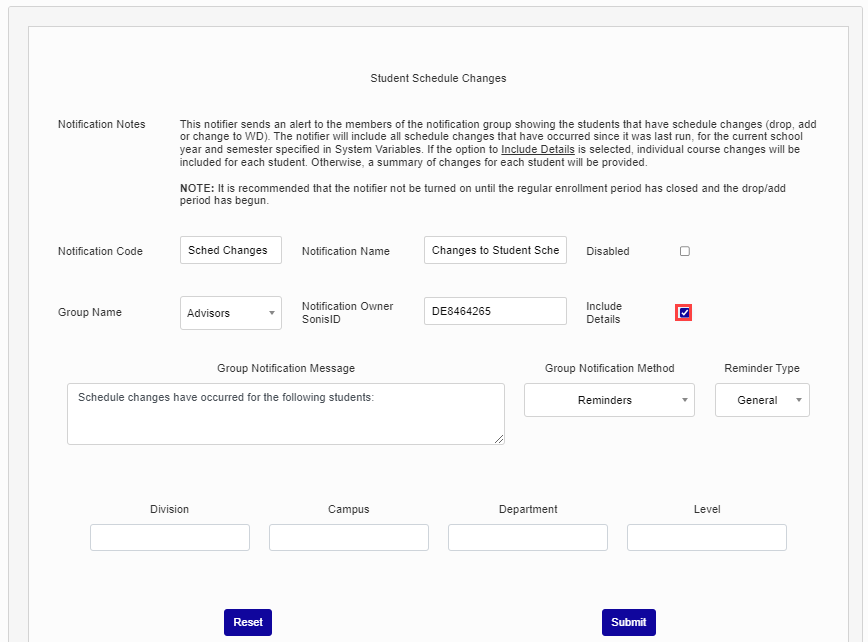
Enter the SONIS ID of the user who should be recorded as the Notification Owner Sonis ID field. A user must be designated. Check the Include Details box to include individual students’ course information for each schedule change identified. If users elect not to Include Details, the notification will display schedule changes in a summary format.
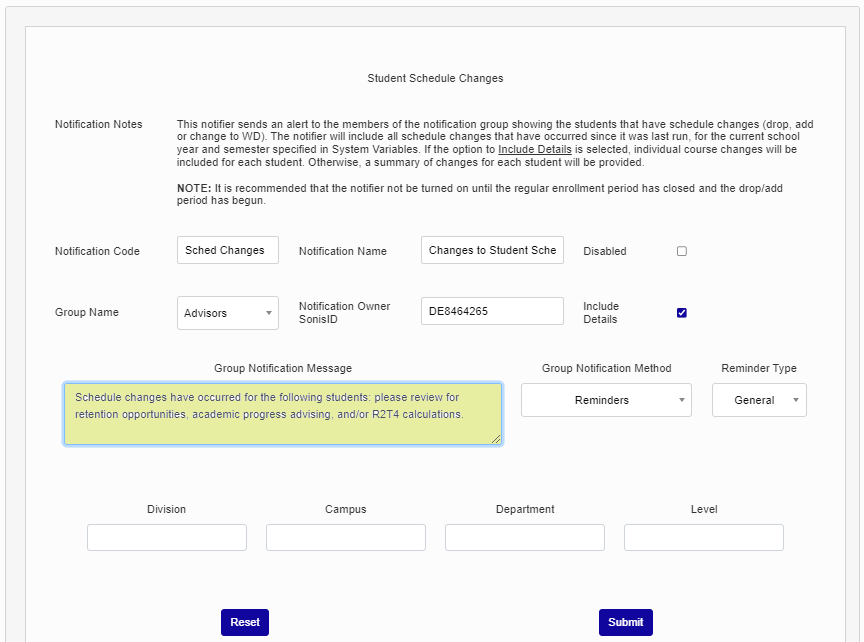
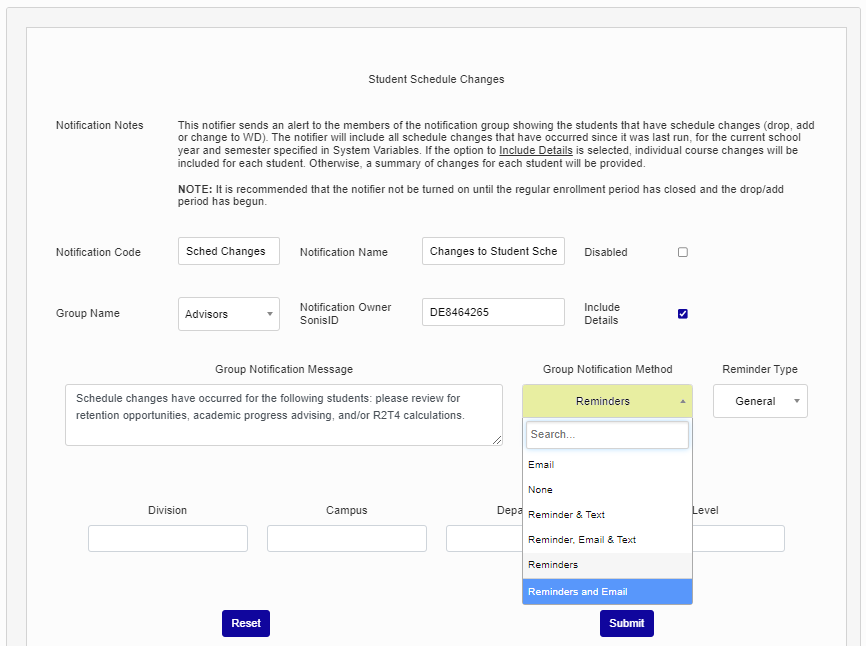
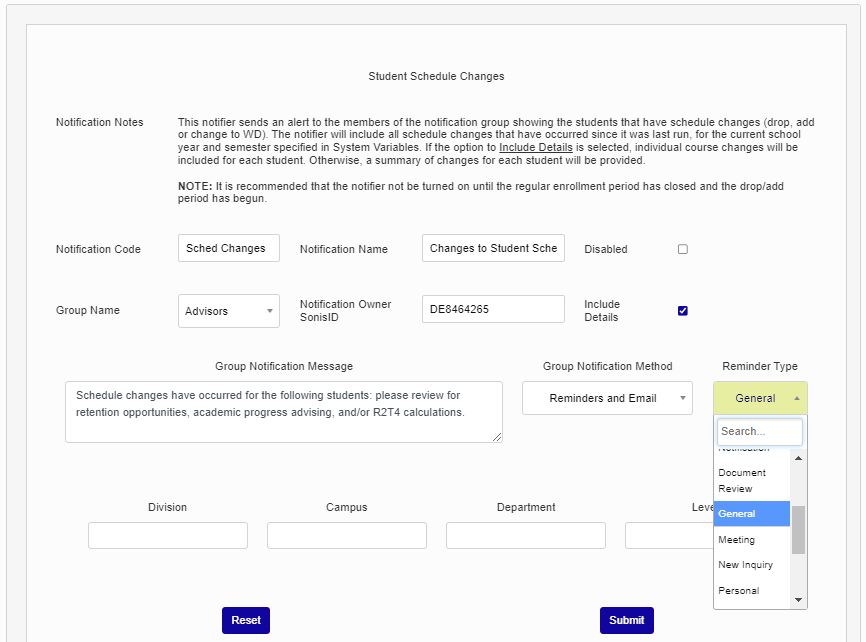
Enter a descriptive message to be included with the notification in the Group Notification Message field. This field has no character limit and is an opportunity to provide a call to action or reminder of how the notifier should be used by the recipient. In the Group Notification Method dropdown, select the type of notification that should be sent: Email, External Text, None, Reminders, or Reminders and Email.
A Reminder Type is required, whether Reminders were selected as the notification method or not. If desired, select the Division(s) the students with schedule changes should be associated with.
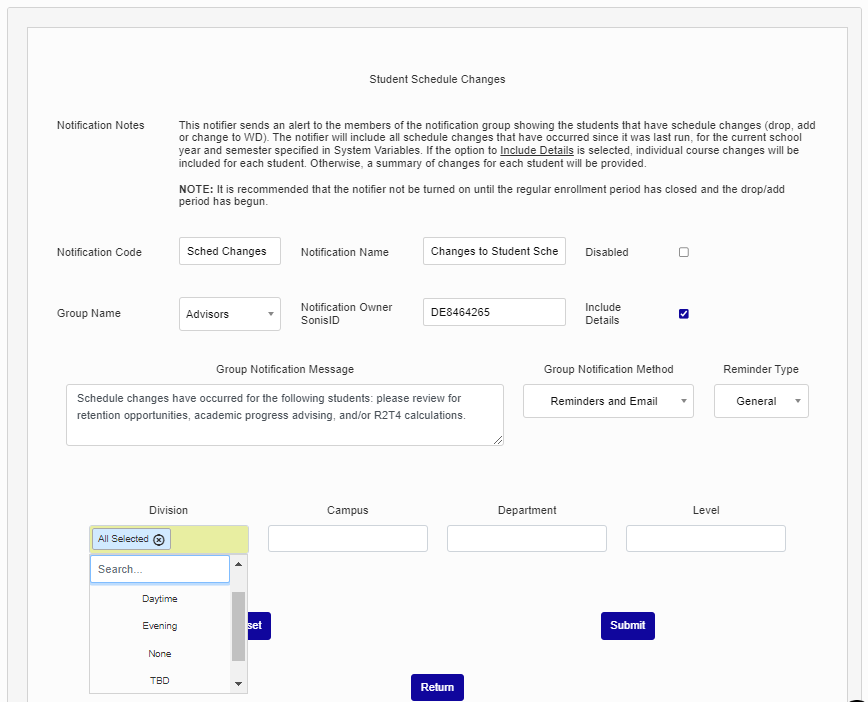
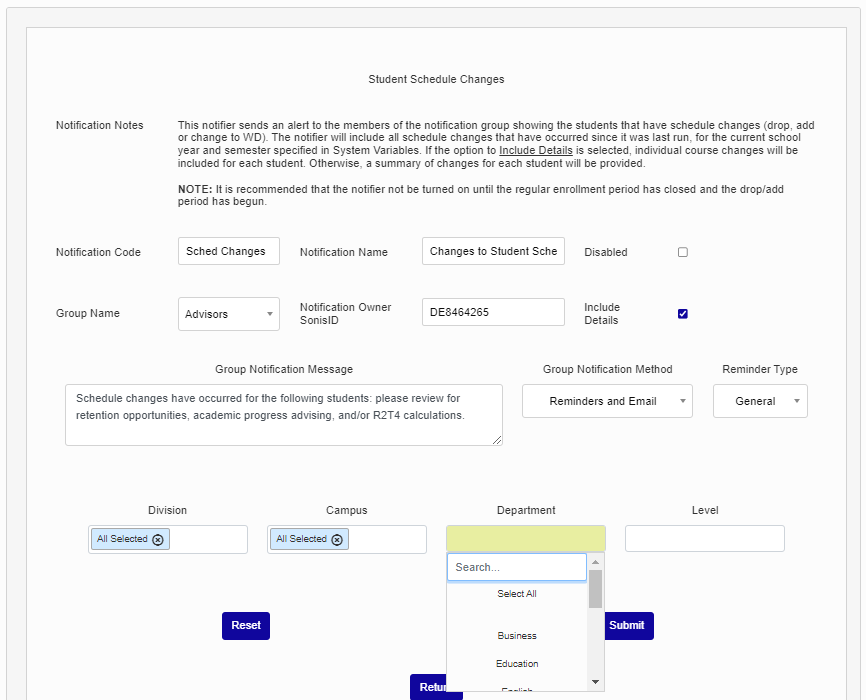
Select Campus(es) and Department(s) to limit the results by, if desired.
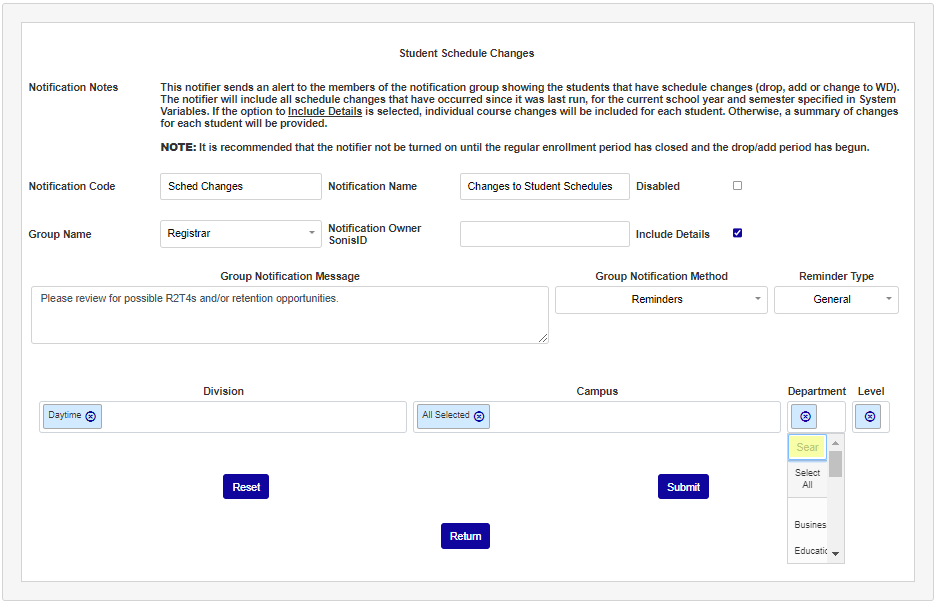
Select Level(s) to limit the results to specific levels of students and click Submit to create the notifier.