Application Entry Date
Overview
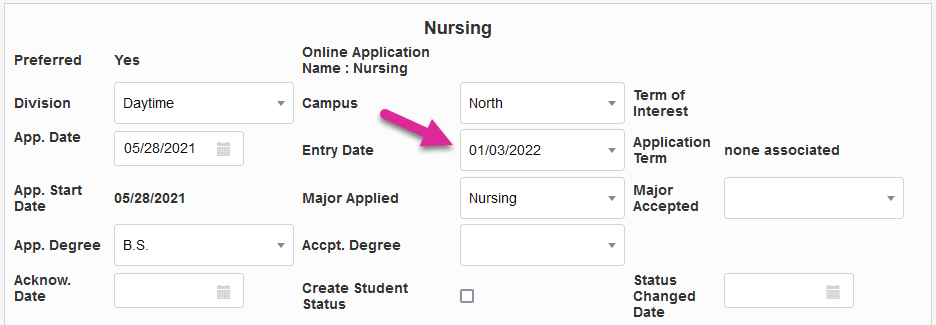
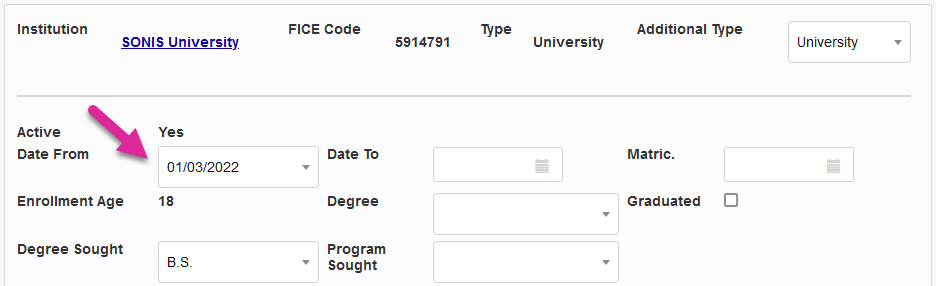
Application entry dates are important to the admissions process, used to determine when a student will enter the school based on their Term of Interest. These two functions are linked throughout the Jenzabar SONIS system. The Application Entry date is stored in each user's Application record as well as in their home institution Education record as the Active Date From.
For US schools, consult federal guidelines to determine the proper entry dates for your school. Contact Jenzabar SONIS support if you have additional questions.
Adding/Editing Entry Dates
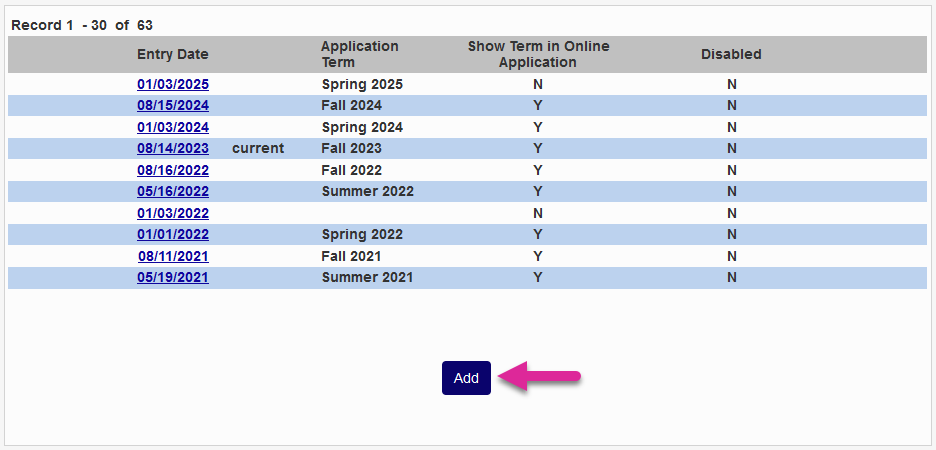
The the existing entry dates are displayed in a table. You can sort each column in ascending or descending order using the up and down arrows in the header row. There's a Search box you can use to locate a specific date that narrows down the list as you type.
Use the Show menu to control how many rows display per page and the Previous, Next, and number links to navigate between pages.
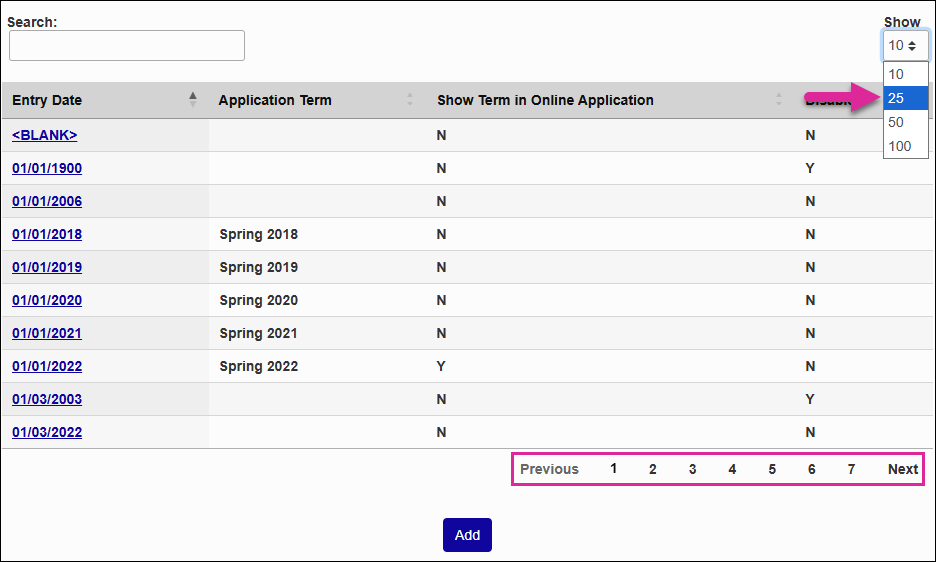
Click on an existing Entry Date to make changes or click Add to create a new one.
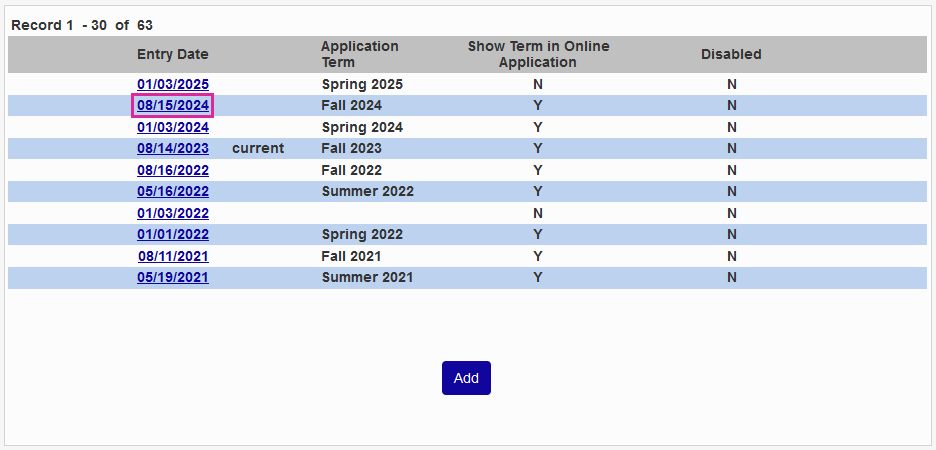
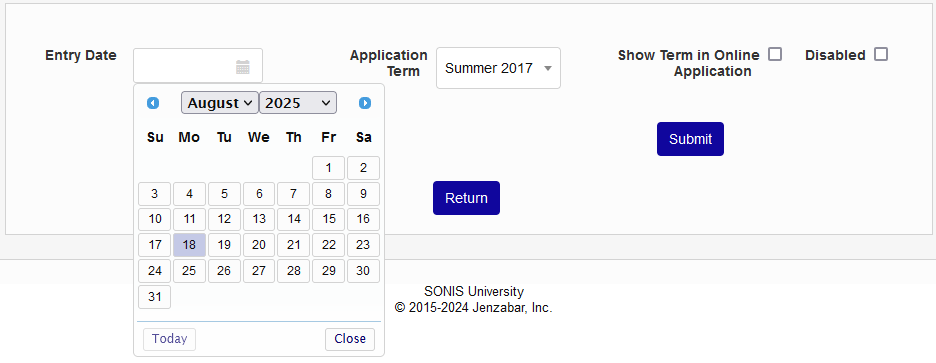
When adding a new entry date, on the following page, select an Entry Date from the calendar or type in your own.
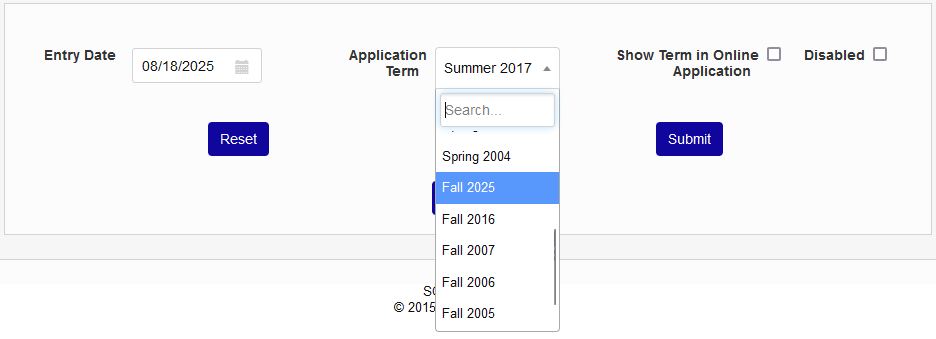
Next choose an Application Term from the dropdown menu to associate with the entry date. Application terms are created through the Term of Interest utility.
Check the Show Term in Online Application box to ensure that the entry date is a selectable option in the SONIS Online Application or leave it unchecked to only allow the entry date to be used internally by administrators.
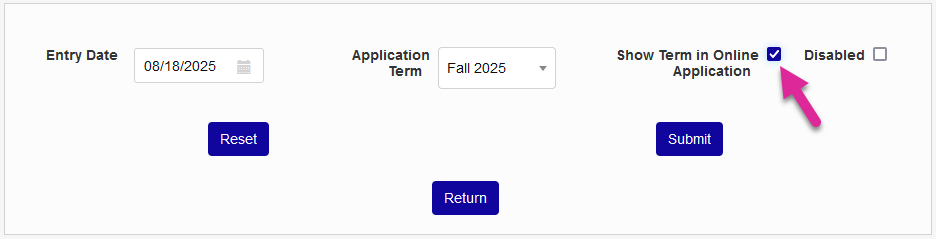
The Disabled box should generally not be checked when creating a new entry date, but it can be used to limit access to older entry dates when editing. Entry dates that are disabled will no longer display in any system menus.
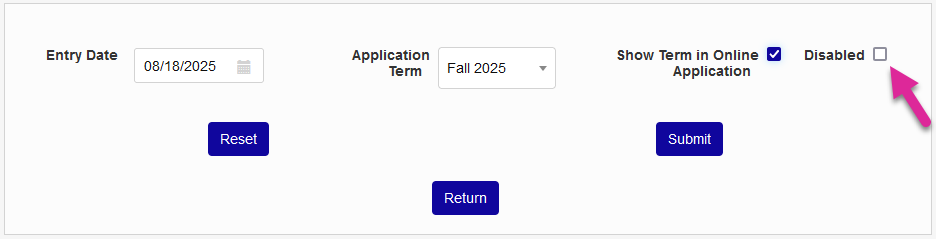
Click Submit to create the new entry date or save changes made to an existing date.
Warning
Entry dates should not be deleted once they are tied to other records such as submitted applications and student education records.
Application Entry Date Utility
The Application Entry Date Utility is used to update existing student records to conform with entry date changes. Administrators can change an existing entry date while keeping the association with the application term, associate a new application term with an existing entry date, or change both at the same time.
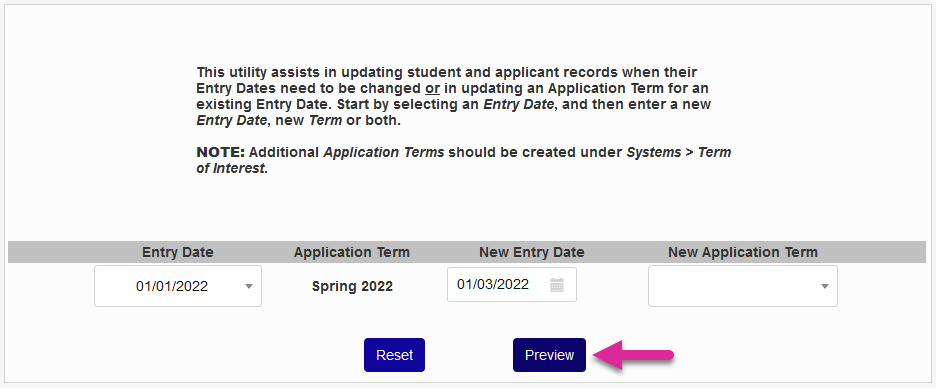
To edit an application entry date, navigate to the Application Entry Date utility in the Systems hub and begin by selecting the Entry Date from the dropdown menu. The page will reload to display the current Application Term associated with this date.
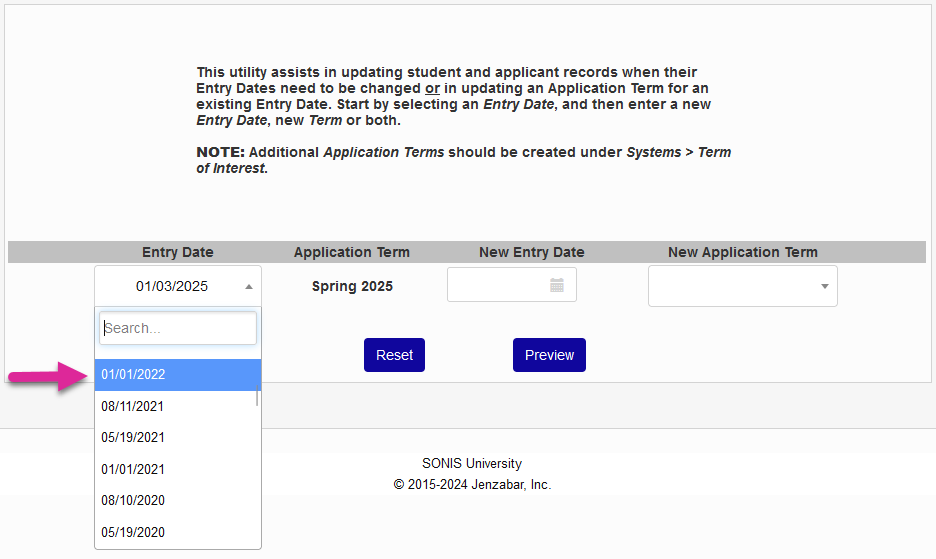
Next, either enter a New Entry Date or select a New Application Term or both. Application terms are created and edited in the Term of Interest table.
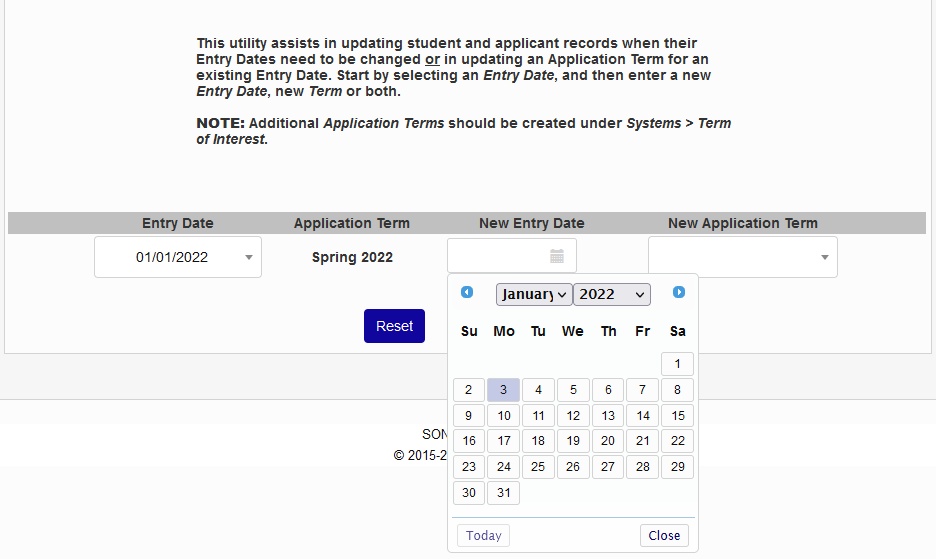
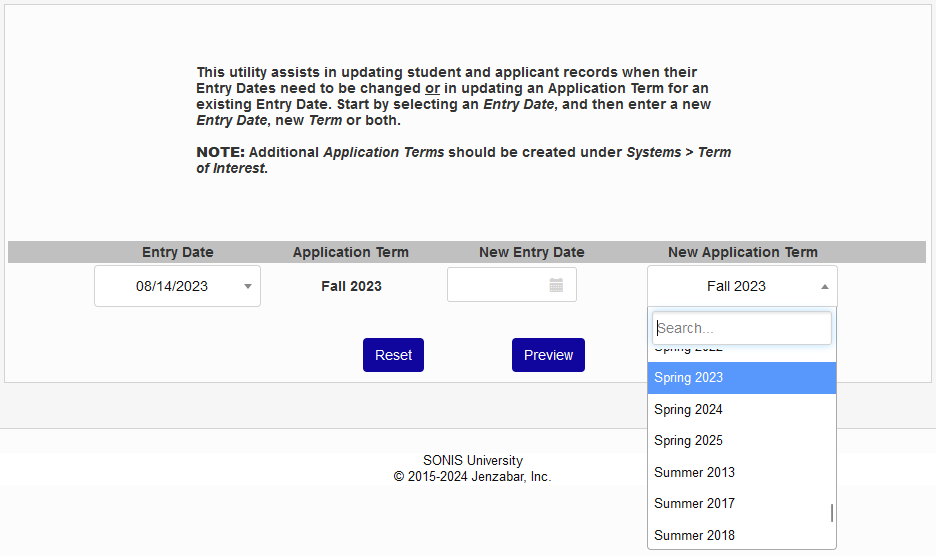
Once the proper selections have been made, click Preview to continue.
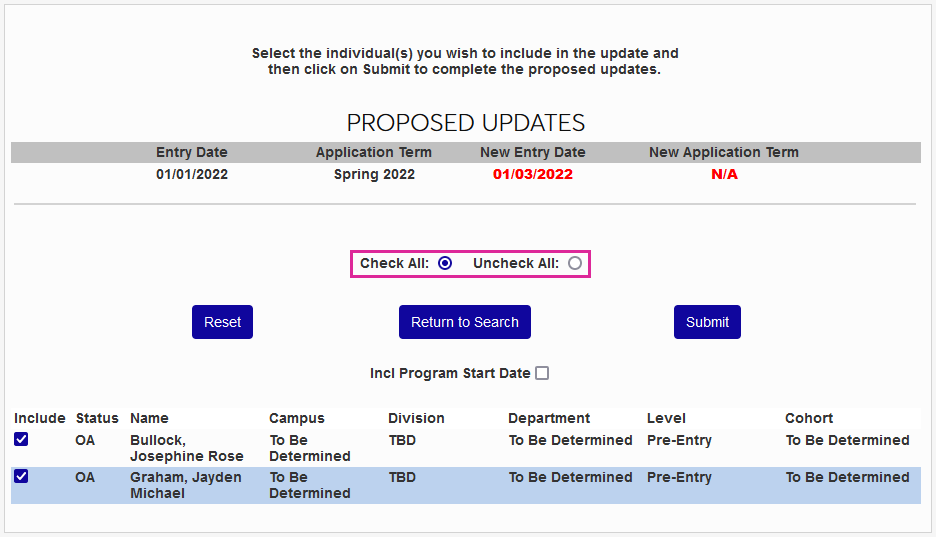
The following page lists the users who have the selected entry date in their records. Use the checkboxes in the Include column to select which user records should or should not be updated. Check All and Uncheck All radio buttons are available for mass changes on larger lists.
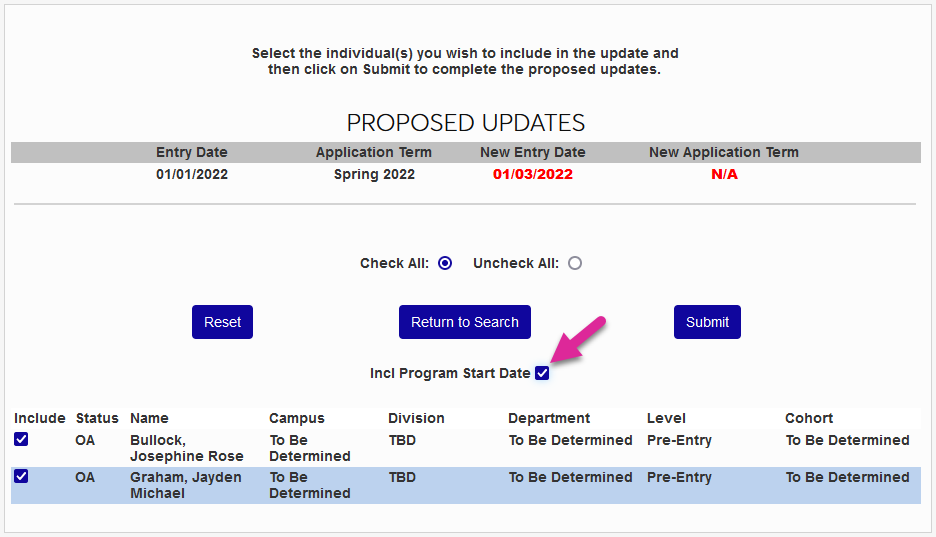
Check the Include Program Start Date box to update the start date of any programs records set to this date or leave it unchecked to leave program records unchanged.
Click Submit to update all selected records.
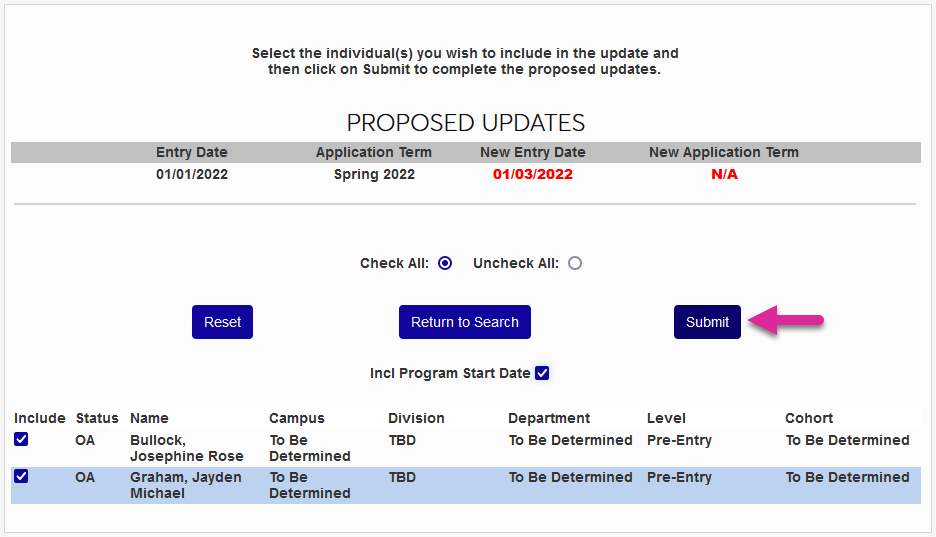
The utility updates the Entry Date on each user's Application record and the Active Date From in their home institution Education record.