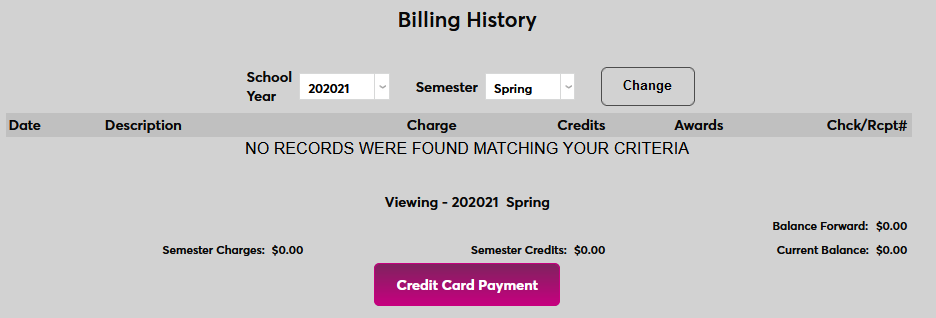
Billing History
Overview
Billing History is a Users hub page that allows administrators to view a user's past bills and payments. The page can also be used to make payments directly. Payment gateways, which must be in place to make payments, are set up through the Credit Card Processing page. For more financial functions, both individual and bulk, see the Financial Search page.
Billing History
To view a user's billing history, select that individual through the Names utility and navigate to Billing History.
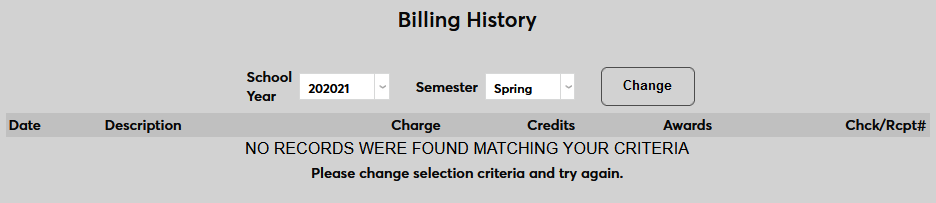
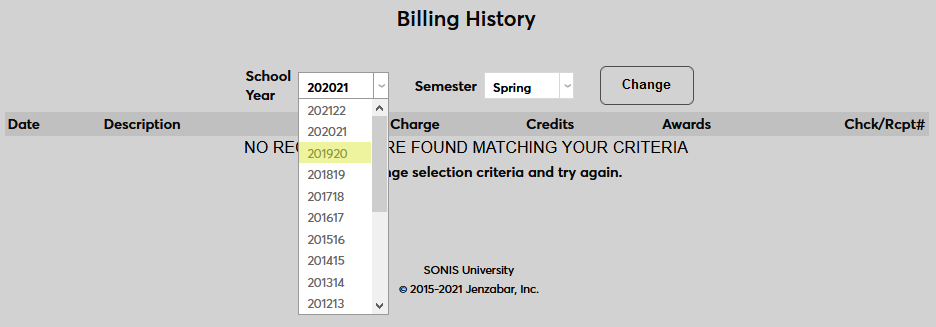
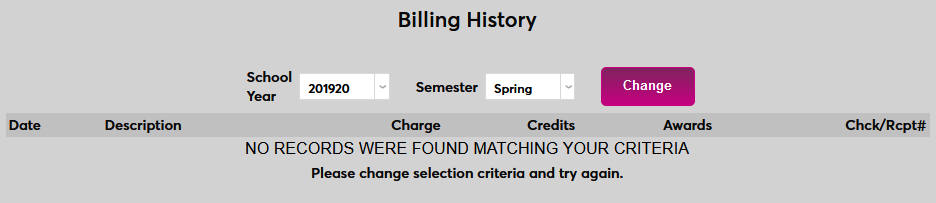
To change the semester being shown, select an alternate School Year and/or Semester from the dropdown menus and click Change.
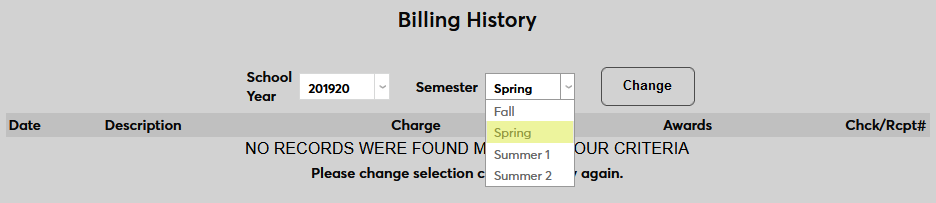
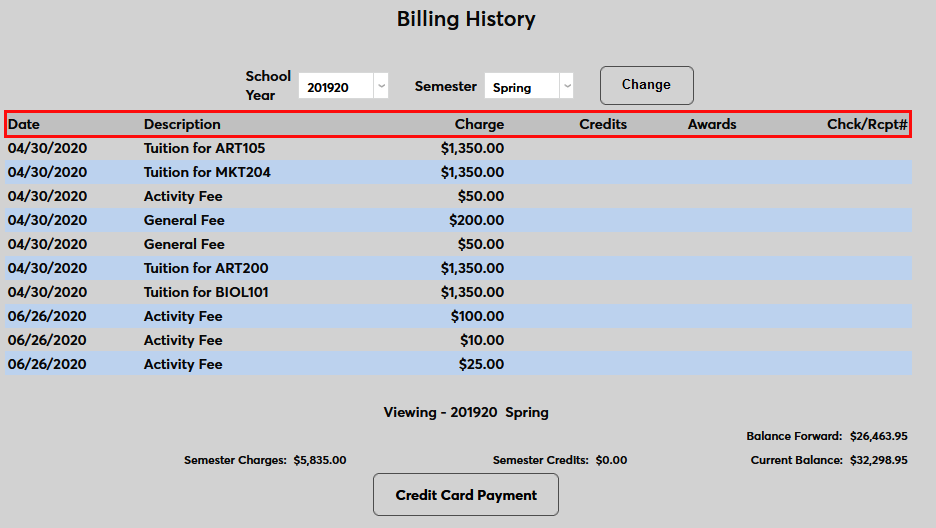
Once a semester with billing history has been loaded, the Date, Description, Charge, Credits, Awards, and the Check/Receipt # where applicable will display.
Payment
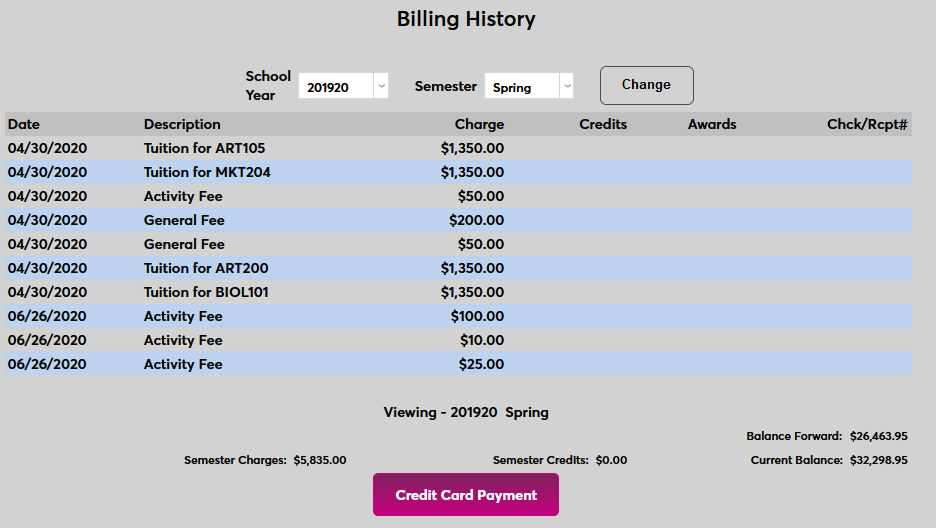
To make a payment on the user's behalf, click the Credit Card Payment button.
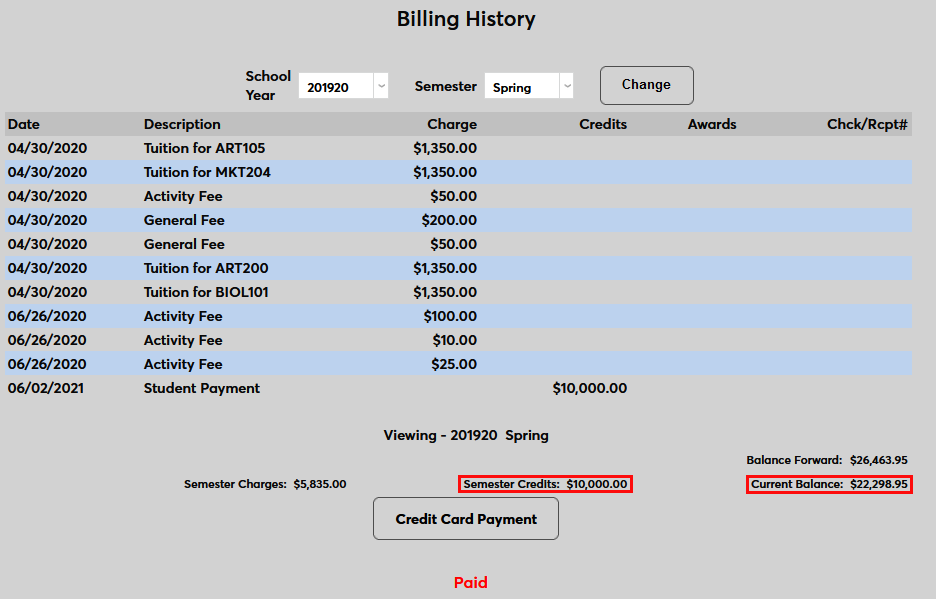
Once a payment has been made, the Semester Credits and Current Balance will update.
Allow Payments with Zero Balance
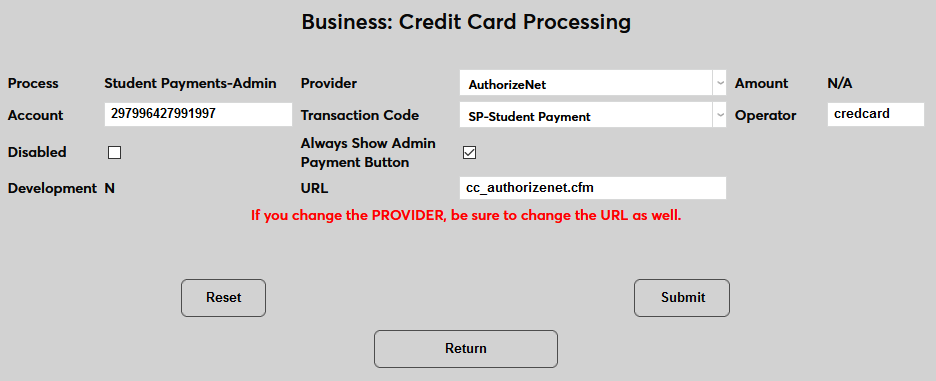
By default, payments can only be made through Billing History when a user has a current balance. But some clients may wish to make a payment on a user's behalf even when that user does not have a balance. To allow this option, navigate to Credit Card Processing in the Systems hub. Click the link to the Student Payments-Admin setup page and check the Always Show Admin Payment Button box. Click Submit to save the change.
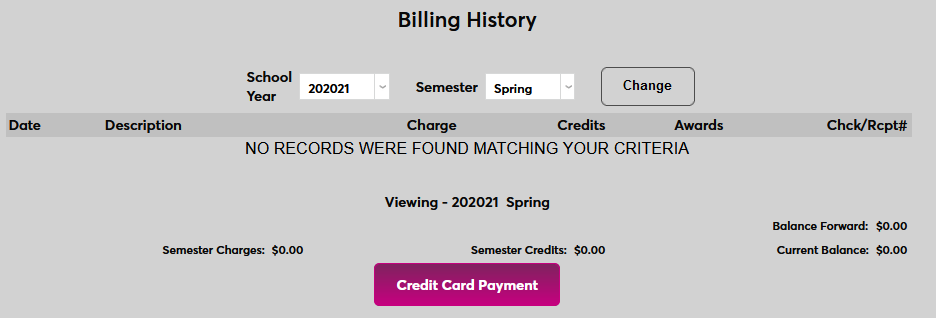
Once this option is active, the Credit Card Payment button on each user's Billing History page will appear at all times, allowing administrators to make payments even when the user has a 0 balance.