Campuses
Overview
The Campuses table is located in the Systems hub as well as through Table Maintenance. It allows schools to set up multiple campus locations where their instruction takes place. Courses, buildings, and students can all be associated with a particular campus.
Institutions with multiple campuses may need an Employer Identification Number (EIN) associated with a campus or campuses that is different than the institution's EIN on School Info. If this is the case, the institution must contact support to have this feature enabled in SONIS.
Adding a Campus
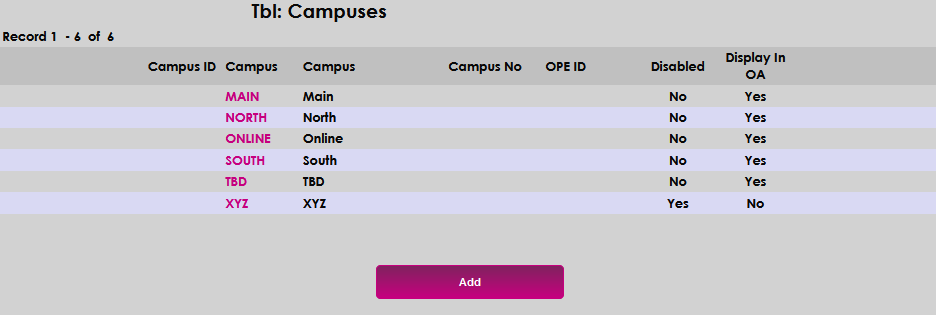
To add a new campus to the list, begin by clicking the Add button located at the bottom of the page.
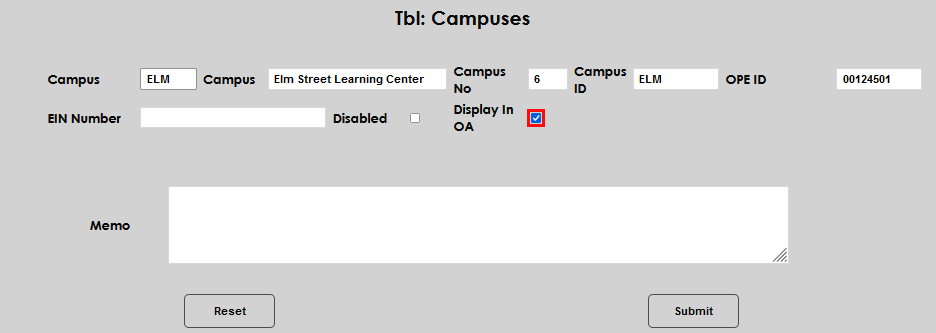
Create a name for the new campus in the longer Campus field. This field has a 40 character limit. Then, create a shorter Campus Code in the smaller Campus field to the far left. The full-length campus name and the campus code can be the same value if the campus name is short enough, but the campus code has a maximum length of 10 characters.
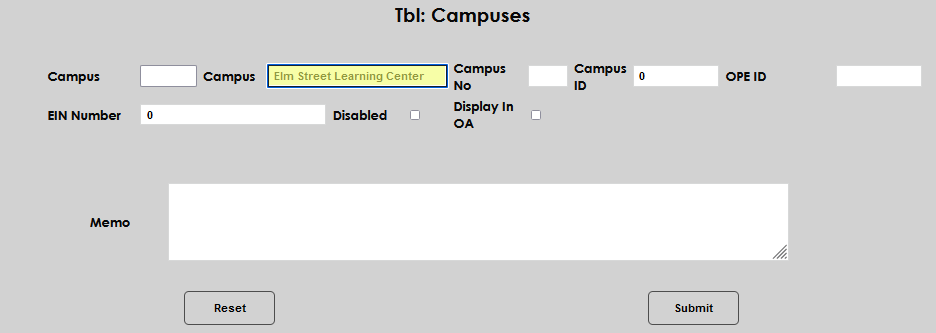
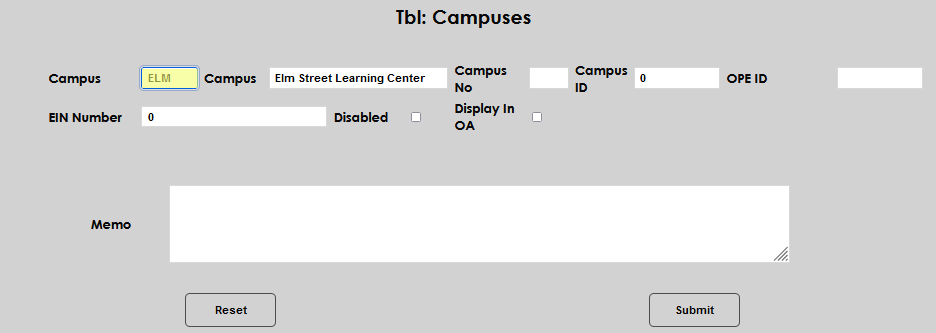
Enter the campus number in the Campus No field. If no number is assigned by the institution to the campus, this field can be skipped. Some institutions may use this number specifically with a third-party processing system. If the campus has an identifier assigned to it, enter it in the Campus ID field. This field accepts up to 30 alphanumeric characters. If no identifier is assigned by the institution this field can be skipped.
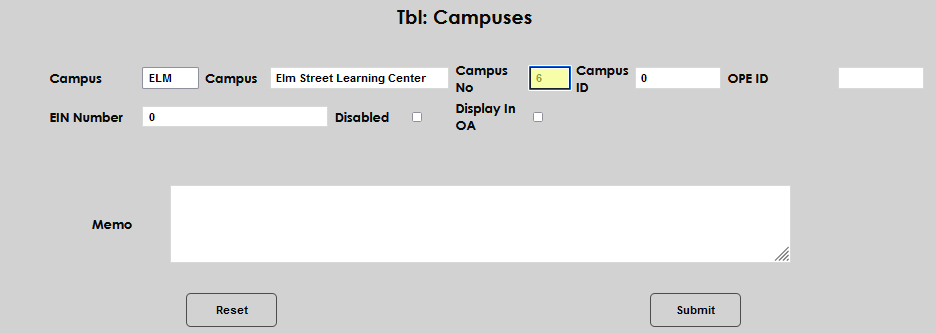
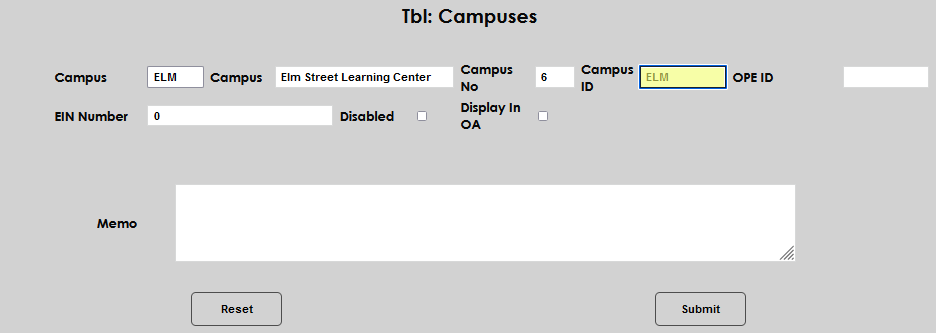
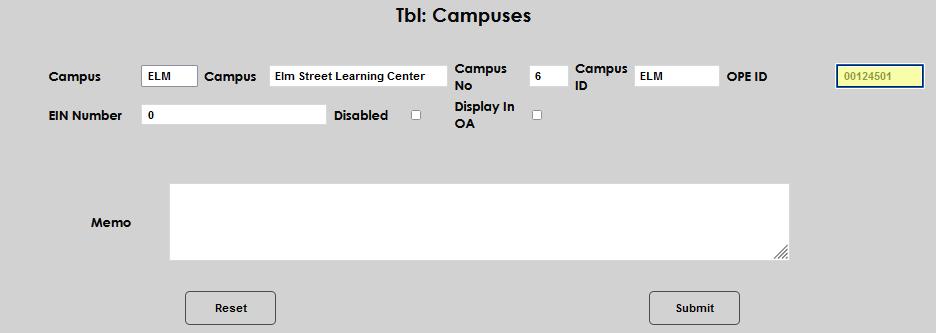
Enter the OPE ID for the campus in the OPE ID field. This is the six digit code assigned to the institution by the U.S. Office of Postsecondary Education, followed by the assigned two digits that identify the campus, making the total value eight digits.
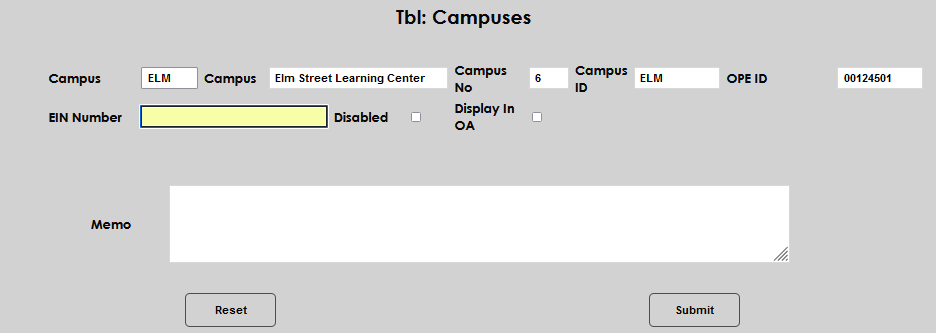
If enabled at the institution, the EIN Number field displays. Enter the EIN assigned to the campus by the U.S. Internal Revenue Service (IRS). An EIN entered in this field for the campus will override the institution's EIN that is entered in the School Info field when 1098-Ts are created. If no EIN is assigned to the campus, leave the field blank.
Check the Display in OA checkbox if the campus should be available to select in the Jenzabar SONIS Online Application or leave the box unchecked if the campus should not be listed.
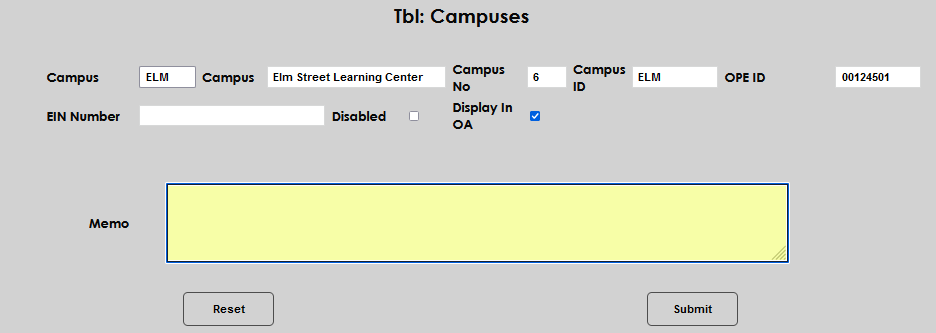
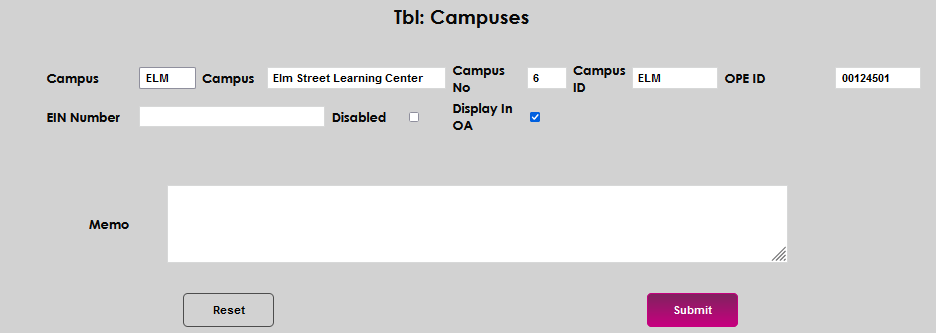
A Memo field is available to add any notes about the campus. Any memo entered will only be viewable when editing this campus. Click the Submit button to create the campus.
Editing a Campus
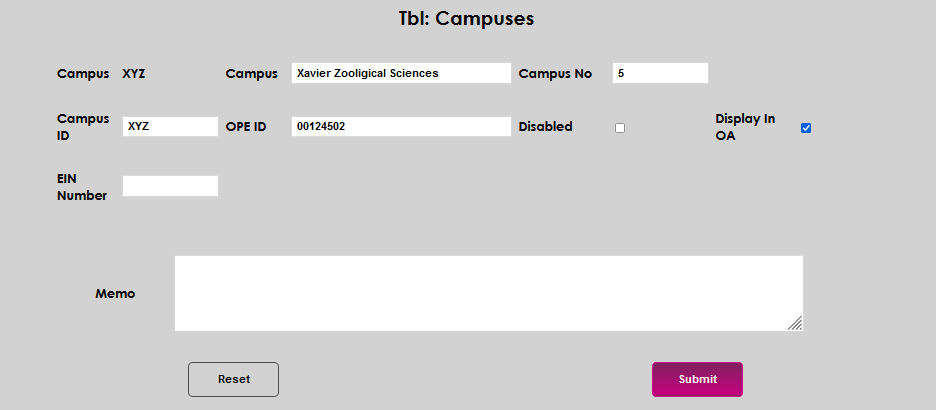
To edit an existing campus, begin by clicking the Campus code.
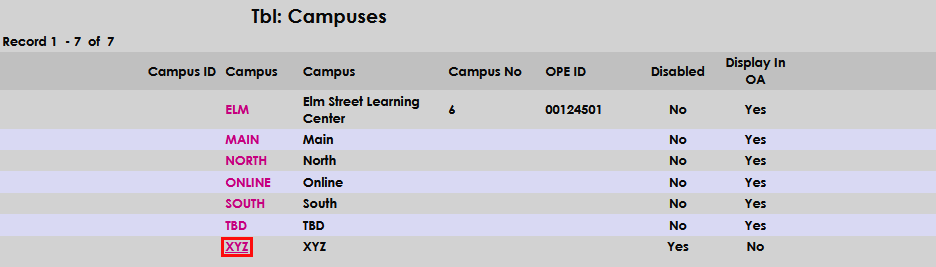
All displayed fields and checkboxes can be edited. The campus code cannot, therefore it does not have a field associated with it. To edit a field, simply click within the field and make the desired update.
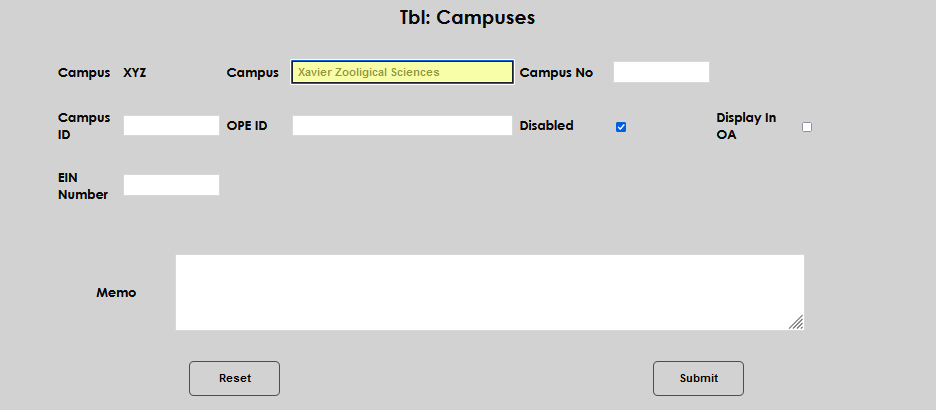
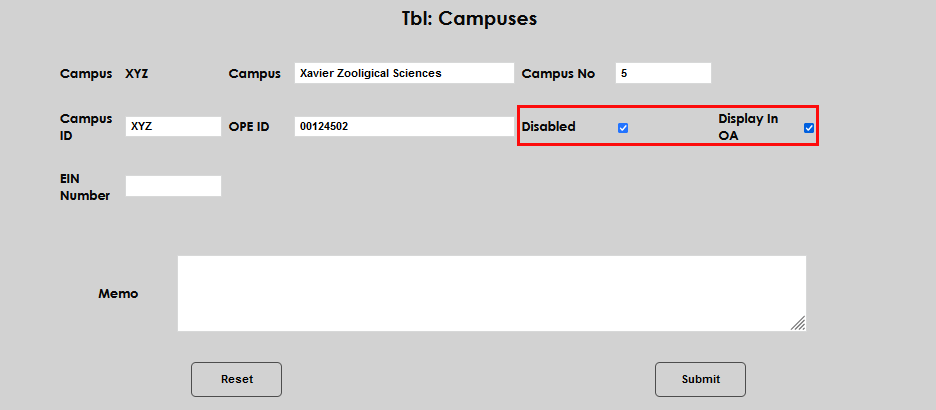
The campus can be removed from Online Application display and/or disabled by checking the Disabled box. If a campus is disabled, it will not be available to select when creating buildings/rooms or assigning courses and students to a particular campus. In addition, disabled campuses will not display in the Online Application even if the Display in OA box is checked.
If the campus was created in error, and there are no records that have been associated with it, the Delete button may be used to delete it. A campus cannot be deleted if there are existing records tied to it.
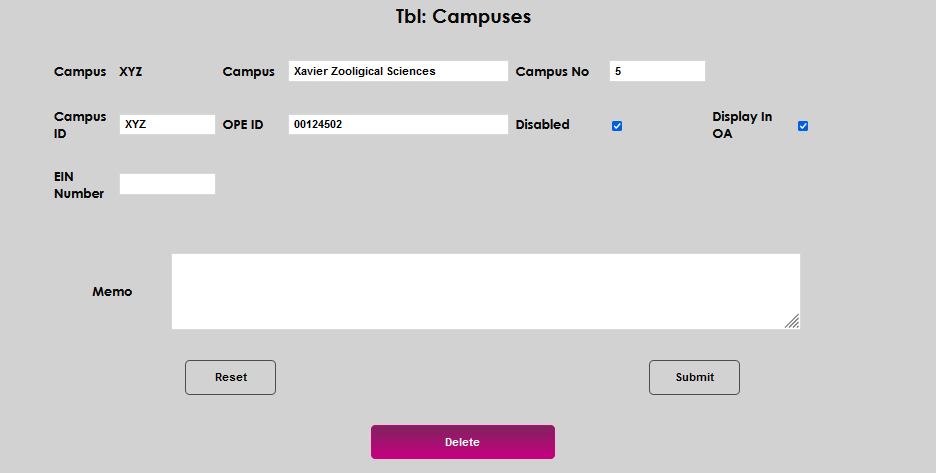
Click Submit to save any changes made.