Document Management System Bulk Upload
Overview
The SONIS Document Management System allows administrators to upload, store, and organize files that are all tagged to a specific SONIS user such as a student or applicant. As part of this process, administrators can choose how each file is categorized, the page it should be stored on, and what it should be named.
With the Bulk Upload option, administrators can process groups of files either immediately or at a scheduled later time when the server is less busy. These files are attached to various users based on the SONIS ID tag in the file name. They're all categorized the same and stored on one system page (specific to each user) based on the settings chosen when setting up the automated process.
Note
Self-hosted clients must set a DMS File Destination Directory in Web Options before they can use the Document Management System. Hosted clients should have this location already set by the Jenzabar Cloud Services team.
Tip
A fully automated upload process can be established, but it must be set up in coordination with Jenzabar Cloud Services to ensure data security. Reach out to your CSM if your school has interest in setting this up.
Individual User Processing
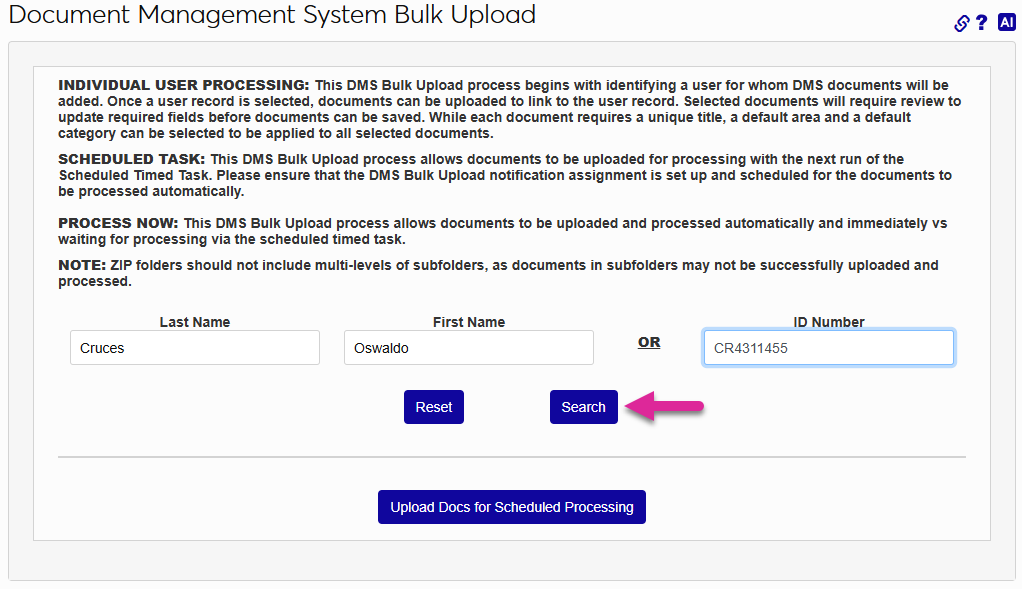
To upload files that all belong to the same SONIS user, begin by searching for the user using some combination of their Last Name, First Name, and SONIS ID Number.
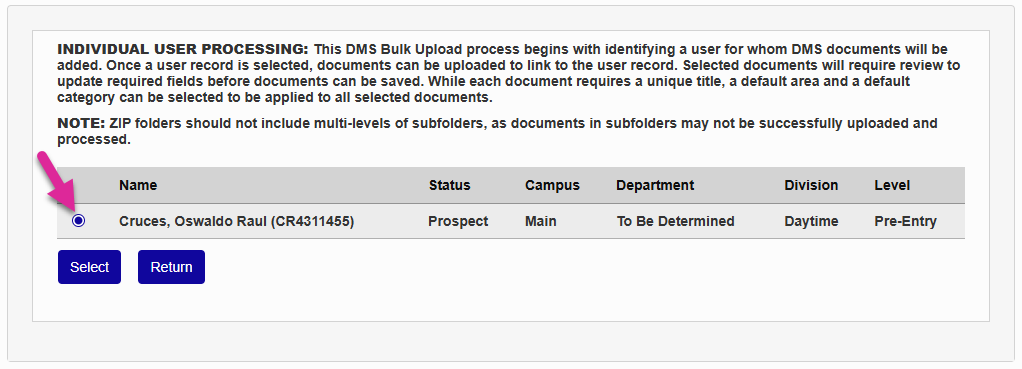
When the search results appear, click on the radio button next to the the student you want and click Select.
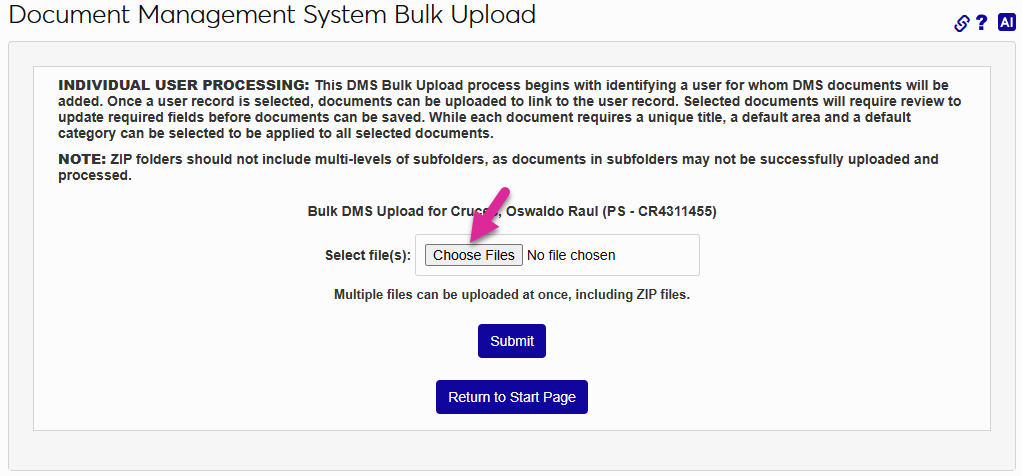
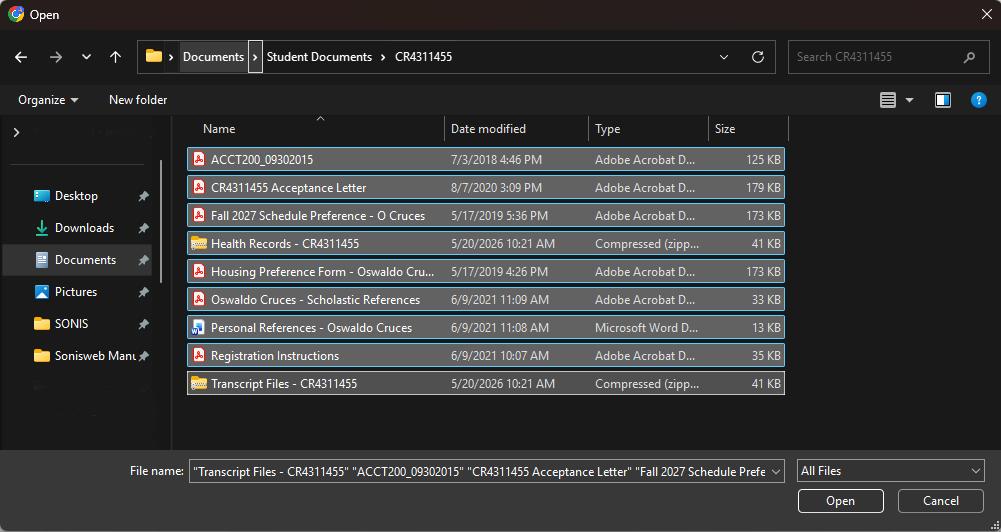
Click the Choose Files button and select the files you want to upload. All common file types and extensions are accepted, including zip files.
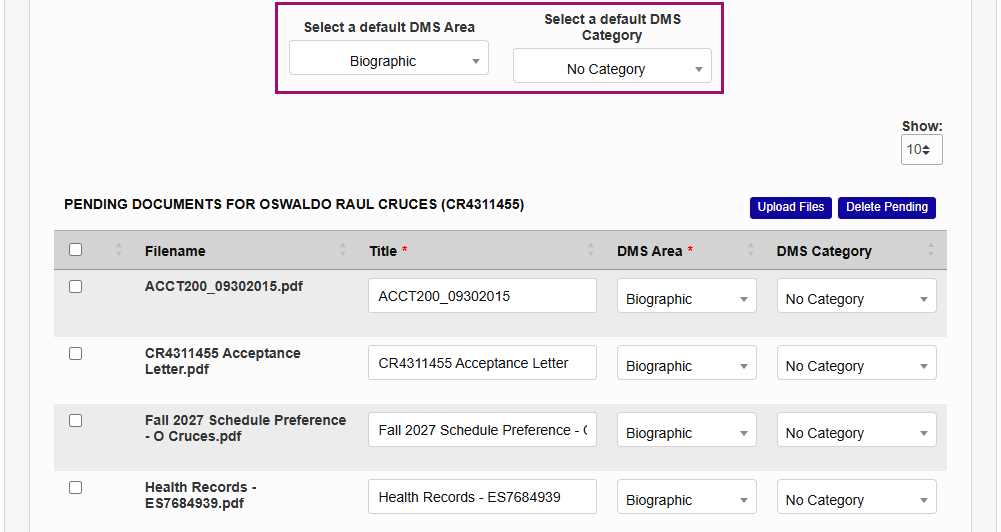
Once your files have been selected, you can select a Default DMS Area and a Default DMS Category that will apply to all of them. Alternately, you can select a DMS Area and DMS Category for each file individually.
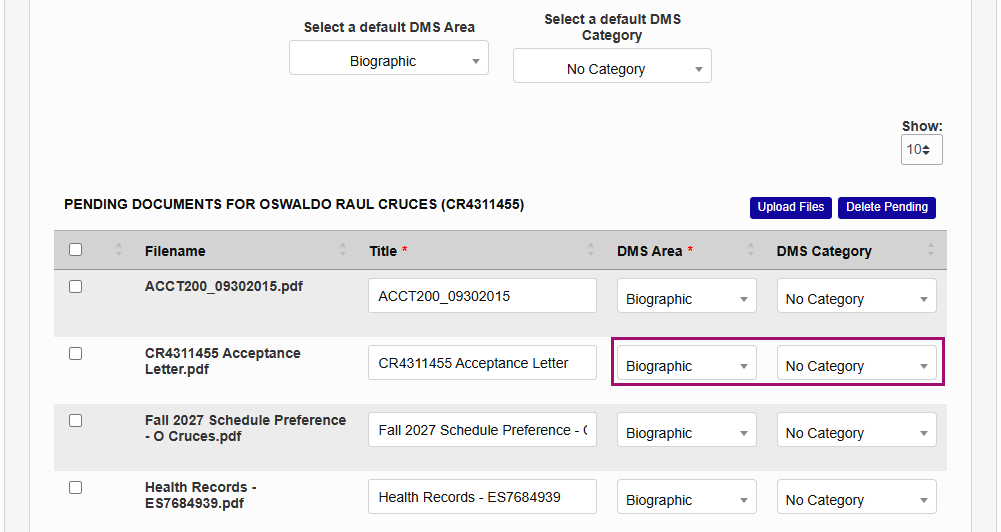
You can also rename any file by updating the Title field on that row. Duplicate titles are prohibited.
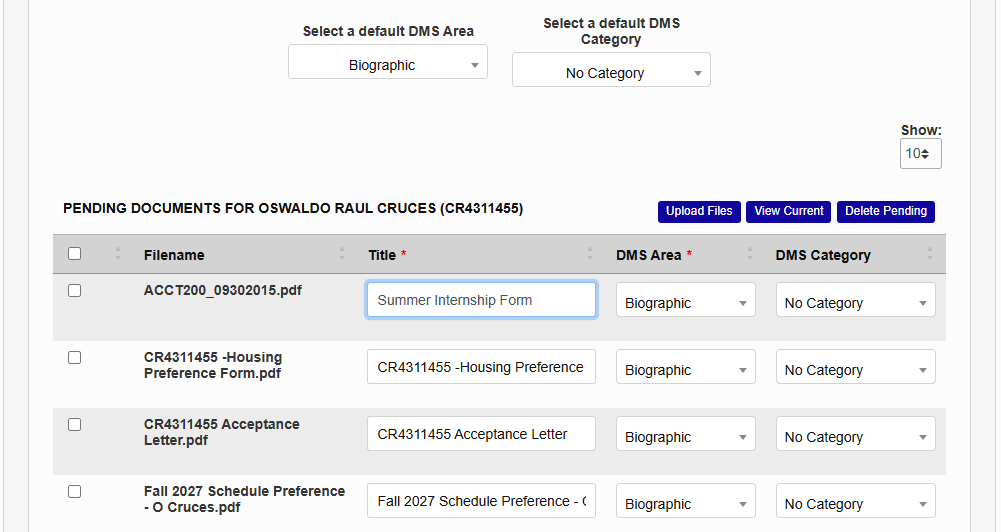
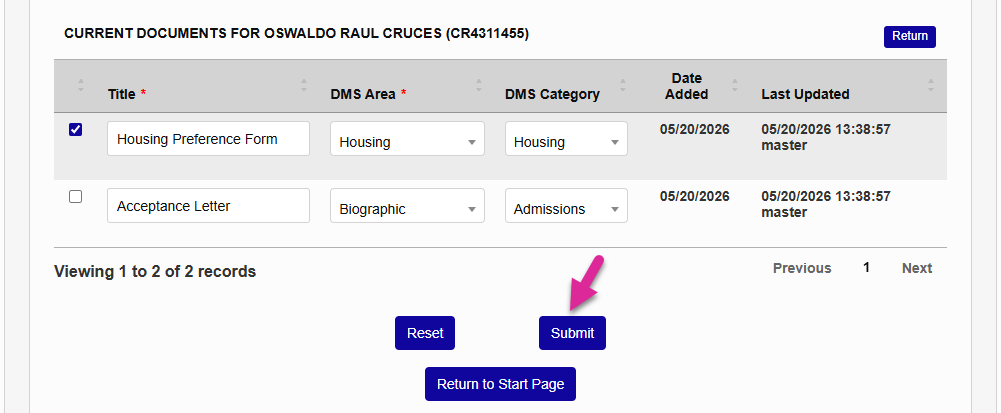
If the user has any existing files in the system, a View Current option is displayed. Click this button to see a list of the files. If you have the access rights to these files, you can make changes to the Title, DMS Area, or DMS Category. Select the checkbox on that row and click Submit to save the change.
Note
Files that have linked feedback records cannot be edited.
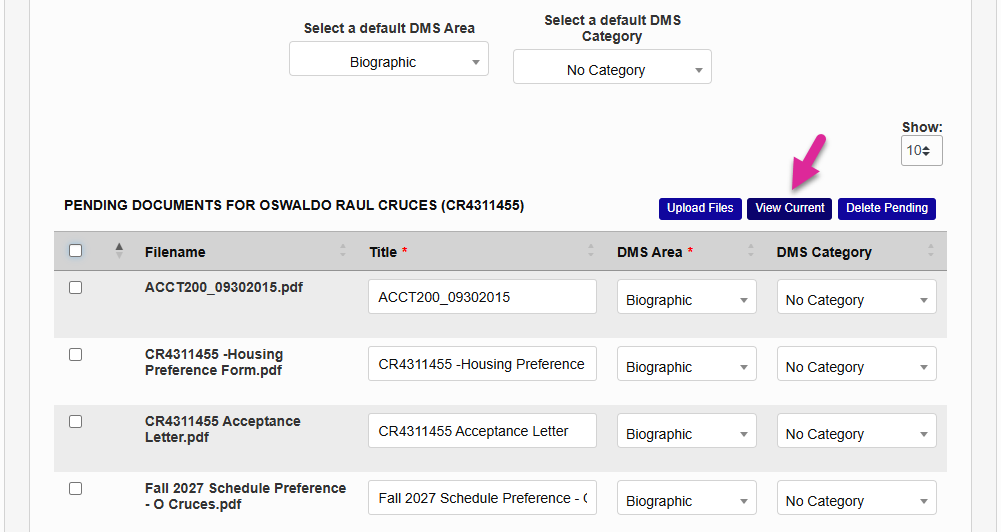
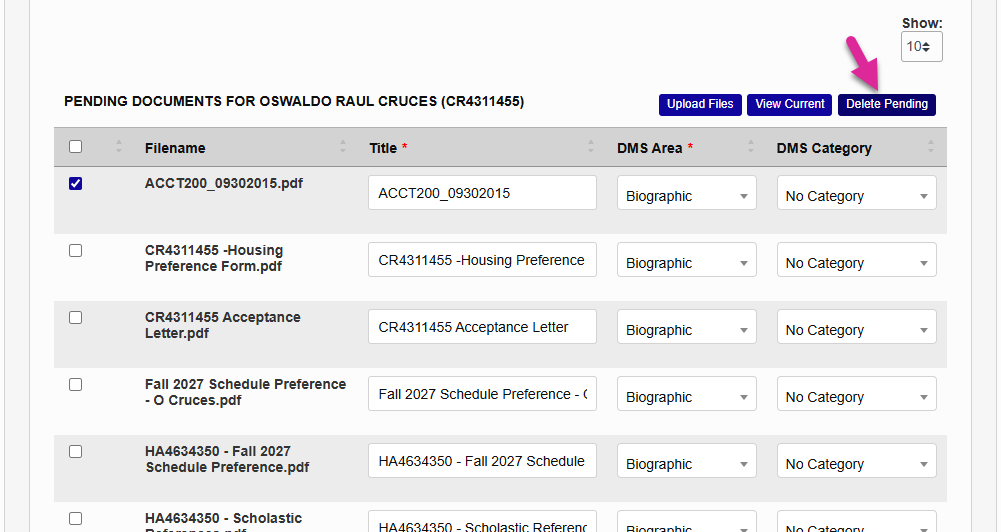
You can also remove files that you no longer wish to upload using the Delete Pending button.
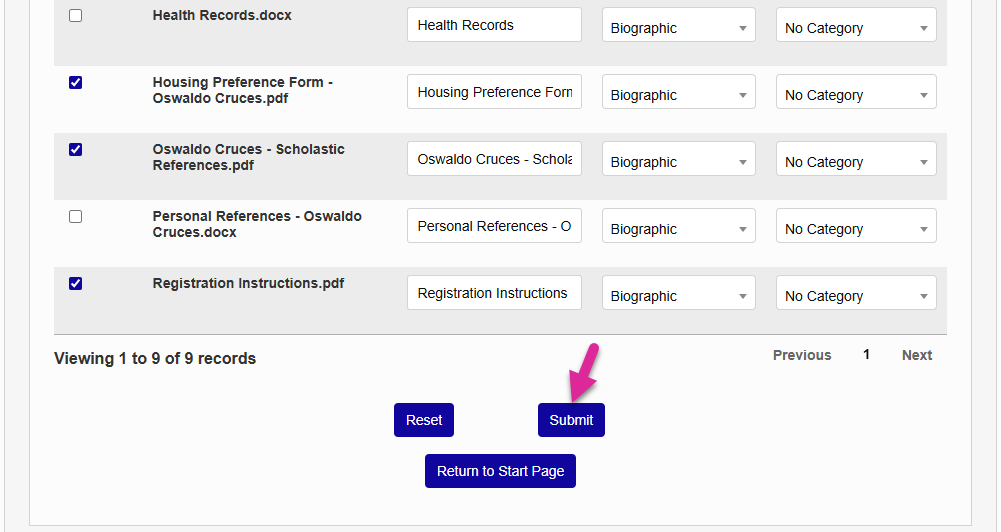
Use the checkbox in the title row of the table to check all files or check the ones you want to upload individually and click Submit when you've made your selections.
Once the process has run, the files will be available on the selected pages.
Scheduled Processing
The scheduled processing method provides the option of scheduling an upload of a batch of files at a later time when the server is less busy. It can also be used to immediately process a batch of files that belong to more than one SONIS user.
Tip
A fully automated upload process can be established, but it must be set up in coordination with Jenzabar Cloud Services to ensure data security. Reach out to your CSM if your school has interest in setting this up.
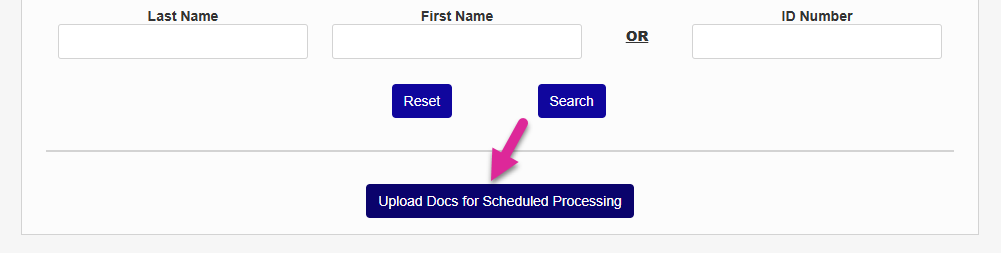
Click the Upload Docs for Scheduled Processing button to begin.
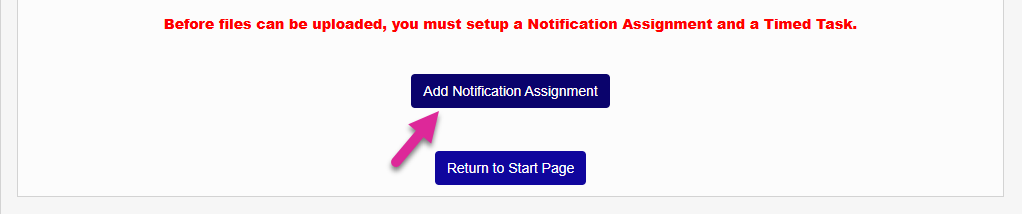
If this is your first time setting up the process, you will be prompted to Add Notification Assignment.
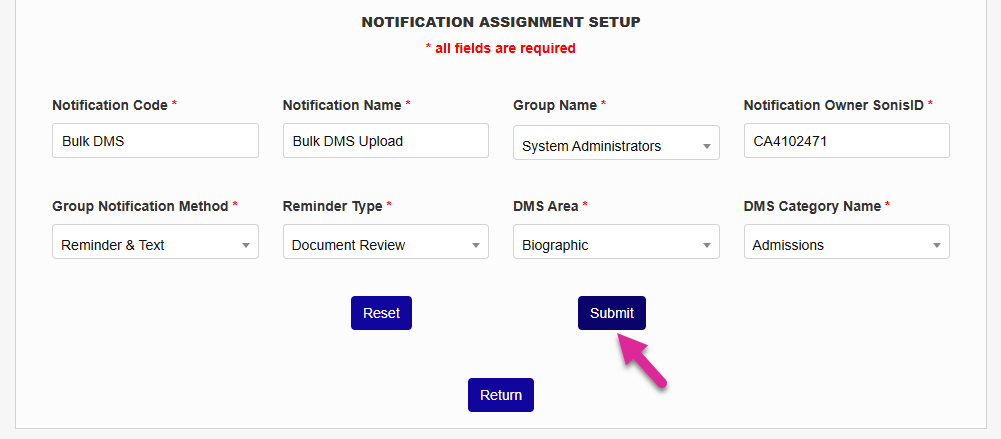
Set up the notification assignment. This will upload the files you've selected and notify the selected group. All fields are required.
Notification Name: A descriptive name for the notification assignment that will be easily recognized by anyone looking at existing assignments in the future. 50 character limit.
Notification Code: A shortened version of the notification name or other brief identifier that the system will use to recognize the assignment. 20 character limit. Cannot be edited once the page has been submitted.
Group Name: The people who will be notified when the process is run. Groups are created in Table Maintenance and staff members are added to them through their individual Groups pages in their Users menu.
Notification Owner: The SONIS ID of the person who is building this notification assignment.
Group Notification Method: Choose the type(s) of notification that will be sent.
Reminder Type: This label is used so staff members who receive the notifications will know what kind of notification they're receiving at a glance.
DMS Area: The page where the files will be accessed, specific to each specified user.
DMS Category Name: The category that the files will be tagged with.
Click Submit when you've completed the setup process.
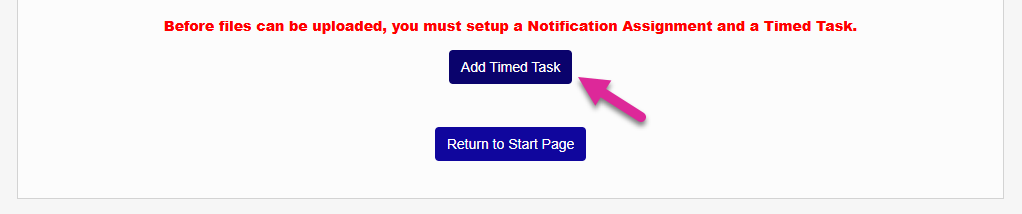
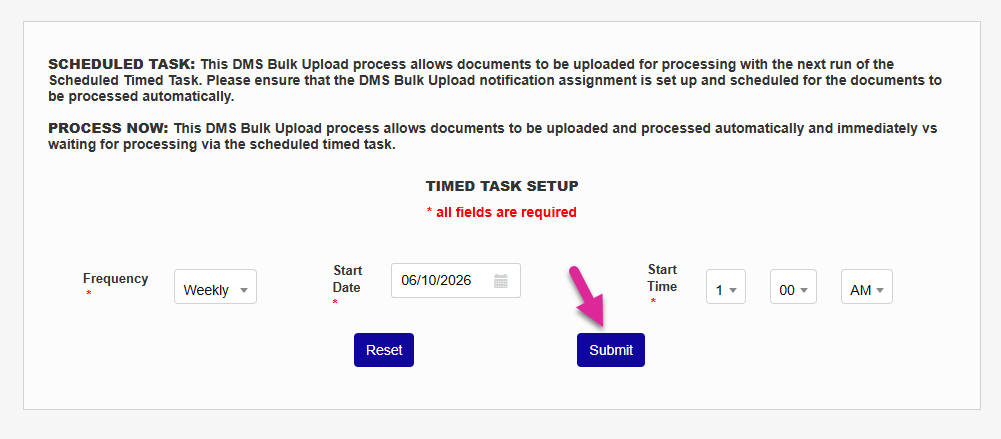
Next, you'll set up the date, time, and frequency of the upload by clicking the Add Timed Task button. All fields are required. Click Submit when you've completed the setup.
Note
Any future changes to the notification assignment or timed task must be made through the Notification Assignments or Timed Task Scheduler utility.
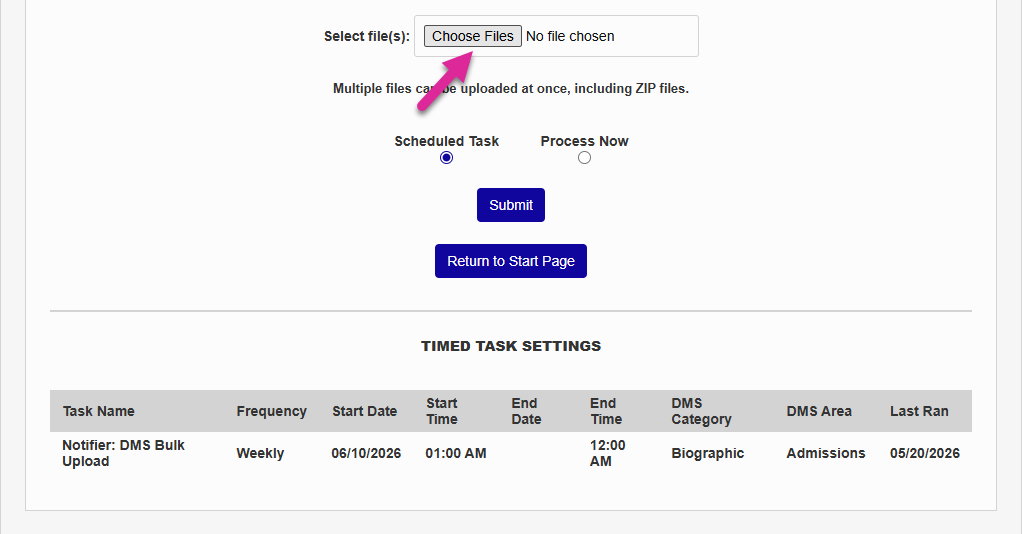
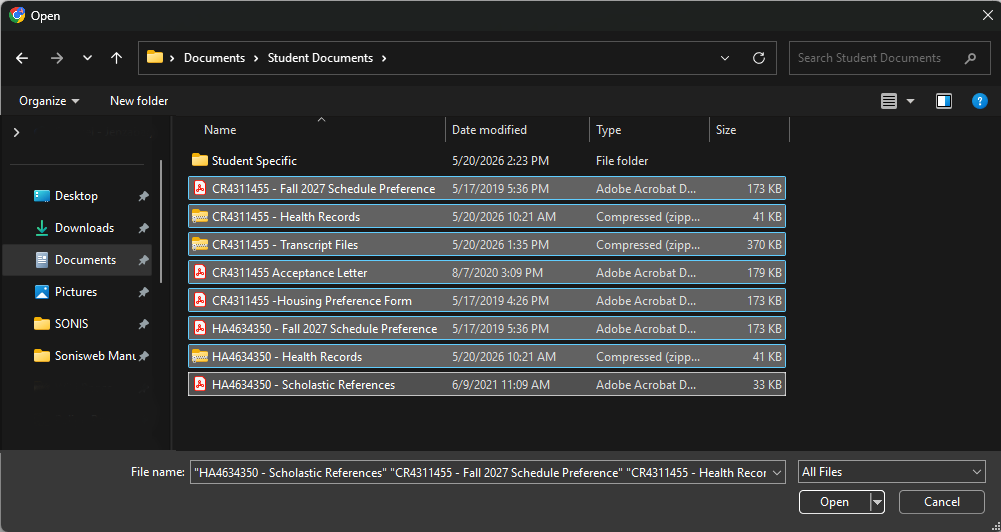
The timed task you set up is displayed at the bottom of the page. Click Choose Files and select the files that you want to upload. All common file types and extensions are accepted, including zip files.
Caution
All filenames must begin with a valid SONIS ID. This value is used to sort the files by user. Zip folders for a single user should be labeled with a single SONIS ID. The files within these folders do not need ID labels. Zip folders that contain files for multiple users do not need an ID label, but each file within the folder must have the correct label.
Select Process Now to upload the files now or Scheduled Task to tell the system to upload them later based on the timed task you set up. Click Submit to complete the process.
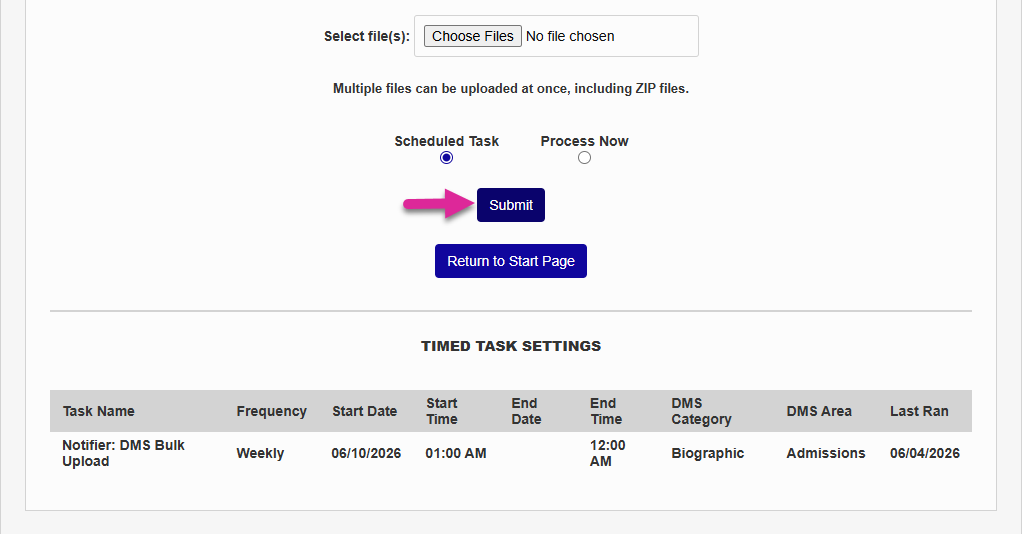
If your timed task was set to recur, you can return to this page to upload additional files for processing between scheduled times.