Order Tracking
Overview
Some SONIS member institutions refer to certain student activities as "orders." The Jenzabar SONIS Order Tracking utility gives these schools a way to record and manage student order records and the Order Tracking Import utility provides a means of adding orders in bulk. The versatility of SONIS allows these utilities to be utilized by institutions that use different terminology as well. The fields and the utility itself can be relabeled using the SONIS Systems utilities Headings and Columns.
Additionally, PDF support files related to the orders can be stored on the page using the SONIS Document Management System.
Setup
To fully utilize Order Tracking, Order Type and Order SubType must be set up. When creating Order Types and SubTypes, keep in mind that SubTypes can be connected to Types when the SubTypes are configured.
Order Type
Orders can be labeled according to type, but these types must first be created in the SONIS system. To create order types, navigate to the Table Maintenance utility in the Systems hub and select Order Type.
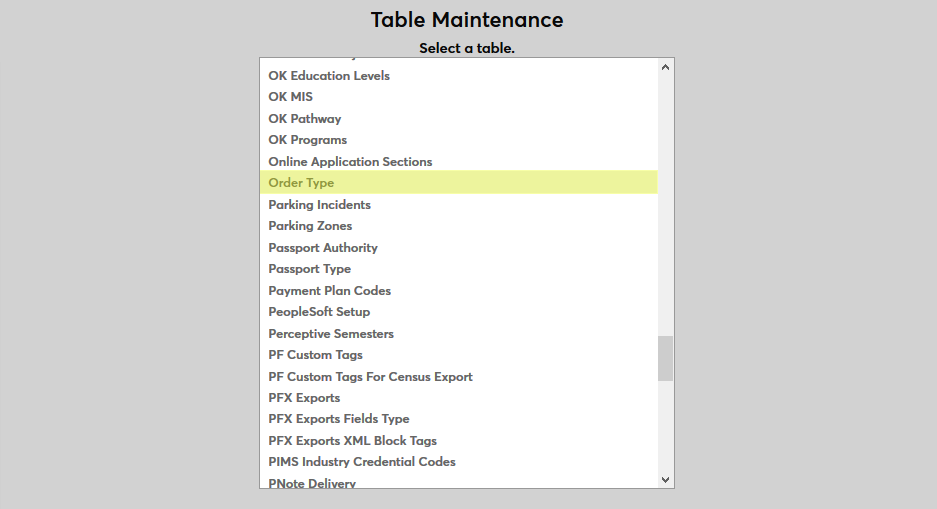
Click the Add New Record button to create a new order type.

First, create a descriptive name for the order type in the Order Type Descr field that will be used to identify the label in SONIS. The field has a 100-character limit.
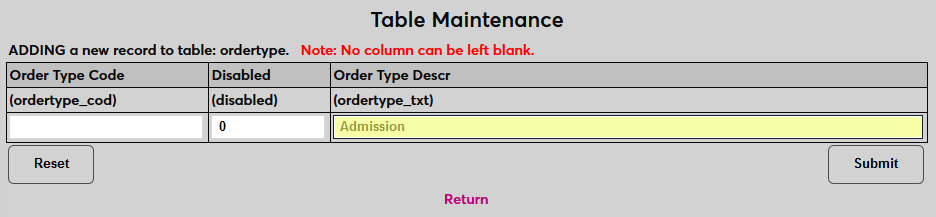
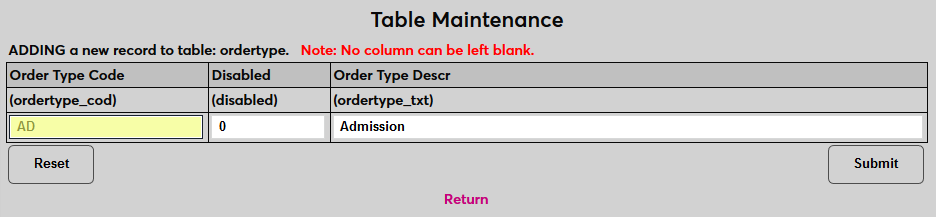
Next, create an Order Type Code, a shorter version of the description that will be used to identify the type behind the scenes. The field has a two-character limit.
Leave a 0 in the Disabled field to leave the order type active or replace it with a one to disable the type.
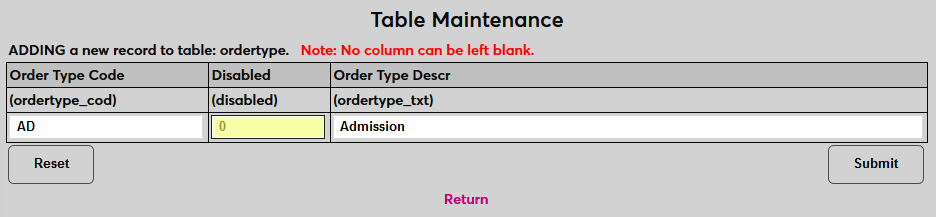
Click Submit to save the changes and create the order type.
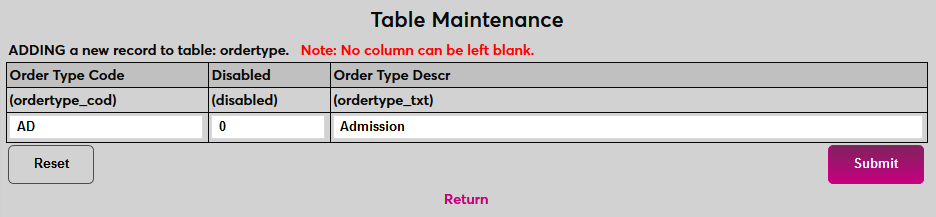
Repeat the process until all order types that will be used have been created.
Order SubType
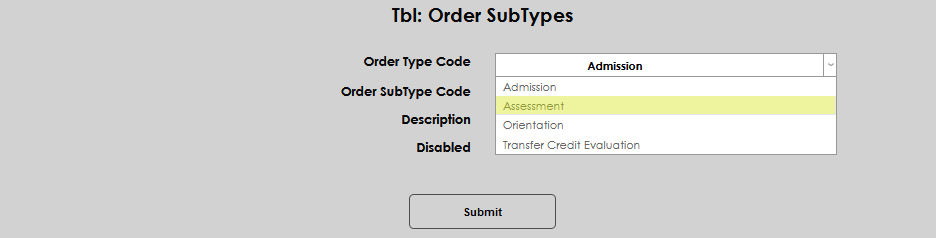
Order types can be further categorized using subtypes, and subtypes can be linked with types, but these subtypes must first be created in the SONIS system. To create order subtypes, navigate to the Order SubTypes page under the Systems menu and select Add.

First, select the Order Type Code from the dropdown menu that will be linked to the subtype being created.
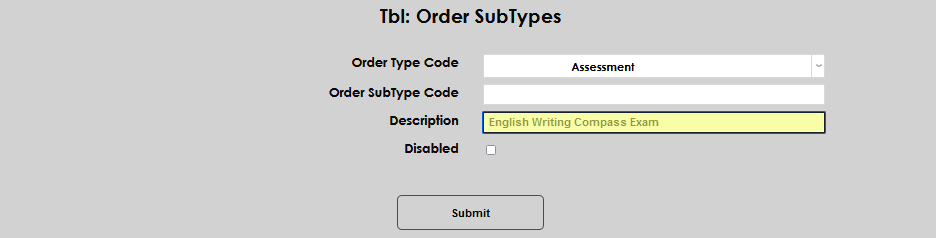
Create a descriptive name for the order subtype in the Order SubType Descr field that will be used to identify the label in SONIS. The field has a 100-character limit.
Next, create an Order SubType Code, a shorter version of the description that will be used to identify the subtype behind the scenes. The field has a two-character limit.
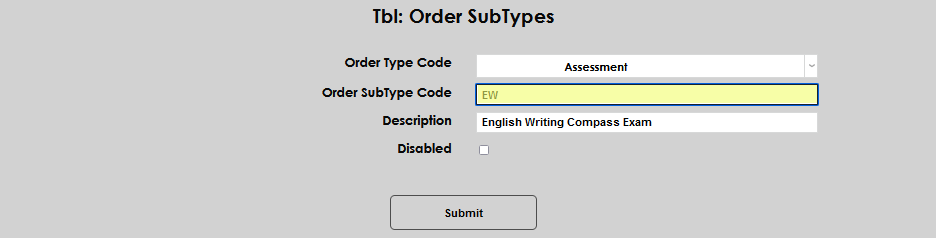
Enter a check in the Disabled box to disable the subtype. Leave the box empty to activate the subtype.
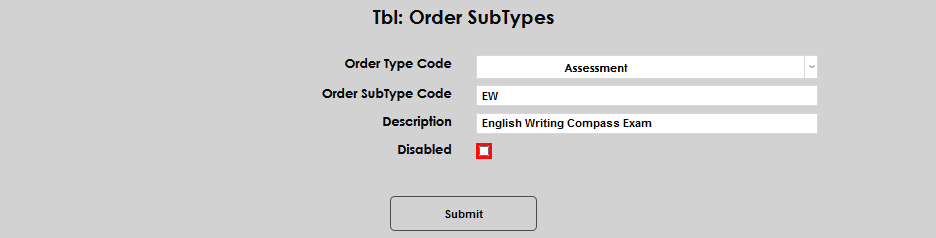
Click Submit to save the changes and create the order subtype. Repeat the process until all order subtypes that will be used have been created.
Manual Entry
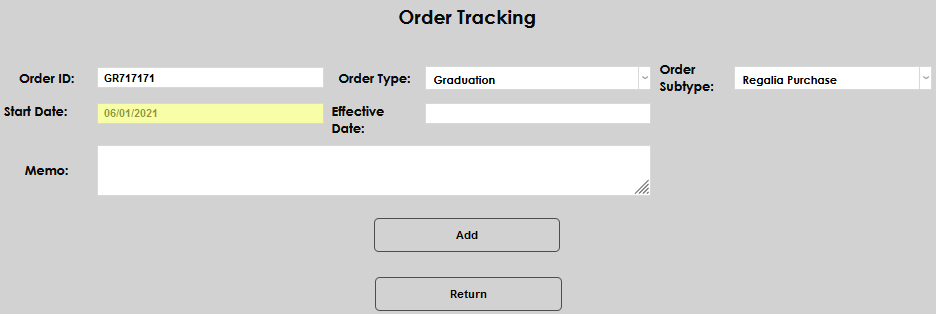
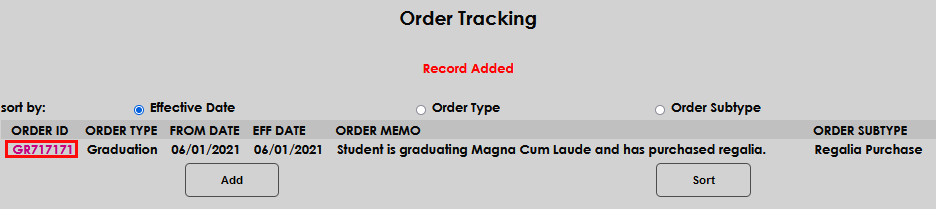
To add a record manually or view existing records, select a student and navigate to Order Tracking under their Records menu. Click Add to add a new record.

On the following page, create an Order ID, a numeric or alphanumeric code that will be used to identify the order. This field has a 27-character limit.
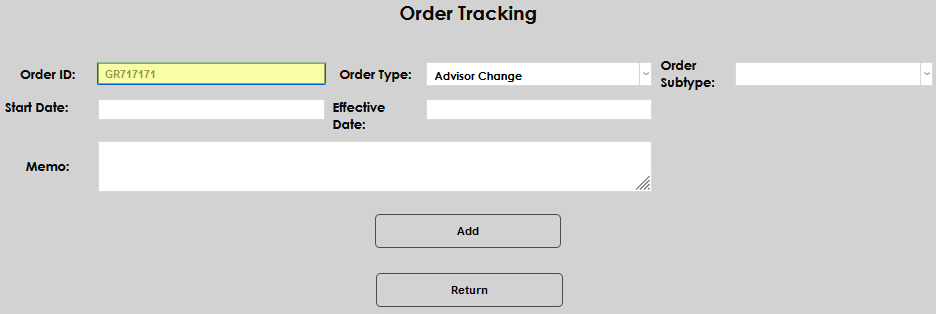
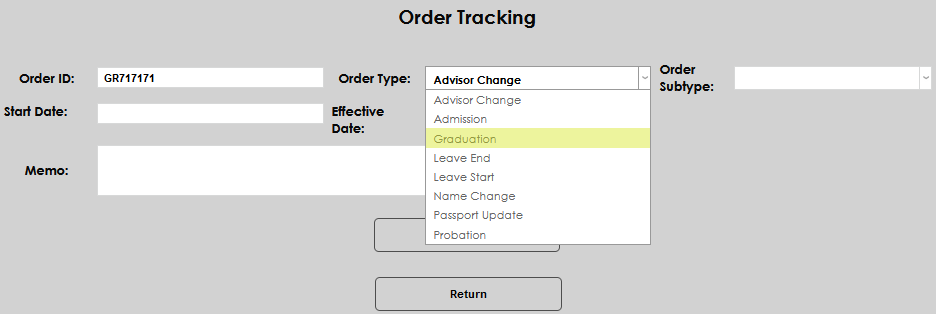
Select an Order Type from the dropdown menu to label the order.
Select an Order Subtype from the dropdown menu to further categorize the order.
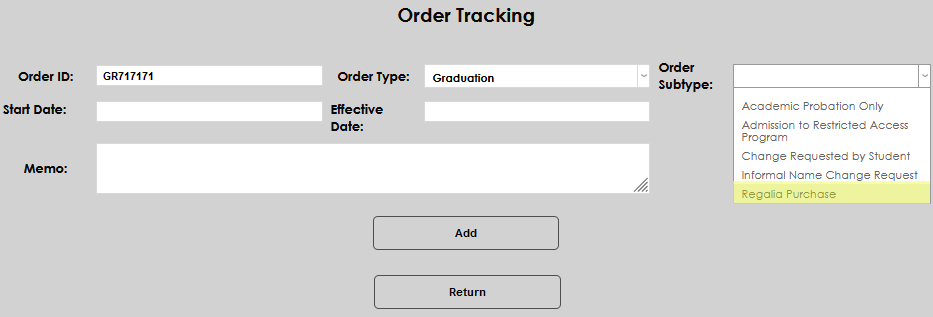
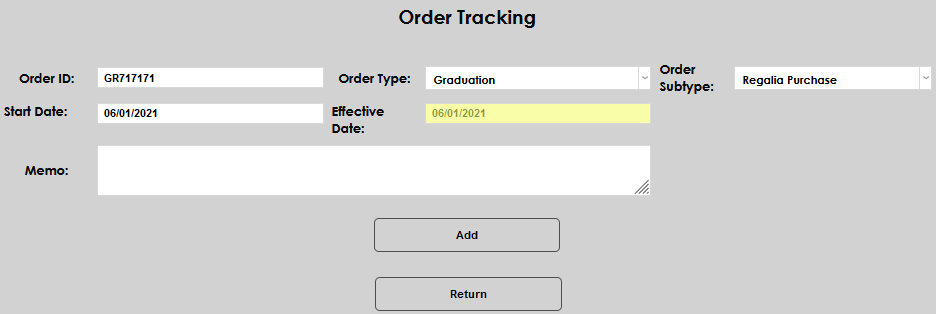
Enter a Start Date and an Effective Date for the order. These can be the same day or different days depending on the type of order and when it's being entered.
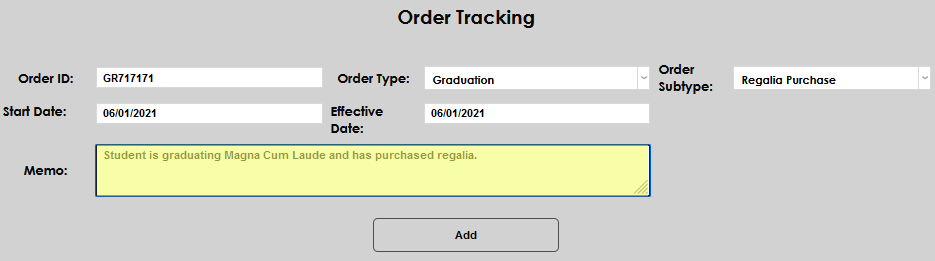
A Memo can be added with any additional notes that may be needed.
Click Add to save the changes and create the order.
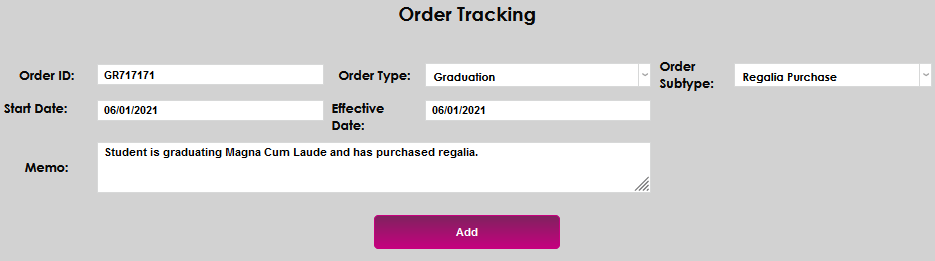
Once an order has been created, click on the Order ID to make changes.
Order Tracking Import
File Creation
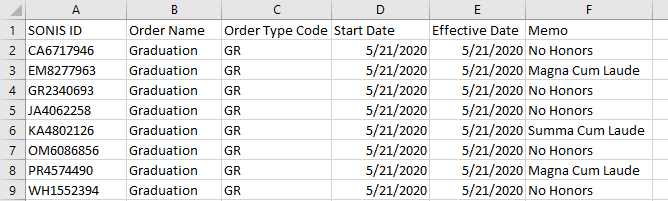
The import file must be a .csv file with a header row and the following columns:
A. SONIS ID
B. Order Name (27-Character Limit)
C. Order Type Code (2-Character Limit)
D. From Date (MM/DD/YYYY)
E. Effective Date (MM/DD/YYYY)
F. Memo
Importing
To import the order file and make mass changes, navigate to the Order Tracking Import utility in the Systems hub. Click Browse to locate and select the file.

Once the proper file has been selected, click Submit to upload the file.

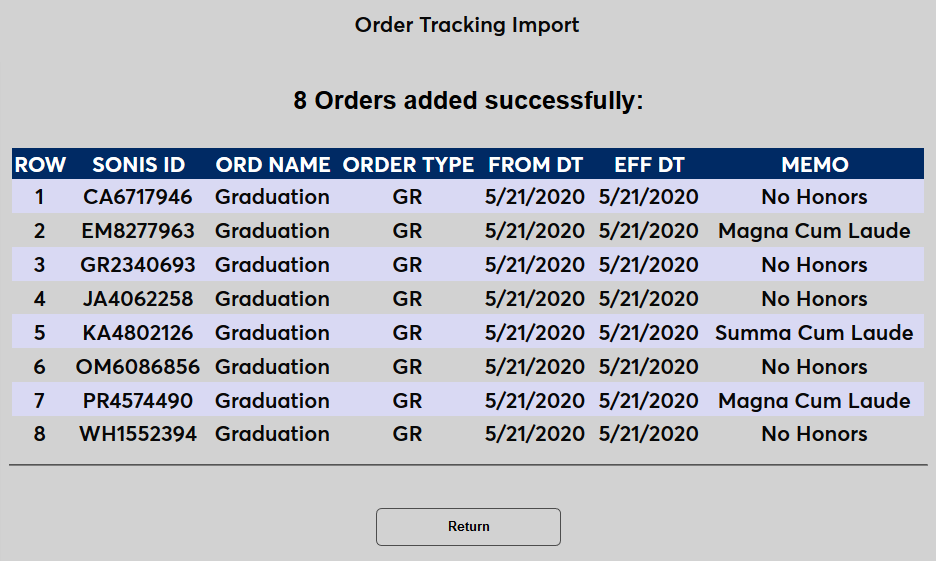
If the upload is successful, a results page will appear listing the changes that have been made.