Advising Worksheet
Important
Information and features vary according to the roles to which you belong and the permissions associated with those roles. For more information, contact your module manager or your campus support team.
The Advising Worksheet is a report that shows all of the requirements for a student's aims, the courses that have been assigned to meet those requirements, and the requirements that are still unmet.
Advisees are listed one by one, and each advisee's section of the report shows their personal information, degree information, and advisee information. Then each aim is listed with its status (Met or Not Met), Hours Needed, and Hours Earned.
Settings for the Advising Worksheet are on the Advising Settings page on the Advising Administration hub.
Note
The layout (or report version) that appears in J1 Web is selected on the Advising Settings page in the Advising Worksheet category.
The layout that appears in the Campus Portal is selected in Desktop on the UI Configuration window, Category Name: Advising.
Permission to view advising worksheets is available in all roles for advisors. It's the "Can view student summary" permission in the following roles (and roles copied from them):
Advising - Access to All Students
Primary Advisor - Access to Assigned Students
Secondary Advisor - Academic Program
Secondary Advisor - Athletic Roster
Secondary Advisor - Campus Location
In addition, the Registrars role and the Registration Module Manager roles have the following permissions that allow viewing the Advising Worksheet:
Can view student Division Info
Can edit student Division Info
Can view student Enrollment Info
Can edit student Enrollment Info
Can view student General Info
Can edit student General Info
Can view student Graduation Info
Can edit student Graduation Info
Can view student Program Info
Can edit student Program Info
Can view student Term Academic and Financial Info
Can edit student Term Academic and Financial Info
On the Manage Advisees page, select one or more advisees.
In the Reporting and Processes drop-down, select Advising Worksheet. The Advising Worksheet Report pop-up opens with the selected advisees listed. Their Classification and Major are listed, too.
To remove any of the selected advisees from the report, click the Remove icon
 .
.Click in the Reports field, and select a report. The <Original> report (r_advising_worksheet_tsi) is provided by Jenzabar, but your school may have others.
Click Generate PDF. If there are only a few records to process, the report opens in a new tab. If there are many records, the report may take a while to process. You'll be notified when it's ready, and you can find a link to the report in the Notification Center.
Use your browser's options to print or save the report.
On the Student Aims page, begin typing in the Student / ID field, and select an advisee.
Click the Apply button.
In the Reporting and Processes drop-down, select Advising Worksheet. The Advising Worksheet Report pop-up opens.
Click in the Reports field, and select a report. The <Original> report is provided by Jenzabar, but your school may have others.
Click Generate PDF. If there are only a few records to process, the report opens in a new tab. If there are many records, the report may take a while to process. You'll be notified when it's ready, and you can find a link to the report in the Notification Center.
Use your browser's options to print or save the report.
On a student's Summary page, click the Person options drop-down.
Select Student, Reports, and Advising worksheet. The report opens in a new browser tab.
Use your browser's options to print or save the report.
Important
Access to the folders where Jenzabar-provided original reports are stored is controlled by your institution. For more information, contact your campus support team or see Working with Reports in J1 Web.
Open InfoMaker.
Click File > Select Library.
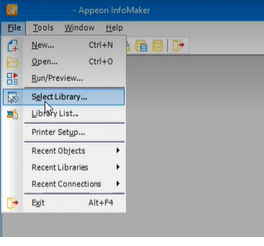
On the Select Library pop-up, navigate to the shared folder where Jenzabar-provided original reports and queries are stored.
Select the PBL (PowerBuilder Library) file that contains the report or query you want to customize.
Click OK.
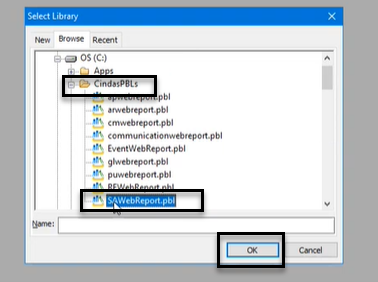
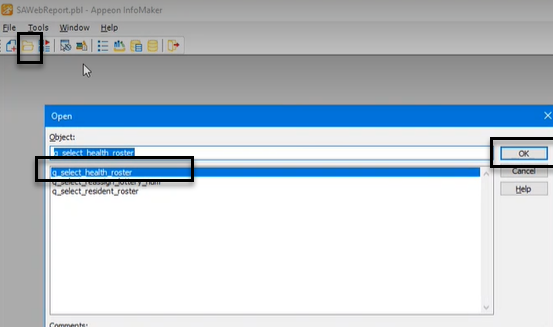
Click the Open icon.
On the Open pop-up, in the Object section, select the report or query you want to customize.
Click OK.
Customize the report or query as needed.
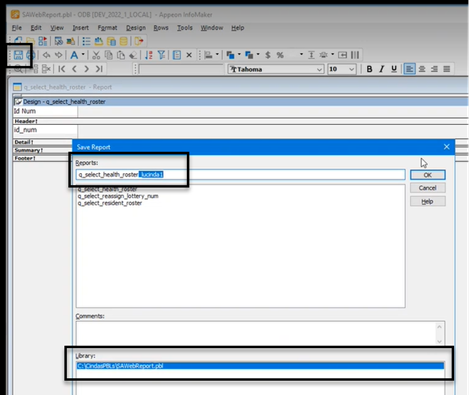
Save the customized version in the shared folder by adding a unique, easily identifiable extension to the file name.
Tip
By default, InfoMaker saves the customized version in the same folder that you opened the original version from. Confirm the file path is correct in the Library section.
On the corresponding report page in J1 Web:
Customized versions of queries will display in the Query or Data Set drop-down.
Customized versions of reports will display in the Report Layout drop-down.
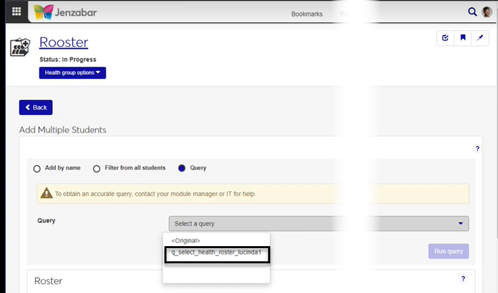
In most cases, yes. Customized versions of the report created in Desktop before your school started using J1 Web should be available as options in the Report Layout drop-down. If your school created new customized layouts in Desktop and copied them to the appropriate location on the J1 Web server, those reports are also available in the drop-down.
However, certain reports were modified to be used in J1 Web (i.e., the base report for J1 Web is different from the base report in Desktop). In those cases, the customized versions from Desktop will not work even when they are moved to the correct location on the J1 Web server. You'll need to re-customize those reports from the original version of the J1 Web report by following the instructions to Customize Reports for J1 Web.
See the help for each report page for guidance about customizing a specific report.
For the customized versions of the report created in Desktop to appear as choices in the Report Layout field drop-down, your campus support team needed to complete certain steps as part of the installation process. For more information, contact your campus support team or see Working with Reports in J1 Web.
Tip
Only custom versions of the report created in Desktop before J1 Web installation will appear as choices in the Report Layout field drop-down. Reports customized in Desktop after you've installed J1 Web are not available in the drop-down unless they have been copied over to the appropriate location on the J1 Web server.
Verify the PowerBuilder Services URL is entered correctly in System Administration, System Settings, Product Installs and Sign page.
The URL must use HTTPS and not HTTP
The URL subdomain and domain must match the J1 Web URL
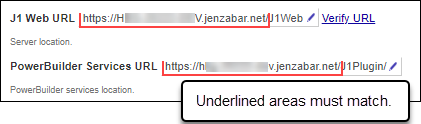
If the location where you store J1 Web reports is not the default installation location (C: > Jenzabar > Reports), verify the J1 Web server has permission to access the location. Detailed steps are available in the help topic Working with Reports in J1 Web.