Configuring J1 Web 2024.3 for Reports from a Student's Summary Page
In J1 Web 2024.3 and its patches (2024.3.0.1 and 2024.3.0.2, for example), if you want to be able to select the layouts available for certain reports you access from a student's Summary page, you'll need some SQL scripts to edit the database. Here is the background information followed by instructions.
Note
In 2026.1 and following, the reports discussed here have their own settings on the Registration General Settings page and the Repeat, Transcript, and GPA Settings page. So in 2026.1 and following, use those settings, and disregard this topic.
Prior to J1 Web 2024.3, the following reports used the report layouts from JICS (UI Configuration feature) rather than their own J1 Web layouts:
Grade Report
Student Schedules Report
Unofficial Transcript Report
Beginning with J1 Web 2024.3, those reports now use the J1 Web layouts (in PbPlugin). That change doesn't present a problem when you access Grade Report and Student Schedules Report from the Registration Reporting and Processes hub, but it does when you access those reports or the Unofficial Transcript from a student's Summary page.
When you access reports from a student's Summary page, there's no user interface for selecting report layouts for those 3 reports. (The settings to select the layouts are planned for J1 Web 2026.1.) Instead, for now, if your school wants to select a report layout other than the one selected by default, your school can use scripts to change the selection in the database.
There are 3 steps to selecting a report other than the default:
Customize the report layout in the rewebreport.pbl.
Update the database to select the report layout you want to use.
Perform an IISRESET on the J1 Web server.
Notes on the Report Layouts
Grade Report and Student Schedule Report each have only one layout provided by Jenzabar. Therefore, if you use the Jenzabar-provided layout, you don't need to change these. It's only if you use a custom layout that you need to change the layout selection for these reports.
Grade Report: d_grade_rpt
Student Schedue Report: d_stud_sched_rpt
Unofficial Transcript Report has 4 layouts provided by Jenzabar:
Selected by default in the database: r_id_transcript
Also available:
r_id_pesc_portrait_transcript
r_id_portrait_transcript
r_tx_id_transcript
If you want the default layout, you don't need to change the selection.
If you want one of the other Jenzabar-provided layouts or one of your custom layouts, you do need to change the selection.
Here are steps to change the report selection. If your school doesn’t have someone with the necessary skills to run SQL scripts, you can open a ticket with Application Support for assistance.
Make sure you customize the report layouts in the rewebreport.pbl. The default layouts (including all the Unofficial Transcript layouts) are already in the PBL.
Default location for nonhosted schools: C:/Jenzabar/Reports
Default location for hosted (JAAS) schools: D:/###/Jenzabar/WebPbls
In this step, if you want a different report layout for one of the reports, you'll change the selection in the database.
For example, if your school uses a Student Schedule Report layout that omits the Social Security Number, you'll change the value from the default "d_stud_sched_rpt" to your custom layout, such as "d_stud_sched_rpt_nossn".
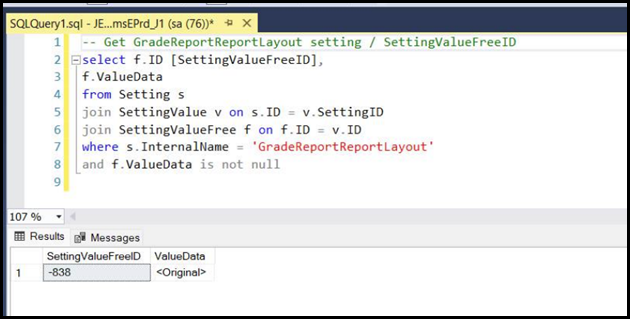
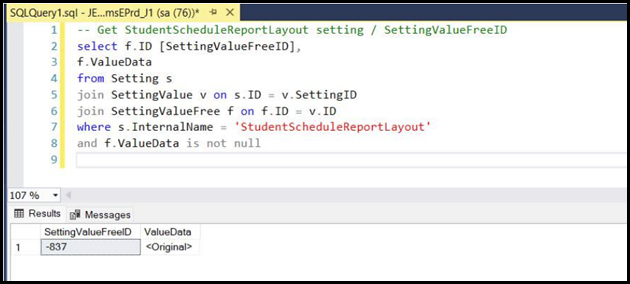
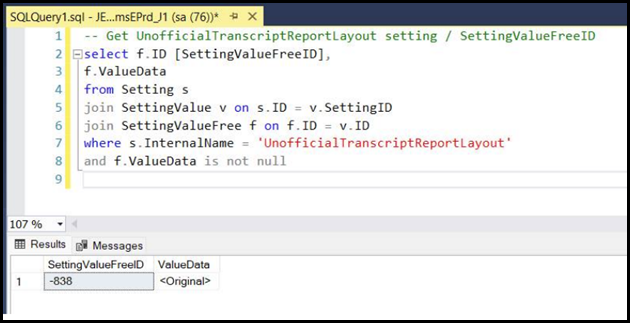
Use the following scripts to find the current report layout for each of the reports:
Grade Report:
– Get GradeReportReportLayout setting / SettingValueFreeID
select f.ID [SettingValueFreeID],
f.ValueData
from Setting s
join SettingValue v on s.id = v.SettingID
join SettingValueFree f on f.ID = v.ID
where s.InternalName = 'GradeReportReportLayout'
and f.ValueData is not null
Student Schedules Report:
– Get StudentScheduleReportLayout setting / SettingValueFreeID
select f.ID [SettingValueFreeID],
f.ValueData
from Setting s
join SettingValue v on  s.id = v.SettingID
join SettingValueFree f on f.ID = v.ID
where s.InternalName = 'StudentScheduleReportLayout'
and f.ValueData is not null
Unofficial Transcript:
– Get UnofficialTranscriptReportLayout setting / SettingValueFreeID
select f.ID [SettingValueFreeID],
f.ValueData
from Setting s
join SettingValue v on s.id = v.SettingID
join SettingValueFree f on f.ID = v.ID
where s.InternalName = 'UnofficialTranscriptReportLayout'
and f.ValueData is not null
Change the value to the report layout you want to use: Update SettingValueFree set ValueData = [CustomReportName] where ID = [SettingValueFreeID]
The IISRESET finishes the process so that your selected layouts are available.
Warning
Running the IISRESET temporarily disconnects users from the Campus Portal (JICS).
Nonhosted schools: Perform an IISRESET on the J1 Web server.
Hosted (JAAS) schools: Request an IISRESET from Jenzabar Managed Services.