Manage Unsigned Check-In Room Condition Reports (Suite)
After you have set up Room Condition Report Templates on the Residence Life Administration hub and assigned report templates to suites, you can generate the check-in report for suites within the specific session. You do this on the Manage Unsigned Check-In Room Condition Reports (Suite) page.
Unsigned reports are used to record the condition of the room items at check-in. These can be used during the walk-through inspection to note the condition of room items. When the report is completed, the resident signs it to acknowledge it.
Note
The room condition report is not a required part of the check-in process. You can manage report settings on the Residence Life Settings page. To enable the report at check-in, select the Enable Room Condition Reports at Check-In checkbox. To require a signature on the report, select the Resident signature required checkbox.
To access the Manage Unsigned Check-In Room Condition Reports (Suite) page from the Session summary page, click the Session options drop-down and select Check-in options, then Manage unsigned room condition reports (suite).
Note
To manage room condition reports for individual bedrooms rather than a suite, select Manage unsigned room condition reports from the Session options drop-down.
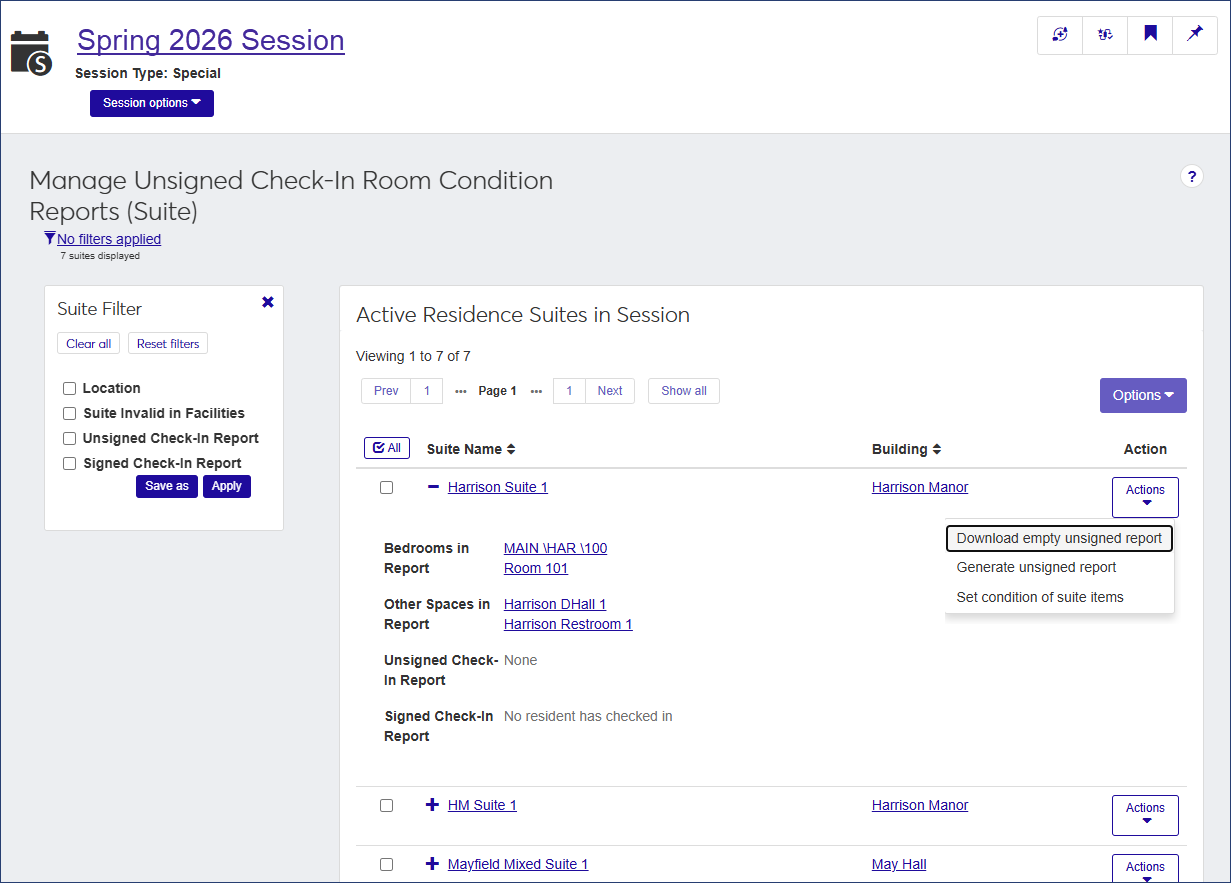
The Manage Unsigned Check-In Room Condition Reports (Suite) page provides the following information for each available suite in the session. Click the plus icon to expand the row and view all columns.
Column | Description |
|---|---|
Suite Name | The name of the suite. Click the name to open the summary page for the suite. |
Building | The name of the residence building the suite is in. Click the name to open the building's summary page. |
Action | Click the Actions drop-down to choose from the following options:
If a report template has not been assigned to the room, a report cannot be generated. |
Bedrooms in Report | A list of each bedroom in the suite. Click a bedroom name to open the Manage Residence Spaces page for that bedroom. |
Other Spaces in Report | Any other spaces (such as a kitchenette) that are part of the suite and are included on the report. |
Unsigned Check-In Report | If an unsigned report has been generated, it is linked here. Click the link to open a PDF of the report. You can then download or print the report. |
Signed Check-In Report | If a signed room condition report exists, it is linked here. Click the link to open a PDF of the report. You can then download or print the report. |
How To
On the Session summary page, click the Session options drop-down and select Check-in options, then Manage unsigned room condition reports (suite). The Manage Unsigned Check-In Room Condition Reports (Suite) page opens, listing all active residence suites in the session.
Locate the suite you need to work with and select Generate unsigned report from the Actions drop-down. The Generate Unsigned Room Condition Report (Suite) window opens to step 1, Report Basics.
Note
If a report has already been generated, the option is labeled Update unsigned report.
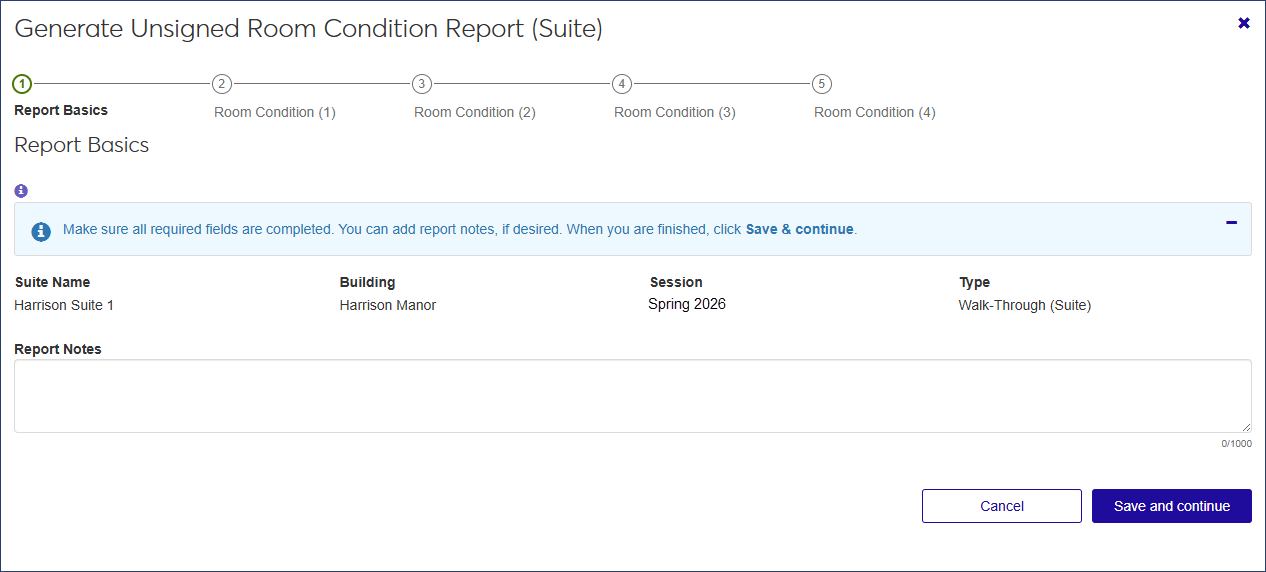
Enter Report Notes as needed and click Save and Continue to move to step 2, the Room Condition Report, for the first bedroom in the suite. This page lists all the items in the room and the condition currently assigned to each one. Click the Expand icon to view notes and any supporting documentation, such as a photo of damage.
Update the condition of the room items as needed. You can update items individually or in a batch.
To update the condition of an individual item:
Click Update next to the item you need to update. The Update Item Condition pop-up opens.
From the Condition drop-down, select the new condition of the item.
If you have a photo or other supporting documentation, click Choose file and upload the document or image.
Note
This feature is only available when Document Storage is enabled in Desktop and the Active checkbox is selected for SADAMAGE.
Enter Notes as needed.
Click Update to save the changes.
Repeat steps i–v to update the conditions of other room items.
To update conditions for items in a batch:
Note
When you update items in a batch, each item you select will be assigned the same condition.
Select the checkbox next to each item you want to update. Click the All icon
 to select all items listed.
From the Options drop-down, select Update item condition. The Update Item Condition window opens, listing each item you selected and its current condition.
From the Condition drop-down, select the condition you want to assign to the items.
Click Update to save the changes and close the window.
Repeat steps i–iv as many times as needed to update the conditions of other room items.
When you have finished updating conditions for all the items in the room, click Save and continue to move to the next bedroom in the suite.
Repeat steps 4 and 5 for each bedroom in the suite.
When you have completed the report for all bedrooms in the suite, click Save & finish.
To generate a PDF of the report, click Generate report. You can then download or print the report.
If a check-in report has been generated but has not yet been signed, you can add notes and update the condition of room items in one or more bedrooms in the suite.
On the Manage Unsigned Check-In Room Condition Reports (Suite) page, select Update unsigned report from the Actions drop-down for the suite you need to update. The Generate Unsigned Room Condition Report (Suite) window opens to the Report Basics step.
Update Report Notes as needed.
Click Save and continue to move to the Room Condition step for the first bedroom in the suite.
Update the condition of the room items as needed. You can update items individually or in a batch.
To update the condition of an individual item:
Click Update next to the item you need to update. The Update Item Condition pop-up opens.
From the Condition drop-down, select the new condition of the item.
If you have a photo or other supporting documentation, click Choose file and upload the document or image.
Note
This feature is only available when Document Storage is enabled in Desktop and the Active checkbox is selected for SADAMAGE.
Enter Notes as needed.
Click Update to save the changes.
Repeat steps i–v to update the conditions of other room items.
To update conditions for items in a batch:
Note
When you update items in a batch, each item you select will be assigned the same condition.
Select the checkbox next to each item you want to update. Click the All icon
to select all items listed.From the Options drop-down, select Update item condition. The Update Item Condition window opens, listing each item you selected and its current condition.
From the Condition drop-down, select the condition you want to assign to the items.
Click Update to save the changes and close the window.
Repeat steps i–iv as many times as needed to update the conditions of other room items.
When you have finished updating conditions for all the items in the room, click Save and continue to move to the next bedroom in the suite.
Repeat steps 4 and 5 for each bedroom in the suite.
When you have completed the report for all bedrooms in the suite, click Save & finish.
To generate a PDF of the report, click Generate report. You can then download or print the report.
From the Session options drop-down on the Session summary page, select Check-in options > Manage unsigned room condition reports (suite). The Manage Unsigned Check-In Room Condition Reports (Suite) page opens, listing all available suites in the session.
On the row of the suite you need to work with, select Download empty unsigned report from the Actions drop-down. A blank PDF version of the report opens in a new tab.
Download or print the blank report as needed.
If an unsigned check-in report has been generated, you can click the report link to open it as a PDF.
On the Manage Unsigned Check-In Room Condition Reports (Suite) page, click the plus icon
 next to the suite you need to work with to expand the row.
Click the link for the Unsigned Check-In Report.
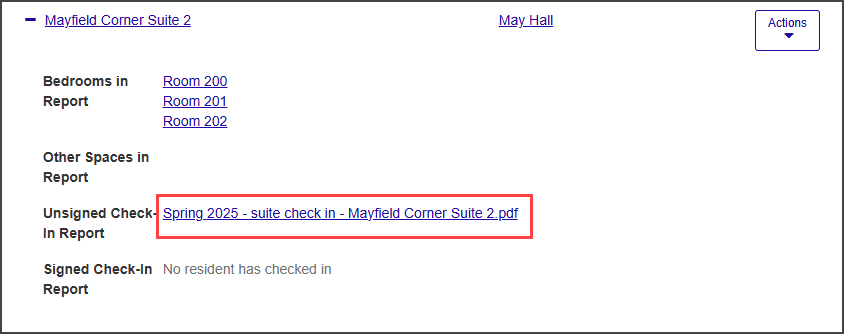
A PDF version of the report opens in a new tab.
Download or print the report as needed.
If you have the required permissions, you can save time and effort by setting the condition of all room items in a suite directly from the Manage Unsigned Check-In Room Condition Reports (Suite) page without having to generate an unsigned report first. For example, if all the items in the suite are new, you can simply set the condition for all items in the suite to "New." You can set conditions for items in one suite at a time or for multiple suites at once.
To set room item conditions, you must be in a role with the permissions "Can set up check-in process" or "Can manage resident check-in process" enabled. Otherwise, this option is not available.
Note
When you set room items conditions from this page, all items in the suite are set to the same condition. You can update the condition of individual items by updating the Unsigned Room Condition Report.
To set item conditions for one suite at a time:
From the Actions drop-down for the suite you need to update, select Set condition of suite items. The Set Condition of Suite Items pop-up opens.
Select an option from the Set Condition for All Suite Items drop-down. The condition you select will be applied to all the items in the suite.
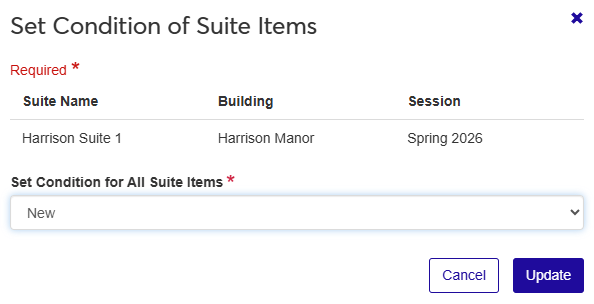
Click Update to save the change and close the pop-up.
To set conditions for items in multiple suites at once:
On the Manage Unsigned Check-In Room Condition Reports (Suite) page, select the checkbox next to each suite you need to update.
From the Options drop-down, select Set condition of suite items. The Set Condition of Suite Items? pop-up opens, listing the suites you selected and asking if you're sure you want to update all items in every active residence suite listed.
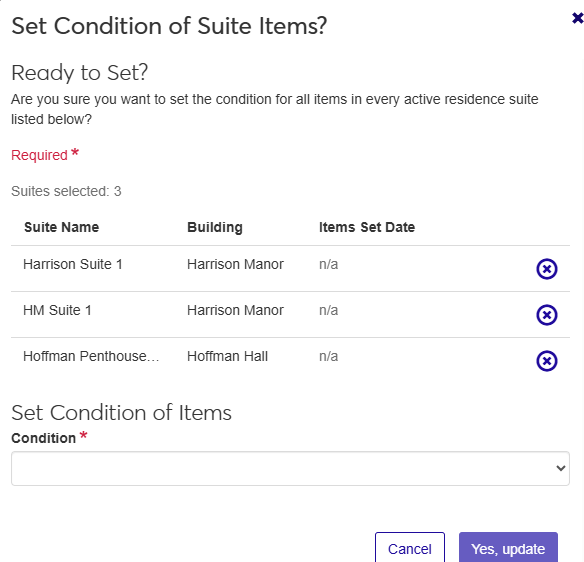
If you need to remove a suite from the list, click the Remove icon next to that suite.
From the Condition drop-down, select the new condition for the suite items.
Note
If conditions have already been set for the items in any of the selected suites, the condition of those items will be changed to the value you choose in this step.
Click Yes, update to close the pop-up and update the condition of all items in the selected suites.