Summary Tab
The Summary tab provides an overview of the current budget and allows you to edit the status, notifications, and more for each budget.
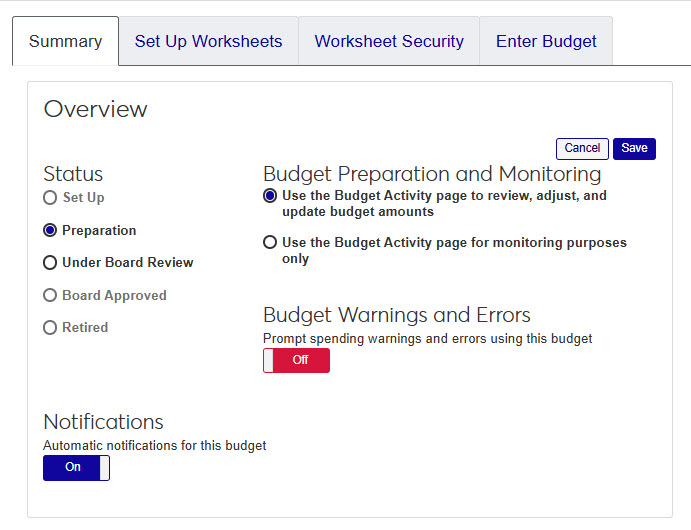 |
During the life cycle of a budget, there are several statuses that a budget will move through:
Set Up: is automatically assigned when the budget is first created and indicates worksheets are still being created. Budget amounts cannot be entered.
Preparation: indicates the budget and worksheets are being prepared by active users with the appropriate access. Line items and GL accounts have been dispersed, budget officers have been assigned, and the budget can be made available for entering and updating amounts.
Under Board Review: completed drafts for the worksheets have been submitted for review. All related worksheets must be approved prior to being submitted for review and cannot be modified during review.
Board Approved: the approval board has given final consent, spending can take place against it, and according to your configurations can be used for budget checking. Changes can only be made through adjustments. If a budget is not approved, it re-enters the preparation status.
Retired: the budget year has closed. The budget cannot be modified or deleted.
Warning
There is a difference between the status of a budget and the status of a worksheet. So you might have a budget that is in the Preparation status while one or more worksheets associated with the budget are in the Setting Up status.
Budget Preparation and Monitoring
The settings for preparation and monitoring are selected when the budget is created.
Use J1 Web and the Budget feature in your Campus Portal (JICS) lets you create and maintain the budget in both J1 Web and Campus Portal. Budget Officers must be assigned to the Budget Management Worksheet & Adjustment Access role and worksheets must cycle through an approval process.
Use the Campus Portal feature for monitoring purposes only lets you create the budget within J1 Web without budget officers. Your Campus Portal can be used to view the budget, but it cannot be used to enter budget amounts or approve worksheets. When this option is selected, budget worksheets are automatically approved because there isn't a required approval process.
Caution
If this option is selected, you cannot reverse the budget method.
Notifications
You can turn automatic notifications on or off using this setting. Automatic notifications will let you know when something changes with the budget status, worksheets, or permissions.
Tip
You may want to turn off automatic budget notifications while it is still being set up to avoid mass notifications.
Budget Warnings and Errors
The setting for warnings and errors is selected when the budget is created, and can be changed during the budget's life-cycle. For example, you may want to turn off notifications during set-up and turn them back on in the preparation stage.
How To
From the Summary tab of a budget detail page, click the Edit button.
Note
If you do not see the Edit button, you do not have permission to change the summary settings for the current budget.
Make changes to the summary settings as needed and click Save.
From the Summary tab of a budget detail page, click the Edit button.
Under the Notifications section, toggle the switch On/Off to your desired option.
Click Save.
FAQ
No. Only budgets created in J1 Web can be accessed through the Budget page.
Yes. Notifications can easily be turned On or Off using the toggle switch on the budget Summary tab. You can control notifications for each budget, which can be helpful when setting up new budgets to avoid mass notifications.