Student Success
Welcome to Jenzabar One Student Success!
Use the Student Success module to track concerns about students' successful progress. Communicate with their success teams including faculty, advisors, coaches, housing staff, and administrators to help ensure their progress.
Improving on the Jenzabar Retention Application
Student Success is the Retention application rebranded and moved to Jenzabar One Web. The move gives you all the advantages of an integrated ecosystem, providing you seamless communication with Advising, Registration, Student Life, and all the modules and key players you need involved.
It's a more holistic and modern approach to student engagement, with expanded student profiles, more visibility into every stage of an alert's life cycle, and easy reporting and analysis to help you monitor retention trends.
The Student Success Life Cycle
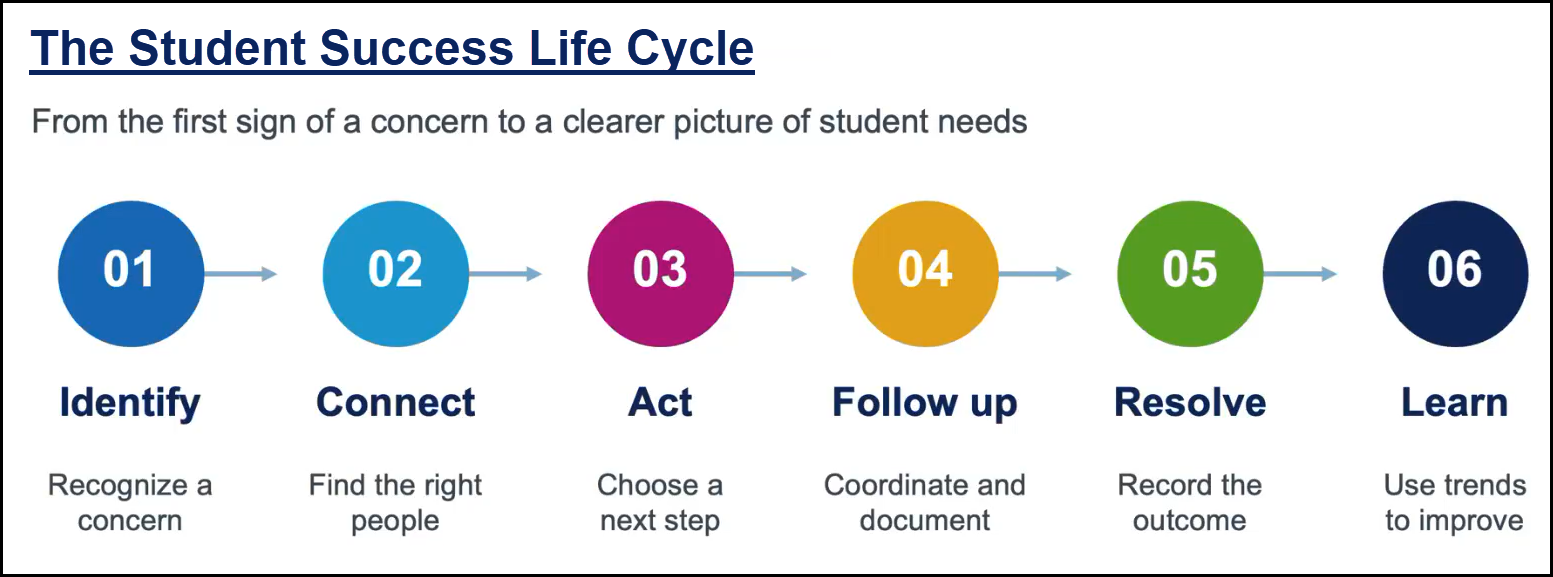
Student Success is designed to help you identify concerns early, to work as a team to help students, document the journey, and learn from the trends you discover.
Identify a concern.
Connect to the right people.
Act on the next step.
Follow up with assignees, and document the process.
Resolve the concern, and record the resolution.
Learn from the process and the trends.
 |
Navigation
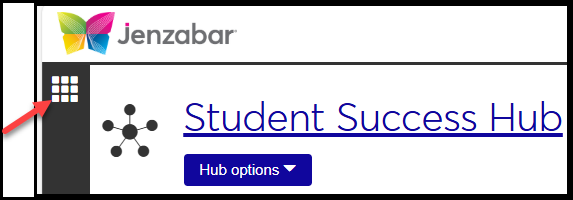
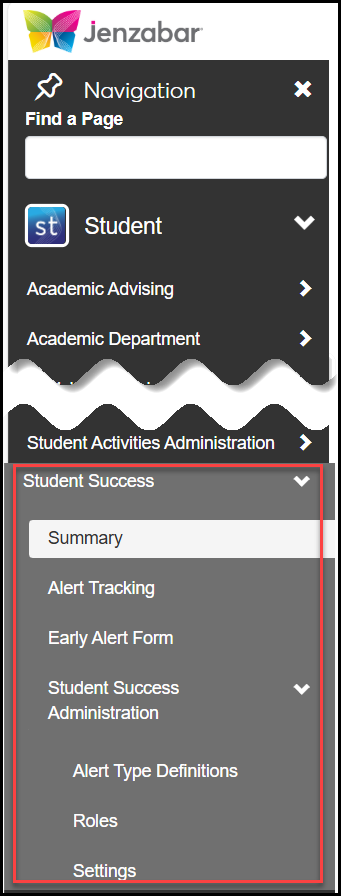
The Navigation icon opens the Navigation Panel. Scroll down to Student Success.
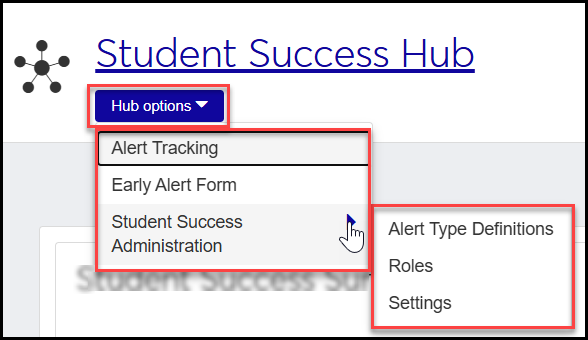
Within the Student Success hub, use the Hub options drop-down to navigate to other pages.
The Hub Summary Page
The Student Success hub Summary page is your quick-glance dashboard. It shows you how many active alerts you have in each stage of progress.
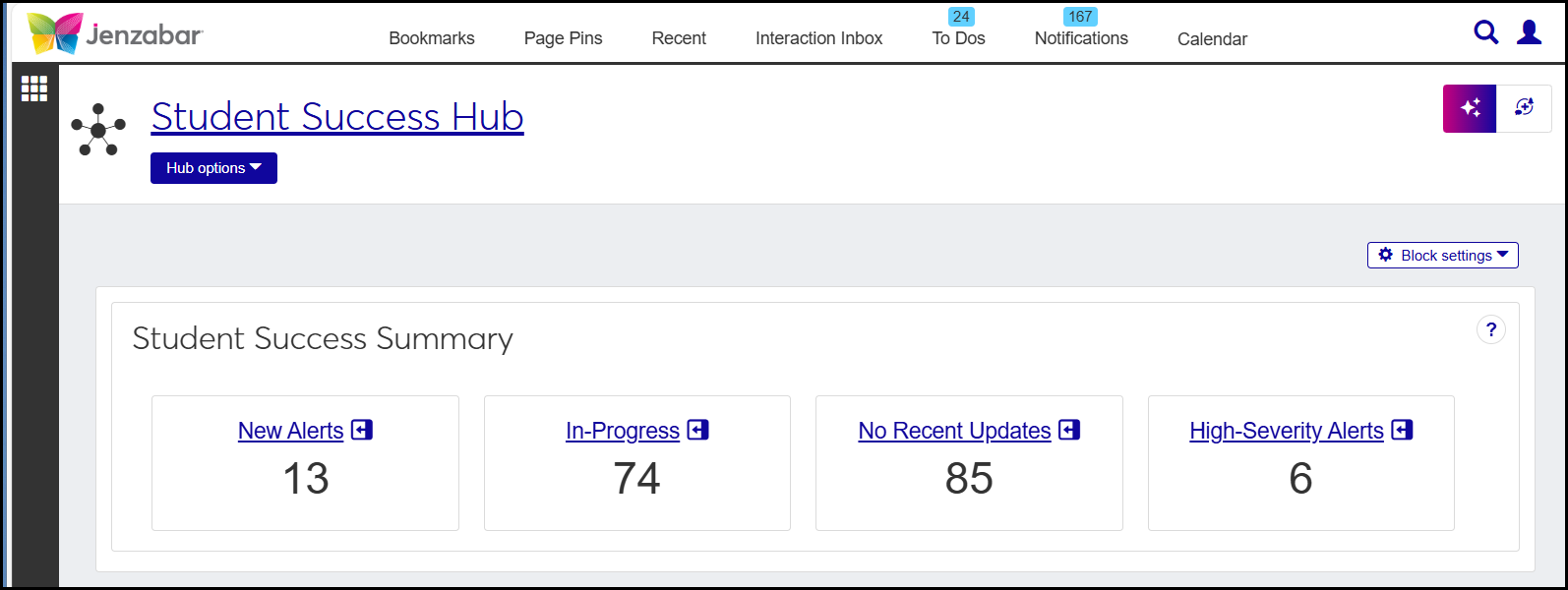
The page also has blocks with information on courses with alerts, open alerts arranged by type, assignee caseloads, resolution timelines, and the user's own alert assignments.
Tip
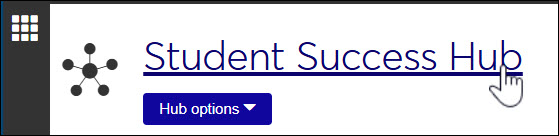
From any page within the Student Success hub, you can get to the hub Summary page by clicking the Student Success Hub title.
Submitting an Early Alert Form
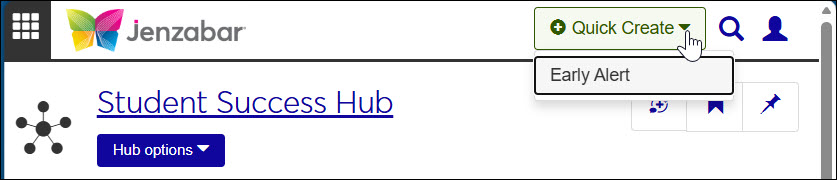
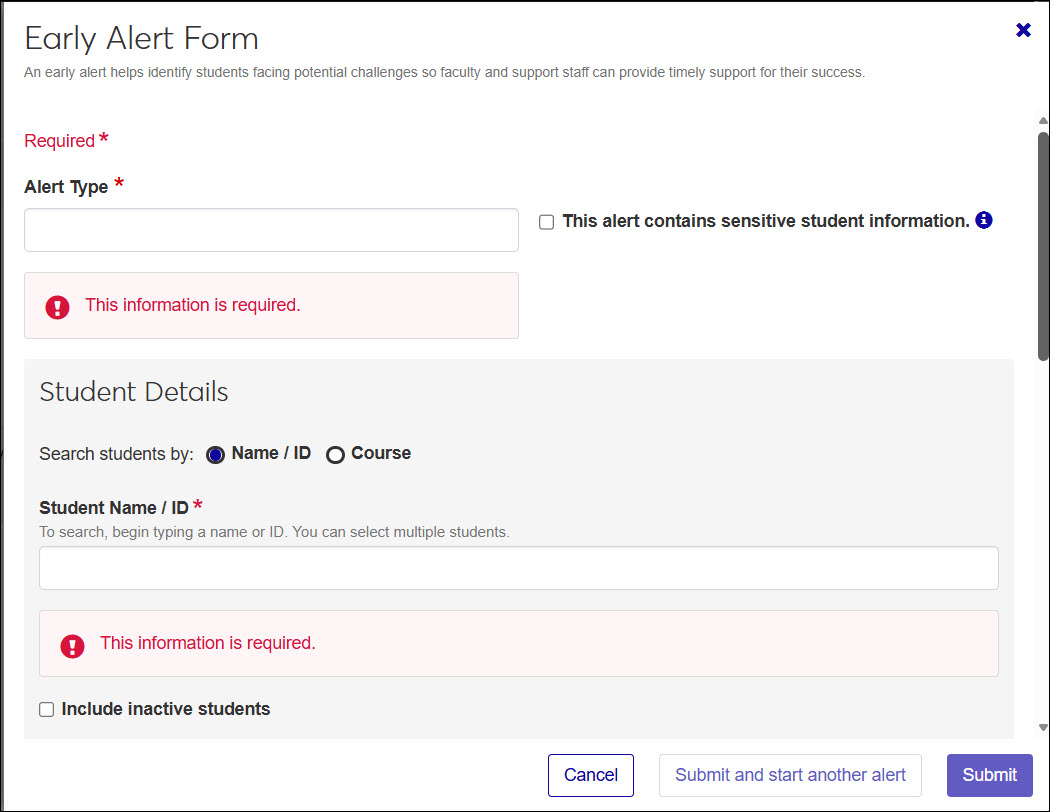
Users can submit an alert from any page in J1 Web by using the Quick Create drop-down on the page header and selecting Early Alert.
Alert Tracking
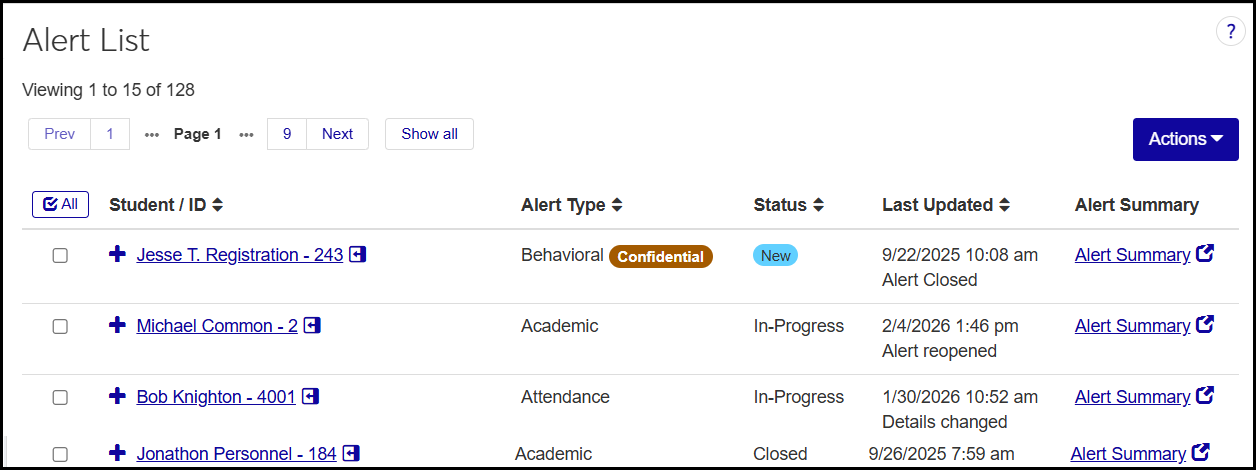
The Alert Tracking page shows all the early alerts created so far to help keep students on track to complete their programs. You can filter the list to find just the alerts you need, and you can jump to the summary of each individual alert or to information about the student. You can also edit alerts, close them and reopen them, and download them to a spreadsheet.
Definitions
Use the Alert Type Definitions page to maintain the types of alerts your school uses. Jenzabar provides Academic, Attendance, Behavioral, Financial/Housing, and Personal/Social types. You can define other types.
Use the Alert Outcome Definitions page to maintain resolutions that users select when closing an alert.
Connections
Connections are relationships (as defined on the Relationship Definitions page on the Campus-wide Definitions hub) that apply to Student Success. A student may have connections such as Instructor, Coach, Advisor, and Student Success Administrator. You can view, edit, add, and remove connections and download connection information.
Settings
Use the Settings page to set parameters. For example, you can turn on or off the option to make some alerts confidential. You can customize the names and descriptions of features and the instructions for users. You can turn on or off the ability to submit alerts on someone's behalf and to reopen closed alerts.
Roles
Use the Roles page to regulate who has permission for various features. Permissions in J1 Web are more centrally located than they are in Desktop. Access to features, students, courses, reports, and so on are managed in the user roles.
Resources on My Jenzabar
For links to guides, videos, contact information for the Student Success module team, and a place to suggest your ideas, see the Student Success Resource Center on My Jenzabar.