Violation Category Definitions
Important
Information and features vary according to the roles to which you belong and the permissions associated with those roles. For more information, contact your module manager or your campus support team.
A Violation Category is used to group violations and vehicle violations. A Violation Category is specified for each Violation Type definition to allow for the broad grouping of violations into categories such as violent crime or minor offenses. When you select a Violation Type, the relevant Violation Category is automatically populated and determines whether or not the offense will be included in the Clery Annual Security Report.
Jenzabar provides 24 default categories. These Violation Categories have been defined by the Department of Education and are used in the Clery Annual Security Report. New Violation Categories that you create will not appear in the Clery Report.
To define and edit Violation Category Definitions, you must be in a Student Life Module Manager or Student Conduct Administrator role (or a role copied from one of them) with the "Can manage violation category definitions" permission enabled.
Jenzabar provides the following default categories. These Violation Categories have been defined by the Department of Education and are used in the Clery Annual Security Report. Non-default custom Violation Categories created for your school do not appear on the Clery Report.
Code | Description |
|---|---|
AGA | Aggravated assault |
ARS | Arson |
BUR | Burglary |
DAV | Dating Violence |
DES | Destruction/damage/vandalism of property |
DOV | Domestic Violence |
DRG | Drug abuse violations |
HAZ | Hazing |
INT | Intimidation |
JZ1 | Sex offenses - Rape |
JZ2 | Sex offenses - Fondling |
JZ3 | Sex offenses - Incest |
JZ4 | Sex offenses - Statutory rape |
LAR | Larceny - theft |
LIQ | Liquor law violations |
MNM | Murder/Non-negligent manslaughter |
MNN | Negligent manslaughter |
MVT | Motor vehicle theft |
ROB | Robbery |
SAS | Simple assault |
STK | Stalking |
WPN | Weapons: carrying, possessing, etc. |
Note
Two default categories, FSO (Sex Offenses - Forcible) and NSO (Sex offenses - Non-forcible), are no longer used and have been made inactive. Although they still appear on the list of default categories, they are not available to use when you create Violation Type Definitions.
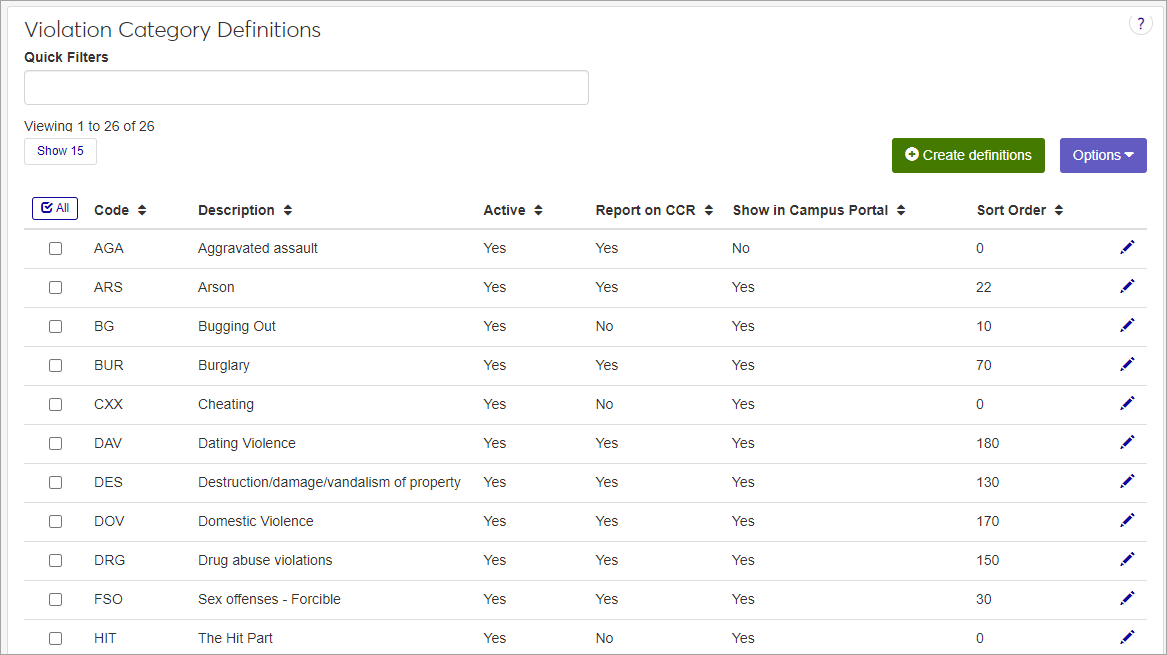
You can manage violation category definitions in Desktop on the Violation Category Definition window (under Settings - Student Life). Definitions edited in J1 Web are updated in Desktop and vice versa.
On the Student Conduct Administration Hub page, click the Hub options drop-down and select Manage definitions > Violation Category Definitions. The Violation Category Definitions page opens, displaying a list of existing definitions, both the system defaults and the custom definitions created for your institution.
For each definition, the list shows the following:
Code
Description
Active (Yes or No): Inactive definitions are not available as options in related drop-down menus.
Include in Clery Report: Whether or not this violation category is included in the Clery Annual Security Report.
Note
Only the system-provided default definitions are used in the Clery Annual Security Report. Non-default definitions are not.
Show in Campus Portal (Yes or No): Whether or not the category will be displayed in certain features in Campus Portal.
Sort Order
To narrow the list, enter keywords or other identifying text in the Quick Filters field and select Add '[your search term]' when it appears. You can only use one filter at a time.
To sort the list by a particular column, click the column heading.
Tip
You can also use the page search in the upper right corner of J1 Web. Just start typing the name of the definition page you want, and select it in the results.
In addition to the default definitions provided by J1 Web, you can create custom definitions that are specific to your institution's student conduct policies and procedures.
On the Violation Category Definitions page, click the Create definitions button. The Create Violation Category Definitions pop-up opens.
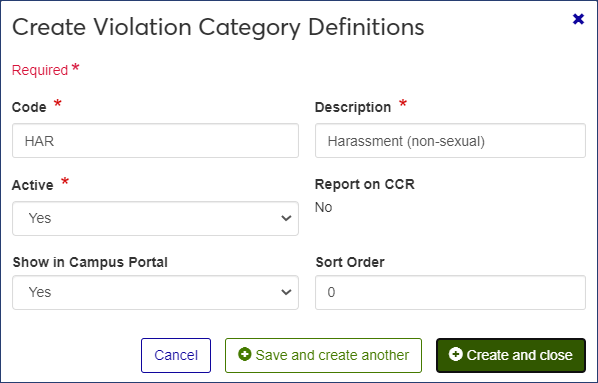
Required fields are marked with a red asterisk.
Enter a unique Code. This code can have up to 3 characters. Once it is saved, it cannot be changed.
Enter a Description for the code. Be sure to use something that will be easily understood by other users. The description will be displayed when users work with violation categories and will also appear on certain reports.
The field can contain a maximum of 45 characters.
Select Yes or No from the Active drop-down. Codes set as not active will not be available as options in drop-down menus when users enter incident reports.
Note
For custom definitions, the Include in Clery Report field defaults to No and cannot be changed.
Select Yes or No from the Show in Campus Portal drop-down to indicate whether or not this Violation Category will be displayed in certain features in Campus Portal.
The Sort Order field allows you to customize which categories appear higher in the drop-down menu list. Categories used more often can be assigned a lower number so that they are at the top of the list when a user needs to select one.
Click either Save and create another or Create and close.
Default violation category definitions cannot be edited. For non-default definitions, you can edit all but the Code and Include in Clery Report fields.
Click the Edit icon
 for the definition you need to edit. The Edit Violation Category Definition pop-up opens.
Edit the available fields as needed.
Click Update to save your changes.
You cannot delete default violation category definitions or those that are being used.