Open Alerts by Type Block
The Open Alerts by Type block on the Student Success hub's Summary page shows all the open alerts sorted by their type. Administrators can quickly assess which categories need the most immediate attention so they can allocate resources optimally.
The block has two views: List and Chart.
List View
The block appears in List view by default. List view shows the number of open alerts for each alert type that has any open. The number is a link that opens the panel listing all the open alerts for that type. In that panel, clicking a student's name opens their Summary pop-up, and clicking an Alert Summary link opens that alert's Summary page.
Note
Inactive alerts are included in the list if they have open alerts. They're labeled Inactive.
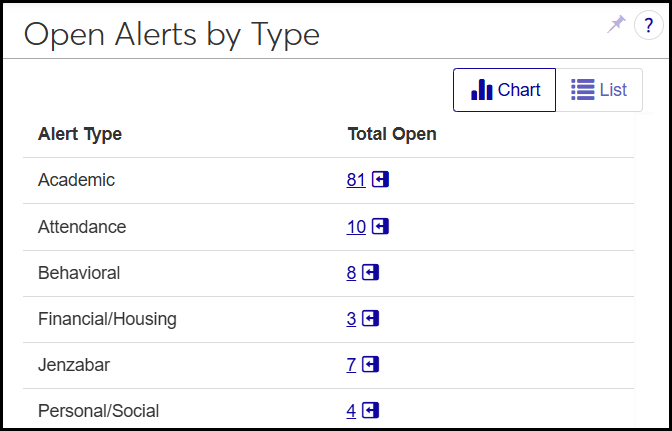
Chart View
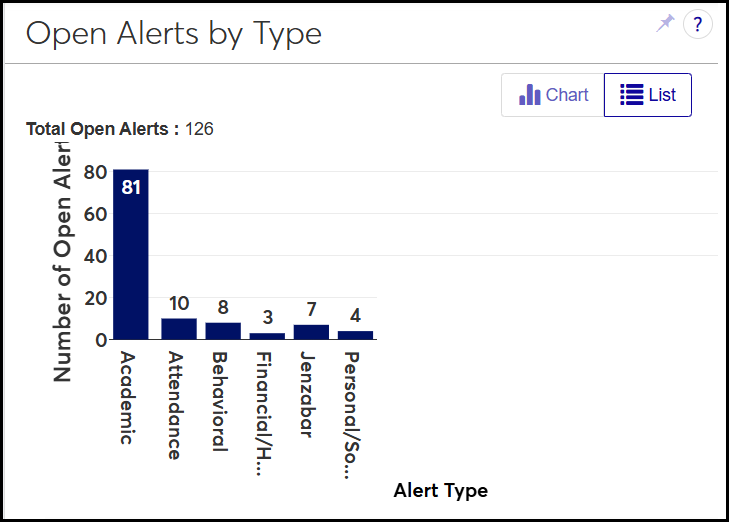
Chart view is a bar graph showing each alert type on the horizontal axis and the number of open alerts on the vertical. Inactive types are included.
Permissions
The "Can view Open Alerts by Type block" permission is available in the Student Success Administrator role and roles made from it.
How To
View the Open Alerts by Type Block
In the Navigation panel, click the Student product to expand it.
Click Student Success, and select Summary. The Student Success hub opens to the Summary page. The Open Alerts by Type block is visible in List view.
To view all the open alerts of a particular type, click its number. The alert type's list opens in a pop-up.
To sort the list in the pop-up, click a column header. To change the order, click the the column header again.
To view a student's Summary pop-up, click the student's name.
To view an alert's Summary page, click the alert's Alert Summary link. The alert page opens to the Overview tab in a new browser tab.
To vew the open alerts of this type in the Alert Tracking page, click the Open in Alert Tracking link. The Alert Tracking page opens, filtered to the this alert type.
To change to Chart view, click the Chart button.
To view all the open alerts of a particular type, click its bar. The alert type's list opens in a pop-up.
To sort the list in the pop-up, click a column header. To change the order, click the the column header again.
To view a student's Summary pop-up, click the student's name.
To view an alert's Summary page, click the alert's Alert Summary link. The alert page opens to the Overview tab in a new browser tab.
To vew the open alerts of this type in the Alert Tracking page, click the Open in Alert Tracking link. The Alert Tracking page opens, filtered to the this alert type.
To change back to List view, click the List button.