Student Schedule Block
The Student Schedule Block appears on a student's student Summary page. You can select a year/term to show the student's schedule. You can view the schedule as a PDF in a separate tab.
Section Code: The code for the section in the selected year/term, such as AVAN 101-01
Course Title: The catalog course title such as Aviation for Beginners
Campus / Place / Space: The location, from general to specific, including a link to the space's Summary page
Day / Time: Meeting days and times, if applicable, including multiple schedules
How To
Access the student's person page any number of ways.
Use the Search to search by Name or ID.
From the Registration Operations hub, Manage Student General Information page, use the filter to search by Name or ID.
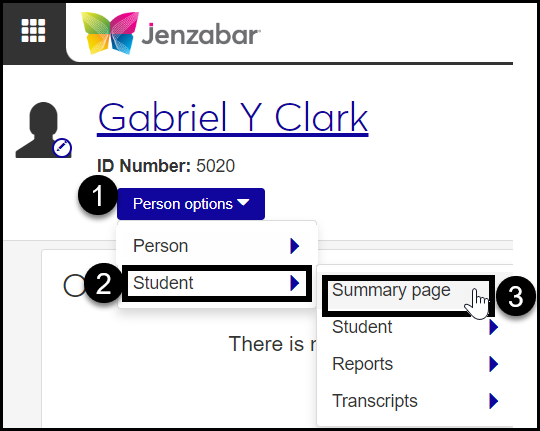
From the student's person page, click Person options, Student, Summary page.The Student Summary page opens.
If necessary, scroll down to see the Schedule block.
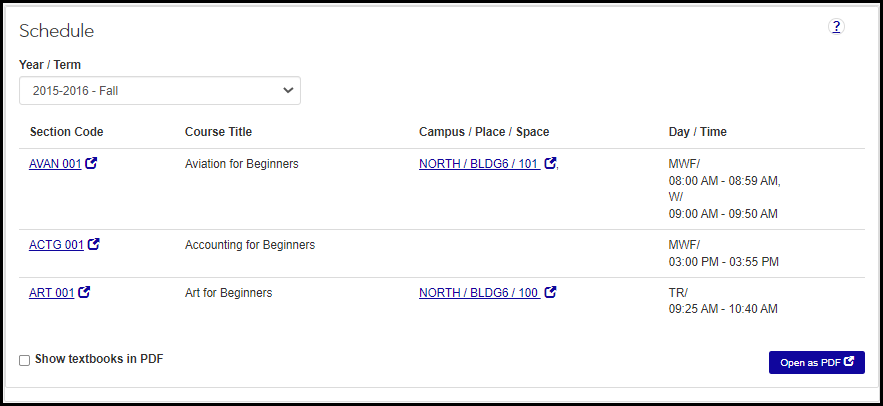
If you wish, select the checkbox labeled Show textbooks in PDF.
Click the Open as PDF button. The PDF opens in a separate tab. From there, you can use your browser controls to download the PDF.
FAQ
The sequence is determined by the sort order selected on the Year Definitions page, the Term Definitions page, and the Subterm Definitions page. However, the sort order affects also the priority of years, terms, or subterms in important calculations.
Warning
Don't change the order of Year, Term, or Subterm definitions without consulting your campus support team, including your IT department. Changing the sort order of years, terms, and/or subterms changes the system's understanding of chronology, thus affecting academic plans, repeat courses, credit hours, GPA, full-time status, transcripts, billing, and other critical information.