Budget Activity
Important
Information and features vary according to the roles to which you belong and the permissions associated with those roles. For more information, contact your module manager or your campus support team.
The J1 Web Budget Activity page replaces the Campus Portal's Budget feature and lets campus users work with current and future budget worksheets. Various settings established in the Budget module determine several Budget portlet capabilities.
On the Budget Activity page, there are two tabs that allow you to view worksheets or line items from Worksheets to Prepare for Next Year or This Year's Active Budget.
In the Select Budget Criteria section, you will need to choose some search criteria, then click Get line items. The resulting line items will appear in the Worksheet Details section. The results will only show the worksheets and line items you have permissions to view.
This section displays any worksheets you have access to that are board-approved, live budgets. You can review this list to get a quick picture on spending and access the worksheet to make any needed updates or to approve/submit worksheets.
Tip
This is the page most budget users will use to view and monitor budgets they are responsible for.
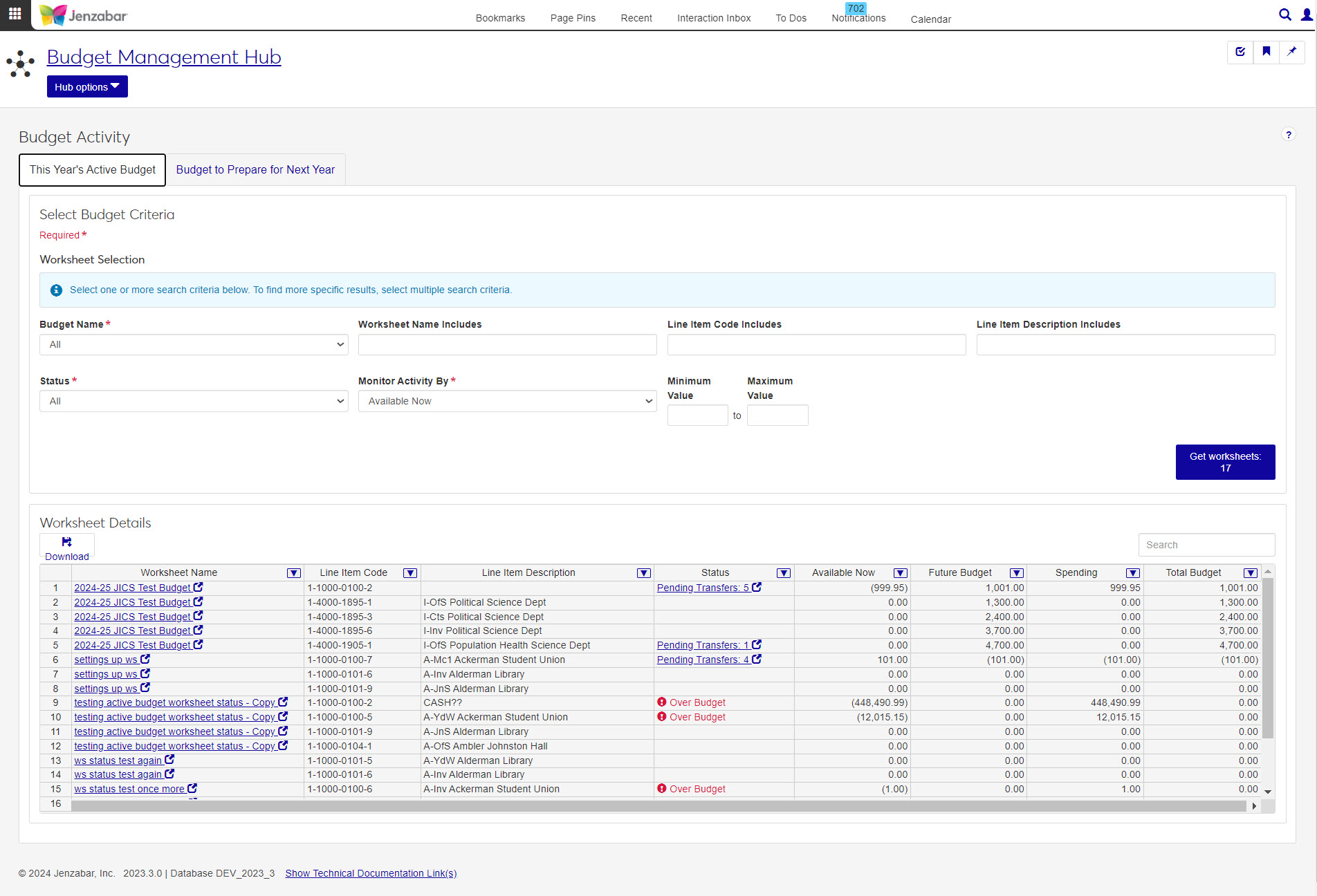
From this tab, you can do the following:
View budgets and worksheets
Verify worksheet status
Monitor a budget
Link to worksheets (requires worksheet permissions)
Enter and update budget amounts
View two years of prior actuals (if available)
Export budget data to Excel
View, add, and delete comments to worksheets and line items
View, add, and delete attachments to worksheets
Automatically receive notifications
Email other users working with the budget
Submit worksheets for approval
Approve and deny budget worksheets
Link to Adjustments (requires adjustment permissions)
Submit or cancel adjustments you have made to board-approved budgets
Approve and deny adjustments to board-approved budgets
Make direct adjustments to board-approved budgets
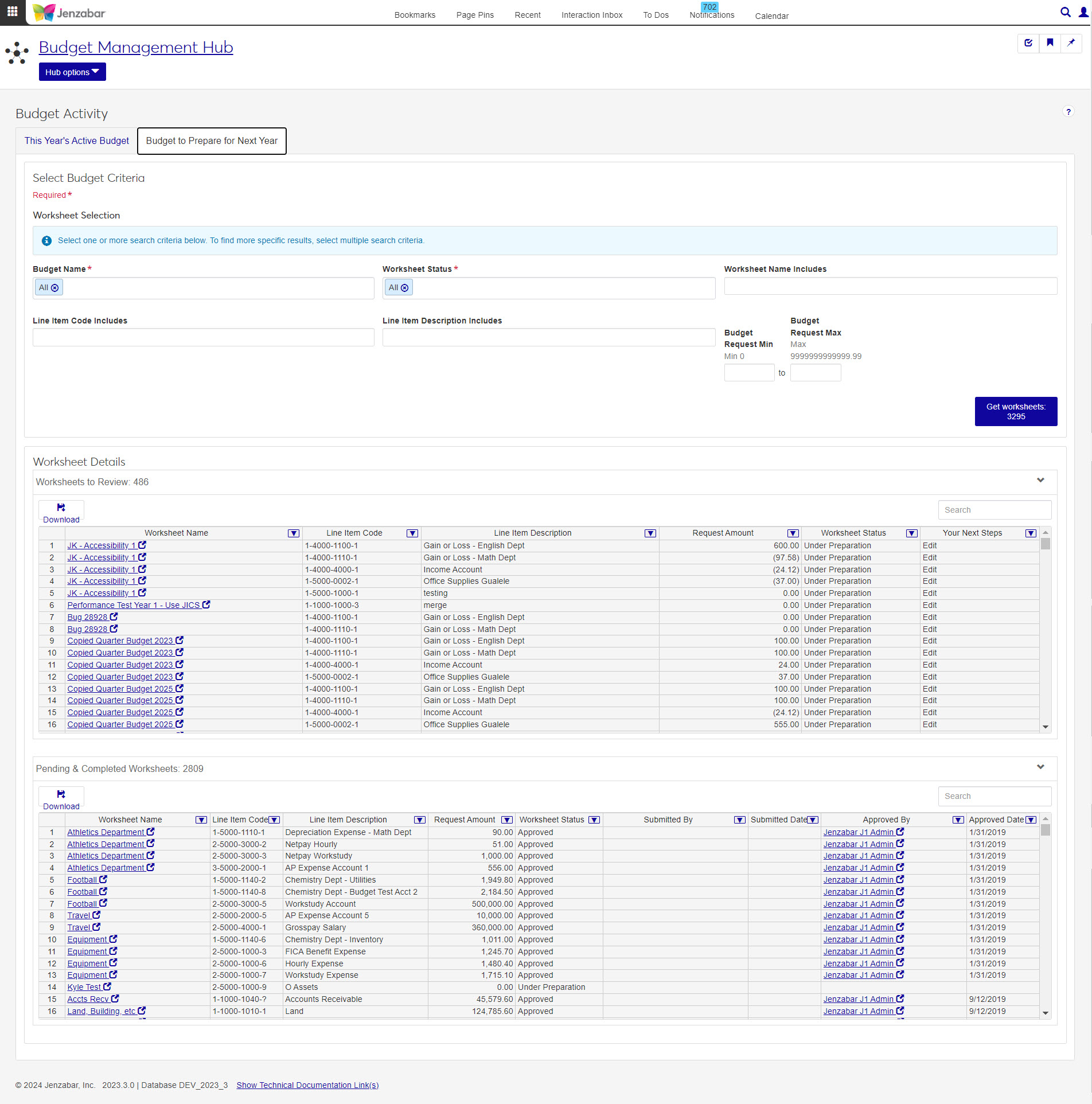
This section displays worksheets and line items under preparation that need to be reviewed, edited, completed, submitted, or approved for users who are involved with budget preparation.
The Worksheets to Review section displays the number and list of worksheets associated with you that have a budget status of Under Preparation and need to be edited, submitted, or approved or are waiting to be sumbitted from another budget officer. This happens often when a budget is Under Preparation and has several child worksheets being created by multiple budget preparers in various statuses.
The Pending & Completed Worksheets section displays the number and list of worksheets with child worksheets that have worksheet status of Under Preparation, Submitted or Approved with a budget status of Under Preparation or Under Board Review.
Tip
Use this section to quickly identify where a pending worksheet is in the process and communicate with other budget officers working on the same worksheet.
Note
This tab will not be visible if you selected the Use the Budget Activity page for monitoring purposes only option on the budget Summary tab. To allow the Budget to Prepare for Next Year tab to appear for users, you need to select the Use the Budget Activity page to review, adjust, and update budget amounts option.
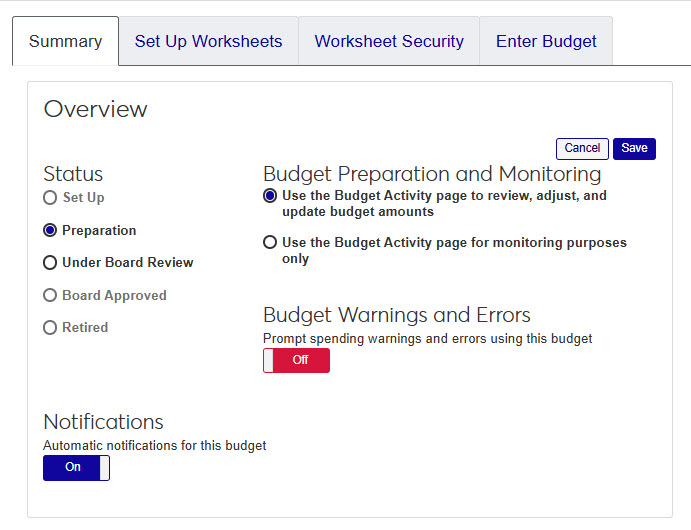
In the Budget Management Worksheet & Adjustment Access role, select one or more of the Budget Activity permission options. These actions and access will apply to worksheets and transfers.
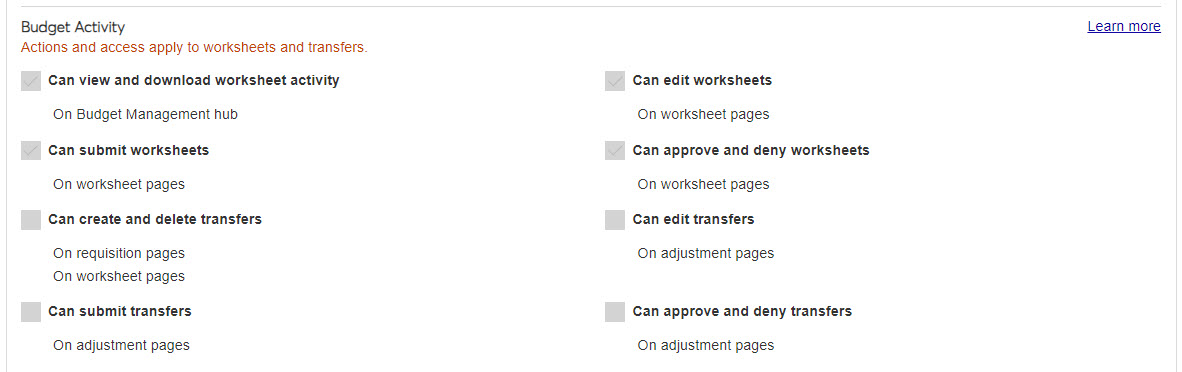
In order for the Budget Activity page to be available, your system must be set up to use J1 Web Budget instead of the Budget feature in the Campus Portal (Go to Budget Administration then Settings). This process does end your access to the Campus Portal Budget Feature, so there is some preparation needed. For more information, see the Budget Campus Portal Migration help topic and the J1 Web Finance Roles and Permissions for Portal Migration document.
How To
Open a budget you have permission to edit and is still Under Preparation.
Under the Line Item Details, choose the Line Item Code you want to update and click the pencil icon
 in the Edit column.
When the Edit Budget Request Details window pops up, you will need to enter the following information:
Justification: why do you need the new request or what changed to make it necessary?
This Budget Request ($): enter the amount of money you want to request.
Allocated: How do you want the money allocated across the budget? You can choose End, Evenly, Manually, or Up Front. When you select an option for allocation, you will see the months below populate to show how they will be allocated.
Click Update.
Once you are finished making all budget requests, select the Worksheet options drop-down and click Submit.
Tip
If you have administration permissions, you may see the option to Submit & Approve.