Manage Staff Roster
Important
Information and features vary according to the roles to which you belong and the permissions associated with those roles. For more information, contact your module manager or your campus support team.
On the Manage Staff Roster page, you can view, assign, remove, and contact the staff members who are assigned to the session. Details including the role, hiring status, and assigned location for each staff member are displayed on the roster.
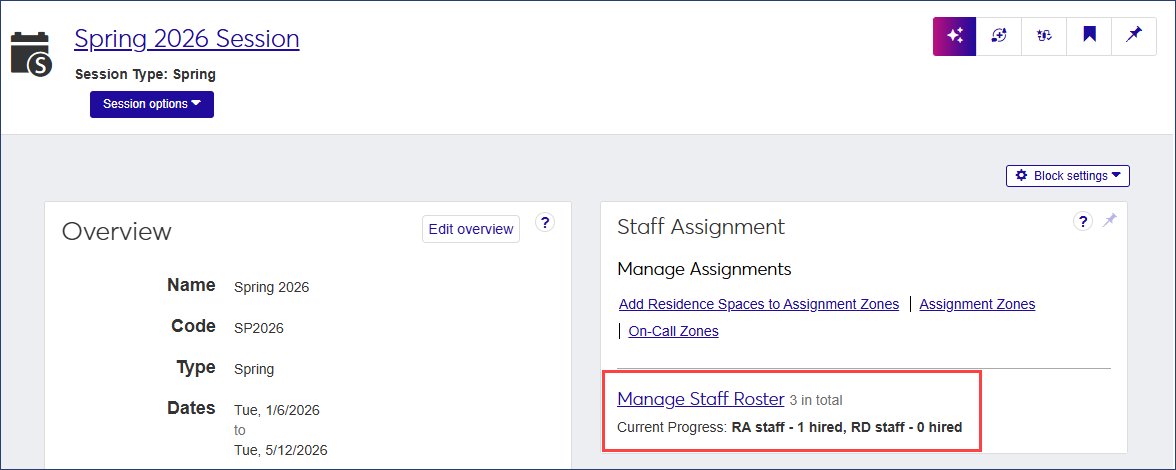
To access the Staff Roster, go to the Session summary page and click the Manage Staff Roster link on the Staff Assignment block. You can also click the Session options drop-down and select Staff assignment options, then Manage staff roster.
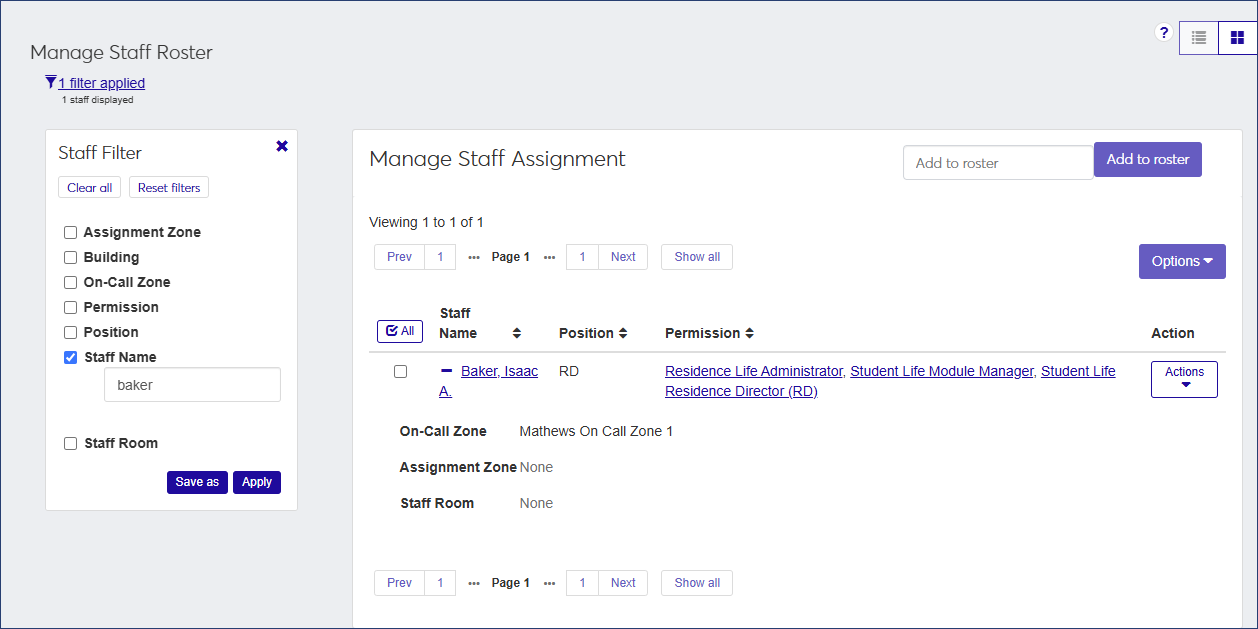 |
The staff roster displays the following information for each staff member listed. Click the plus icon  to expand the row and view all columns.
Column | Description |
|---|---|
Staff Name | The name of the staff member. Click the name to open the staff member's profile page. |
Position | The staff member's position (e.g., RA, RD, Not Hired). |
Permission | The roles the staff member has been assigned. Click the role name to view the permissions enabled for that role. |
Action | From the Actions drop-down, select one of the available options: Remove, Replace staff, Update staff position, or Update staff assignment. The Replace staff and Update staff assignment options are not available if the staff member's position is Not Hired. |
On-Call Zone | The on-call zone the staff member is assigned to. |
Assignment Zone | The assignment zone the staff member is assigned to. |
Staff Room | The room the staff member has been assigned to. Click the room name to open the Manage Residence Spaces page for that room. |
How To
There are multiple ways to view, filter, and sort the staff roster.
By default, the list displays 15 names at a time, but you can click the Show all button to view the entire list on one screen. Otherwise, use the number links or arrow buttons at the top and bottom of the list to navigate among the pages.
You can use the Staff Filter to narrow the list of staff names.
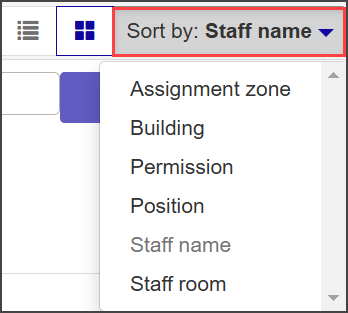
You can sort the names on the roster using the Sort by drop-down at the top right or by clicking the header of the column you would like to sort by.
Note
The Sort by option is only available in card view.
You can toggle between card view and table view.

To add staff to the roster for a session, open the session summary page.
In the Staff Assignment block, click Manage Staff Roster. The Manage Staff Roster page opens.
You can also access the Manage Staff Roster page by clicking the Session options drop-down and selecting Staff assignment options, then Manage staff roster.
Begin typing the name of the staff member in the search field next to the Add to roster button and select the name of the person you want to add when it appears in the list.
Note
The Add to roster field is only available in list view.
Click Add to roster. The staff person is added to the roster.
Note
Employees must be active in the system to appear in search results. Students must be active and in a current degree program.
To remove a staff member from the roster:
Click the Actions drop-down for the person you want to remove and select Remove. The Remove Staff? pop-up opens, asking you to confirm that you want to remove this staff person from the roster.
Click Yes, remove to remove the staff member from the roster.
To replace a staff member:
Click the Actions drop-down for the staff member you want to replace and select Replace staff. The Replace Staff pop-up opens.
Click in the Select Staff Replacement field and begin typing the name of the person you want to replace the current staff member with.
Select the correct name when it appears on the list.
Click Replace. The staff member you replaced will remain on the roster in the same position but will not be assigned to a role.
To update the hiring status or role of a staff member:
On the Manage Staff Roster page, click the Actions drop-down for the person whose role you would like to change and select Update Staff position. The Update Staff Position pop-up opens. The pop-up lists the roles the staff member currently belongs to.
Select the new role from the Position drop-down menu.
Click Update.
When you select Update staff assignment from the Actions drop-down, you can assign a staff member to an on-call zone or assignment zone or move the staff member to a new on-call or assignment zone.
Note
Resident Directors are assigned to on-call zones; Resident Assistants are assigned to assignment zones. When you assign an RA to an assignment zone, the on-call zone and staff room are assigned automatically.
Select Update staff assignment from the Actions drop-down for the person whose assignment you want to change. The Update Staff Assignment pop-up opens.
Note
The Update staff assignment option is only available if the staff member's position is RA or RD. It is not available if their position is Not hired.
Select a new assignment zone or on-call zone from the drop-down menu.
Click Update to save the change.
You can email one or more staff members directly from the staff roster. If you select multiple staff members, they will receive separate but identical emails.
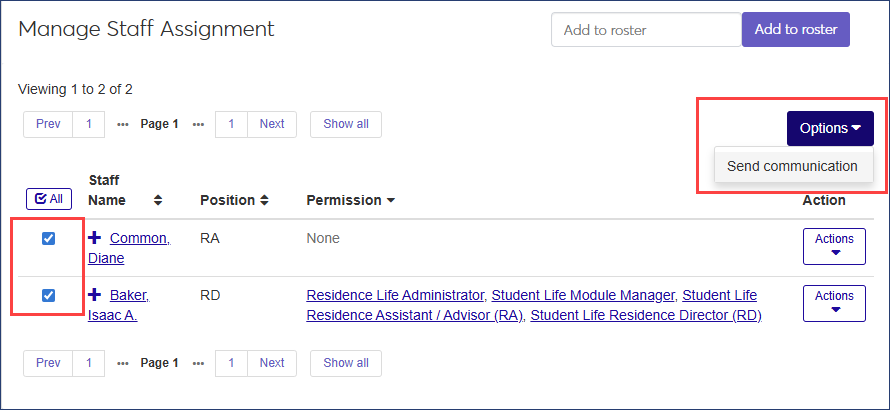
Select the checkbox next to the name of each staff member you want to email. Click the All icon
 to select the entire list.
From the Options drop-down, select Send communication. The Create New Communication window opens. The Communication Type defaults to "Email." *
The To field auto-populates with the names of the staff members you selected and is not editable. The From and Contact Type fields also cannot be edited.
The Interaction Code, Name/Description field defaults to "General Student Life Email" but can be changed. Click the Remove icon to delete the current value, then click in the field and select a new option from the list.
Enter a Subject.
Type your message in the Body text field. Use the formatting and data tools provided to format your message.
To include attachments, click the Attach file button and upload the files you want to include. Files must be .DOTX, .HTML, .PDF, or .WAV files.
Click Send. If you are sending the email to more than one staff member, they will each receive separate but identical messages.
* Text messaging is available with Communications Plus.