Using Document Storage with Vehicle Incident Reports
Document Storage is a centralized file management system within the Desktop environment. Vehicle Administration uses this system to store supporting documentation that is uploaded from vehicle incident reports.
Access to documents is based on roles and permissions, ensuring that users can only view and manage files within their authorized areas.
To save documents and other attachments, the following must be configured in Desktop:
Enable access to the types of files you want to allow users to store at the category level.
Create the document types.
Grant the base and licensed roles the appropriate directory list (dir), view (Viv), and add permissions.
Set Up Document Storage for Vehicle Incident Reports
Log in to J1 Desktop as a Document Storage Administrator with permission to add new documents.
Open the Document Storage Setup window.
In the Document Category tab, select SA_VEHICLE_INCIDENT.
Select the Active checkbox and click Save.
Click the Make File Extensions Available for Category: SA_VEHICLE_INCIDENT link. The Make File Extensions Available for Document Storage System window opens.
Select the .DOC, .PDF, .JPG, and .TXT checkboxes.
For each file type selected, enter the highest allowable file size in the Maximum File Size column.
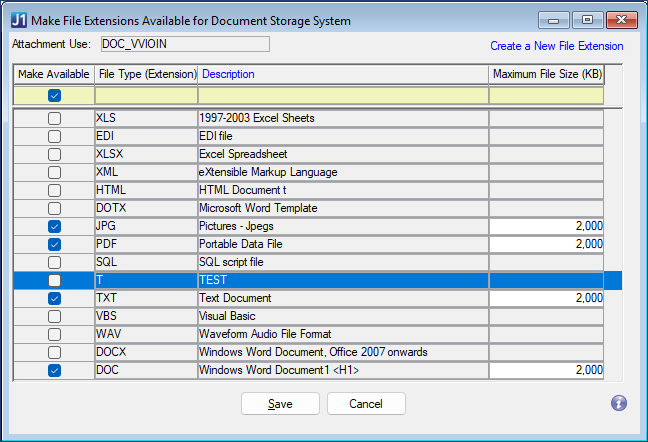
Click Save and close the window to return to the Document Storage Setup window.
Select the Document Type Definition tab.
Make sure the Active and Display in DropDown checkboxes are selected for the document category.
Click Save and close the window.
Open the Document Security window.
Under Permission On, select the Document Type radio button.
On the Permission On: Document Type tab, select SA_VEHICLE_INCIDENT.
Under Permission For, select the J1 Web Role radio button.
Select the Permissions For: J1 Web Role tab and locate the Vehicle Administrator security role.
Select the Dir, Viw, and Add checkboxes.
Click Save. This document type will now be available for users to select in J1 Web when they attach documents to a vehicle incident report.