Create Advising Roles
Important
Information and features vary according to the roles to which you belong and the permissions associated with those roles. For more information, contact your module manager or your campus support team.
Process Overview
Create and copy role options both create a new role. The difference between them is that when you choose to create a role, you can only base the new role on a Jenzabar-provided one. When you create a new role by copying an existing role, you can use your school's own custom roles or a Jenzabar-provided role. Copying a role is useful when creating role variations that share similar access requirements.
Select the default role you want to base the new role on. The default role you select determines what features can be enabled. For example, the features available to be enabled for an Advising Administrator will differ from those for an Events Coordinator.
Update the role name and description to eliminate confusion with the original role.
Select the features and information that users assigned to the role will be able to access. You can also enable/disable features after the role has been created.
Assign users to the new role using the Edit Role and Manage System Users features.
Enable interaction access codes to determine which interactions and workflows this user can work with.
For roles that grant access to constituents and information through group associations, grant access to the appropriate groups. This step impacts the Department Head - Course Access role in Registration and all the Secondary Advisor roles in Advising.
Jenzabar recommends using a role name that most administrative users will easily understand. For example, you can base role names off of your organizational hierarchy to quickly distinguish permissions.
Jenzabar recommends tailoring the new role description by briefly describing the role. This can be particularly helpful in distinguishing multiple roles with similar permissions.
How To
Click the Create role button. The Create Role page appears.
From the Role Template drop-down, select the role template you want the new role to be based upon. The New Role Name and New Role Description fields automatically show the name and description of the original role template.
In the New Role Name field, update the role name to an easily recognizable name. The name can be based on how roles/positions are set up at your school as well as distinguish how this role differs from the role template.
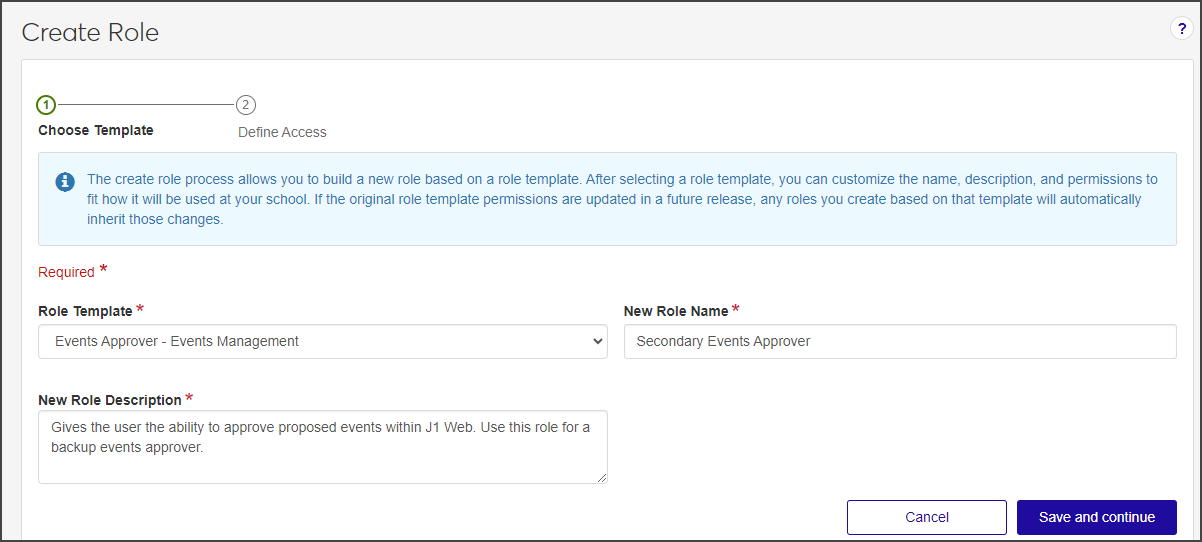
In the New Role Description field, update the description to highlight permissions or features available to users assigned to the role. The description can help distinguish how the new role differs from the role template.
Click Save and continue. The Define Access options appear.
Select the checkboxes of the permissions you want to enable for this role.
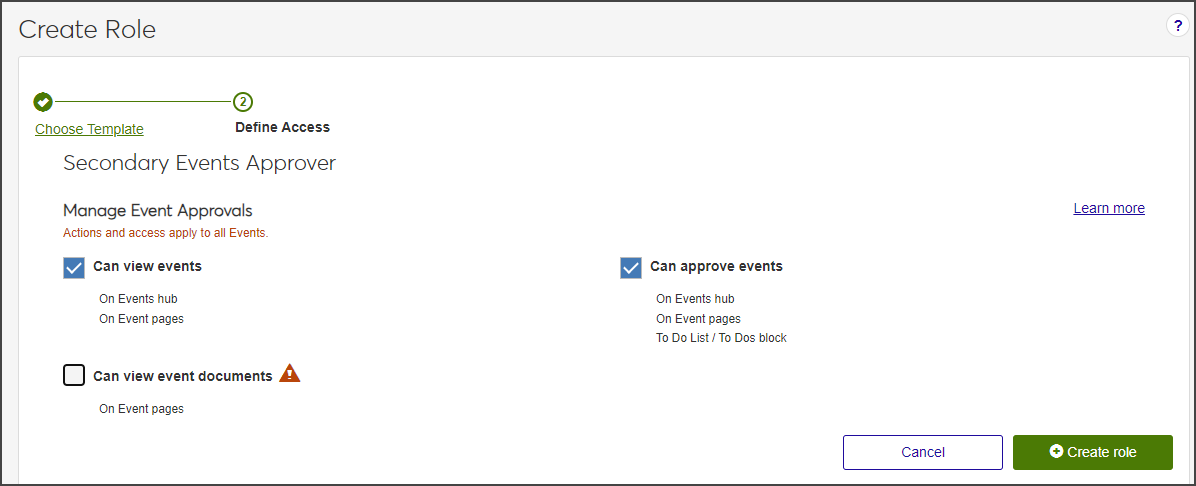
Click Create role. The Create Role page closes and the System Roles page reappears.
On the Manage Advising Roles page, click the Create role button. The Create Role page appears.
FAQ
Create a role creates a new custom role based on a Jenzabar-provided role template. You select the permissions and settings to enable for the role.
Copy a role creates a new role based on an existing role. The new role inherits the source role's Permissions, Module Access settings, and User-Defined Field permissions, providing a starting point that can then be modified. Users and Associations are not copied.
Note
In either case, copied or created, only the permissions are inherited. No users are copied over with the new role.
Only Jenzabar-provided default roles are available to be used as a template in the create role process. If you want to create a new role based on a role you have customized or created, use the Copy role feature from the System Roles page.
The default roles provided by Jenzabar cannot be modified. This is because any new role you create must be based on one of these default roles. . You can tailor the name of the role being created using the New Role Name field.
To register advisees for courses, advisors need the "Can register advisees" permission. It's available in the following roles (and roles copied from them):
Primary Advisor - Access to Assigned Students
Secondary Advisor - Access to Students by Academic Program
Secondary Advisor - Access to Students by Athletic Roster
Secondary Advisor - Access to Students by Campus Location
To drop advisees from courses, advisors need the "Can drop courses for advisees" permission. It's available in the following roles (and roles copied from them):
Primary Advisor - Access to Assigned Students
Secondary Advisor - Access to Students by Academic Program
Secondary Advisor - Access to Students by Athletic Roster
Secondary Advisor - Access to Students by Campus Location
No. Permissions for adding students to a waitlist or moving them from waitlisted to currently registered are in the Registration Override and Access Control role (and roles copied from it) in the Registration module.
No. After the drop deadline, your school might allow students to withdraw themselves or might require the registrar's office to do the withdrawing. Permissions for withdrawing students are in the Registrars and Registration Module Manager roles (and roles copied from them).