Budgets
Important
Information and features vary according to the roles to which you belong and the permissions associated with those roles. For more information, contact your module manager or your campus support team.
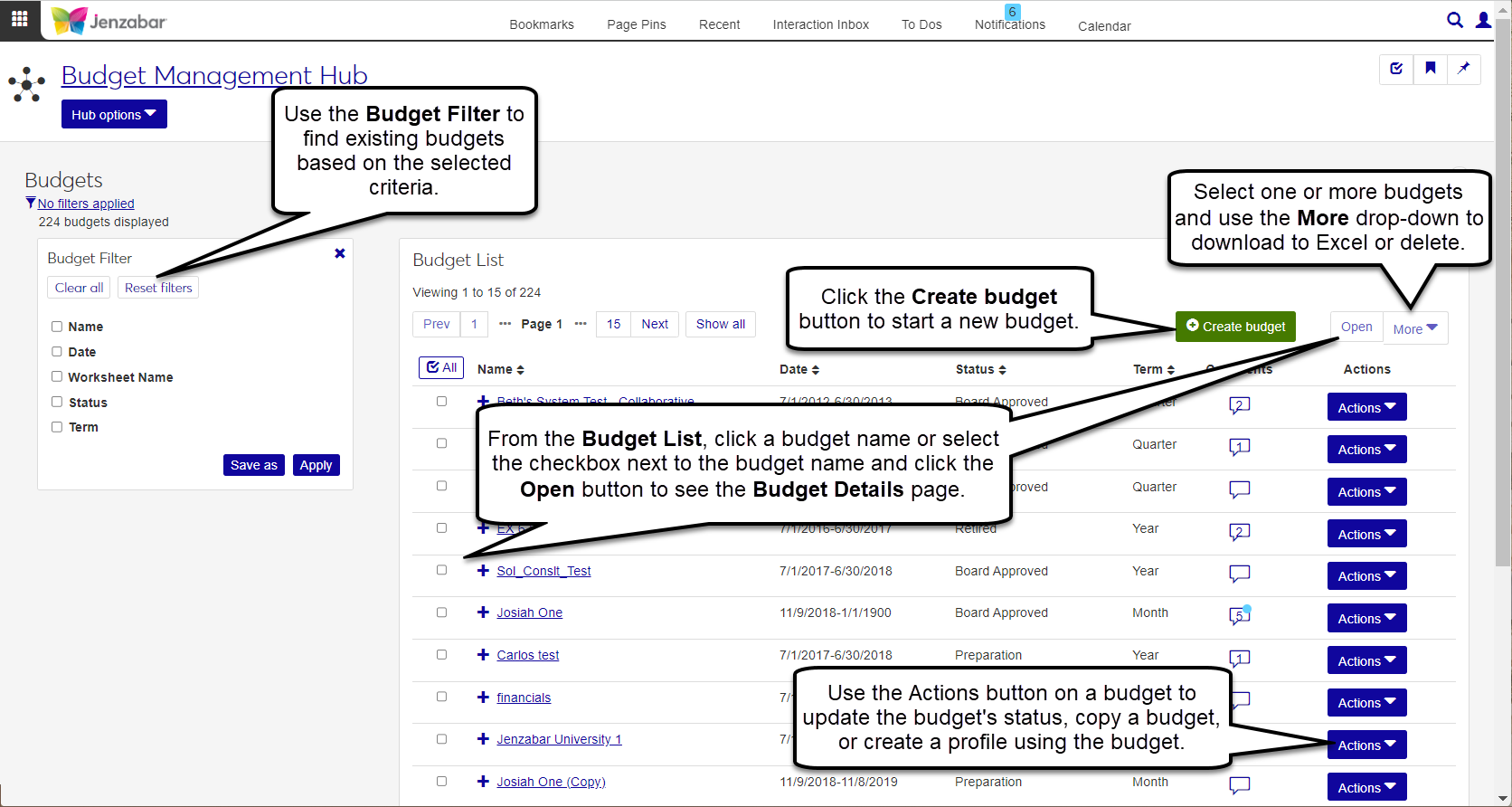
The Budgets page provides a list of the budgets at your school. You can search for and create budgets, view and add comments to individual budgets, and access budget details from this page.
When a budget is selected from the list, the More button is enabled with some combination of the following options:
Copy - opens the Create Budget page with the selected budget filled in to the Copy Budget from Existing Budget field.
Change budget status - opens a pop-up where you can change and save the budget’s status. For more details about rules that govern moving between statuses, see How To Change a Budget's Status.
Delete - removes the selected budget from the system.
In the Budget Management Budget Access role, select one or more of the Profiles permission options. These actions and access will apply to budget profiles. There are additional roles and permissions if a user needs to work with the worksheets, check activity, etc.
For more information, see Budget Management Roles and Permissions.
Filter the budgets in the Budget List by budget Name, Date, Worksheet Name, Status, or Term.
The Budget List section allows you to view and manage all budgets you have permission to access. Each budget row will display the Name, Date, Status, and Term. You can also view the Profiles by expanding the budget row.
Tip
Reviewing historical information can aid in determining what caused spending to be over or under budget in previous years, what a budget should be in a future year, or whether to approve a current year budget.
How To
Select the appropriate parameters from the filter options.
Budget Name - choose from a drop-down of all available budgets
Budget Date - choose a start and/or end date
Worksheet Name - if you know the name of the worksheet you're looking for, type the full or partial name in the field
Status - choose from drop-down of available statuses
Term - choose from the drop-down of available terms
Tip
For budget name, worksheet name, and budget status you can choose more than one. Click Save as to save the filter and decide if it is the default filter that displays when you access the Manage Budgets page.
Click the budget's Name link to open the budget details page.
Use the different budget tabs to view additional information about the budget.
Tip
The available tabs will change depending on the status and content of a budget.
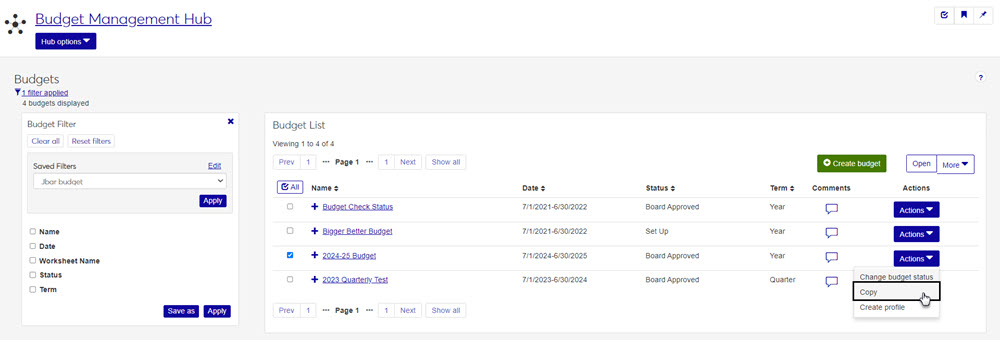
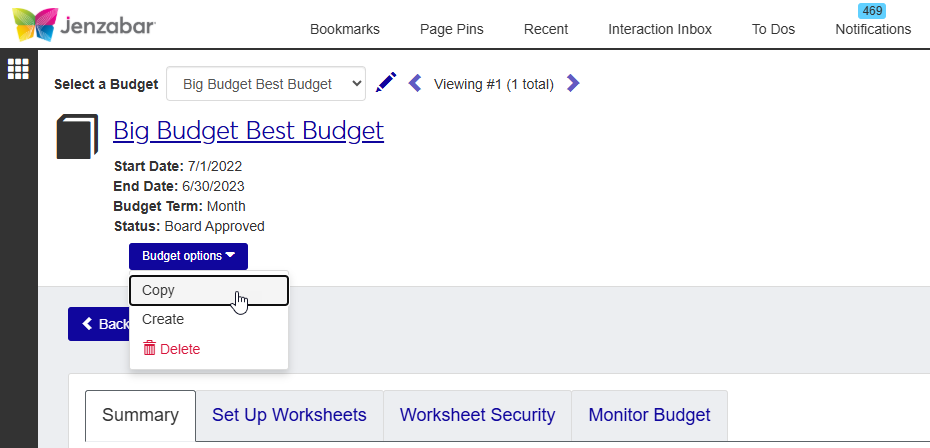
From the Budgets page choose a budget from the list that you want to copy. There are two ways to start the copy process from the Budgets page:
On the row of the budget you want to copy, click the Actions drop-down then choose Copy.
Click on the name of the budget you want to copy, then from the Budget Details page click the Budget options drop-down and click Copy.
When the Copy Budget page appears, you will have several options for your new budget:
Master Budget: update the name, term, and start/end dates, then use the checkboxes to select the pieces of the budget you want to copy.
Tip
When copying from another budget, the start/end date options are either the year of the budget you are copying from or the next year.
Copy Worksheets and Security: allows the new budget to keep all the set up for worksheets and assigned budget security roles, saving you time.
Copy Budget Amounts: allows you to keep the same amounts or allows you to increase or decrease your budget by percentage.
Copy Budget Profiles: if you've created profiles for the previous budgets, this option will allow you to use the profiles, saving you time.
Relate Copied Budgets: allows you and budget managers to see historical budgeted (not actual) amounts from the original and copied budgets building on multiple years so long as the year-to-year copied budgets all select this checkbox.
Budget Preparation and Monitoring: decide if you want the Budget Activity page to simply monitor the new budget, or if you want to be able to review, adjust, and update budget amounts from the Budget Activity page.
Budget Warnings and Errors: check this box if you want warning and error notifications when this budget is used.
Assign Budget Security Access: select the roles you want to have access to this new budget. Use the On/Off toggle in the Access column of each role to assign permission.
Once you've updated the new budget details, click the Copy budget button in the bottom right corner. This process may take a while, and you'll be notified when it completes. You can find notifications in the Notification Center.
Once your copied budget is created, you can open it and see that all the copied content is available and the budget is in Preparation status.
Select Create Budget from the Budget Management hub options.
On the Create Budget page, enter a name for the new budget.
Choose a term for the budget. Choices are month, quarter, and year.
Choose a start and end date for the budget from the drop-down. Choices are the current GL Config Year and the following 4 years.
Next, select how you want to prepare and monitor your budget.
If you want your budget to be collaborative, choose the Use the Budget Activity Page to review, adjust, and update budget amounts option.
If you want to use the portlet for monitoring only, choose the Use budget Activity page for monitoring purposes only option.
If you want this budget to be the primary budget for the year, select the checkbox next to Use this budget to prompt warnings and spending errors.
Decide which budget security roles you want to have access to this new budget using the toggle to turn the role access on or off. While this can be updated later, be careful when selecting roles, and be sure to check the Active Users in each role.
Click Create budget.
Tip
This process may take a few minutes. Do not leave the page while the new budget is being created.
Your new budget will open on the Budget Detail page in Set Up status.
Click the Comments icon
 .
. From the Comment pop-up, you can read the existing comments, mark them all as read, and add your own comments.
Click New comment and enter your text.
If you want to upload an attachment, click Attach, locate the file, then click Open.
Click Add to save your text and/or attachment.
Open the budget that needs an updated status.
On the Summary tab, you will see the Status options with the budget's current status selected.
Click the Edit button on the left side of the Overview section.
Select the status you want to assign to the budget, and click Save.
Note
While in edit mode, you will only be allowed to select the statuses available to that specific budget.
From the Budgets page, use the checkboxes next to the budget names to select the budgets you want to delete.
Once selected, go to the More button and select Delete from the drop-down options.
A pop-up warning will appear with the list of selected budgets that will be deleted. Review the list.
If you need to change the budgets selected, click Cancel. If you're ready to delete the selected budgets, click Yes, delete.
Danger
The delete process cannot be undone. Be sure you review the list of selected budgets carefully.
FAQ
The current GL Config Year and the following 4 years are available when creating a new budget; however, if you are copying an existing budget, only the current year and next year are available.
These options have to do with the Budget Activity page and how it is used. You will need to decide if you want the Budget Activity page to simply monitor the new budget (you would review, adjust, and update from the Budget page), or if you want to be able to review, adjust, and update budget amounts from the Budget Activity page.
From the Budget list, click the budget's Name link to open the budget details page. From there, you can use the different budget tabs to view additional information about the budget.
Yes. See the steps above for Copy a Budget.
Status option vary depending on the setup and processing of a budget. Once you complete certain parts of the budget process, the status options may change and limit your options to prevent errors.
Unfortunately, the delete process can not be undone. You will need to recreate the budget.
Budgets cannot be deleted if any of the following are true:
Budget is in Retired status
Budget is flagged as the main monitoring budget