Student Success Hub Summary Page
Use the Student Success hub Summary page to view the Student Success Summary block and other blocks your school places there.
Tip
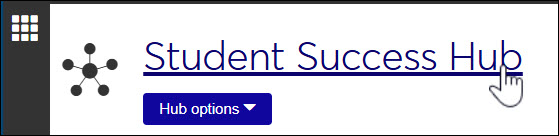
From any page within the Student Success hub, you can get to the hub Summary page by clicking the Student Success Hub title.
Student Success Summary Block
The Student Success Summary block gives you gives you counts of alerts in various categories:
New
In Progress
No Recent Updates
High-Severity
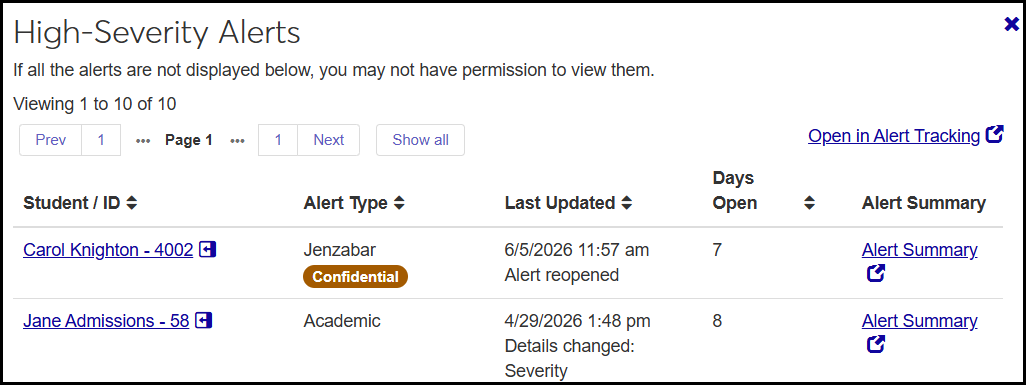
Each category title is a link that opens a list of all the alerts in that category. From there you can click links to jump to each alert's summary, to get more information on the student, or to get more information on the alert submitter.

Permissions
Users in the Student Success Administrator role (or roles made from it) with at least one permission selected can view the Student Success Summary page, but each block requires specific permission also available in that role:
Can view Courses with Alerts block
Can view Open Alerts by Type block
Can view Resolution Timelines block
Can view Student Success Summary block
How To
From the Navigation panel:
Click the Student product to expand it.
Click Student Success, and select Summary. The Student Success hub opens to the Summary page.
From any page on the Student Success hub, click the Student Success Hub title. The Summary page opens.
In the Student Success Summary block, click a link to one of the alert status categories. The list opens in a pop-up.
To view the student's Summary information, click the student's name.
To view the submitter's Summary information, click the submitter's name.
To view the alert's Summary page, click the Alert Summary link on the alert's row.