Advising Trees Desktop Window to J1 Web Page Comparison
In J1 Web we've improved Advising Trees and the ecosystem they operate in. Here are some of the advantages of J1 Web Advising Trees over the Institutional Requirement Trees in Desktop:
Filtering: The Advising Trees Filter is a convenient tool for finding particular trees, and you can save filter combinations you use frequently.
You can use shortcuts in the filters. For example, in the Advising Requirement Filter, enter 'G;MATH' to see all the math groups or 'UCRS' to find all the requirements with a requirement type of UCRS.
The Degree Element filter lets you see all trees for a particular program. For example, you can view all the trees at once for the 2026-2027 BA Accounting Major.
On the Edit Plan Layout page for that program, there's a link to the those combined trees.
The Tree Status filter provides a convenient way to see which trees are ready for academic planning and which ones still need work.
Multiyear view: You can see the Accounting Major tree, for example, for all the years at once to see how it's changed.
Better batch editing: You can add requirements to multiple trees at once and edit multiple trees at once.
Speed: Tree building is faster with quick adding, drag and drop, copy and paste, and filtering.
Manage Reuse and Priority: See at a glance everywhere an advising requirement (ARC) is used. Easily set the priority and reuse.
Fewer open windows: Create new ARCs directly from the Advising Trees page.
Move groups as one: Group ARCs together in a Parent Root to easily bring the whole group into a tree.
Automatic validation: The system automatically highlights ARCs with missing information to fix before you mark trees as Ready for Degree/Aim Cross-Reference.
Where to Find Desktop Advising Features in J1 Web
The table below lists the Desktop window and the corresponding J1 Web page where comparable functionality is available.
Desktop Window | J1 Web Page |
|---|---|
Institutional Requirement Trees | Advising Trees 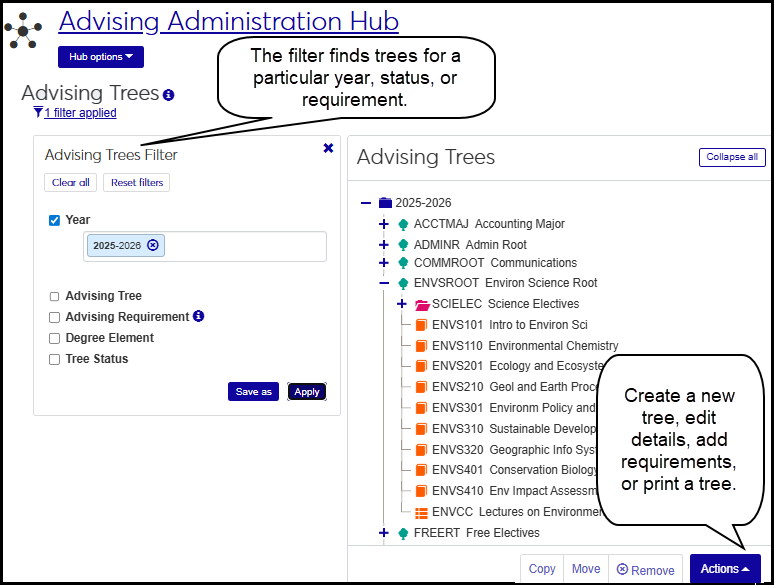 |
Institutional Requirements Report | Advising Trees In the Actions drop-down, select Print tree. 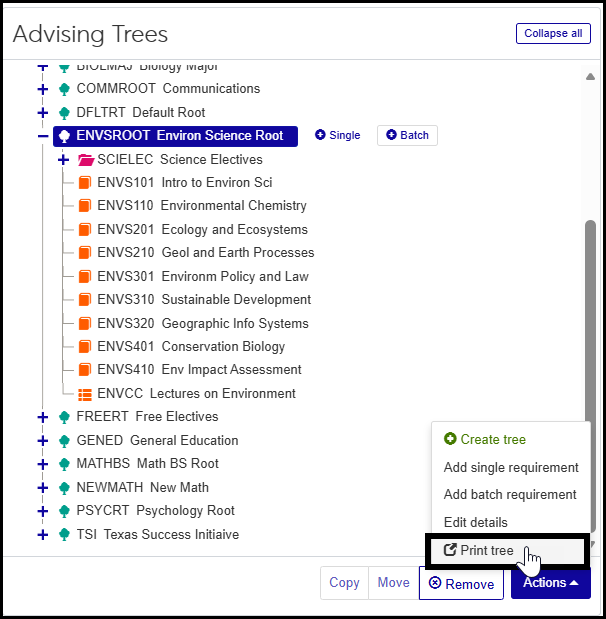 |
View Institutional Requirements | Advising Trees Use the filter to find year and advising tree. 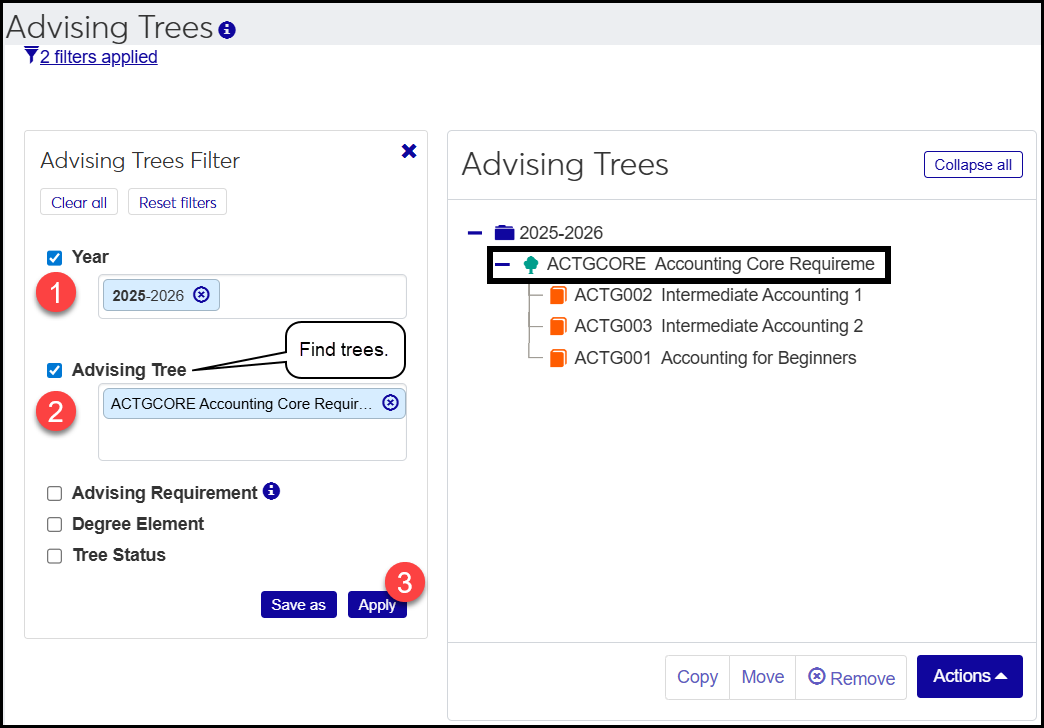 Or use the filter to find the year and a requirement within a tree. 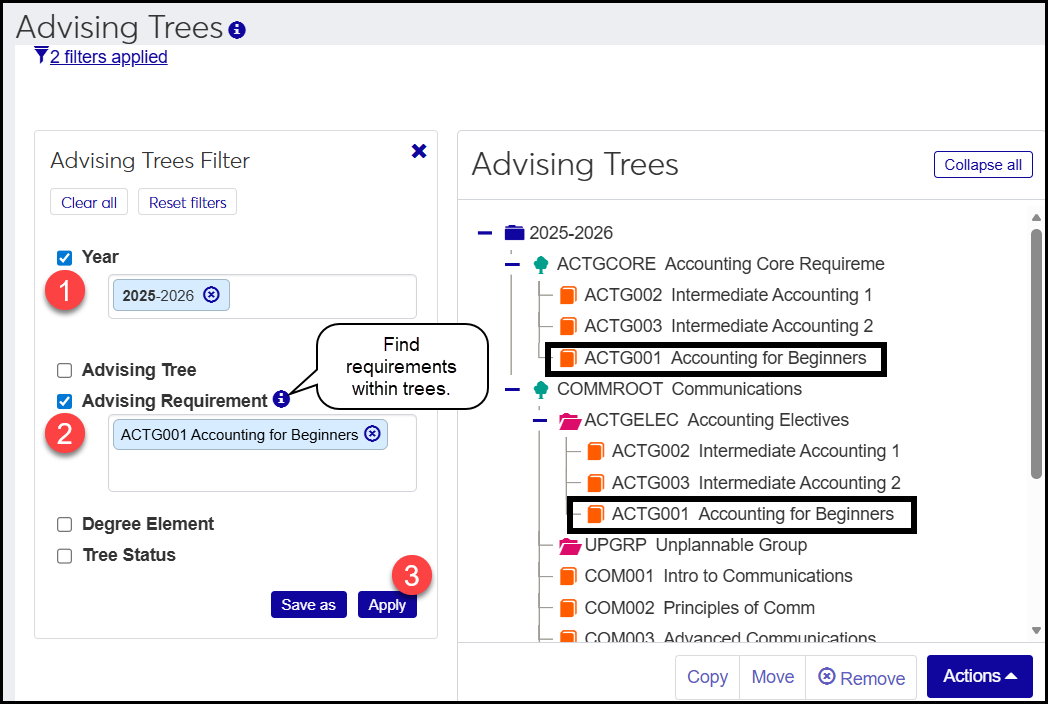 |
Maintain Advising Requirement Types | Advising Requirement Type Definitions 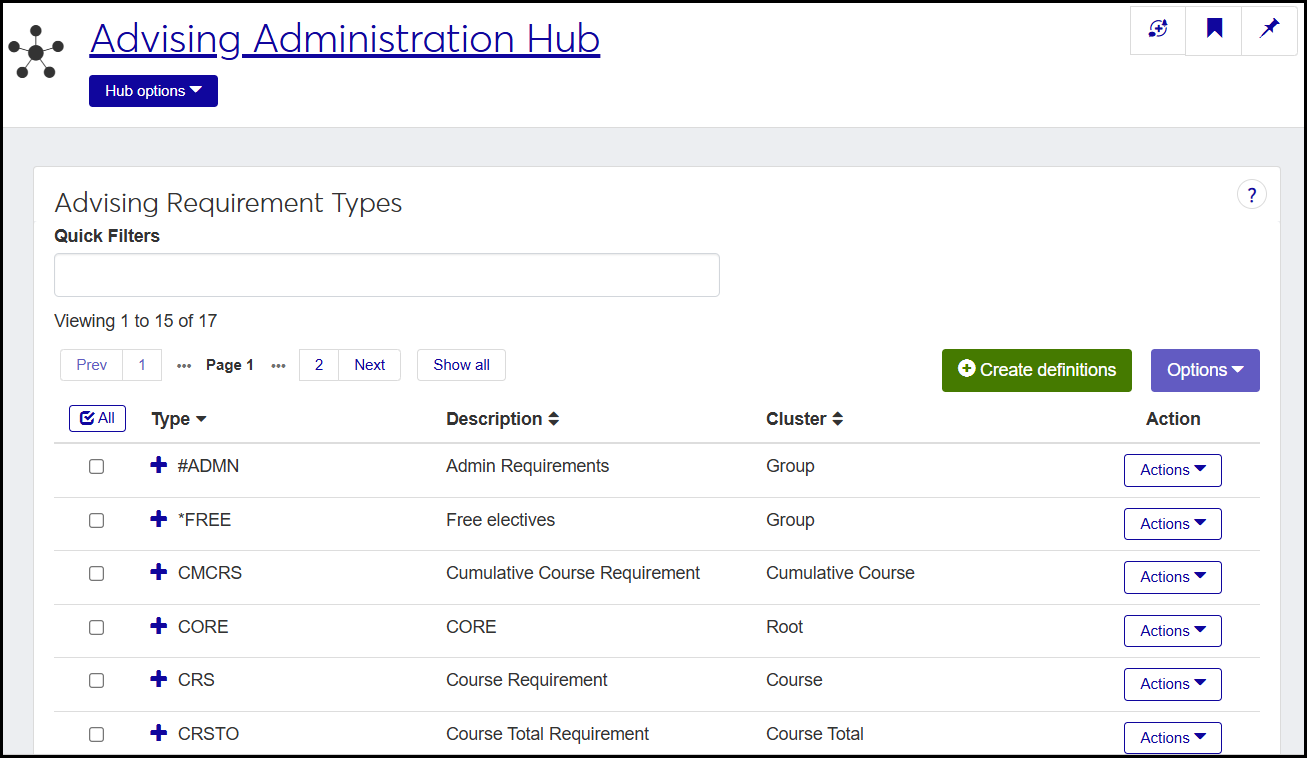 |
Maintain Advising Requirements | Advising Requirement Code (ARC) Definitions 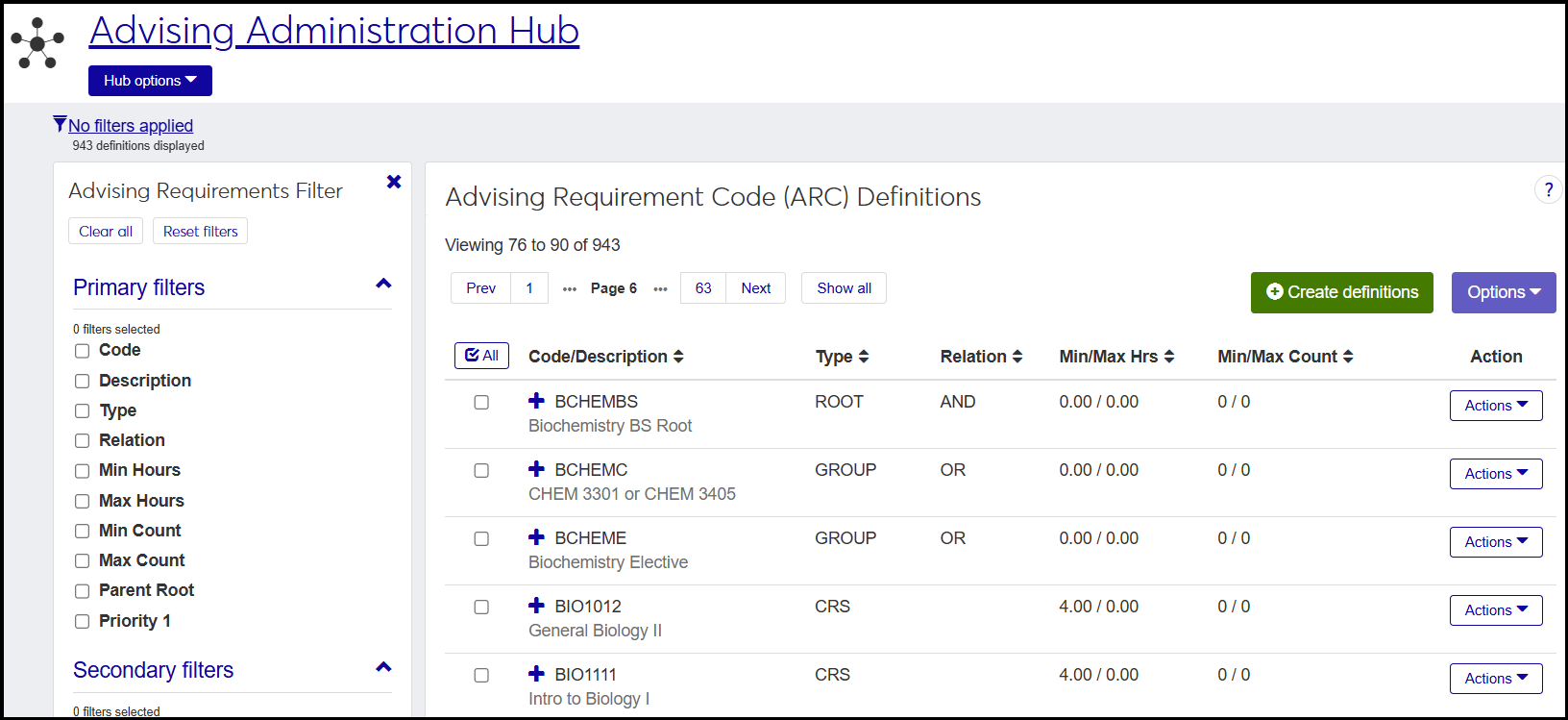 |
Curriculum Impact Analysis | Advising Requirement Code (ARC) Definitions In the Actions drop-down, select Curriculum Impact Analysis. 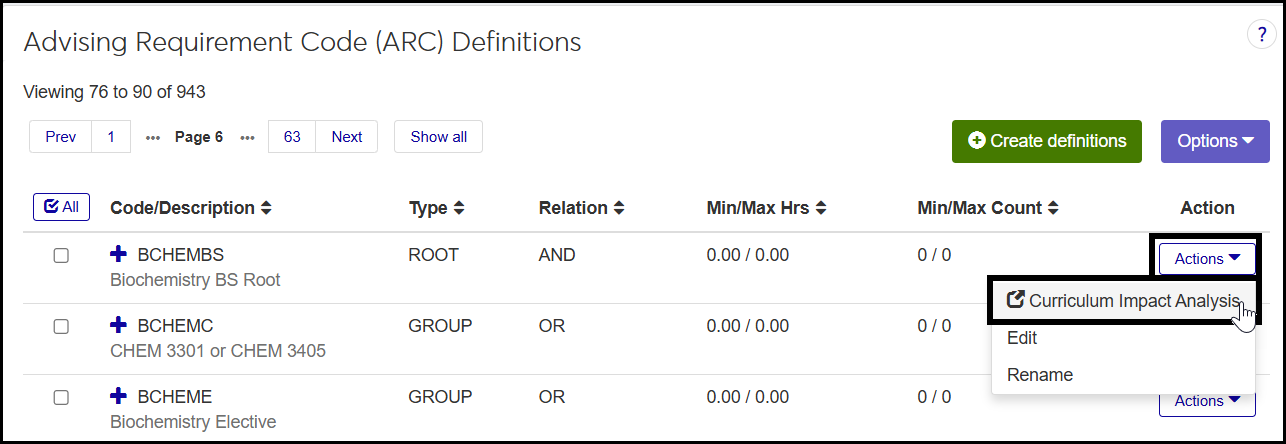 |
Degree/Aim Cross Reference | Degree/Aim Cross-Reference 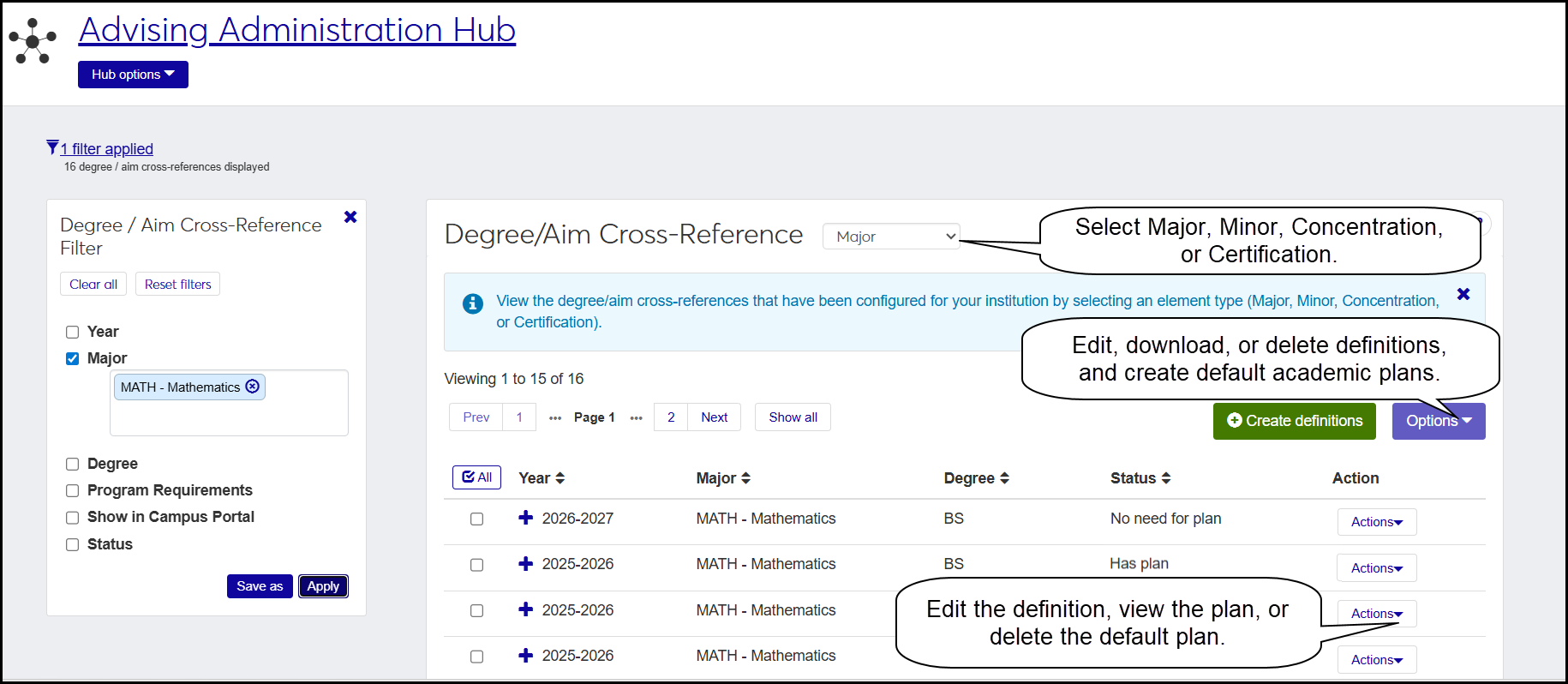 |
Compute Course Needs Course Needs Analysis Report Course Needs Report | Replaced by the Academic Planning process, which shows course needs for each term in the student's program. |