Define a Chatbot Interaction
Chatbot interactions are associated with Chatbot categories to control who can view the exchange in Communications. Jenzabar recommends defining an interaction for each Chatbot category you want to import so Admissions Officers can view potential candidate exchanges and Financial Aid offices can view exchanges regarding financial aid.
Because Chatbot interactions are only associated with Chatbot categories and not sent to individuals or applied to records, they can only be used for internal recording purposes.
How To
Internal recording purposes only interactions are typically used to capture a communication that occurred outside the system that you want recorded and associated with an individual / organization's record. Internal recording purposes only interactions cannot be used in automation plans.
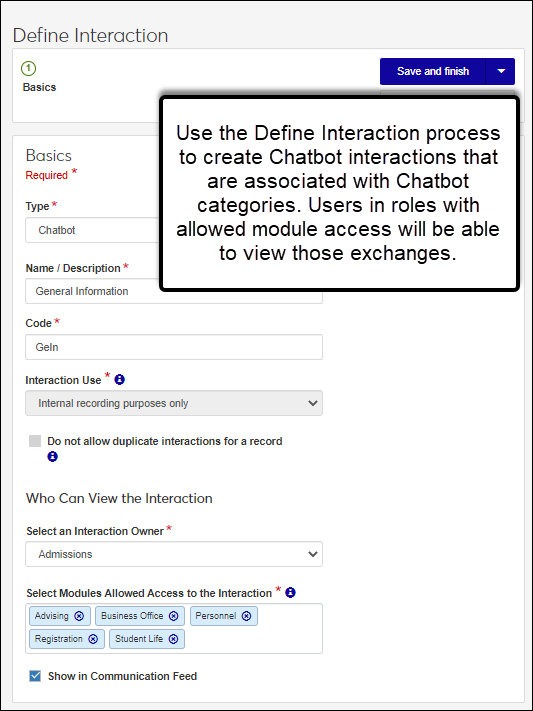
Access the Communication Management, Interactions page and click Define interaction. The Define Interaction window appears.
From the Type drop-down, select Chatbot.
In the Name/Description field, enter a recognizable name or description for the interaction.
In the Code field, a unique code is generated for you or you can choose to enter your own unique identifier. Codes cannot be more than 15 characters.
From the Interaction Use drop-down, select Internal recording purposes only.
If you want to keep the same interaction from being sent/applied to an individual or organization more than once, select the Do not allow duplicate interactions for a record checkbox.
To protect sensitive information, you can limit who can access the interaction content by selecting the Only visible with role associations checkbox.
When selected, users can see the interaction was sent/applied from the interaction inventory and feed, but they won't be able to read the content. Only users with an association to the individual can view the content. For example, advisors may need to see detailed information in an advisee's inventory, but coaches may not need that level of detail. Associations are handled via role permissions.
For note interactions, users with access to the interaction may need to edit the content or delete the note entirely. To enable these features, select the Can be edited or deleted checkbox. This means anyone with full access to the note and not just the person who added it can make changes to it or delete it.
From the Select an Interaction Owner drop-down, select the module/department that is primarily responsible for this interaction type.
Note
If you select a default interaction access code from Communication Preferences (My General Settings), it will be shown here; however, you can change it as needed.
In the Select Modules Allowed Access to the Interaction, start typing and select the modules you want to be able to access the interaction.
Tip
Users in roles with permission to this module code will be able to view and depending on their permissions, work with this interaction. Consider who on campus would benefit from being able to view and potentially comment on this interaction. For example, registrars and advisors may benefit from similar information about a student.
If you want the interaction to be available in an individual’s or organization’s feed, select the Show in Communication Feed checkbox.*
* Available with Communications Plus.
Tip
If sensitive FERPA or HIPPA information might be included in the interaction, it might be better to not include it in the communication feed.
To save and send the interaction at another time or as part of a set, click Save and finish. The interaction will be available from the Settings page, Chatbot tab.