Data Management
Tip
Only releases with enhancements or resolved issues for this module have content below.
2026.2.2
A new Unlock option is available on the Import Processing Queue page.
Note
Users must be in a Common, Data Management role with the new Can unlock imports locked by other users permission enabled.
New Identifier Options
The Identifying Information section of the data mapping templates now includes two distinct sections to improve match accuracy during data imports:
The Unique Identifiers section lets you select fields that the system can rely on to ensure accurate record matching and appropriate updates (if any).
The Supporting Identifiers section lets you select fields that can assist with duplicate checking. These are used to identify potential matches when a unique identifier is unavailable.
The image below shows the new Unique Identifiers and Supporting Identifiers sections on the Mapping Template window.
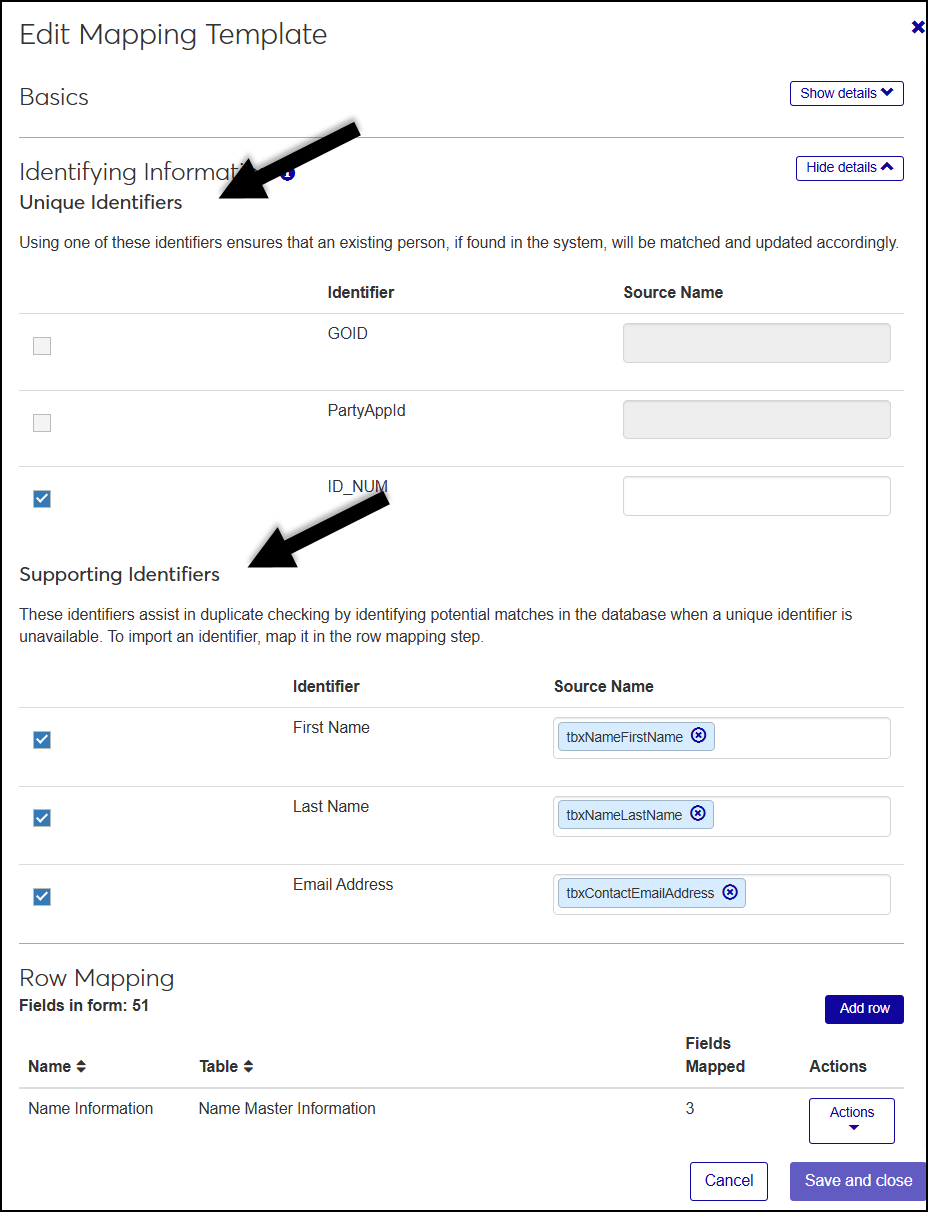
In addition, identifier fields can now be included in the data import and saved directly to the database using the Row Mapping section of the template.
New Scheduled Import Options
You can now schedule imports using the SFTP (SSH File Transfer Protocol) file locations for an additional layer of security when transferring files. These new options allow you to enter your SFTP connection details and credentials on the Create Mapping Template and Edit Mapping Template windows.
Host is the address of the SFTP server J1 Web will connect to. This can be a domain name (e.g., sftp.vendro.com) or an IP address (e.g., 192.168.10.5).
Port is the network port. The SFTP default is 22; although, some sites use a custom port.
Username and Password are the credentials J1 Web will use to authenticate to the SFTP server and are managed by the SFTP host.
Host Passkey is the SHA-256 fingerprint used to verify a server's identity. This is generated by the SFTP host.
Target Folder Path is the directory where a file should be read from. Example: ./incoming/imports
The image below shows the new SFTP Configuration options on the Create Scheduled Import window.
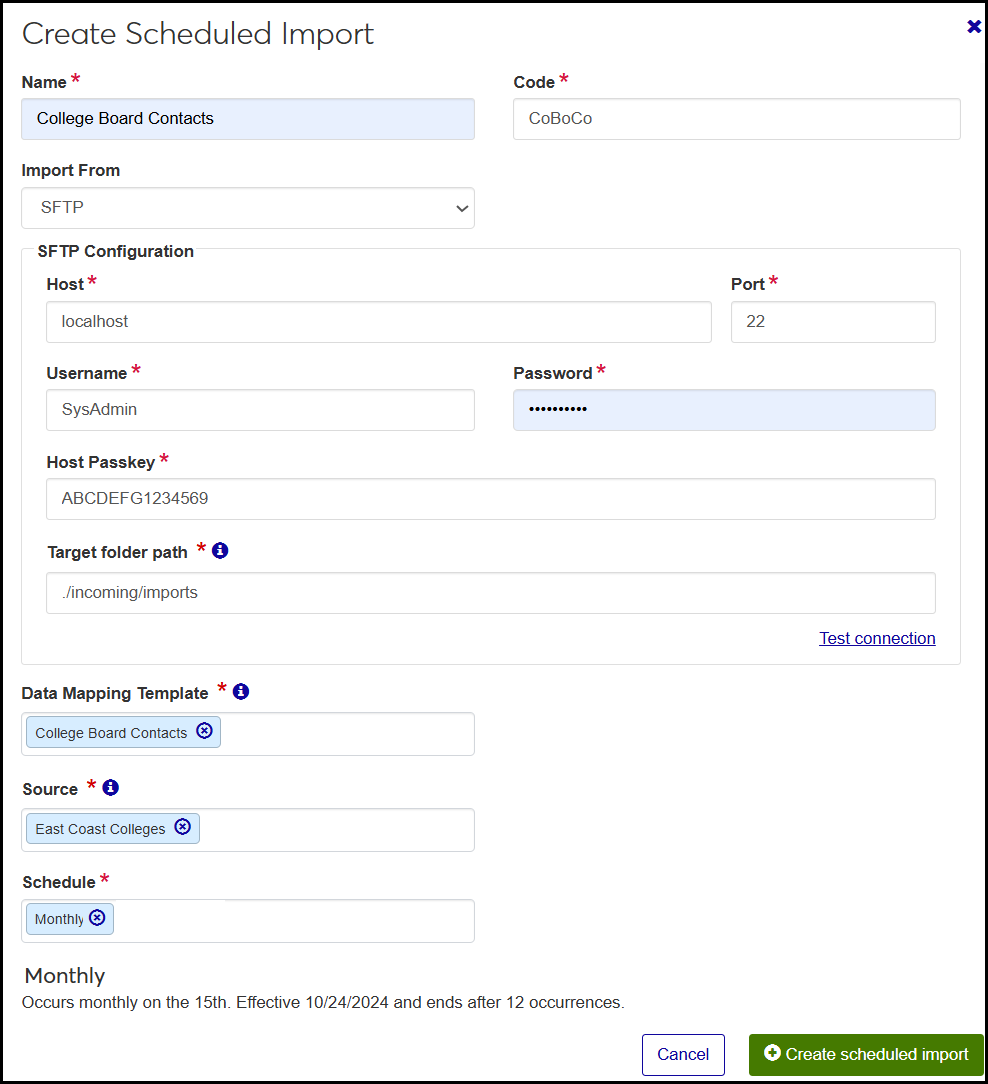
To facilitate these new options, the Import From field is now a drop-down that includes the new SFTP option and the original option, now called UNC File Path.
A new UNC File Path section is available, and the original field is now labeled Target folder path. Just as before, you can enter the network address where the system can find the file you want to import.
New Data Mapping Tables Available
Data mapping templates can now be mapped to the Party Biograph, Party Ethnicity/Race Information, and Source Information tables on the Mapping Template window.
Data Management Templates
There are several new features available when working with mapping template rows.
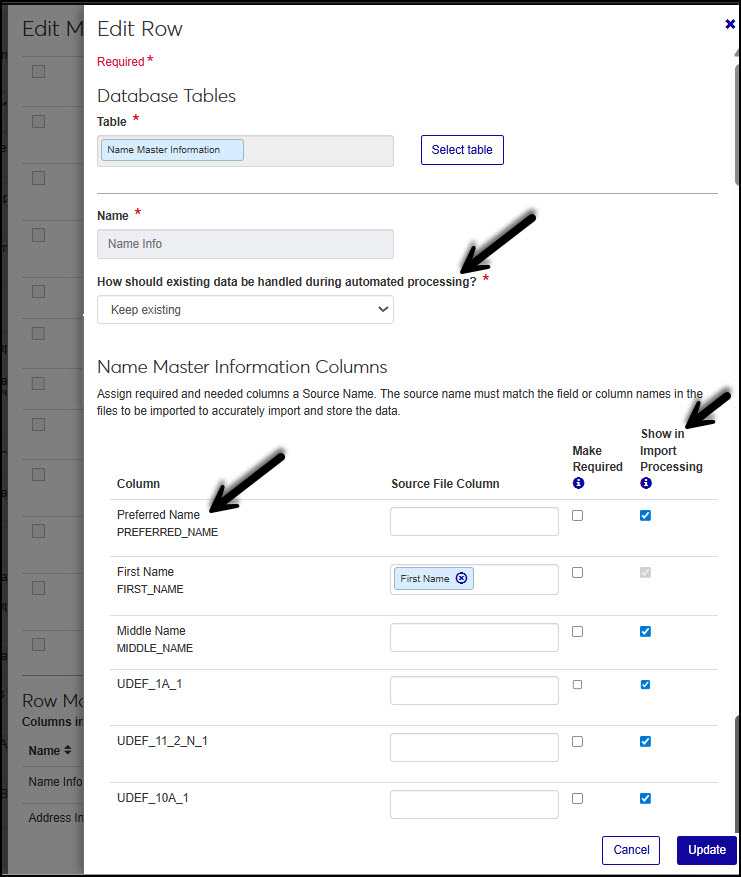
Automated processing templates have a new How should existing data be handled during automatic processing? option. You can choose to keep the existing information, move the information to the queue for manual review and processing, or replace the existing data with the imported data.
A new Show In Import Processing checkbox lets you select when a field will be available during import processing.
To make fields easier to identify, the field's friendly name now appears with the column name. For example, Preferred Name PREFERRED_NAME.
Data Processing Queue
When updating a person that already exists in the system, their name is now shown on the Update Existing Person window.
When creating a new person or updating an existing person:
The Save and go back, Save and go to, and Save and continue buttons on the first step have been combined in a more meaningful way.
The Update existing person and Save and finish later buttons have been updated with clearer text.