Courses with Alerts Block
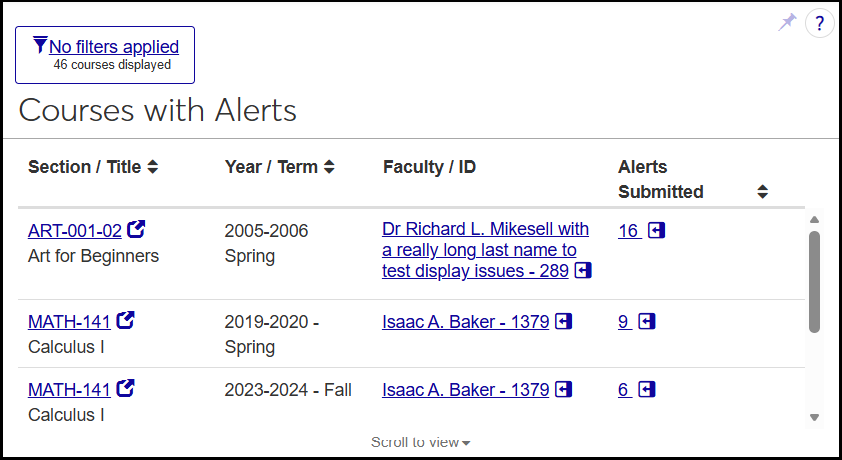
The Courses with Alerts block appears on the Student Success hub's Summary page. Use it to view the list of course sections that have alerts submitted. The list includes course sections with alerts in any stage, including closed alerts.
Filter
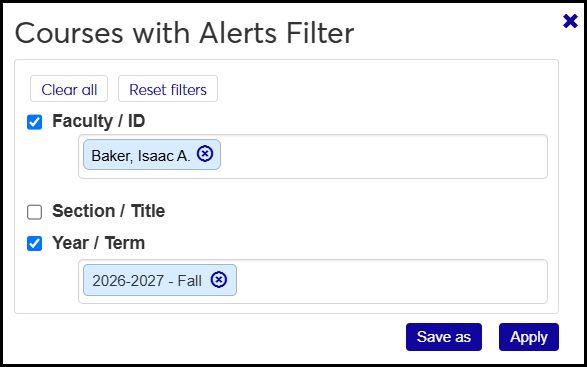
The filter lets you narrow the list of courses. You can filter by faculty, section, and/or year/term.
Fields
Section / Title: The section code and title of the course section. The section code is a link to the course section's Summary page, which opens in a new tab.
Year / Term: The course section's year/term.
Faculty / ID: The name and ID number of the course section's lead instructor. The name and ID are a link to open the instructor's Summary pop-up.
Alerts Submitted: The count of alerts (in any status) submitted for the course section. The number is a link to open the list of alerts for the course section in a pop-up panel.
Permissions
The "Can view Courses with Alerts block" permission is available in the Student Success Administrator role and roles made from it.
How To
View the Courses with Alerts Block
In the Navigation panel, click the Student product to expand it.
Click Student Success, and select Summary. The Student Success hub opens to the Summary page. The Courses with Alerts block is visible. Along the top of the block, selected filters are listed. Otherwise, a message says "No filters applied".
To sort the list by a column, click the column heading. To reverse the order, click the column heading again.
To filter the list:
Click the No filters applied link. The Courses with Alerts Filter pop-up opens.
Select the checkbox for a filter: Faculty / ID, Section / Title, or Year / Term.
In the field, begin typing a value (such as a faculty name or ID, a section code or title, or a year or term). Select an option from the results. You can select multiple filters, and you can select multiple options in each filter.
Click the Apply button. The filters are applied. The pop-up closes, and the filters are listed across the top of the block.
To remove a filter, click its Remove icon
 .
.
To view a course section's Summary page, click its section code. The section's Summary page opens in a new tab.
To view an instructor's Summary pop-up, click the faculty name or ID. Their Summary pop-up panel opens. From there, you can create communications about the instructor and view their summary information and workflows. You can also view extensive information from their Person options drop-down.
To view all the alerts submitted for the course section, click the number (count) of alerts. It's a link that opens the Alerts panel for the that alert. The students' and instructors' names are links to open their Summary pop-up panels.
To view a student's Summary pop-up panel, click their name.
To view an instructor's Summary pop-up panel, click their name.
To view these alerts on the Alert Tracking page, click the Open in Alert Tracking link. The Alert tracking page opens, filtered to the alerts in this course section.