Workflow
Tip
Only releases with enhancements or resolved issues for this module have content below.
2026.2.1
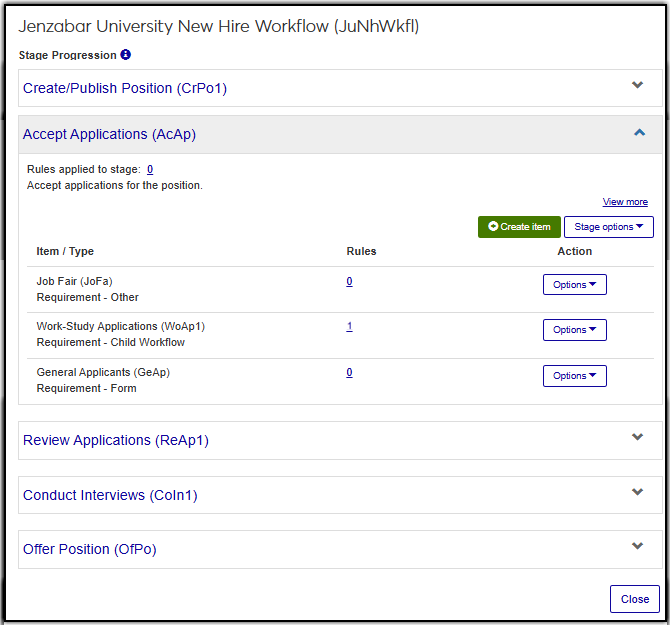
You can now create child workflows to support and progress a primary workflow, letting you manage related processes while each maintains its own stages, requirements, and rules. For example, a New Hire workflow can include a Work-Study Applicant child workflow. The child Work-Study Applicant workflow can follow its distinct process while remaining part of the overall onboarding experience.
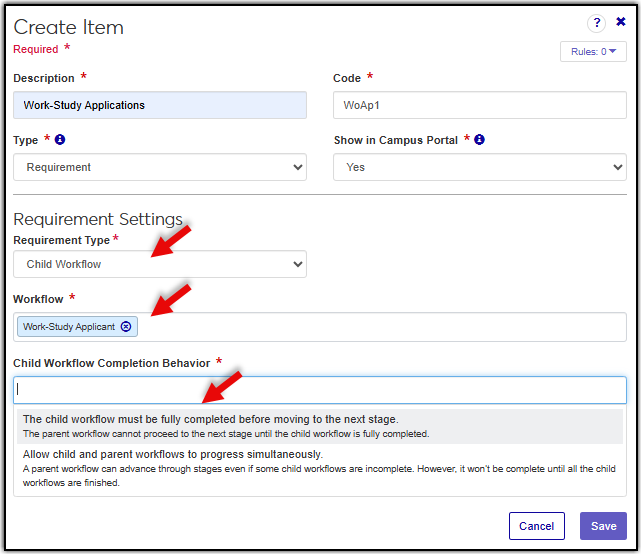
Once you create and publish your child workflow, you can add it to your primary workflow as a stage item. To support this feature, the following required fields have been added to the Create Item and Edit Item windows:
A Child Workflow option in the Requirement Type drop-down.
A Workflow field for selecting the child workflow to associate with the primary workflow.
A configuration drop-down Child Workflow Completion Behavior that determines whether the primary workflow must wait for the child workflow to complete before continuing, or whether both can progress at the same time.
The following image shows the new child workflow options on the Create Item window.
 |
Once initiated, the child workflow runs independently while maintaining its relationship to the primary workflow.
The following image shows a primary workflow with a child workflow added.
 |
Note
No new permissions are needed to access these enhancements. Users with permission to manage workflow definitions can work with child workflows (Workflow Base role, Can manage work definitions permission).
Rules configurations have been updated to make creating and managing workflow roles easier.
In the Create Workflow and Edit Workflow windows, Stages step, Add rule is now Create rule.
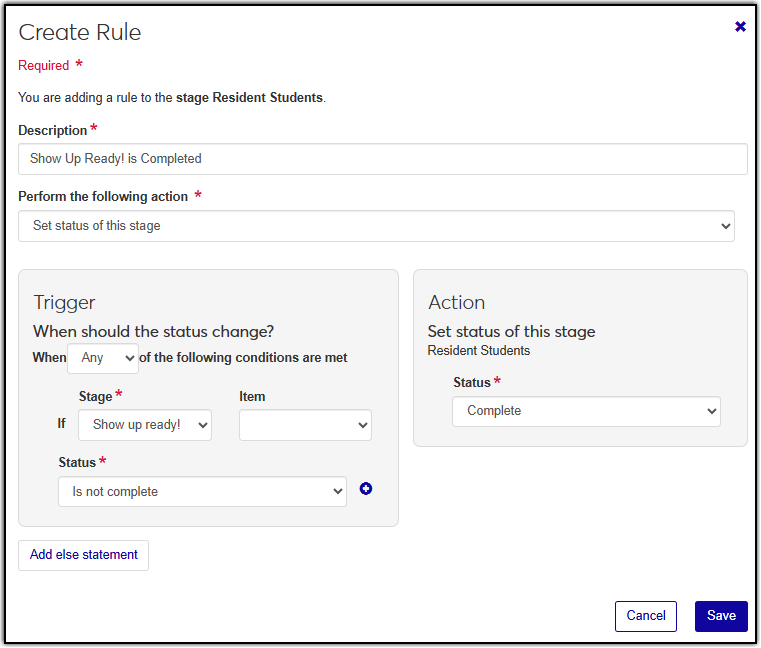
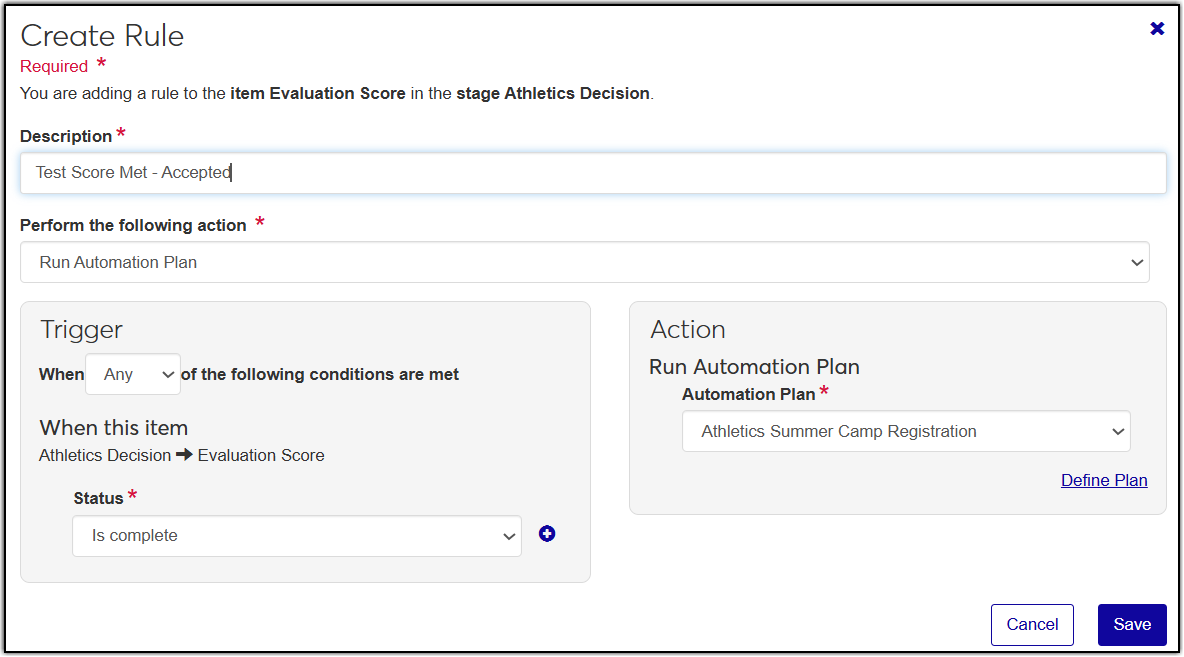
The Create Rule and Edit Rule windows include a new Description field and guide you through selecting an action before showing the fields needed to define the rule.
Rules configuration is now organized into Trigger and Action sections with updated field labels, making it easier to understand when a rule runs and what it does.
When a rule initiates an automation plan, the related options are more clearly designated and organized.
The following images show the Create Rule window with the new Description field and reorganized rules fields.
 |
 |
These enhancements are also available on the View Rules and Edit Rules windows.
Note
No new permissions are needed to access these enhancements.
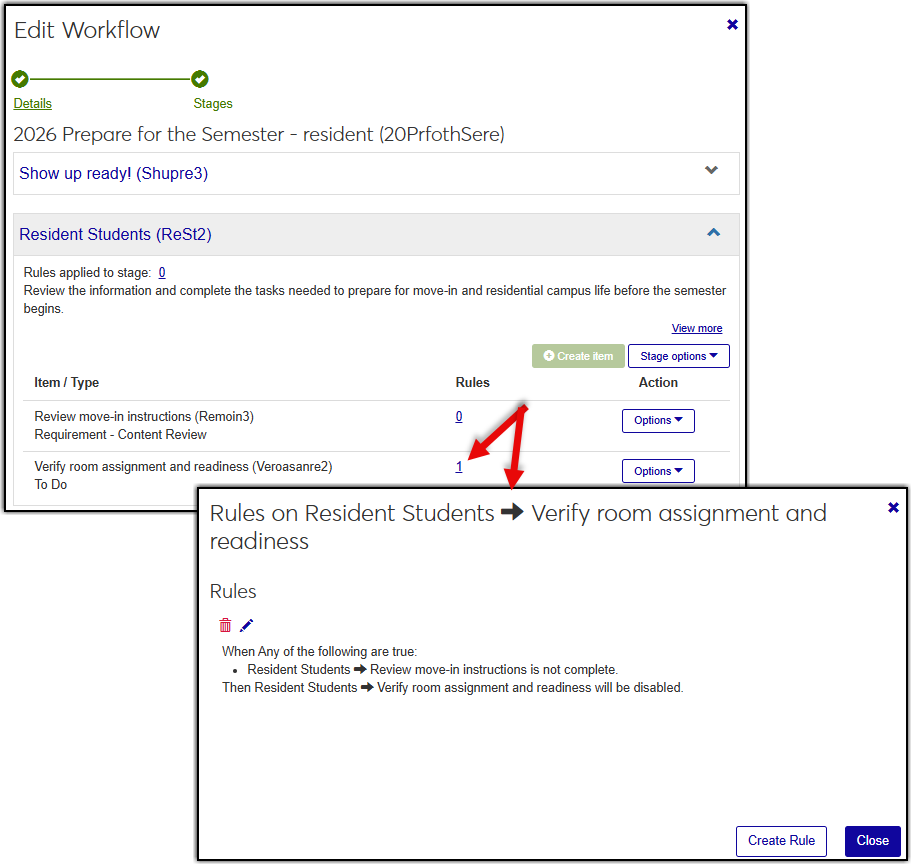
The Create Workflow and Edit Workflow windows, Stages step now provides quick access to rule information for stages and items. The new Rules applied to stage field displays the number of rules associated with a stage, while the Rules column displays the number of rules associated with each item. You can click the rule count link to view and update detailed rules information as well as add new rules.
 |
Note
No new permissions are needed to access these enhancements.
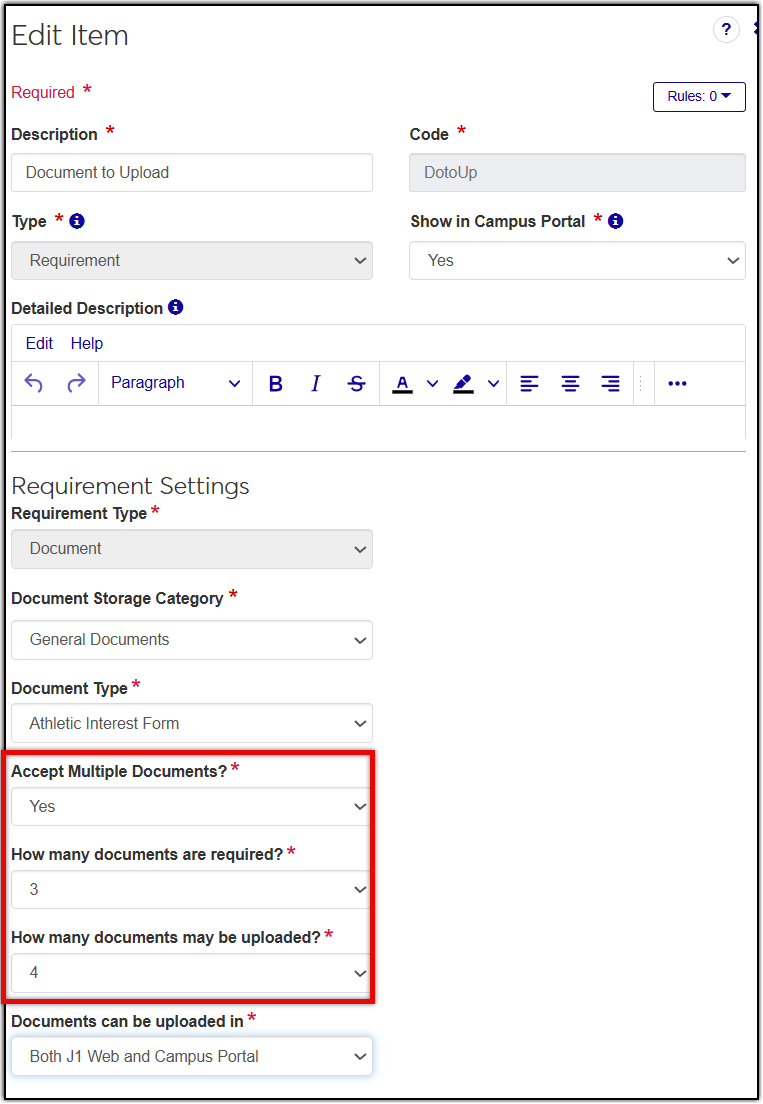
Document requirements can now be configured to accept multiple file submissions. This lets workflow participants upload multiple required files through a single requirement instead of needing separate ones for each. For example, students can submit multiple unofficial transcripts without requiring separate workflow items.
To set this up, use the new Document Requirement Type options to define the number of documents required and the maximum number allowed. When a workflow participant has not submitted the required number of documents, the system displays a message indicating how many are still needed.
 |
Note
No new permissions are needed to access these enhancements.
2026.1
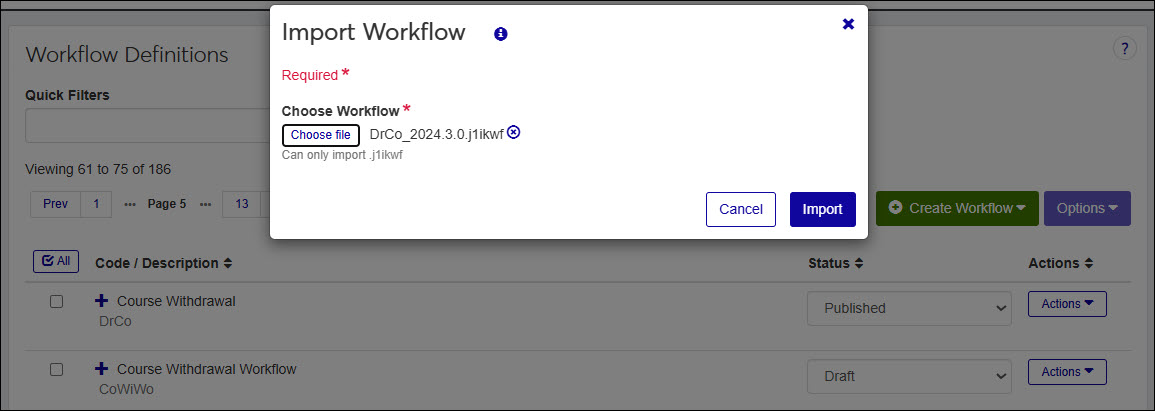
You can now import and export workflows directly from the Workflow Definitions page letting you share workflows across your campus and within the Jenzabar community. Workflows in any status can be exported and include all the items, stages, and rules associated with it. Files are exported in .j1ikwf format and named using the workflowcode and J1 version. For example, CrseChnge_2024.3.0.j1ikwf.
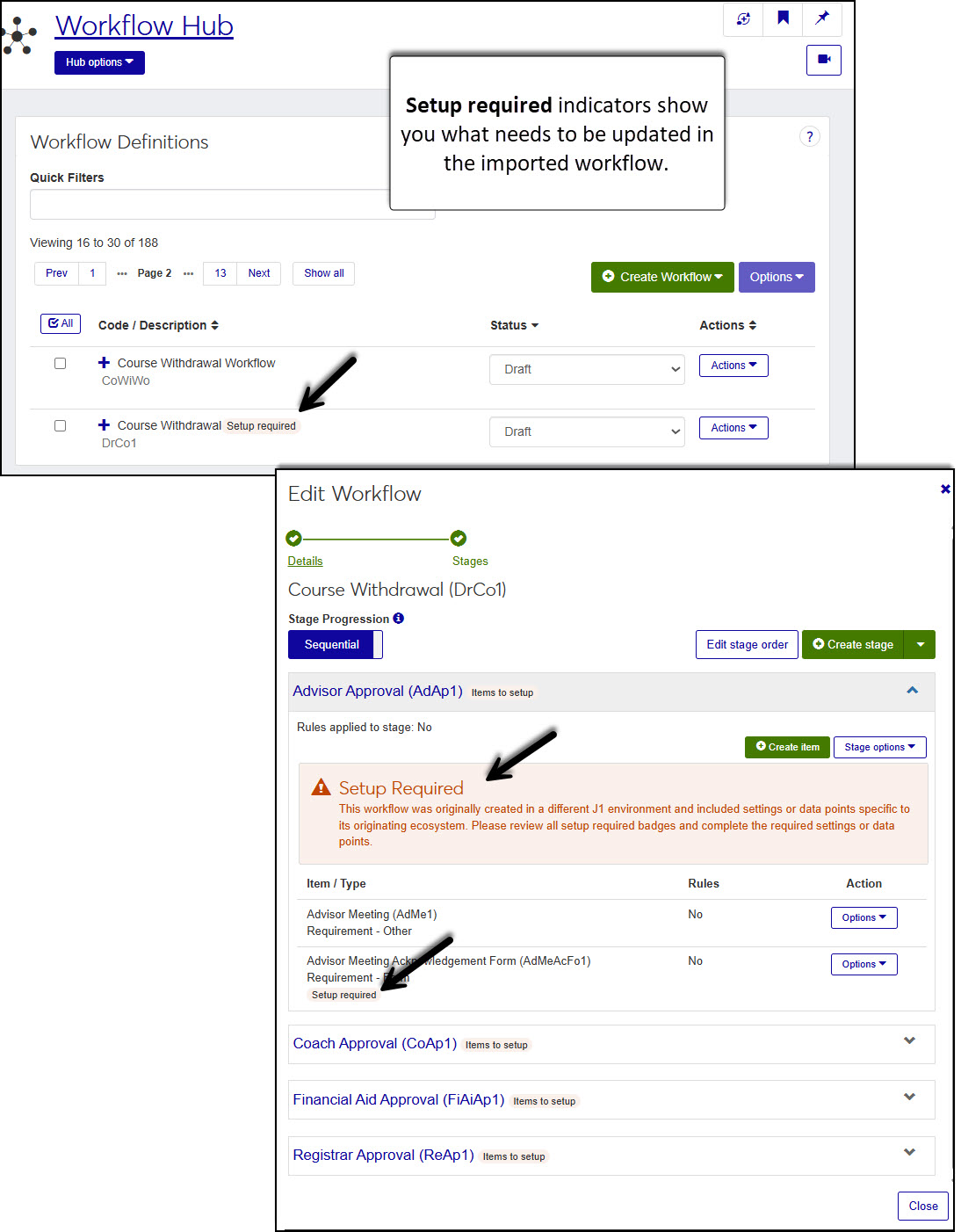
When importing a workflow, it is in a draft state. System-specific settings and data points tied to the original environment are not included and must be reviewed and updated manually. Once updated, the workflow can be published and put into use.
Setup required indicators show you what needs to be updated in the imported workflow.
Note
New permissions are not needed to access the import and export features.
Note
New permissions are not needed to access these features.
A new View Instances option on the Automation Plans page opens a new Instances window where you can view statistical details about the plan when it includes email and text interactions,* view plan recipients, and stop the plan if needed.
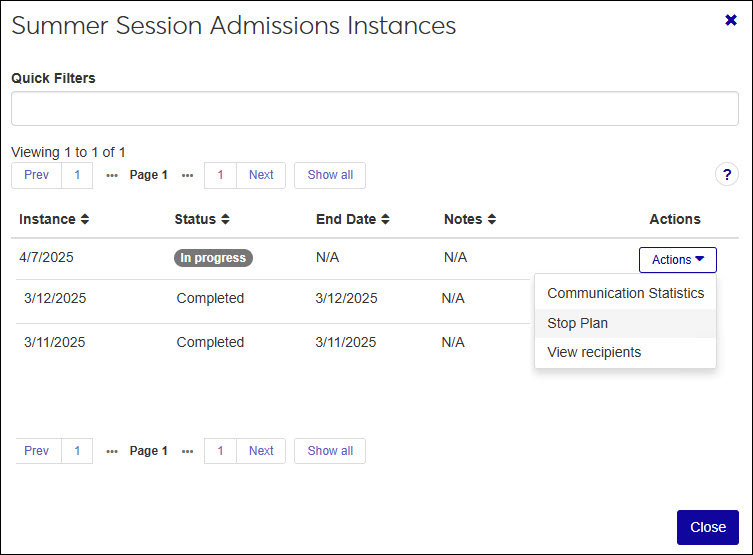 |
Stop Plan Option
The Stop Plan option let you stop a specific instance of an automation plan. Once stopped, the instance is permanently halted and cannot be restarted. For recurring plans, interactions will resume on the next scheduled run date.
Note
Only users in a Workflow role with the Can run automation plans permission enabled can stop automation plans.
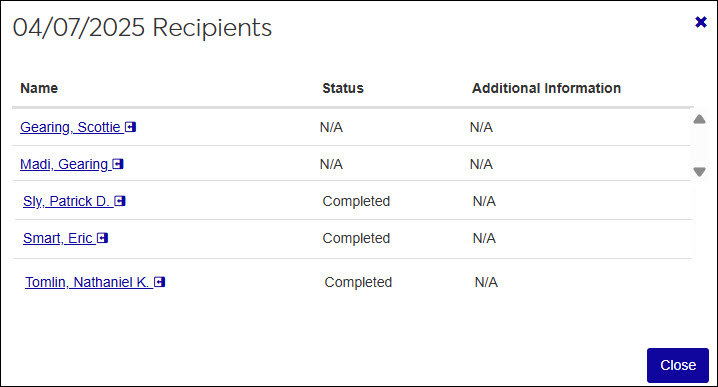
View Recipients Option
The View recipients option lets you review a list of all recipients tied to a specific automation plan instance. Status indicators show if a recipient is actively progressing through the plan, has been removed, or has completed it. It can also let you know if the plan was stopped.
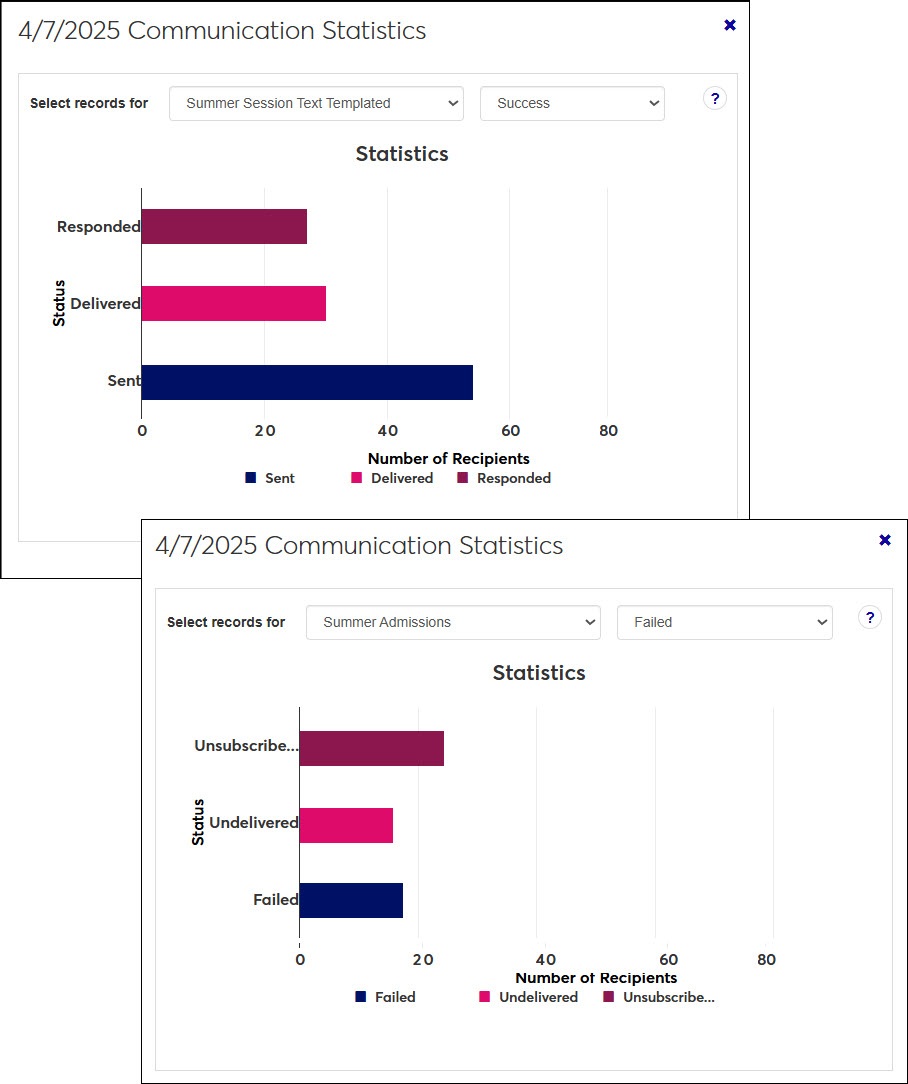
A new Communication Statistics window summarizes the successes and failures for each run of an automation plan, as well as for each text and email interaction. You can see how many recipients the text or email was sent the interaction, how many did or did not receive it, how many responded or unsubscribed, etc. This new window is accessible from two locations:
Automation Plan Instances window in Workflow: Access the Automation Plans page, find the automation plan you want to review, select the View Instances option from the Actions menu, and then from the appropriate run time, choose Communication Statistics from the Actions drop-down.
Interaction Run History page in Communication Management: Access the Interactions page, find the interaction you want to review, select Access run history from the Actions menu, and then from the appropriate run time, choose Communication Statistics from the Actions drop-down.
 |
*Available with Communications Plus.
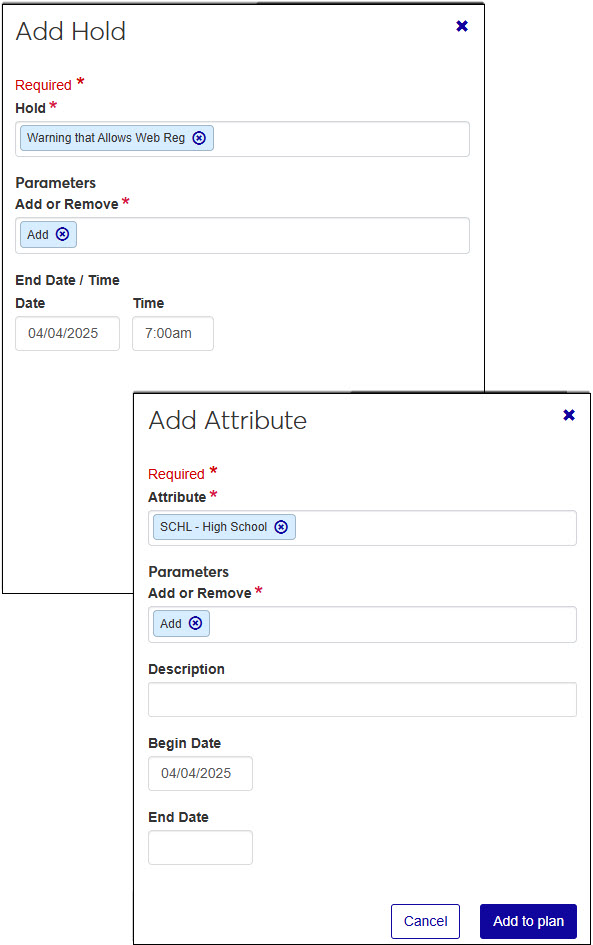
You can now automatically add or remove attributes and holds to student records using automation plans. As you step through defining or updating an automation plan, you can use the new Attribute and Hold options.
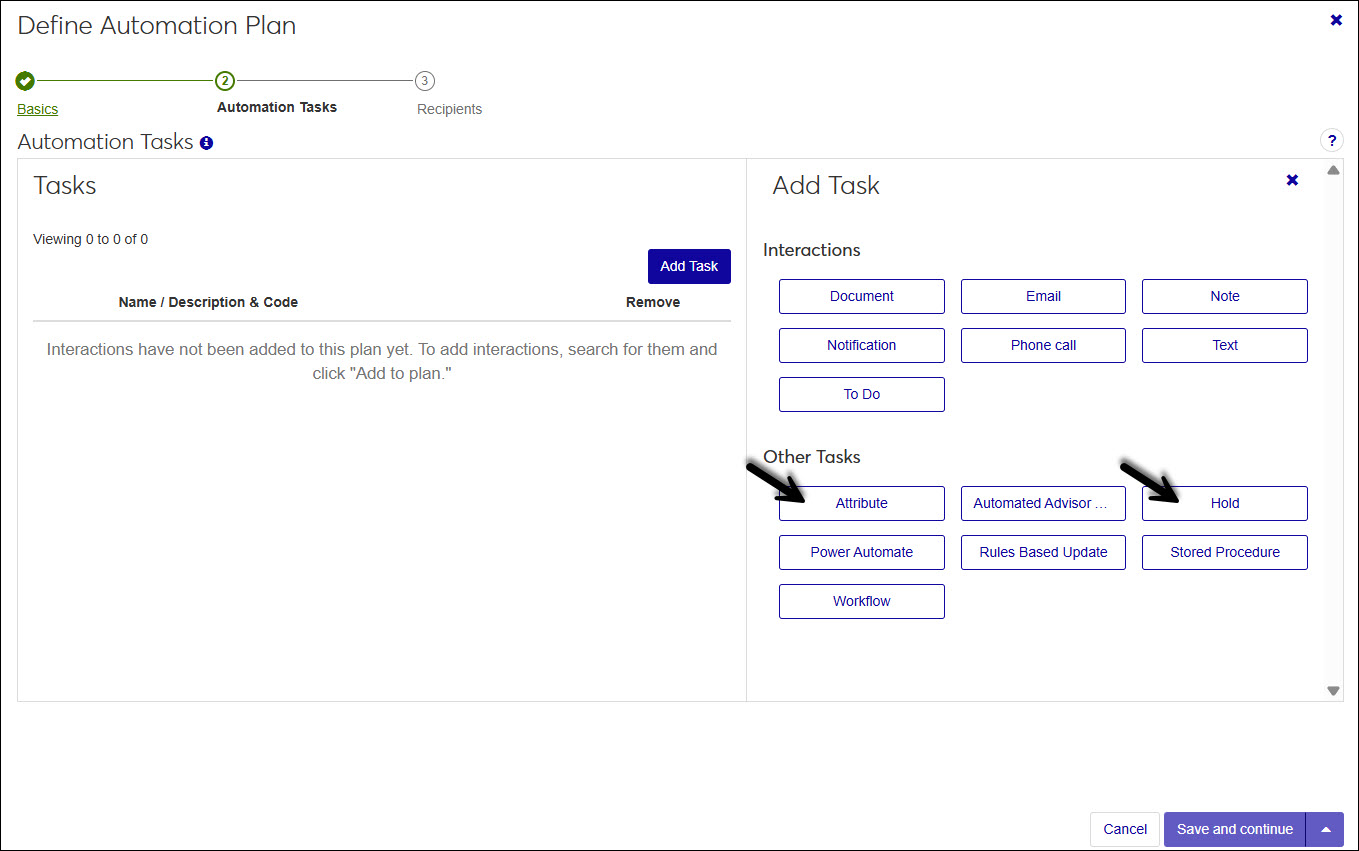 |
Click on them to define which attributes and holds should be applied or removed.
 |
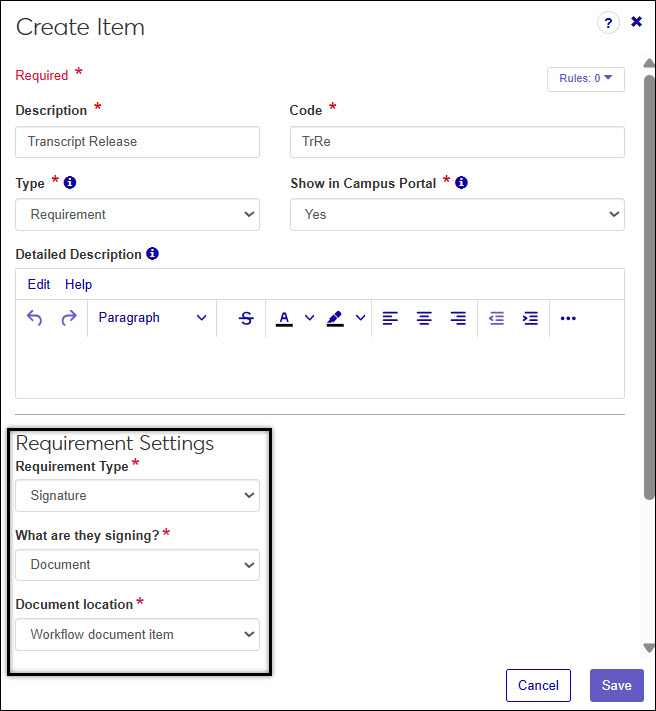
You can now require signatures on documents as well as FormFlow forms. When setting up a signature requirement, a new What are they signing? drop-down lets you choose between Document or Form.
Note
The user creating a document signature requirement needs access to the appropriate document storage options. For more information, reference the Setting Up Document Storage help topic for more information.
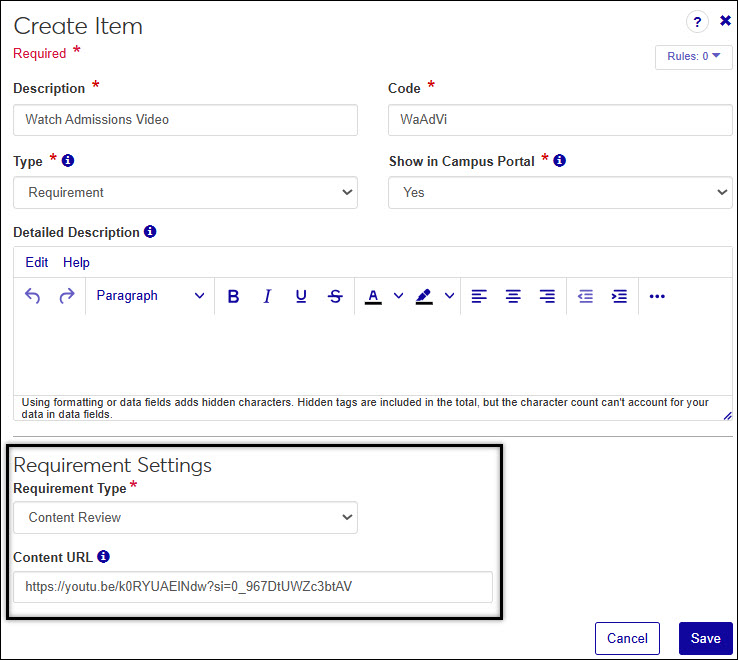
A new "Content Review" requirement type lets you require workflow participants watch a video, listen to a recording, read provided text, or visit specified web pages.
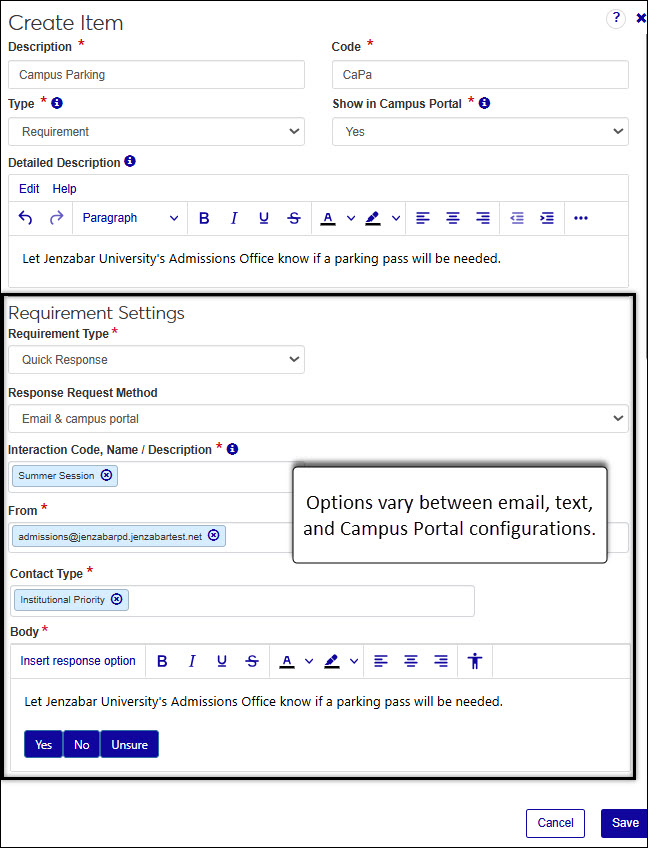
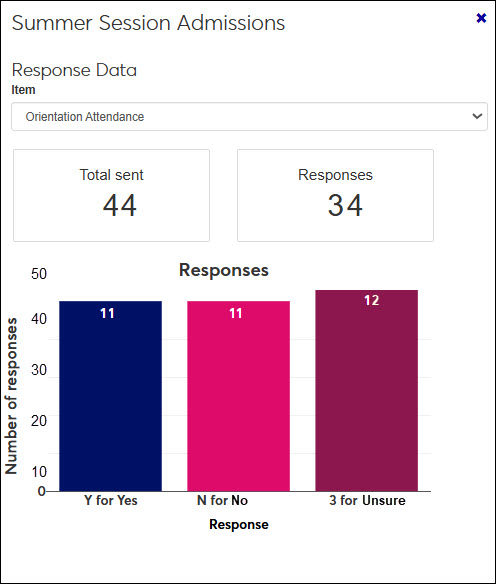
A new "Quick Response" requirement type allows you to collect responses from workflow participants by adding custom buttons to emails, texts, and the Campus Portal. When creating a response for an email or text, you can associate it with a specific interaction to ensure the options are included with the communication.
Track responses using the new Workflow Definition page, Response Data option.
Changes to Approve/Deny To Do types:
A new If denied, reset pre-requisite item to incomplete? option lets you set up the item so that it can be re-opened if it is not completed.
The What are you approving or denying? field text was updated to What pre-requisite item is being approved or denied?
Jenzabar One Workflow is Now Available
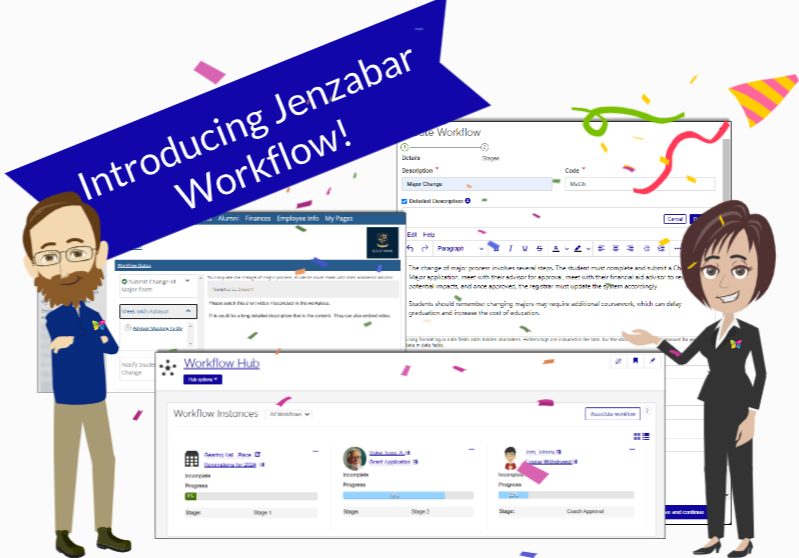
Jenzabar introduces the Workflow module, a new tool that automates and streamlines your campus' processes. Developed to enhance operational efficiency, the Workflow module allows campus departments to design, manage, and optimize routine and complex workflows.
Workflows can update system data, initiate communications, trigger system processes, and start additional workflows. They can be created for prospective student, financial aid, job placement, course withdrawals, and changes of major applications as well as facility renovations.
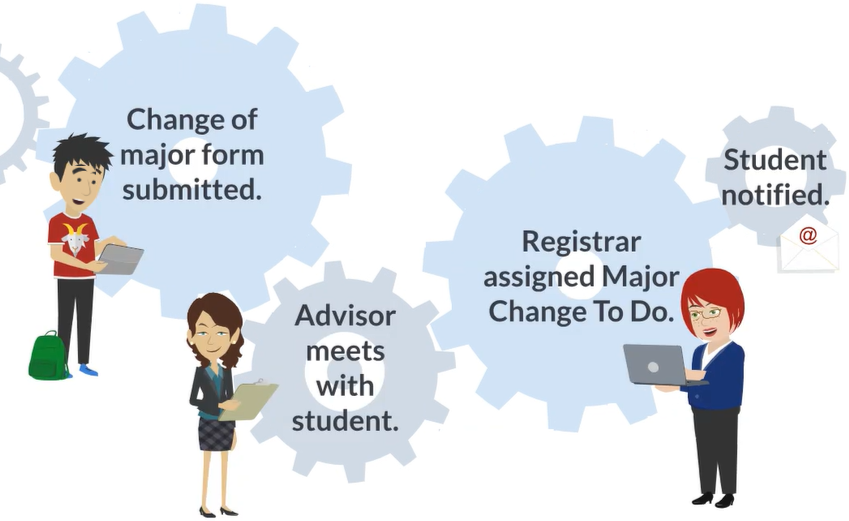
Workflows are divided into stages, each with specific items or requirements to be completed either sequentially or concurrently based on setup. Requirement options differ between Base and Licensed versions. In the Base version, requirements can include submitting test scores, completing To Dos, and other items. The Licensed version adds options like document uploads, collecting digital signatures on FormFlow forms, and automatically adding data to the system.
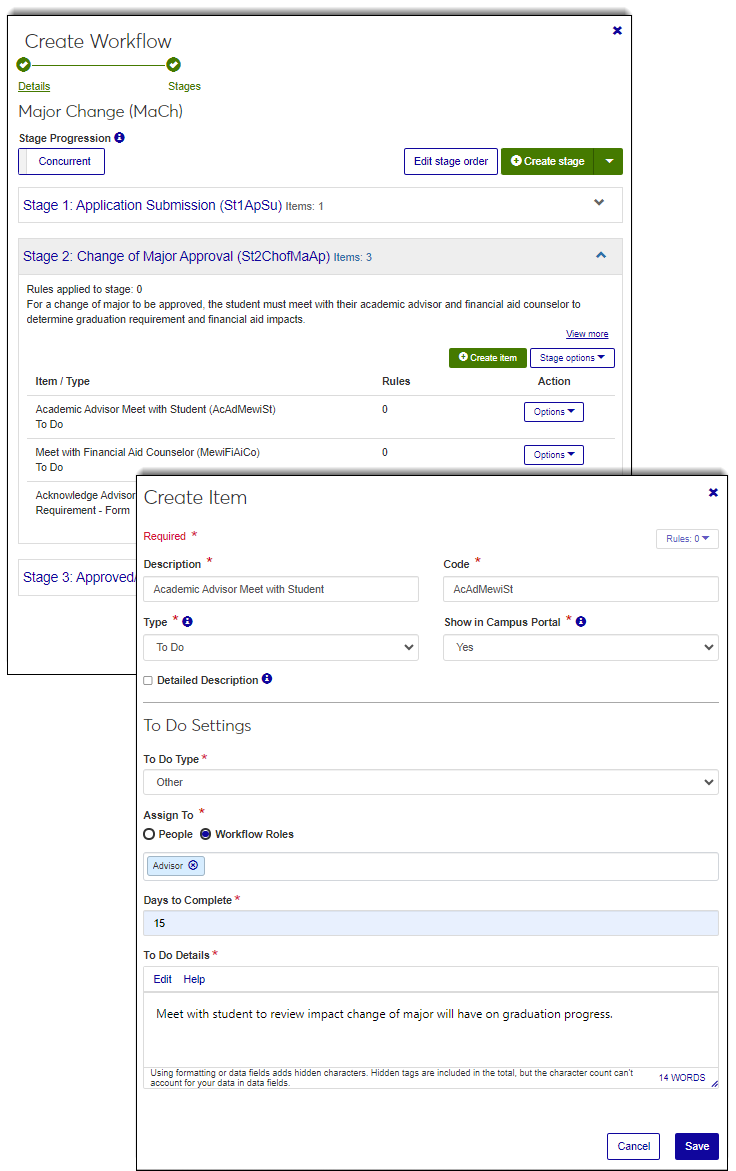
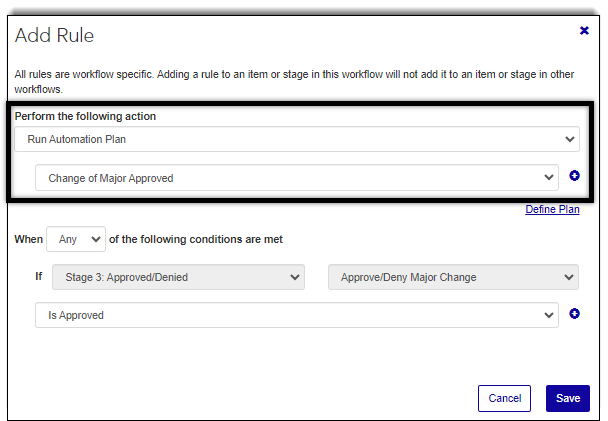
Stage rules and conditions can initiate workflow automation plans that start long-running processes (e.g., rulesbased updates (RBUs) for majors and classifications) and stored procedures. Stages can also update the status of other stages and associate additional workflows when certain conditions are met.*
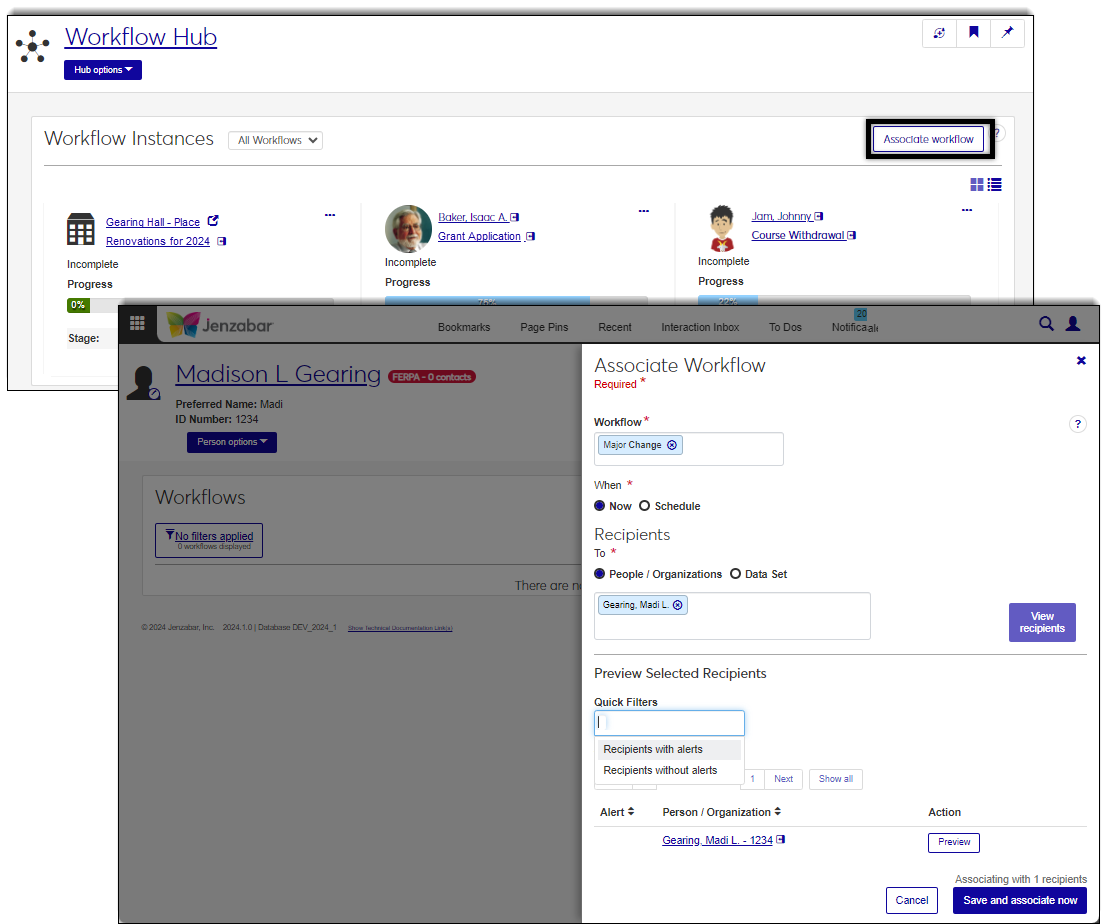
Workflows are associated with individuals and organizations from the new Workflow Instances page, as well as from the new Workflows page associated with person and organization pages.
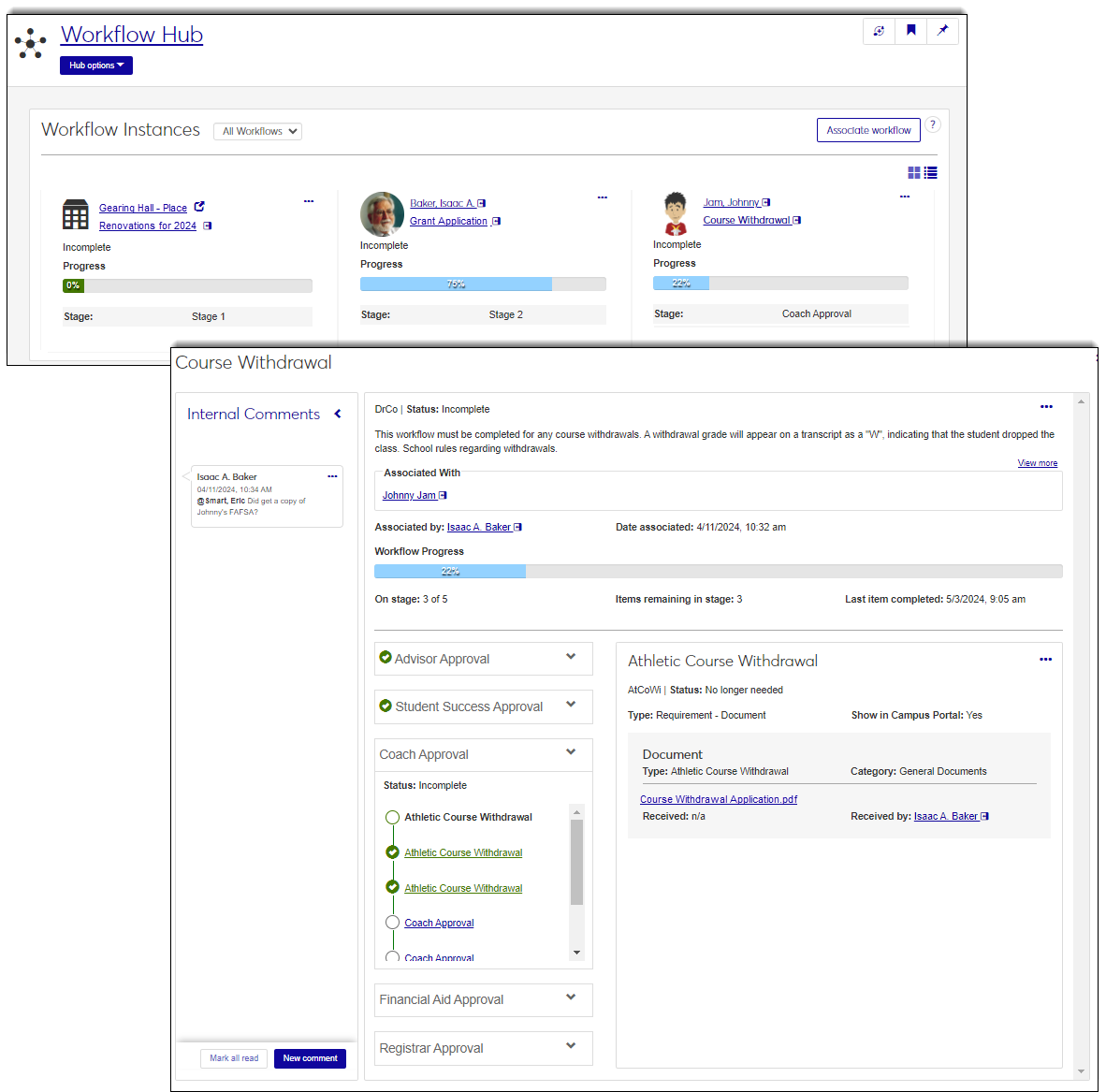
Anyone in a role with access to the workflow can track its progression, view detailed information about the stages and items, and review or add internal comments.
The new Workflow Status feature lets Campus Portal users such as admission candidates, job applicants, and faculty access, monitor, and complete workflows associated with them. Users can submit forms, upload documents, complete checklists, and review provided content in a centralized location.
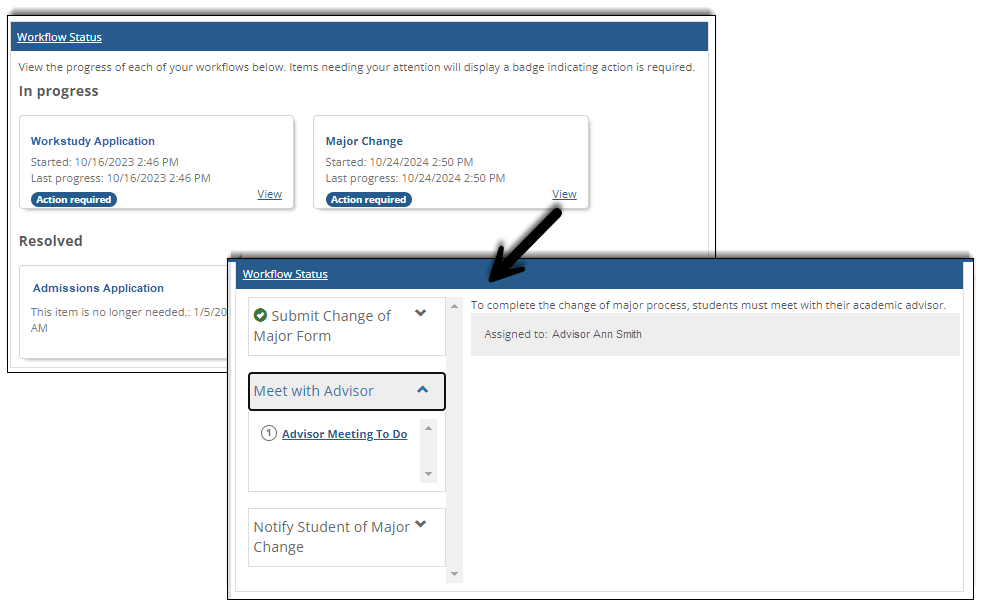
Alerts notify users when tasks need to be completed. As tasks are finished, they are checked off in the feature and J1 Web, but they remain available for review so users can see what they completed.
Jenzabar Workflow Versus Campus Portal FormFlow Workflow
Jenzabar Workflow provides a centralized task list and automation system that lets Jenzabar One Web and Campus Portal users complete requirements, streamline approvals, and automate communications across the entire Jenzabar One ecosystem.
FormFlow Workflow provides simple approval tracks for FormFlow Form submissions within the Campus Portal and restricts access to Campus Portal users.
Base vs Plus
Workflow Base provides a range of features available to all J1 Web users. The licensed Plus version provides enhanced features. The following table outlines the features available with the base and plus versions.
Feature | Base | Licensed |
|---|---|---|
Associate workflows with people. | X | X |
Use workflow requirements/tasks such as To Dos, Test Scores, Other. | X | X |
Integrate with Campus Portal using the Workflow Status feature. | X | X |
Associate workflows with people AND objects (e.g., facilities). | X | |
Leverage specialized tasks such as data, forms, documents, and automatically entering form data in the system. | X | |
Use automation plans for RBUs, stored procedures, and longrunning processes. | X | |
Utilize workflow rules to apply conditions. | X | |
Collect digital signatures on FormFlow forms using the DocuSign integration. | X | |
Associate workflows from the import queue. | X | |
Comment on workflows and To Dos. | X | |
Use new conversations options in the Campus Portal Workflow Status feature. | X |
Setup
Workflow Base and Plus
Complete the Workflow training in our Learning Center https://learn.jenzabar.com/pages/99/workflow.
Create customized Workflow Base roles and assign the appropriate users to them.
Workflow Base roles grant users privileges to build, manage, associate and view workflows.
Note
Any J1 Web user can receive a task from any workflow without requiring Workflow module permissions. These tasks appear in their To Do list, a feature available to all users.
Ensure users responsible for setting up workflows have access to the appropriate Document Storage document types.
Evaluate/create data sets needed for assigning workflows and generating workflow-related communications and interactions.
Add the new Workflow Status feature to your Campus Portal.
Ensure any FormFlow Forms that will be associated with the submitter are configured.
Workflow Plus Only
Apply the Workflow Plus license. Contact your Customer Success Manager and Jenzabar's Support Team for more information.
Create customized Workflow Licensed roles and assign the appropriate users to them.
Workflow Licensed roles grant access to options for incorporating automation plans in workflow items, automating data updates, and associating workflows with objects in the system (e.g., facilities, events, courses, etc.).
Create any needed workflow-initiated automation plans.
Configure your DocuSign integration.
*Available with Workflow Plus.