Appendix A: AD LDS Migration Information and Process
This appendix provides information about the AD LDS migration process that is part of the JICS 2026.1 Release. After the migration process has completed, and you have disconnected AD LDS from your server, the AD LDS migration tab and page no longer appear (you may need to refresh your browser for the changes to display on the Site Manager page). AD LDS Migration functionality is also explained in other documents that are on MyJenzabar.
Multiple documents describe the AD LDS Migration functionality, procedures, and user interface. Refer to the documents listed below and click the associated links to access these documents on MyJenzabar.
The JICS 2026.1 Release Notes describes the AD LDS migration tab and page (as well as other new Site Manager features in that release).
The JICS 2026.1 AD LDS Migration Guide explains how clients can use the AD LDS Migration Tool to move their data from the AD LDS data store to the JICS database and Framework tables. Running the AD LDS Migration Tool is a required prerequisite for anyone upgrading to JICS 2026.1.
The JICS 2026.1 Installation Guide has detailed procedures for installing the JICS 2026.1 Release and includes some information about the AD LDS Migration Tool.
If you have custom portlets that need to be migrated to work in JICS 2026.1, the JICS 2026.1 Code Migration Guide provides all of the necessary steps to update those customs.
The JICS 2026.1 Upgrade Frequently Asked Questions answers client questions regarding data migration processes, upgrade steps, authentication, customs processes, troubleshooting, and database changes.
The AD LDS Data Migration Tool provided by Jenzabar will copy JICS Framework data from the AD LDS data store into existing, expanded database tables. It will copy all Framework data except for internal user passwords, users' "My Pages" areas, and (for LMS-licensed servers) course sections that start within one year of the current date. (This includes courses up to one year in the past and up to one year in the future.) The remaining data will be migrated over time after the installation is complete. (Refer to the Migrate over Time Approach section below for more details.)
This tool uses guided prompts to ensure the migration steps are followed in the correct order and the appropriate commands are executed. For more details about this tool, refer to the JICS 2026.1 AD LDS Migration Guide.
Migrate over Time Approach
For the data that isn't migrated using this tool, a "migrate over time" approach is used. A new built-in scheduled job called "AdLdsMigrationJob" can be monitored on the Job scheduler page in Site Manager. Once the 2026.1 installation is complete, this job will start running automatically, and will continue to migrate a subset of the remaining My Pages and course section data, once per hour.
User Passwords
User passwords are handled differently based on whether their associated users are internally or externally authenticated:
Internally authenticated users: Passwords are saved to the JICS Database after the user's first successful login after migration.
Externally authenticated users: No password migration is needed.
Once users log in successfully, user passwords will be saved in the JICS Database instead of AD LDS. If you disconnect from AD LDS, any users that have not yet had their passwords saved in the JICS Database will not be able to log in until they reset their passwords.
The following sections explain the process in more detail.
Note
Active Directory will no longer be used to store data. However, clients can still use Active Directory as an external authentication method on the Authentication Settings page in Site Manager.
The following data doesn't need to be migrated and therefore will not be included in the AD LDS Data Migration Process. There is no need to make any changes to this data in order for it to work with the migrated Framework objects.
Data in portlets (e.g., Resources, Assignments, Forum posts)
Files (ICSFileServer, MoxieManager)
Site settings, usage statistics, and sidebar links
Note
This section only applies to environments where the ICS_NET database is located on a different server than the JICS web server. If your web server also has the ICS_NET database installed, the following steps will not be necessary.
An up-to-date version of SQLCMD is always required when you run the AD LDS Data Migration Tool and the JICS/eLearning installer.
The JICS installer requires SQLCMD and the SQL Native Client Interface to execute database scripts. Therefore, both tools must be installed on every Web server where the JICS installer will run.
JICS supports SQL Server 2019 and SQL Server 2022, so you must install the SQLCMD version that matches the SQL Server version installed on your server.
Jenzabar strongly recommends downloading the latest supported versions directly from the following Microsoft download site: SQLCMD Utility for SQL Server on Microsoft Learn. You should download the "sqlcmd (ODBC)" and NOT the "sqlcmd (Go)" syntax version because the "sqlcmd (Go)" version is not supported. This Microsoft download site also has a link to find out which variant and version of "sqlcmd" is installed on your system.
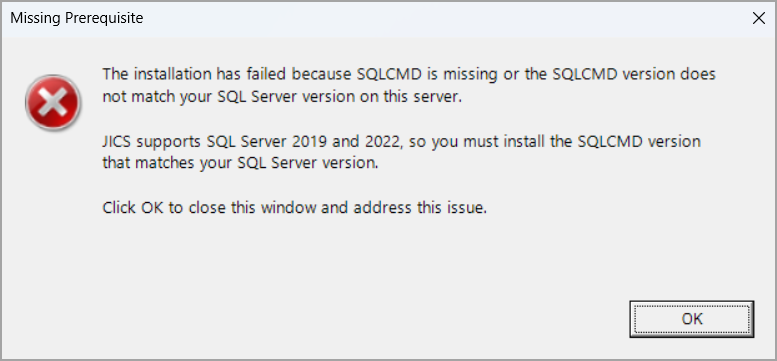
If you run the AD LDS Migration Tool or the JICS/eLearning installer on a server that does NOT have a compatible version of SQLCMD installed, the Missing Prerequisite pop-up window appears as shown below. The Data Migration Tool or installer stops running. Click the OK button to close the window and address this issue.
 |
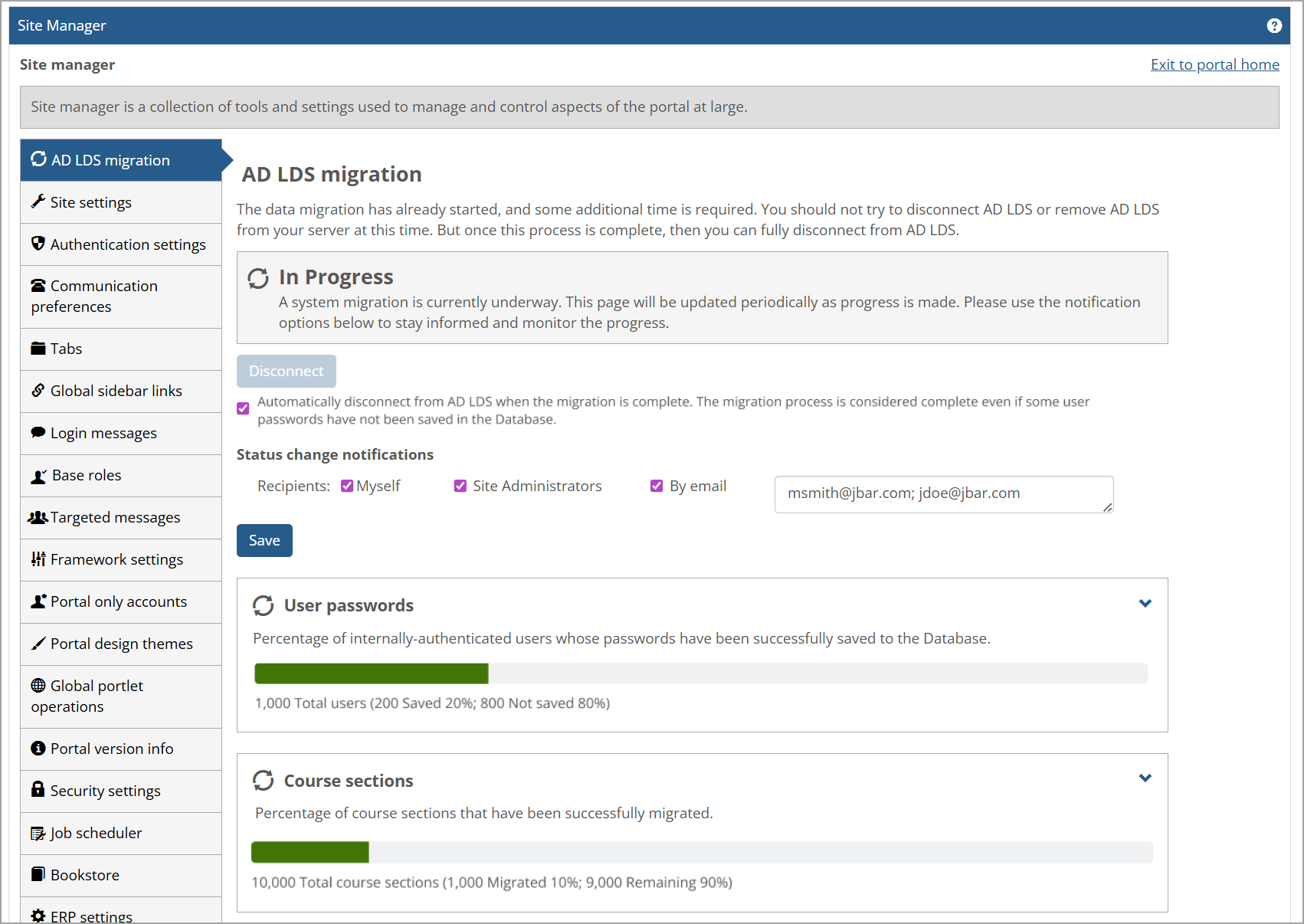
When you navigate to Site Manager after the JICS 2026.1 upgrade/installation, a new AD LDS migration tab appears at the top in the left sidebar, and the new AD LDS migration page appears on the right. This page displays a Migration Dashboard showing the data migration progress.
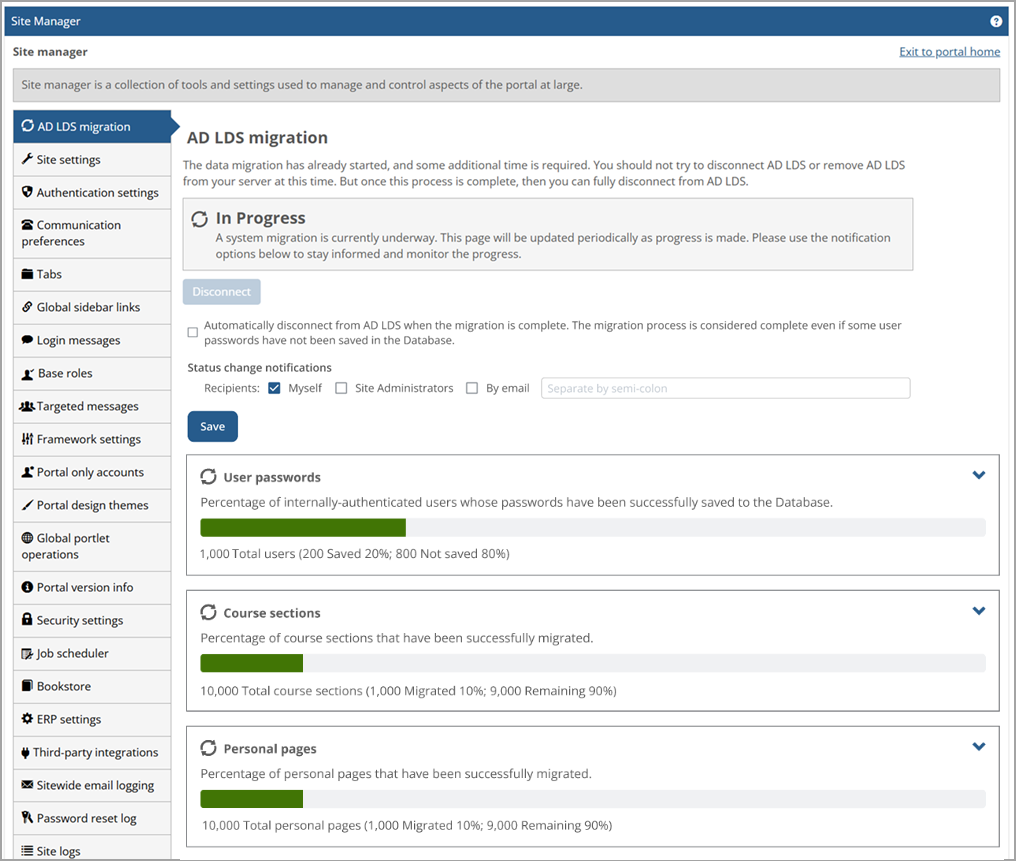 |
For users in the Administrator role, the AD LDS migration page provides:
The overall status of the data migration at the top
The option to automatically disconnect from AD LDS when the migration is complete
The opportunity to select status change notifications for yourself, Site Administrators, or other users (via email)
The migration progress in the User passwords, Course sections, and Personal pages sections (total number; number and percentage saved or migrated to the Database; and the remaining number and percentage)
Tip
The Course sections section will appear only if your institution has eLearning or e-Racer courses in the migration queue.
Error messages for any errors that that have occurred in these sections
If any errors occurred in the Course sections and Personal pages sections, the ability to requeue migration failures after addressing their causes
Warnings for any job scheduler issues, such as an error that's explained in New AdLdsMigrationJob in Job Scheduler
The main sections on the AD LDS migration page are described below.
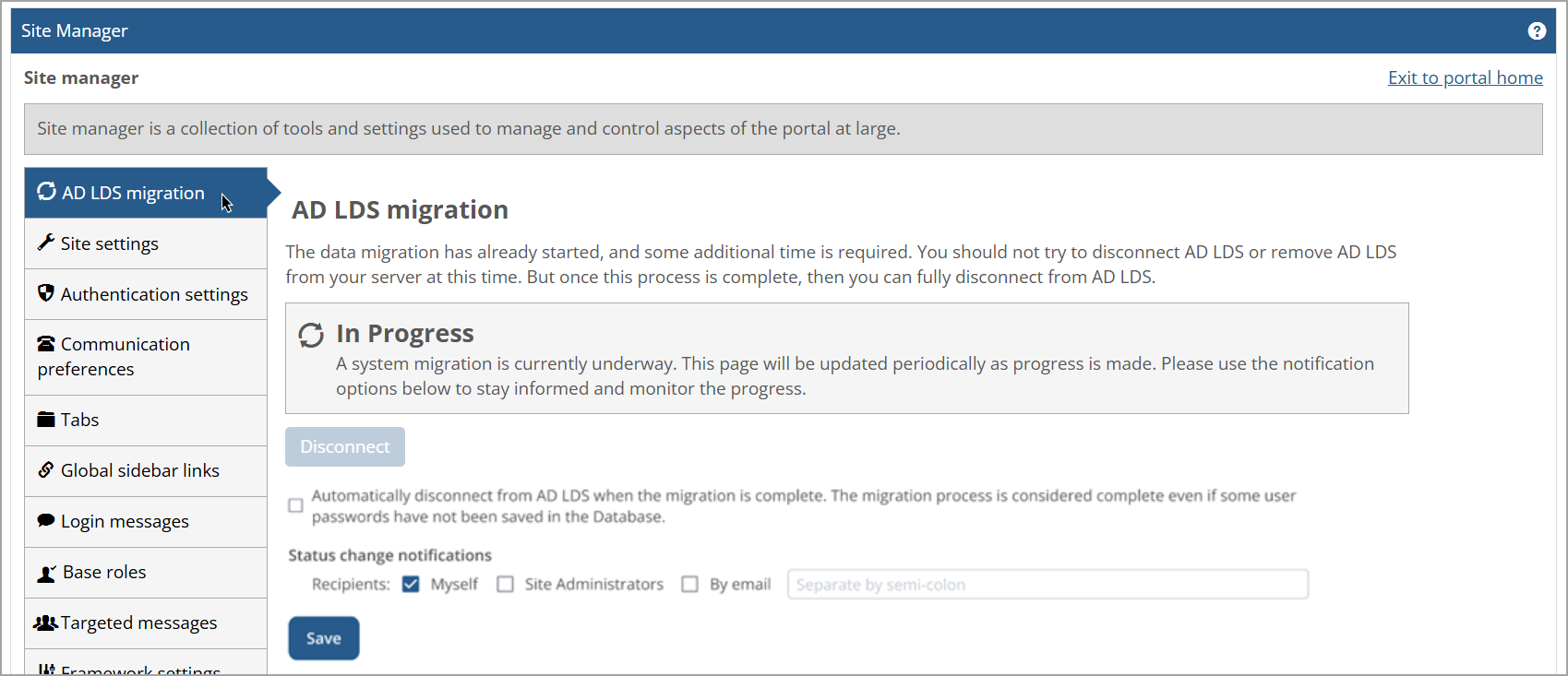
The top section of the AD LDS migration page is the Overview (has no heading) and clearly shows the current overall status of the data migration.
 |
The overall data migration could be in one of three statuses:
 In Progress—Displayed if there are no errors and data is still migrating in the Course sections and/or Personal pages sections.
 Stalled—Displayed if:
The attempted migration of course sections and/or personal pages had errors you need to address (e.g., caused by bad data)
OR
The AD LDS Migration Scheduler Job (AdLdsMigrationJob) failed the most recent time it ran. For more details, refer to New AdLdsMigrationJob in Job Scheduler.
 Ready to Disconnect—Displayed if all course sections AND all personal pages have successfully migrated. (This status is shown even if user passwords are not 100% migrated.)
More status details are described in Data Migration Statuses.
When the data migration is still in progress, the Disconnect button is disabled and can't be clicked. This button isn't enabled until the data in the Course sections and Personal pages sections has successfully migrated.
Tip
When the data in the Course sections and Personal pages sections has successfully migrated, the Disconnect button becomes available because the overall migration status is now Ready to Disconnect. Even if the percentage of user passwords that have been saved in the Database is less than 100%, the migration process is still considered complete.
Below the Disconnect button, a checkbox enables you to: "Automatically disconnect from AD LDS when the migration is complete. The migration process is considered complete even if some user passwords have not been saved in the Database." Select this checkbox if you want to disconnect automatically. Then click the Save button at the bottom of the page. (When the status of the entire migration changes to Ready to Disconnect, this checkbox no longer displays.)
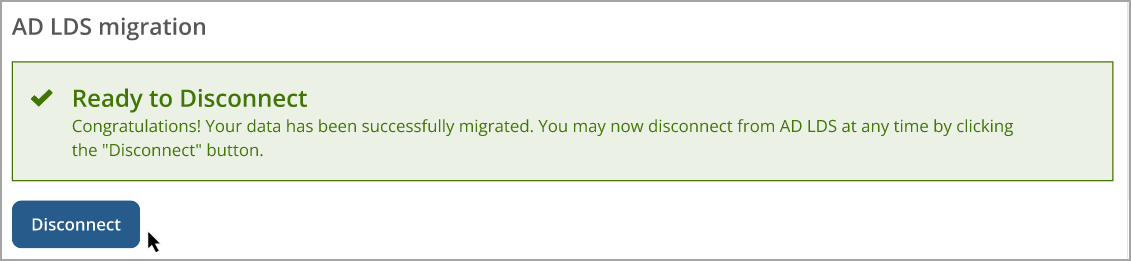
If you have not selected this checkbox, when the data migration has completed, a green Ready to Disconnect message appears at the top of the page: "Congratulations! Your data has been successfully migrated. You may now disconnect from AD LDS at any time by clicking the 'Disconnect' button."
 |
When you are ready to disconnect AD LDS from your server, click the Disconnect button. When AD LDS is disconnected, the AD LDS migration tab and page no longer appear (you may need to refresh your browser for the changes to display on the Site Manager page).
Note
The AD LDS migration page is only shown in Site Manager if the migration is still in progress and AD LDS is still connected to your server. After all data has been migrated, and you fully disconnect by either selecting the Automatically disconnect checkbox or clicking the Disconnect button, then this page and the AD LDS migration tab on the left sidebar are no longer shown.
The Status change notifications section shows options for selecting recipients. To notify recipients of a status change, select the Myself, Site Administrators, and/or By email checkboxes. If you selected the By email checkbox, enter an email address in the adjacent blank text box. If you enter multiple email addresses, use a semi-colon to separate them. Then click the Save button at the bottom of the section to save the changes.
When there is an important status change in the migration, all users who selected the Myself checkbox and all email addresses in the By Email field will receive a status change email. If the Site Administrators checkbox is selected, then all users in the Administrators base role will receive the same email. The subject of the email will contain "AD LDS Migration Status Update" for every status change notification.
When the overall status of the migration changes to Ready to Disconnect, these notification options no longer display.
The conditions prompting a notification and the notification text are explained in the following table. The underlined text in the notification is a link you can click to access the applicable page, such as the AD LDS migration page. (The links are not enabled in the Text column below.)
Condition | Text |
|---|---|
The AD LDS Migration Scheduler Job fails | The Scheduler Job responsible for migrating the data has failed. You can monitor this Job on the Job scheduler page in Site Manager. Contact your Jenzabar Support representative as soon as possible if this problem persists. |
An error occurs during migration of a Course section | An error occurred while migrating the course section [full course section display name] in the term [term code]. This means that data in this course section may need to be cleaned up before it can be successfully migrated. Contact your Jenzabar Support representative as soon as possible to begin the data cleanup process. You can monitor the status of course section migration on the AD LDS Migration page in Site Manager. |
An error occurs during migration of a Personal page | An error occurred while migrating the personal page for [user first name and last name] with username [user's username]. This means that data in this user's personal page may need to be cleaned up before it can be successfully migrated. Contact your Jenzabar Support representative as soon as possible to begin the data cleanup process. You can monitor the status of personal pages migration on the AD LDS Migration page in Site Manager. |
All Course sections and Personal pages have finished migrating successfully AND the "Disconnect automatically" button is unchecked | Congratulations! Your data has been successfully migrated. You may now disconnect from AD LDS at any time by visiting the AD LDS Migration page in Site Manager and clicking the "Disconnect" button. |
All Course sections and Personal pages have finished migrating successfully AND the "Disconnect automatically" button is checked | Congratulations! Your data has been successfully migrated, and your site has been fully disconnected from AD LDS. The AD LDS instance can now be completely removed from your server without any negative repercussions. |
The User passwords section initially shows the percentage of internally-authenticated users whose passwords have been successfully saved to the Database. It also shows the number of total users with passwords to save, the number of saved passwords and the percentage, and the number of passwords and the percentage that are not saved yet. Because externally-authenticated users don't need to have their passwords migrated, they aren't included in the total shown.
Note
Errors do not occur in the User passwords section because it tracks users logging in and their passwords automatically migrating from AD LDS to the JICS Database at that time.
Click the drop-down arrow on the top right of this section to expand it. A text box provides a detailed explanation of how passwords are saved in the Database:
Internally-authenticated users will not have their passwords set in the Database until they log in for the first time after migration. Externally-authenticated users do not need to have passwords migrated so they are not included in this total. Once logged in successfully, user passwords will be saved in the Database instead of AD LDS. If you disconnect from AD LDS, any users that have not yet had their passwords saved in the Database will not be able to log in until they reset their passwords.
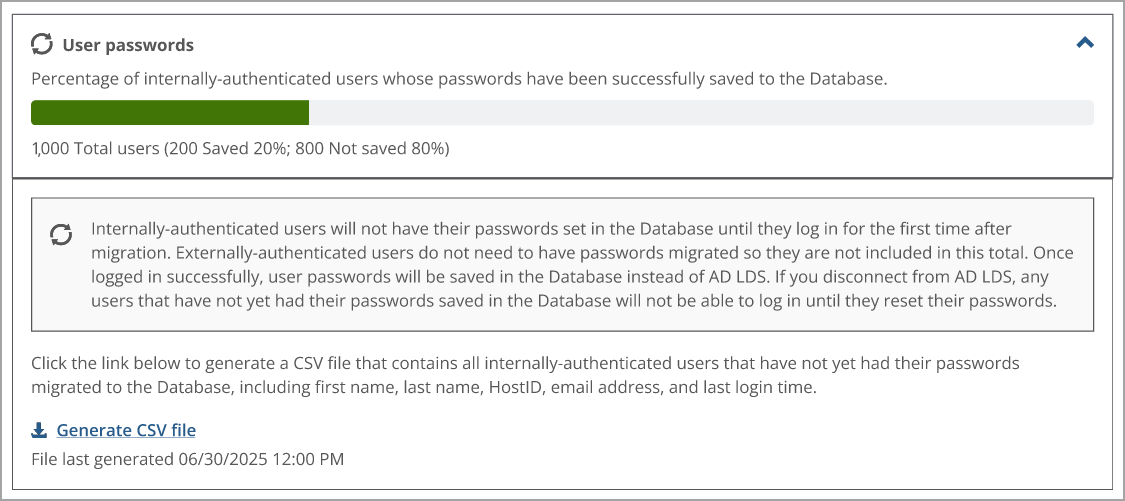 |
Below the text box is the Generate CSV file link with information about its functionality. Click this link to generate a comma-separated values file that contains all internally-authenticated users that have not yet had their passwords migrated to the Database. The file includes the users' first name, last name, HostID, email address, and last login time. The date and time stamp for the last CSV file generated is shown below the link.
Note
The following users will NOT be included in the user count or generated CSV spreadsheet:
the internal "Guest" user
the internal "high privileges" user
any users that are "disabled" (normally these are previously deleted users)
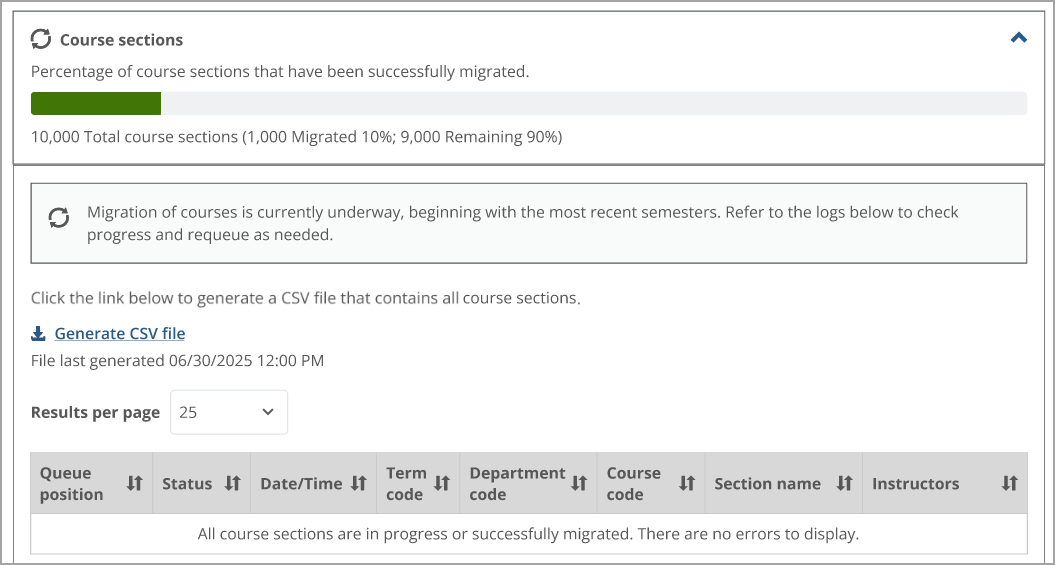
The Course sections section initially shows the total number of course sections to migrate, the number of successfully migrated sections and the percentage, and the number of sections and the percentage that are not migrated yet.
Click the drop-down arrow on the top right of this section to expand it and display details about the migration of course sections. If the migration is in progress, a text box above the table shows an explanation: "Migration of courses is currently underway, beginning with the most recent semesters. Refer to the logs below to check progress and requeue as needed." (The "logs" refers to the table that displays any errors that may have occurred.)
Below the text box is the Generate CSV file link with information about its functionality. The date and time stamp for the last CSV file generated is shown below the link. Click the link to generate a comma-separated values file that contains all course sections. The file includes the date/time, term code, department code, course code, section name, and instructors.
 |
Note
If no course sections have an error, the following information appears in the table: "All course sections are in progress or successfully migrated. There are no errors to display."
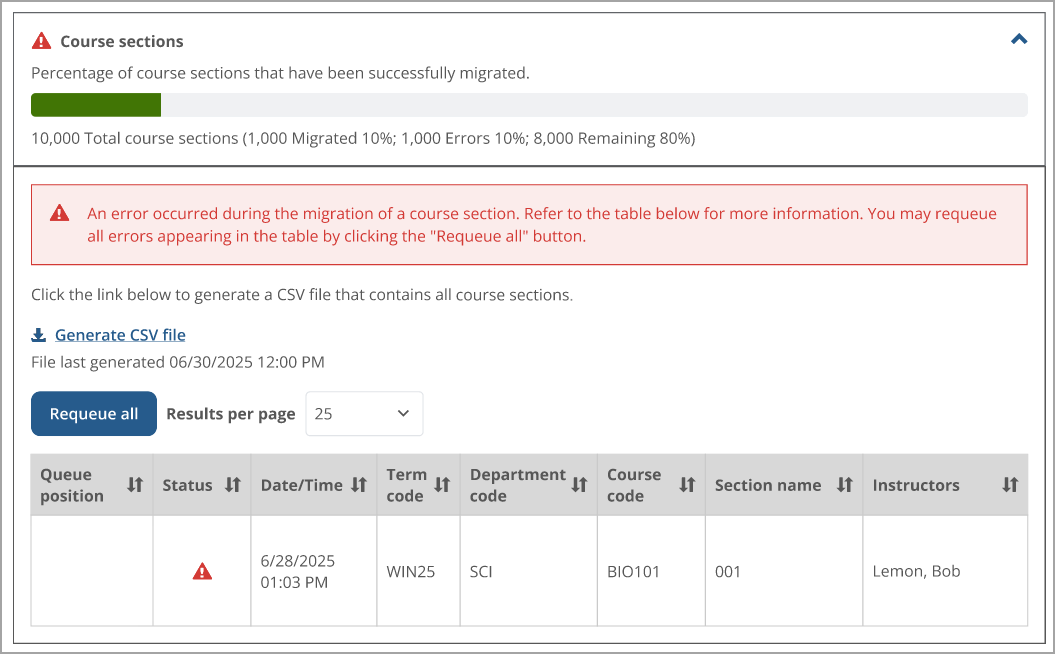
If an error occurs during the migration, a Stalled status is shown and a message appears explaining: "An error occurred during the migration of a course section. Refer to the table below for more information. You may requeue all errors appearing in the table by clicking the 'Requeue all' button."
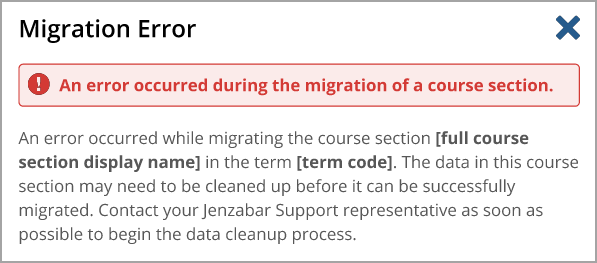
A red triangle Error icon  appears in the Status column for the specific row of a course section with the error. Clicking this icon displays a Migration Error pop-window with a red error message at the top explaining that the error occurred during a course section migration. The description below it states: "An error occurred while migrating the course section [full course section display name] in the term [term code]. The data in this course section may need to be cleaned up before it can be successfully migrated. Contact your Jenzabar Support representative as soon as possible to begin the data cleanup process."
 |
The Requeue all button appears only when an error has occurred during the migration. After addressing errors for the course sections, click the Requeue all button to remove their error statuses and move them to the top of the queue. All information in the section dynamically updates. The AdLdsMigrationJob scheduled job will attempt to migrate that data again the next time it runs.
 |
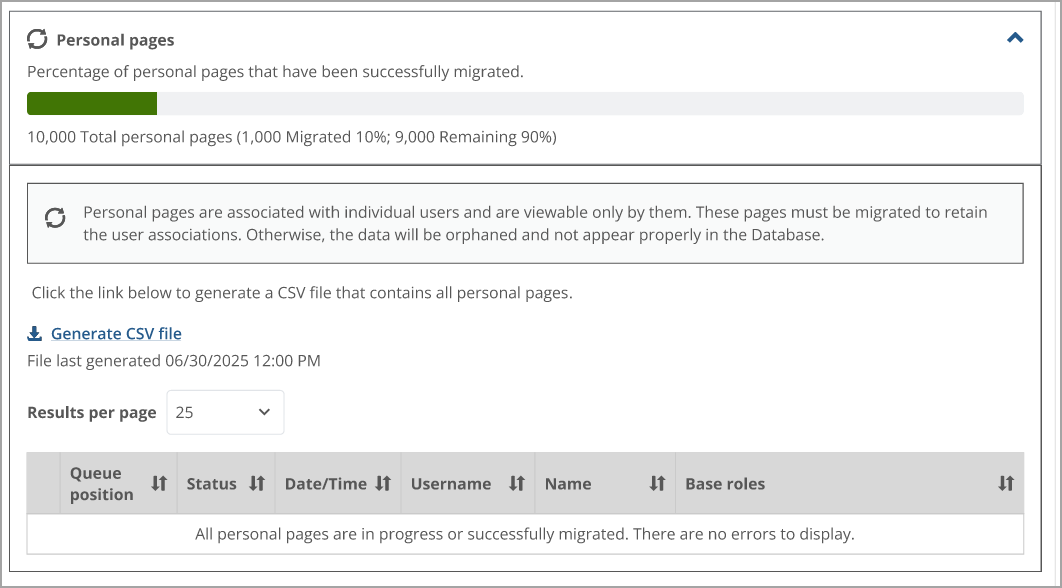
The Personal pages section (for the pages created in the My Pages feature) initially shows the total number of personal pages to migrate, the number of successfully migrated personal pages and the percentage, and the number of personal pages and the percentage that are not migrated yet.
Click the drop-down arrow on the top right of this section to expand the section and view details about the migration of each personal page in a detailed table (also referred to as "logs"). If the migration is in progress, a text box above the table shows an explanation: "Personal pages are associated with individual users and are viewable only by them. These pages must be migrated to retain the user associations. Otherwise, the data will be orphaned and not appear properly in the Database."
Below the text box is the Generate CSV file link with information about its functionality. The date and time stamp for the last CSV file generated is shown below the link. Click the link to generate a comma-separated values file that contains all personal pages. The file includes the date/time, username, name, and base roles.
 |
Note
If no personal pages are in the migration queue or no error has occurred, the following information appears in the table: "All personal pages are in progress or successfully migrated. There are no errors to display."
If an error occurs during the migration, a Stalled status is shown and a message appears explaining: "An error occurred during the migration of a personal page. Refer to the table below for more information. You may requeue all errors appearing in the table by clicking the 'Requeue all' button."
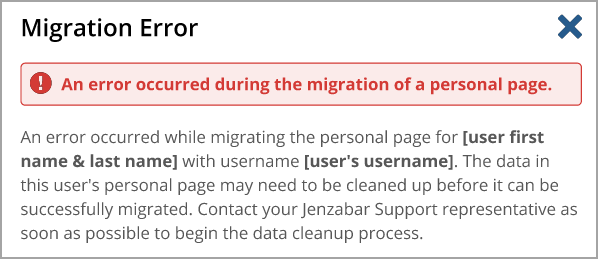
A red triangle Error icon appears in the Status column and in the row of a personal page with an error. Clicking this icon displays a Migration Error pop-window with a red error message at the top explaining that the error occurred during a personal page migration. The description below it states: "An error occurred while migrating the personal page for [user first name & last name] with username [user's username]. The data in this user's personal page may need to be cleaned up before it can be successfully migrated. Contact your Jenzabar Support representative as soon as possible to begin the data cleanup process."
 |
The Requeue all button appears only when an error has occurred during the migration. After addressing errors for the personal pages, click the Requeue all button to remove their error statuses and move them to the top of the queue. All information in the section dynamically updates. The AdLdsMigrationJob scheduled job will attempt to migrate that data again the next time it runs.
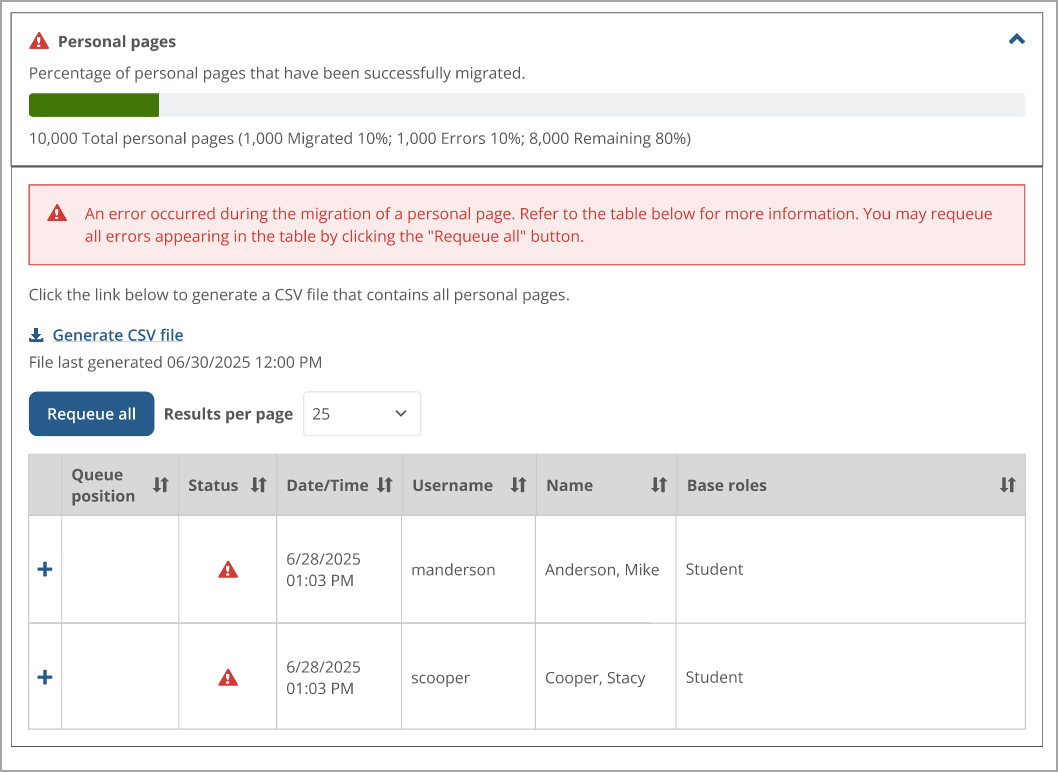 |
The Personal pages section displays a Plus icon  on the left of rows that you can click to expand them. Click the Plus icon to view the user's primary email address to contact them, e.g., if their personal page has an error. Click the Minus icon
 to collapse the row.
Each section of the AD LDS migration page has its own status because a section's data migrates independently of other sections. The overall status of the entire AD LDS data migration is indicated by a status icon on the left of AD LDS migration tab and near the top of the AD LDS migration page. Three statuses indicate the data migration progress in each section: In Progress, Stalled, and Complete.
For example, the sections for User passwords and Course Sections may be in the In Progress status because their data is still migrating, but the Personal pages section may be in the Complete status because its data has successfully migrated. When the status of a data migration section changes, its status icon changes to reflect the new status. Each status is explained in the following sections.
The In Progress status appears by default when the data migration starts and no errors are present. The In Progress icon  displays in the sidebar tab, status message at the top of the page, and on the left of each data migration section name. This applies even if no items have been migrated yet for a specific section.
 |
When the status of a data migration section changes, its status icon changes to reflect the changed status. For example, if an error occurs in any individual section, then the status of that section changes to the Stalled status. The overall status of the data migration also changes to the Stalled status.
The Stalled status is displayed if errors occur in the Course sections or Personal pages sections or if the AdLdsMigrationJob fails. An Error icon appears on the sidebar tab, in the section header, and in the red Stalled banner at the top. The following image shows an example of the Stalled status and icons.
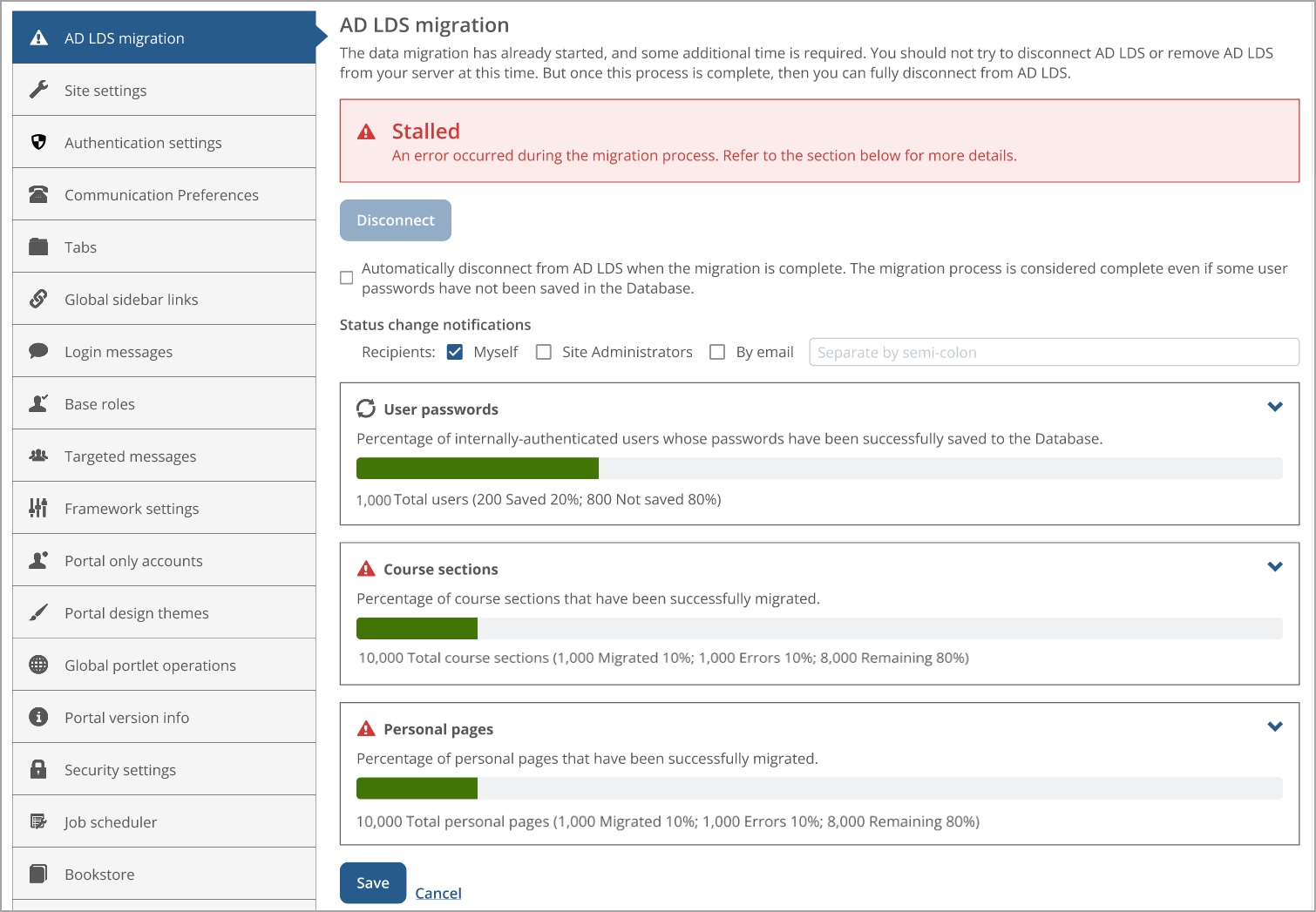 |
Because each section's data migrates independently of other sections, one section's data migration could be completed while another section's data migration is still ongoing. For example, data for Course sections could be successfully migrated and completed prior to other sections. In this case, the Complete green checkmark icon  appears on the left of the section name and in the green success message that appears in that expanded section as shown in the following image.
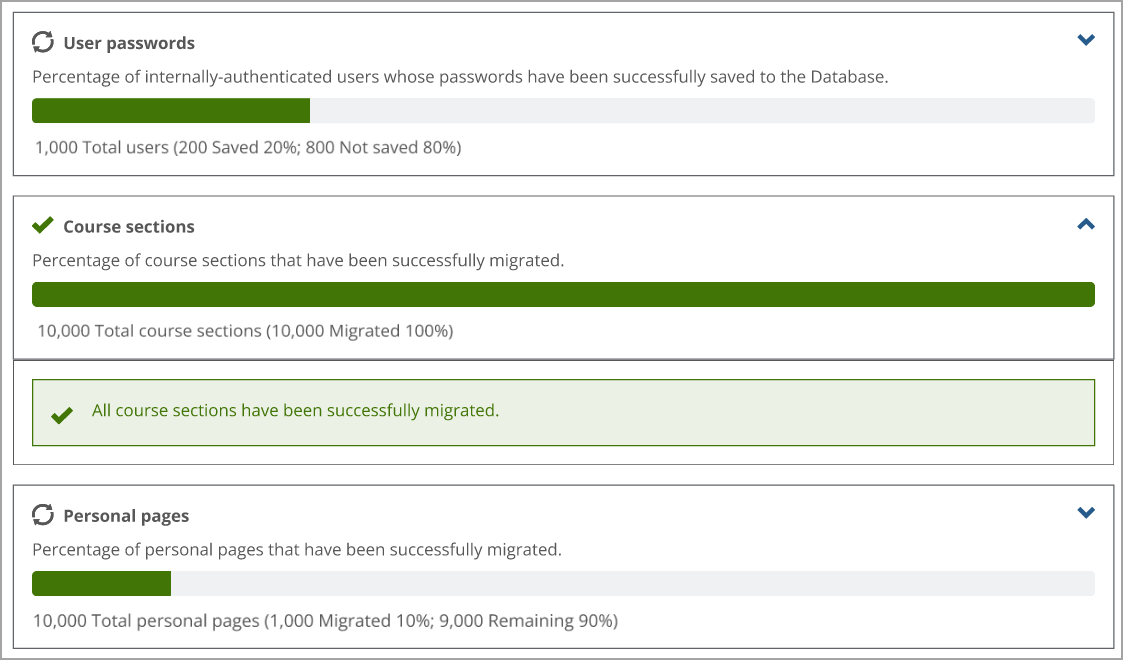 |
When Course sections and Personal pages sections both reach the Complete status, the overall status becomes Ready to Disconnect. The green Ready to Disconnect overall status message appears at the top of the AD LDS migration page.
The migration of data in the User passwords section doesn't need to be completed because internally-authenticated users will not have their passwords set in the Database until they log in for the first time after migration. Clients can determine the sufficient migration number or percentage of user passwords to satisfy their own requirements for disconnection from AD LDS. Externally-authenticated users do not need to have their passwords migrated.
Tip
If you have chosen to "Automatically disconnect from AD LDS when the migration is complete," then the AD LDS is automatically disconnected. The Ready to Disconnect overall migration status doesn't display. Instead, the AD LDS migration sidebar tab and page are removed and no longer display in Site Manager. For more details, refer to the "Option to Disconnect Automatically" subsection in the AD LDS Migration Page Sections.
At this stage of the migration, the Complete green checkmark icon that appears on the left of this status message now indicates the Ready to Disconnect overall migration status. This status is indicated on the left of the AD LDS migration sidebar tab by a white checkmark icon  as shown in the following image.
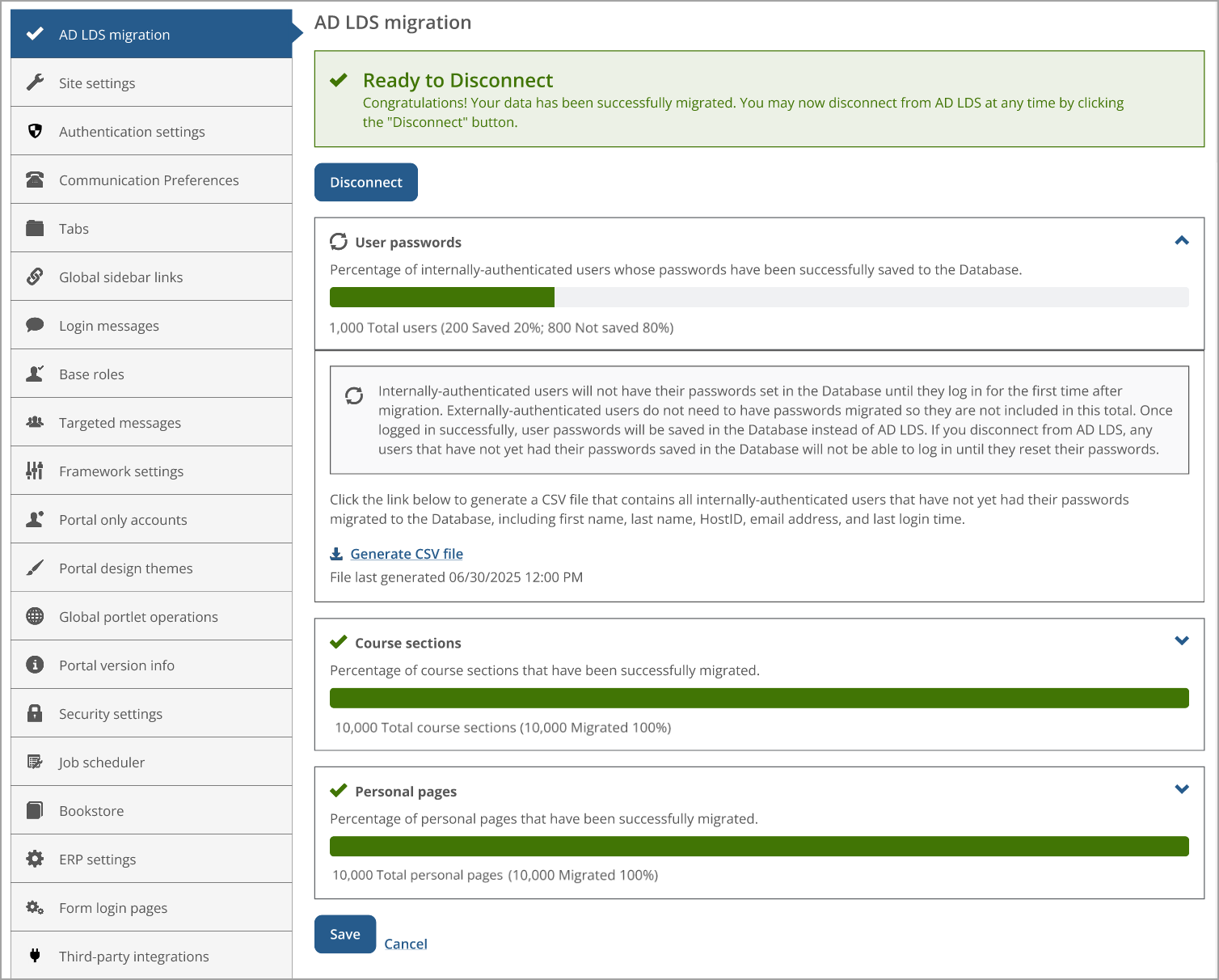 |
"AdLdsMigrationJob" is a new scheduler job created specifically for the AD LDS data migration. The AdLdsMigrationJob scheduler job will automatically start running once JICS 2026.1 is installed.
The AD LDS Data Migration Tool migrates the user passwords as well as course sections with start dates in the past year and up to one year in the future. This new scheduler job migrates personal pages and past eLearning/e-Racer course sections that weren't migrated into the JICS Database using the Migration Tool.
An Administrator can monitor the AdLdsMigrationJob from the Site Manager's Job scheduler page. If any problems occur with the running of the job, they will appear on this page. If the job needs to be restarted, that can also be performed on this page by clicking the Run button next to the job.
The current queue and status of all course sections and personal pages being migrated can be viewed in the FWK_ADLDSMigrationQueue table in the JICS database.
Clients can perform the following tasks after AD LDS is disconnected.
After you click the Disconnect button or the system disconnected AD LDS automatically, you can manually remove the AD LDS datastore. (The automatic disconnection from AD LDS is based on selecting that option in the Overview section on the AD LDS migration page.) Refer to the JICS 2026.1 Uninstallation Guide for steps.
Warning
If you remove the AD LDS datastore prior to clicking the Disconnect button (or the system disconnecting automatically), errors will occur.
After disconnecting AD LDS, users without migrated passwords need to have their passwords set manually, which can be accomplished by the following methods:
An administrator can set a user's password using "SetPassword.exe" explained in the following Change Password tool paragraphs.
A user can reset their own password by clicking the I forgot my password link below the login fields.
Administrators can use the Change Password tool in two ways:
Double-click the "SetPassword.exe" file in Portal/bin of the location where JICS is installed.
The Set Password Tool pop-up window appears. Enter the username and password in the respective required fields and click the Set Password button.
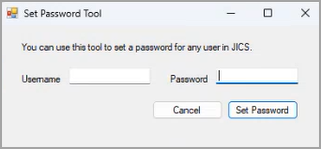
Run the SetPassword.exe from the Command Prompt with parameters [username] and [password]. If only [username] is entered and not [password], a console message appears: "Both username and password are required as parameters."
For either method, if no user is found, an error is shown: "No user was found matching the entered Username." Otherwise, the user's password is set to the value entered in the Password field. A success message is shown: "The password has been successfully set."
The following screenshot shows a mapping of an ADSI Edit interface to the corresponding database tables in the 2026.1 ICS_NET Database.
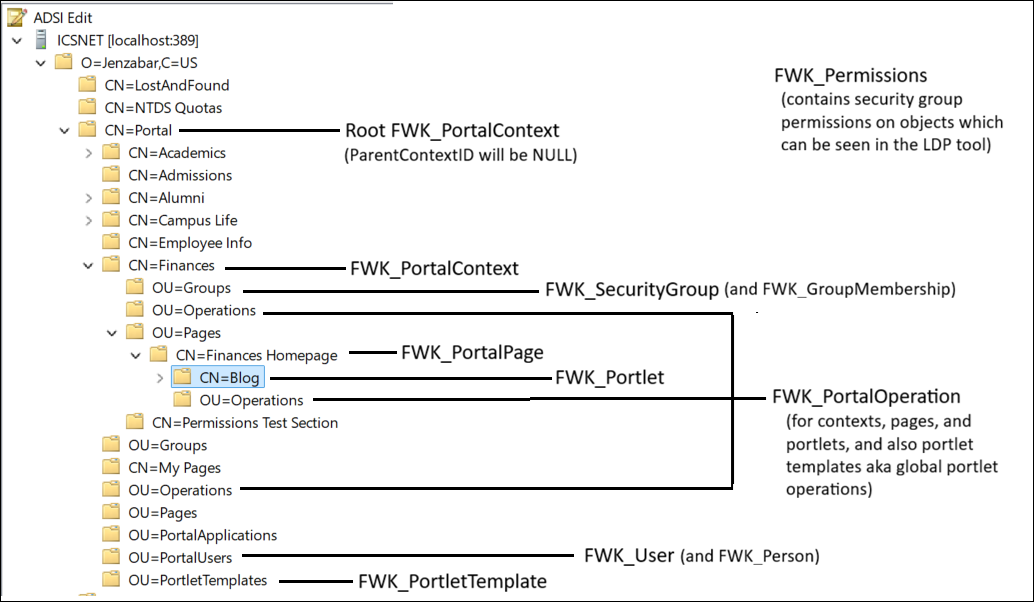 |
Due to fundamental changes in the JICS Framework, most existing custom portlets will be incompatible with JICS 2026.1 without a code migration phase. For anyone who needs to update code to work in the new environment, the JICS 2026.1 Code Migration Guide provides all needed steps.
FAQ
Most likely, all of them. A very small number of portlets may work without any code changes, but most of them will need a simple code migration and recompile in order to work with the updates to the JICS Framework. (Portlet data will not need to be migrated, only code.)
This is dependent on the original portlet's developers:
JICS, eLearning, WAS/CRM, and other Jenzabar-developed portlets (this includes Simple Query and Literal String Replacer): Jenzabar Product Development (PD) Teams
Jenzabar-developed customs: Jenzabar Programming Services Team
Client-developed customs (in-house): those clients' development teams
Shared client-developed customs (also known as "wiki portlets"): any client developers who have access to the source code