View Resources and Sets in Card, List, or Basic Views
You can display existing resources on the Resources screen in the Card View  or List View
  styles. If the Basic View
  has been enabled in the Resources settings, then this view is also available, and its icon displays on the left of the other view icons. These view icons display on the top right of the screen. By default, the Card View is selected and displays resources in an expanded way. Resources are shown initially in the order in which they were added in the Ungrouped set.
You can display the resources and sets either in the expanded or collapsed mode in all views. Clicking the Collapse all sets link below the view icons on the top right collapses all sets and changes the name of link to Expand all sets, which you can click to expand all sets again. Clicking the Collapse up  or Expand down
  arrow icons at the top right of an individual set collapses or expands the set, respectively.
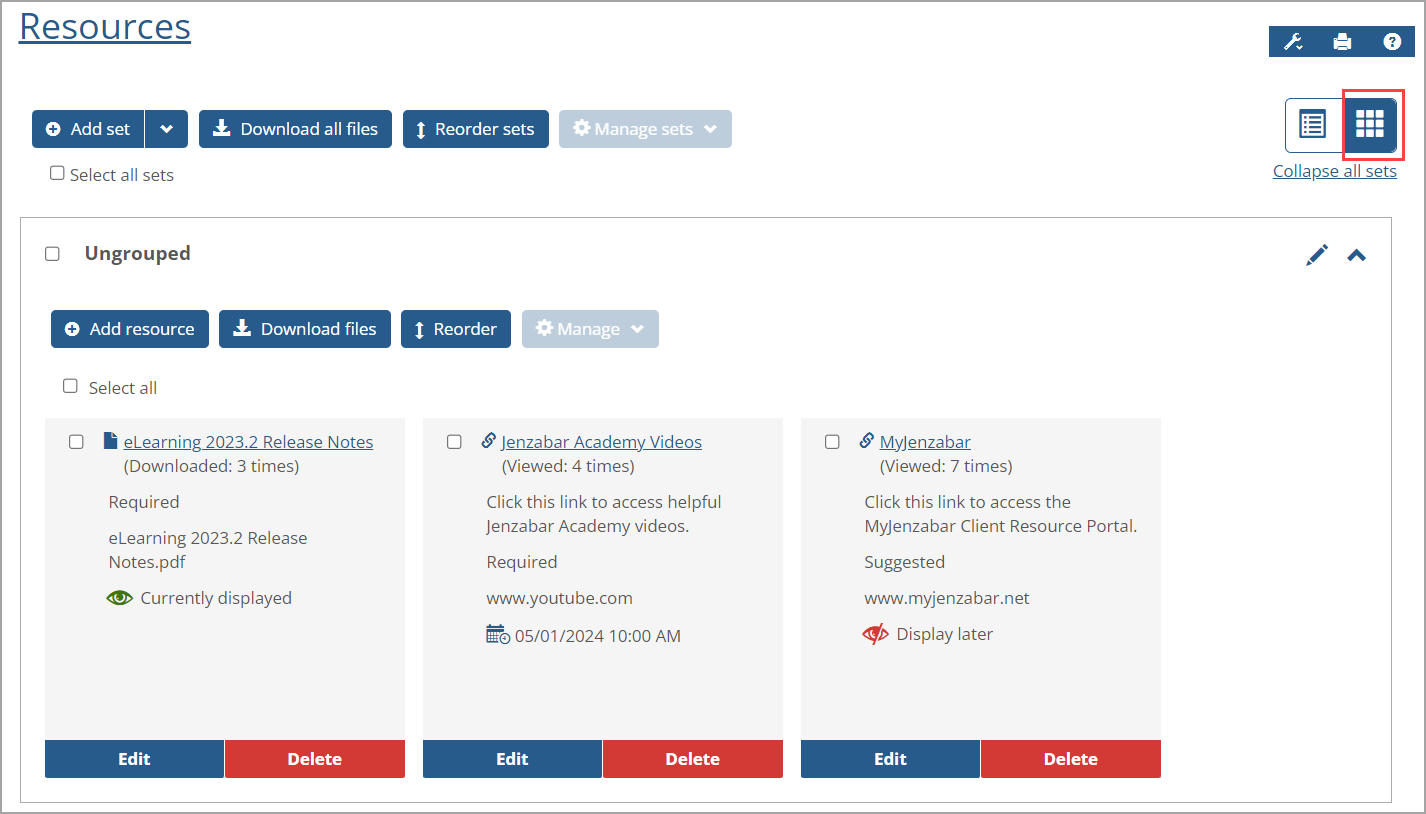
The Card View shows the resources in small cards with the Edit and Delete buttons appearing at the bottom. Each card displays in an expanded way and cannot be collapsed. Only users with the appropriate permissions can view these buttons.
Users with the appropriate permissions can view action buttons such as Add set above all sets and Add resource at the top of a set as shown in the following screen. Users with read-only permissions can only view the Download files buttons above all sets and at the top of a set. The Card View is shown in the following screenshot (Basic View is disabled).
 |
Clicking the List View icon on the top right shows the resources listed in a table format. The Edit and Delete icons display on the right of each resource's row to take those actions (only for Administrators). The List View displays a resource in a collapsed way by default. Clicking the Expand plus sign icon  on the left of it shows the Description field, which displays a resource description if a user has entered it. Click the Collapse minus sign icon
 to collapse the Description and other fields that don't fit on the screen. The List View is shown in the following screenshot (Basic View is disabled).
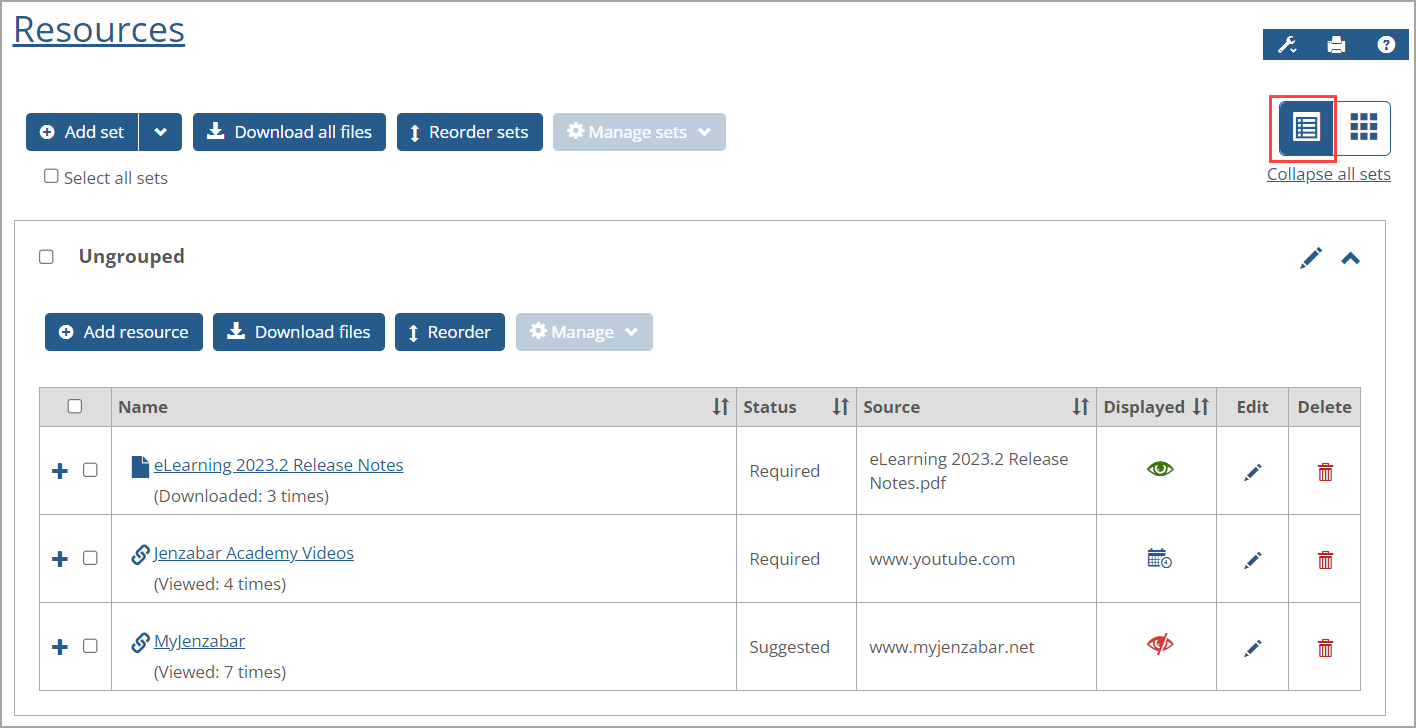 |
The same resources information is displayed in the Card and List Views. The resources are displayed in the Ungrouped and grouped, named sets after they have been created by a user. Except for reporting data (defined in the following bulleted list) and the Edit and Delete buttons, all information is defined by a user with the appropriate permissions when adding or editing the resource.
Linked resource name—The resource name with an embedded link that can be clicked to display the file or the website if it's a URL link.
Reporting data—The system-generated number of times the resource has been downloaded (file) or viewed (URL), referred to as "statistics" for user permissions. You may need to right-click your browser page and select Reload to obtain the latest statistics.
Optional description—The information defining the resource. If a description was not entered, then a blank field displays.
Resource status—The status entered to indicate its importance. Options are Required, Optional, Suggested, and Extra Credit.
Source name—The URL of the website (link) or the filename (file).
Display status—The display timing of the resource, either currently displayed, displayed later, or displayed on a specific future date and time.
Edit button or icon—Click to edit the resource.
Delete button or icon—Click to delete the resource.
Because the Displayed column shows icons and not text in the List View, you can hover your mouse over the icon to display a tooltip:
"Display later" or "Inactive" (red slash eye icon
 )
)"Currently displayed" (green open eye icon
 )
)Scheduled start date, i.e., the "Display on" date and time (blue calendar and clock icon
 )
)
If the Basic View setting is enabled, the Basic View icon appears on the left of the List View and Card View icons on the top right of the screen as shown in the following screenshot.
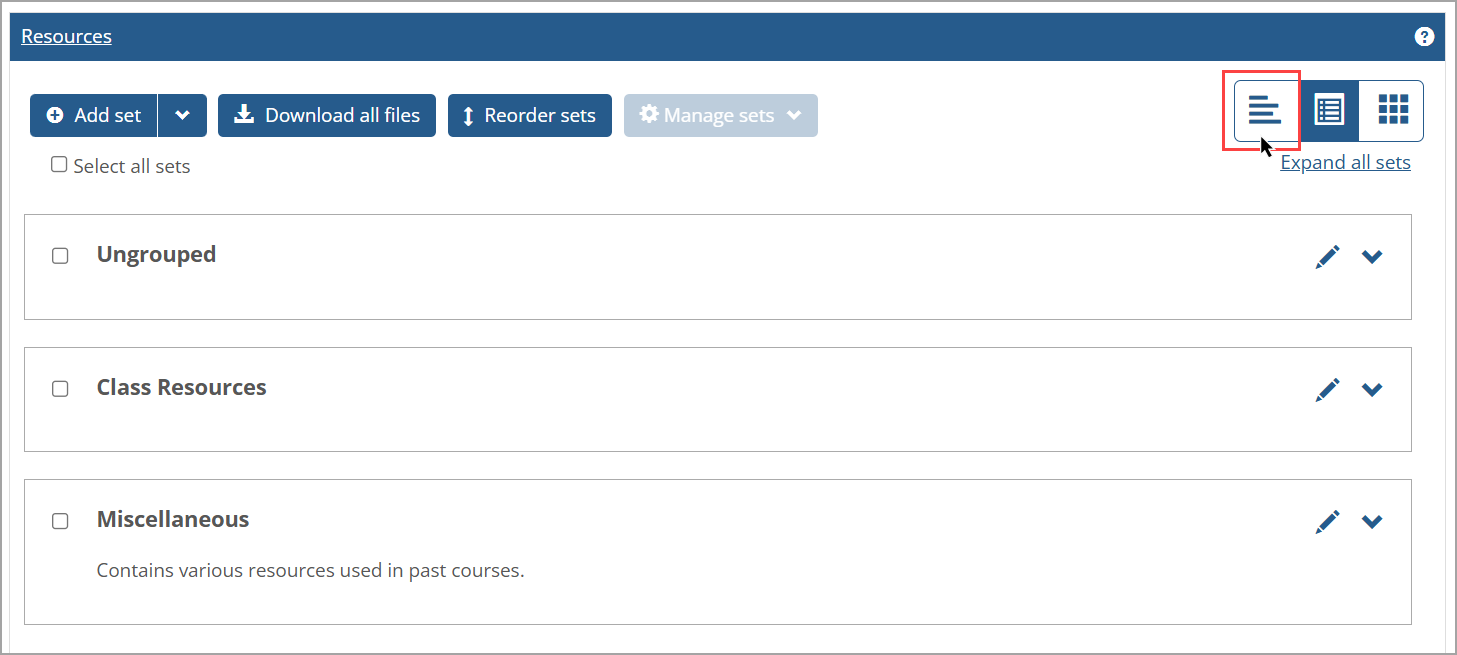 |
Clicking the Basic View icon updates the display to minimize the amount of text and number of icons on the screen as explained in the following section.
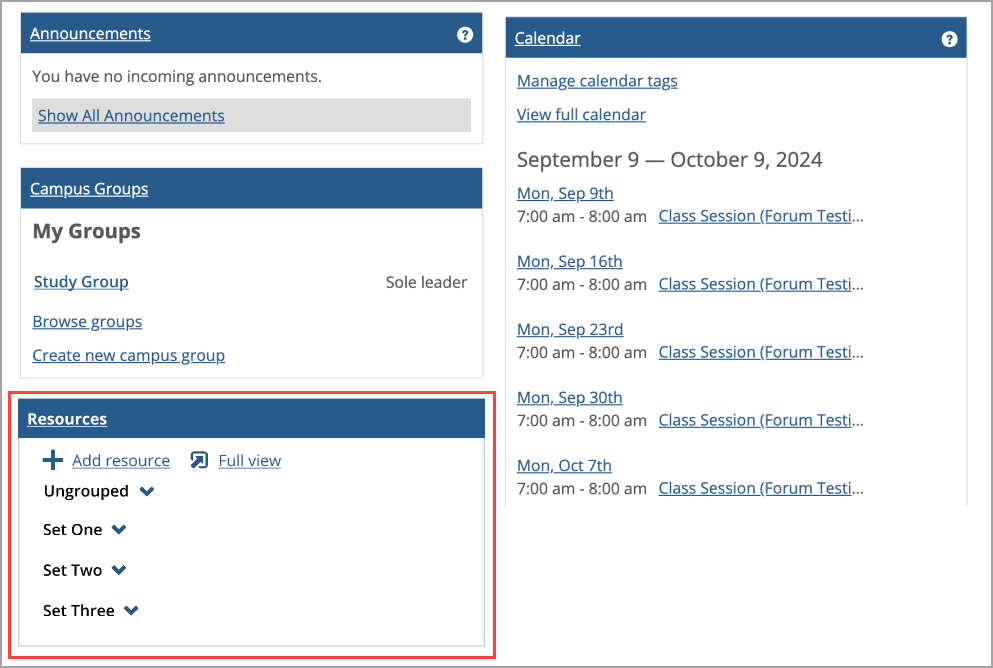
When a user views a page that contains multiple portlets including the Resources portlet, then the Resources portlet displays in the Basic View format. This format includes the following:
For users with the "Can Manage Resources" permissions, an Add resource link displays at the top. Clicking this link displays the portlet in the maximized view on the page and redirects the user to the Add a Resource screen (as if the Add resource button had been clicked on the Resources main screen).
A Full view link appears at the top. Clicking this link maximizes the portlet and goes to the Resources main screen.
Each set is listed in the same order that it appears on the Resources main screen. Each set has an Expand/Collapse button that shows or hides all resources in that set. By default, these sets are expanded or collapsed based on the "Collapse All Sets" Portlet Setting (or the Site Setting if there is no Portlet Setting).
Expanding a set displays the resources contained in it and their descriptions.
The following screenshot shows an example of the Basic View format for a Resources portlet along with other portlet types for comparison.
 |
When a set is expanded in the Basic View format, a resource displays the following:
An icon matching its type, just as it appears on the main screen.
The name of the resource as a link that opens if it is a bookmark or downloads if it is a handout. A click is logged for tracking purposes.
If the resource is a URL, the base URL is shown (e.g., www.jenzabar.net).
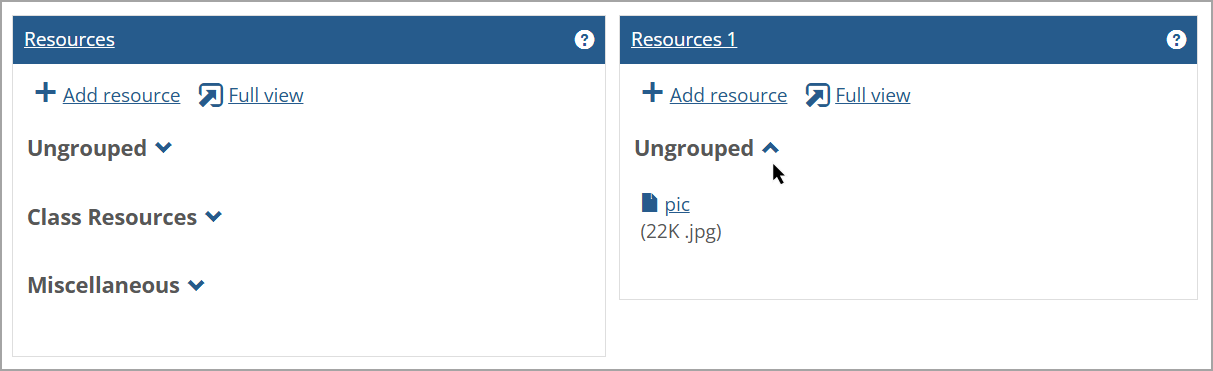
If the resource is a file, the file's size in kilobytes (K) and its extension is shown (e.g., 258K .docx).
Another example of the Basic View format is shown in the following screenshot as two Resources portlets appear side by side. On the right side of the screen, the Ungrouped set was expanded in the "Resources 1" portlet to show one resource.
 |
The visibility of resources on this view matches the visibility of resources on the Resources main screen. For example, if a resource has a future start date, then a user who is not in the Administrator role wouldn't view that resource. If all resources have a future date, then a message is shown for that user below the Full view link stating: "There are no Resources available."
Empty sets depend on the "Empty sets" Portlet Setting to determine whether or not they are shown. Refer to Site-Wide and Portlet Settings for Card, List, and Basic Views for more details. If an empty set is displayed, it will be without the Expand/Collapse button. If there are no resources to display for this portlet, a message is shown below the Full view button bar stating: "There are no Resources available."