About Recurring Calendar Items
A recurring calendar item is one that will repeat at a specified frequency until some specified future date. The Calendar feature provides a number of options for creating a recurring calendar item on the Add calendar item and Edit calendar item screens (shown in this section). These options become available when you select the Repeats checkbox when adding or editing a calendar item.
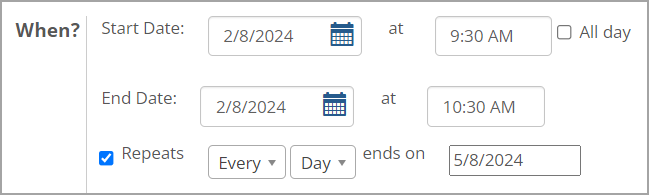 |
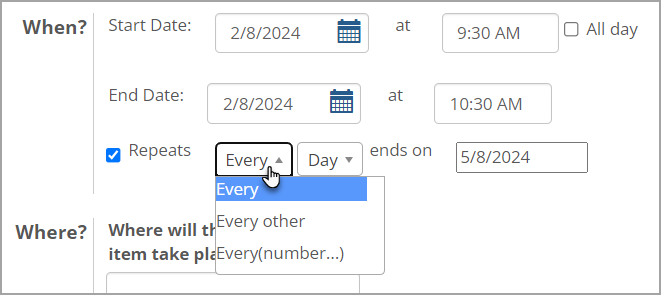
The values you specify in the first two fields determine the frequency of the calendar item. The first field is a drop-down list that provides the following values:
Every
Every other
Every (number) (If you select this value, another field will display to allow you to enter a number.)
 |
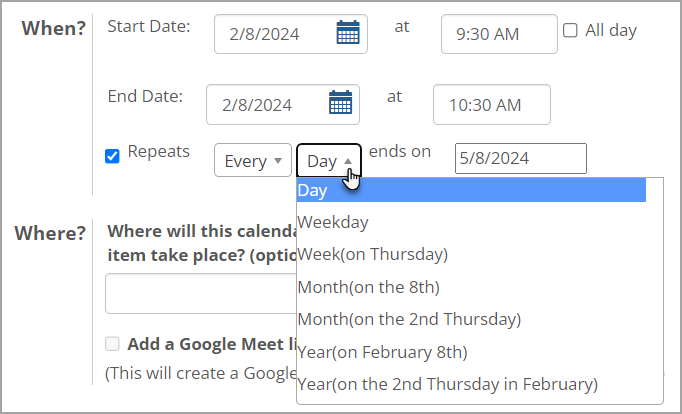
The next drop-down allows you to select one of the following options:
Day
Weekday
Week
Month (on the same date)
Month (on the same day of the week)
Year (on the same date)
Year (on the same day of the week)
 |
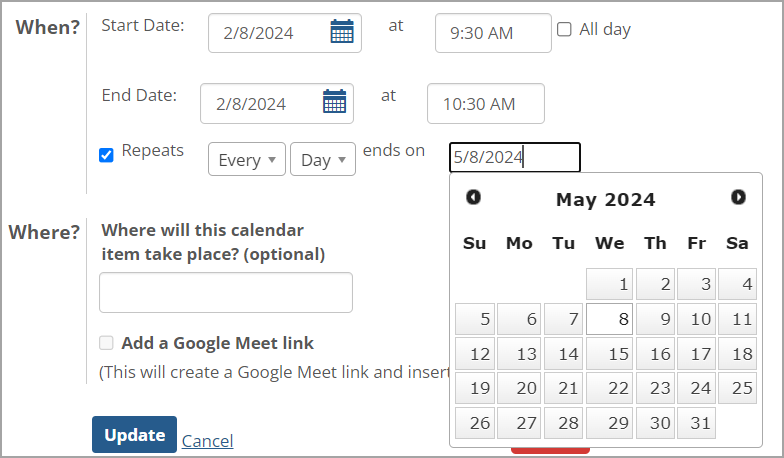
Finally, you must specify the end date of the recurring calendar item. The item will repeat at the specified frequency until the end date is reached.
 |
How To
To add a recurring calendar item, you must use the advanced options found on the Add a calendar item screen.
Navigate to the calendar instance that contains the calendar to which you wish to add a calendar item.
Take one of the following actions:
In week or day view, click a start time on the calendar and while holding down the mouse button, drag to the end time of the calendar item. The Add a calendar item pop-up window displays. Click Advanced options in this pop-up window.
In week or day view, click once on a start time on the calendar. The Add a calendar item pop-up window displays. Click Advanced options in this pop-up window.
In month view click once on a day on the calendar. The Add a calendar item pop-up window displays. Click Advanced options in this pop-up window.
In any calendar view, click the Add a calendar item button.
The Add a calendar item screen displays. The start time and end time are prepopulated based on where you clicked and dragged on the calendar. If you single-clicked on the calendar, the end time will be 30 minutes after the start time by default. If you single-clicked on a day in month view, the start time will default to the nearest half hour, and the end time will default to one hour later.
Fill out the fields in the What? and Where? areas of the screen as appropriate. For general descriptions of these fields, see Working with Calendars.
In the When? area of the screen, select the Repeats checkbox.
Additional fields display to allow you to specify the frequency and end date of the recurring item.
Specify the frequency of the recurring calendar item by selecting appropriate values from the provided drop-down lists. For descriptions of the available options, see Working with Calendars.
In the recurrence end-date field, specify the date on which you want the recurring calendar item to end. You may do this by clicking the field and selecting a date from the popup calendar or by typing the date in the field.
Edit the other fields in the When? area of the screen as you see fit.
Click Add calendar item.
The Add a calendar item screen closes, and the calendar redisplays with the new item added.