Site-Wide and Portlet Settings for Card, List, and Basic Views
The following sections explain how to configure settings for the Resources views and portlet. The display logic of the Show/Hide empty sets link on the Resources main screen is also described.
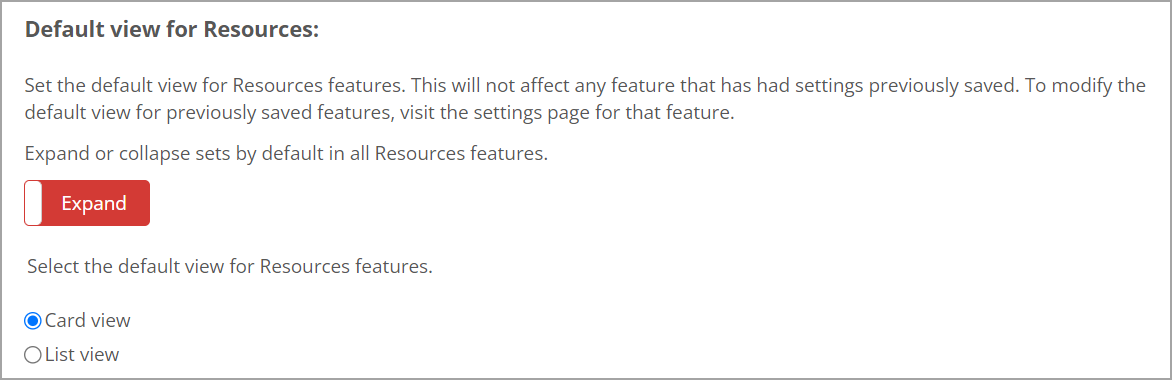
In Site Manager, administrators can see a Default view for Resources section on the main Site settings page, which replaced the previous Default view for Bookmarks/Handouts section. All other text is the same as the previous text except any references to "Bookmarks and Handouts features" was replaced with "Resources features".
The settings work the same way as they did previously for Bookmarks and Handouts, but now they are on the Resources portlet. Note that this means that the settings will not affect previously added portlets that have had their portlet settings saved.
In the following screenshot, the red Expand button and the Card view option are selected, so the expanded Card view displays by default for all Resources features. To change these default settings, click the Expand button to change it to the green Collapse button for a collapsed view of sets and click the List view option to display resources in a list.
 |
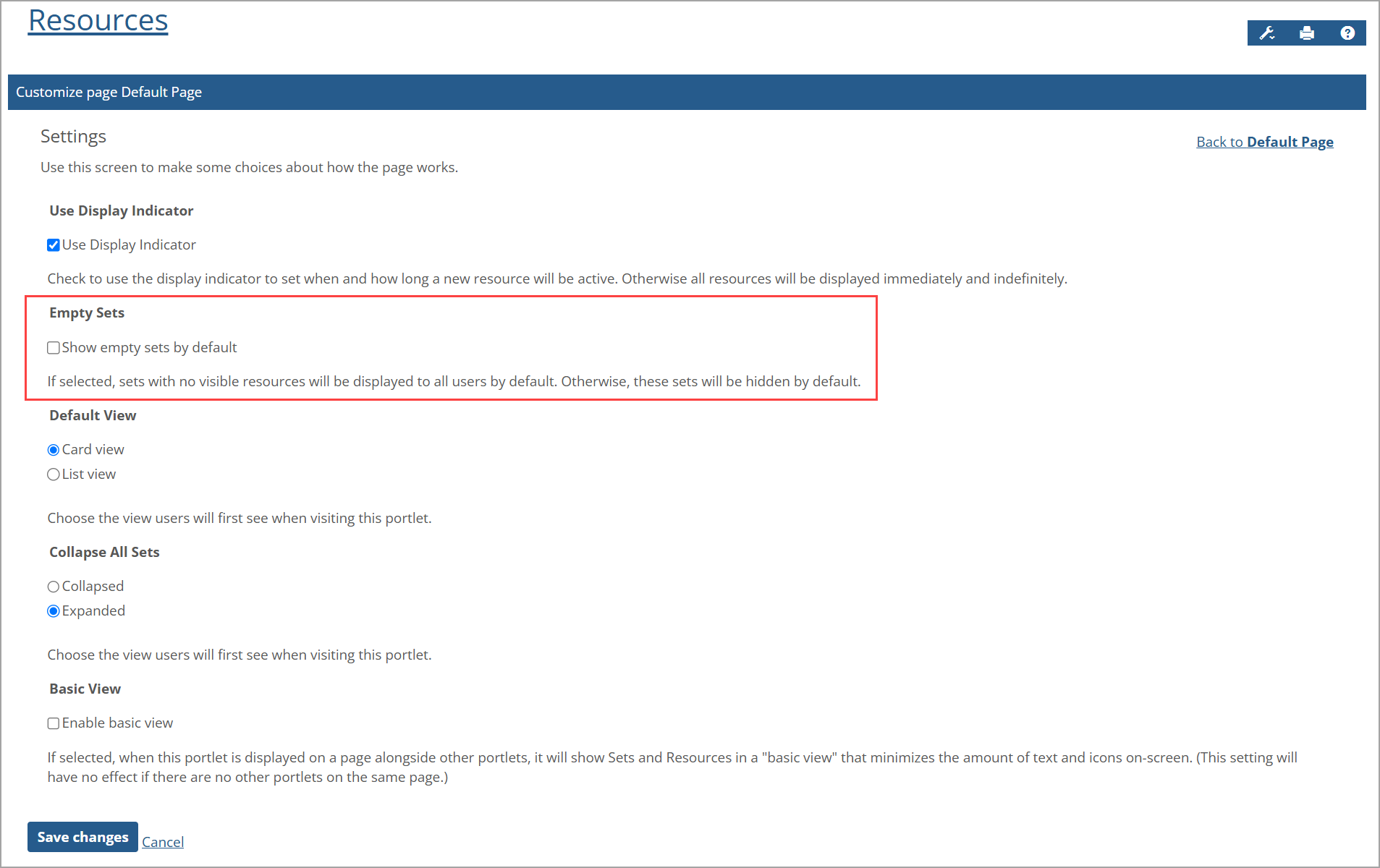
When viewing a Resources portlet, a user with a Faculty or Administrator role can click the Wrench icon and select Settings to display its portlet settings. The Default View and Collapse All Sets settings are already entered for Resources by default. These default settings can be changed for the individual portlet. If administrators change and save these individual portlet settings, they will override any site-wide settings and be implemented on the portlet itself.
Previously, the Settings screen displayed the Hide Empty Sets section with a "Hide Empty Sets" checkbox and the explanation, "If selected, sets with no visible resources will be completely hidden from viewers with read-only permissions."
However, in response to client feedback, the Settings screen was changed. The Hide Empty Sets section is now the Empty Sets section. The checkbox is now called "Show empty sets by default", and the explanation below it has changed to: "If selected, sets with no visible resources will be displayed to all users by default. Otherwise, these sets will be hidden by default." In other words, if the "Show empty sets by default" setting is not selected, then the empty sets are hidden by default. The Empty Sets setting is shown in the following screenshot:
 |
The "Show/Hide empty sets" link on the Resources main screen enables users in the Faculty or Administrator role to change the default setting for their own individual view. For more details about this link, refer to the Link to Show/Hide Empty Sets section.
With the JICS 2024.2 Release (which also affects eLearning), on the Resources main screen, you can click the Wrench icon and select Settings on the drop-down list to display the Basic View setting near the bottom of the Settings screen. You can select the Enable basic view checkbox to make the Basic View available for users after saving the changes. Information below the checkbox explains other details:
"If selected, when this portlet is displayed on a page alongside other portlets, it will show Sets and Resources in a 'basic view' that minimizes the amount of text and icons on-screen. (This setting will have no effect if there are no other portlets on the same page.)"
 |
In the JICS 2025.1 Release (which also affects eLearning), a change was made to the display logic of the Show/Hide empty sets link on the Resources main screen. The Show/Hide empty sets link appears below the View buttons only when the following conditions are true:
The current user has "Can Manage Resources" or "Can Manage Sets" permissions in this portlet
AND
The portlet contains more than one set, and at least one of them is empty (that is, a set that doesn't contain any resources visible to the current user). This includes Unit sets when the user is in an eLearning course.
If either condition is not true, then the link will not appear to the current user.
 |
This link displays for Basic, List, and Card Views. Users with the appropriate permissions can click this link to switch between hiding and showing empty sets:
Click Hide empty sets if you want to hide all sets without any visible resources.
Click Show empty sets if you want to show all sets, whether or not the sets contain visible resources.
The default link name is based on the "Show empty sets by default" portlet setting:
If the portlet setting is set to show empty sets by default, then the Hide empty sets link displays initially.
If the portlet setting is set to hide empty sets by default, then the Show empty sets link displays initially.
Note
Clicking the Show/Hide empty sets link overrides the "Show empty sets by default" setting for the Resources portlet. For more details about this setting, refer to Site-Wide and Portlet Settings for Card, List, and Basic Views.