Introduction to J1 Web Forms
J1 Web Forms, a centralized tool for building, distributing, and managing forms within J1 Web. It brings familiar Campus Portal Forms functionality into the J1 Web environment while expanding capabilities through data sets, workflows, automations, and role-based access controls, Form builders have an intuitive workspace for designing dynamic, data-driven forms.
Forms can collect information from advisors, employees, registrars, departmental staff, and other J1 Web users and route submissions through J1 Web Workflow for approval. They can be used for requests such as name changes, W-2 reissues, and office supply orders. Completed submissions can be stored in Document Storage for record keeping or to initiate automated communications and tasks.
Build Dynamic, Data‑Driven Forms
Form designers can create forms using familiar components such as text boxes, radio buttons, checkboxes, date/time pickers, drop‑downs, essays, labels, placeholders, and buttons using the Manage Forms page.
Forms support:
Multiple tabs and tab orientation

Required fields, validations, default values, and alignment controls

Dynamic options and lookups powered by Form Options and Form LookUp data sets to auto‑populate fields, cascade options, and tailor form completer experiences based on institutional data

Rules that respond to user selections or field values

Custom submit buttons or automatic submit button insertion

Assign Forms in Multiple Ways
Forms can be assigned manually or automatically:
From the Manage Forms page

Using the Create New Communication window and Form To Do option

Via Forms blocks on module Summary pages

Through workflows that include form‑completion To Dos

Through automation plans that initiate form tasks
Assignments can target individuals, data sets, or workflow participants, ensuring forms reach the right form completers.
Review and Manage Submissions
From the Manage Submissions page, Form reviewers can:
View submissions
Filter submissions by field, response, workflow, or status
View downloadable/printable PDFs
Save submissions to Document Storage
Associate submissions with workflows
Delete submissions when appropriate

Submission management is centralized, unlike Campus Portal where form submissions can be accessed in multiple locations.
Integrate Forms with Workflows and Automation
J1 Web Forms can initiate automated processes when a form is submitted using the J1 Web Form Submitted system event.

When the selected form is submitted, the automation plans can:
Send emails, notifications, or texts
Assign To Dos
Run stored procedures
Trigger workflows that include their own automation plans
Apply rules‑based updates
Execute Power Automate flows (e.g., provisioning accounts for new employees)
Workflows can also assign forms to users or require form completion as part of a staged approval process.
Import and Export Forms
Schools can import Campus Portal Forms or share J1 Web Forms between environments (e.g., Test/Play and Live/Production). Imported forms include all components, but environment‑specific configurations like data sets, workflows, and module access codes must be reviewed and updated before publishing and available for use.

Access and Permissions Model
Access to J1 Web Forms is controlled through roles, permissions, and module access codes.
Forms permissions control who can manage forms and who can review submissions.
Module access codes determine which automation plans, forms, data sets, workflows, and interactions form designers can access.
Document Storage permissions determine whether which Forms users can save or view stored submissions.
Users who only complete forms do not need access to the Forms module; they can complete assigned forms from module Summary pages or their To Do List.
Campus Portal Forms vs J1 Web Forms
J1 Web Forms centralizes form creation and submission management within J1 Web, while Campus Portal Forms remains available for Portal‑only users such as students, candidates, and applicants.
Campus Portal Forms | J1 Web Forms |
|---|---|
Forms for Campus Portal only users: Students, Candidates, Job Applicants, etc. | Forms for J1 Web only users: Faculty and Advisors, HR personnel, Student Life employees. |
Called Questions/Fields. | Called Items. |
Forms available in different instances of the Forms feature across the Campus Portal. | All forms are available in a centralized location (Manage Forms page). |
Form submissions reviewed from the Form Approvals feature and the Desktop Process Internet Submissions window. | Form submissions are reviewed from a centralized location (Manage Submissions page). |
Form Approvals feature controls the form approval process. | J1 Web Workflow will be used to control the form approval process. |
Uses Literal String Replacers. | Unavailable with J1 Web Forms. You can use LookUp data sets in place of Literal String Replacers. |
Cascading options (e.g., selecting a state controls counties options in another field) use hashtags. Radio button and checkbox questions couldn't use the cascading feature. | Options tab and Form Options data sets let you create cascading options. Hashtags aren't available, but plain SQL parameters can be used. Issues with using cascading options for radio button and checkboxes are resolved. |
Data sources drive option lists and lookups. | Data sets drive options and lookups. |
Context Manager and Access Control Lists control access to forms. | Forms permissions control access needed to manage forms and review form submissions. Module access codes control access to the forms themselves. |
In Campus Portal, Forms blocks list all forms available to users to complete. | Forms can be assigned in multiple ways:
|
Define your own CSS classes in Campus Portal configurations. | Leverage Bootstrap v3 CSS classes and any J1 Web CSS classes in use. |
Map statements that generate insert statements via SQL stored procedures. | Associated workflows run stored procedures. Data Management to save to custom tables (future release). |
Submit button must be manually added to the form. | Automatically adds a submit button if you do not. You can add your own custom submit button. |
Institutions can continue using both systems and import Campus Portal Forms into J1 Web Forms as needed.
What's Changed
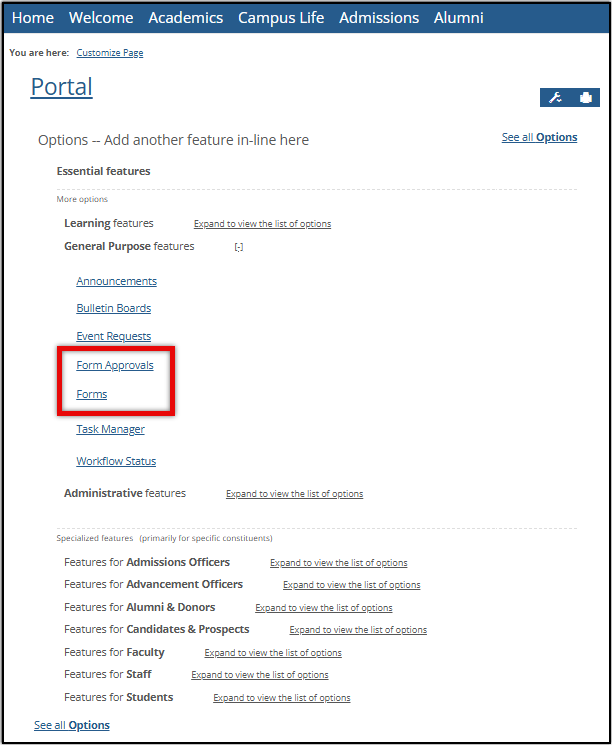
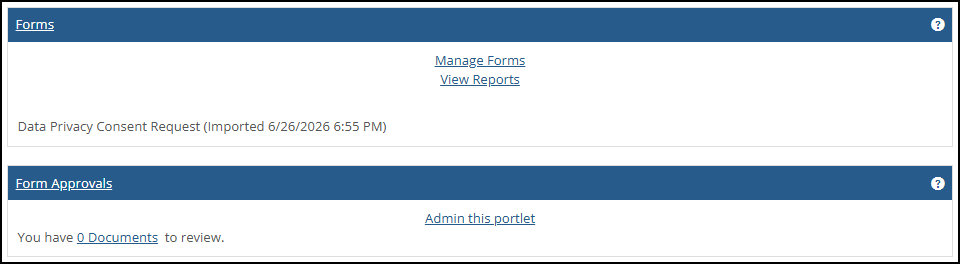
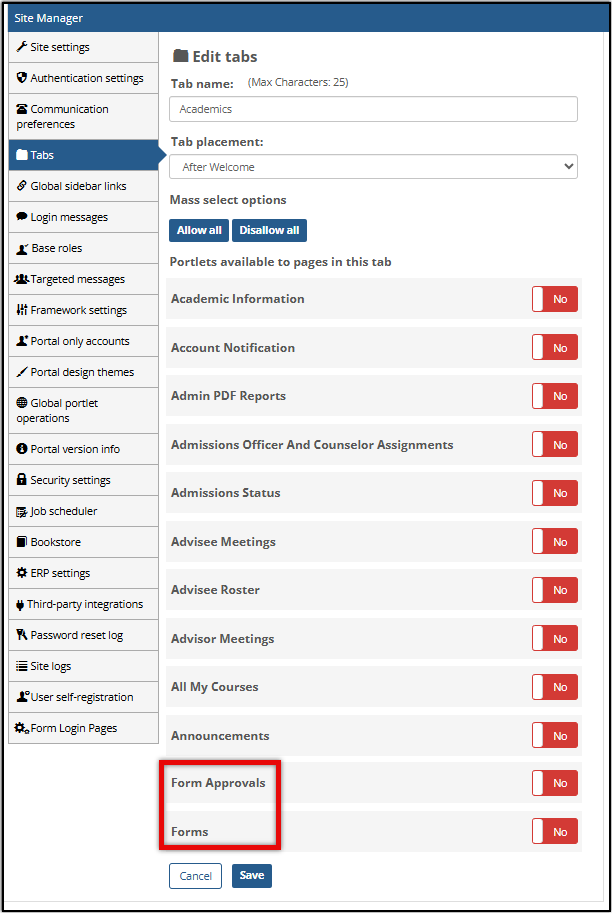
As of version J1 2026.2, two Campus Portal features have been renamed:
Campus Portal FormFlow – Forms was renamed Forms.
Campus Portal FormFlow – Workflow was renamed Forms Approval
You'll see these new naming conventions:
When adding a new feature to a Campus Portal page.
When granting access to the feature on the Site Manager page, under the Tab options.
Note
Existing instances of FormFlow – Forms and FormFlow – Workflow are not impacted, and there are no changes to the way those features are accessed or used.
Why rename?
As Forms moves to the J1 Web platform over time, consistent naming conventions make the transition easier.
Do I have to use one or the other?
No, you can use both. J1 Web Forms is primarily for assigning forms to J1 Web users and Campus Portal Forms is primarily for Campus Portal users. You can create forms in the Campus Portal and import them into J1 Web Forms.
Is Forms Approval moving to J1 Web?
No, Jenzabar Workflow will provide approval track features where forms move through stages of submission for approval and denial in future releases. For now, you can create a workflow that assigns a form to a user for completion and once completed, assign a approve/deny or manual verify task to a single approver.
What's Coming
Additional templates
Collection grids and grid options
Custom validations
PDF mappings
Form approval features in Workflow
File download, file upload, and Image question types
Forms Inventory page
Rule reordering rules
Submission limits
What's Not Coming to J1 Web
Third-party databases connections
Event mapping variables
FormBuilder and related JICS features: Apply Online and Make an Inquiry
Generate view
Legacy settings/options
Payment options
Widget questions