Create Budgets
Important
Information and features vary according to the roles to which you belong and the permissions associated with those roles. For more information, contact your module manager or your campus support team.
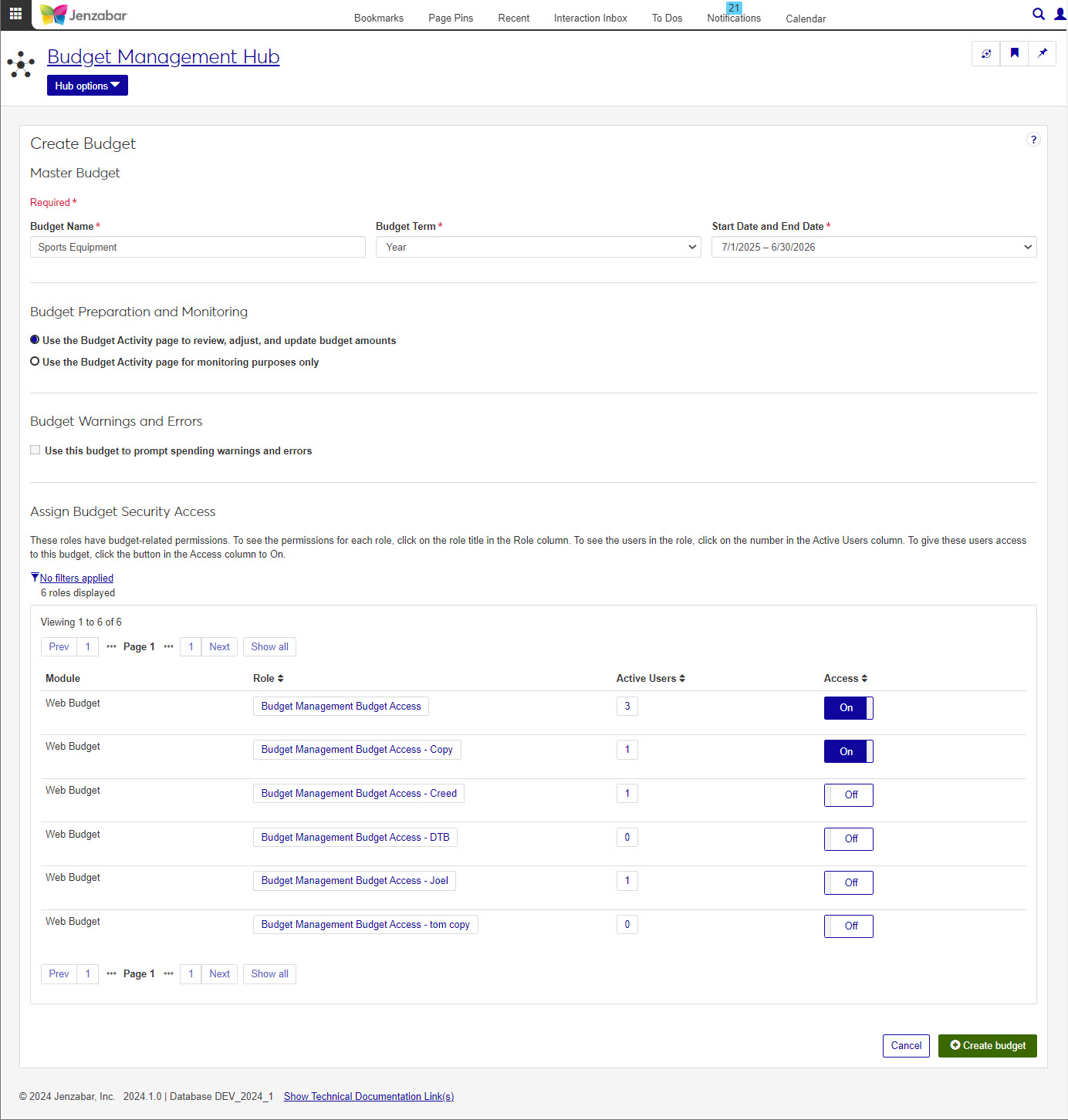
Use the Create Budget page to enter general details about new budgets. After the budget is created, you can set up worksheets, assign budget officers, and monitor budget activity from the individual budget page.
 |
How To
Select Create Budget from the Budget Management hub options.
On the Create Budget page, enter a name for the new budget.
Choose a term for the budget. Choices are month, quarter, and year.
Choose a start and end date for the budget from the drop-down. Choices are the current GL Config Year and the following 4 years.
Next, select how you want to prepare and monitor your budget.
If you want your budget to be collaborative, choose the Use the Budget Activity Page to review, adjust, and update budget amounts option.
If you want to use the portlet for monitoring only, choose the Use budget Activity page for monitoring purposes only option.
If you want this budget to be the primary budget for the year, select the checkbox next to Use this budget to prompt warnings and spending errors.
Decide which budget security roles you want to have access to this new budget using the toggle to turn the role access on or off. While this can be updated later, be careful when selecting roles, and be sure to check the Active Users in each role.
Click Create budget.
Tip
This process may take a few minutes. Do not leave the page while the new budget is being created.
Your new budget will open on the Budget Detail page in Set Up status.
Yes. For more information see theCopy Budgetshelp topic.
The current GL Config Year and the following 4 years are available when creating a new budget; however, if you are copying an existing budget, only the current year and next year are available.
These options have to do with the Budget Activity page and how it is used. You will need to decide if you want the Budget Activity page to simply monitor the new budget (you would review, adjust, and update from the Budget page), or if you want to be able to review, adjust, and update budget amounts from the Budget Activity page.
Your new budget is starting off completely blank and in Set Up status. You will only see the Summary, Set Up Worksheets, Worksheet Security, and Enter Budget tabs. Once you start working with your budget, adding content, and changing the status, the available tab options will change.