Source Type Definitions
Important
Information and features vary according to the roles to which you belong and the permissions associated with those roles. For more information, contact your module manager or your campus support team.
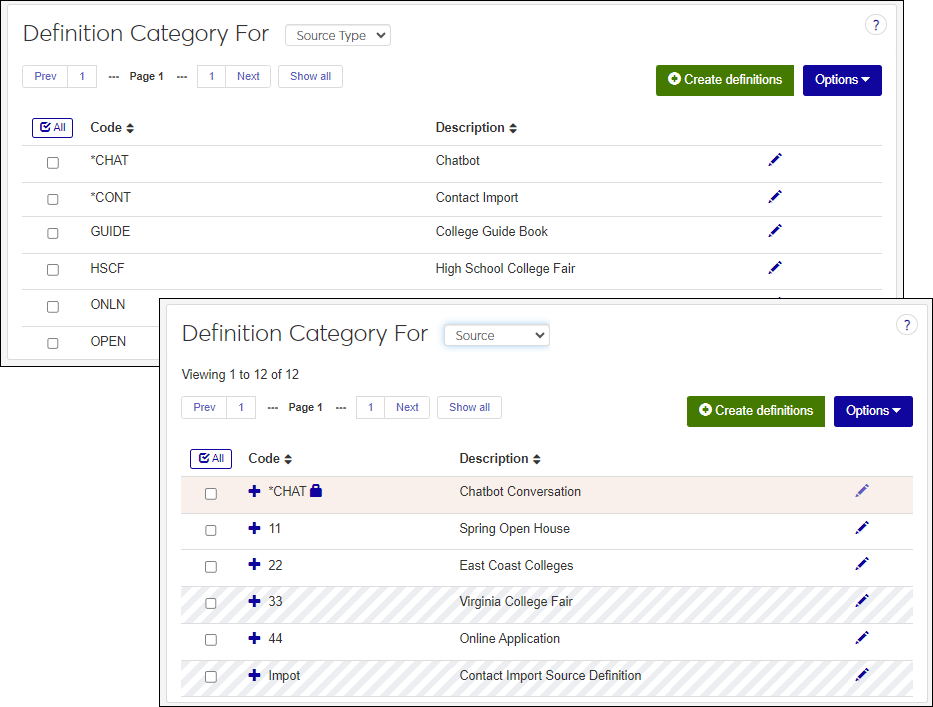
The Source Types Definition page let you manage source and source type definitions. Sources can identify where information came from. For example a third party that provides donor contact lists or College Board that provides potential candidate lists. Source Types can identify general categories of sources such as marketing sources or college fairs. For example, a source type could be college fairs and the source associated with it could be east coast division.
Desktop Location
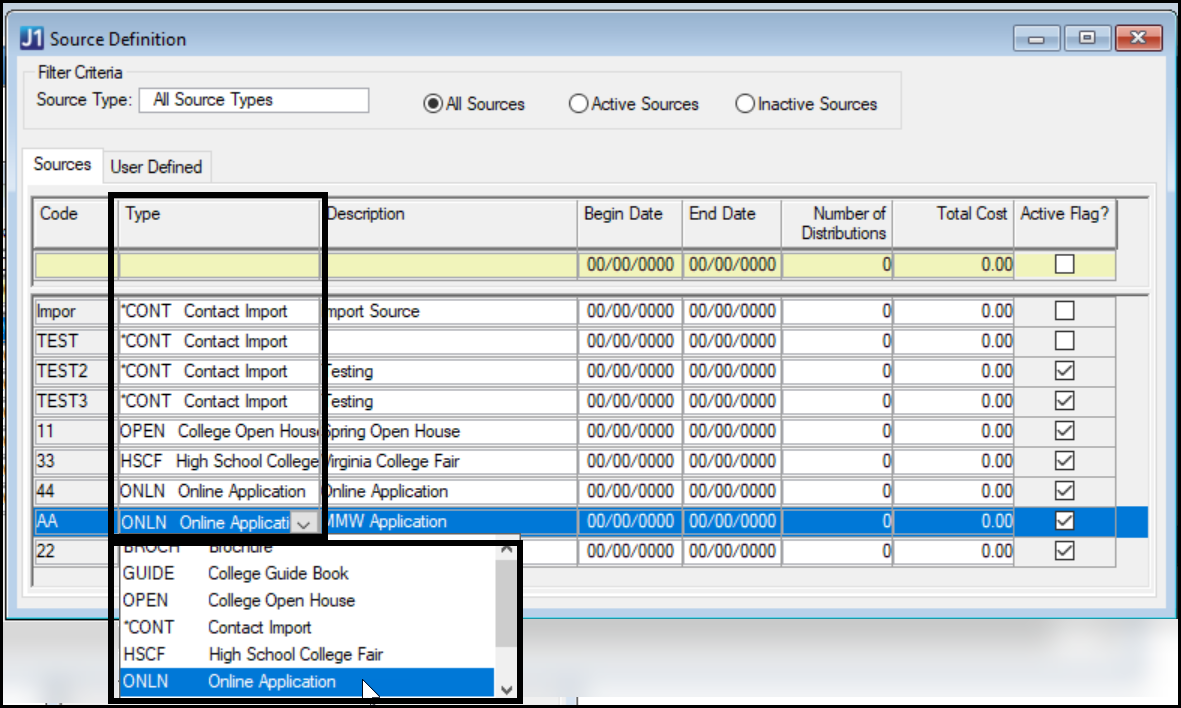
Source types appear in Desktop on the Source Definition window, where you designate specific sources as belonging to a type.
Database Location
The definitions are stored on the Source Type Definition table (source_type_def).
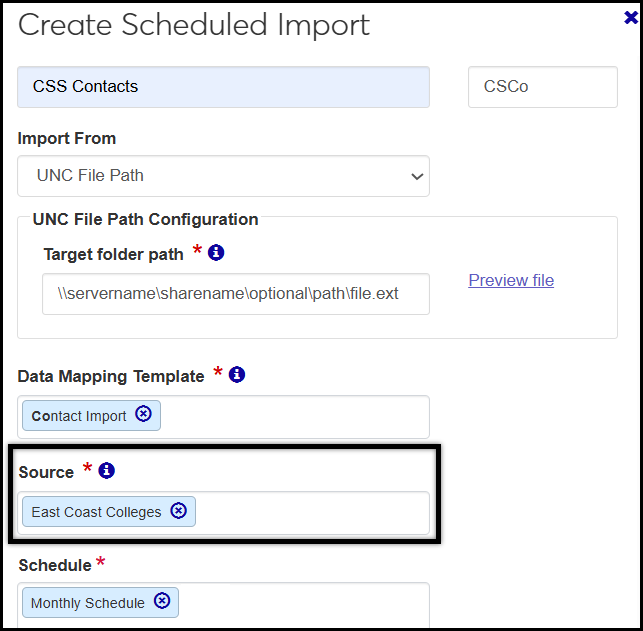
Sources are used with J1 Web Scheduled Imports. When regularly scheduling file imports, a source can be associated with them so you know where the imported data came from.
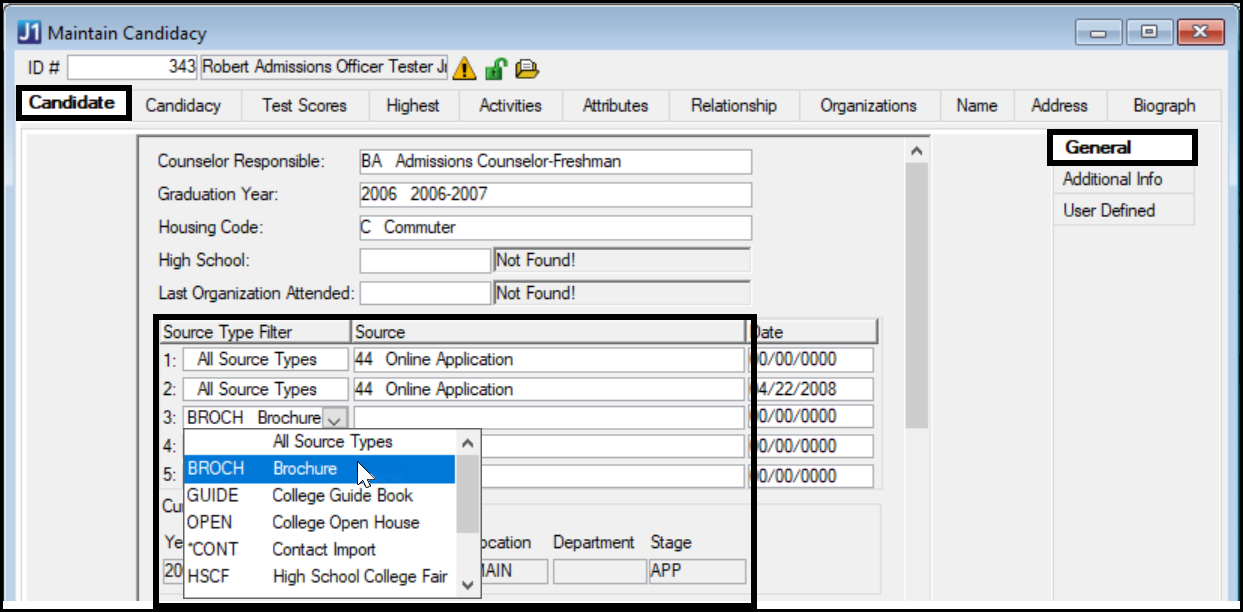
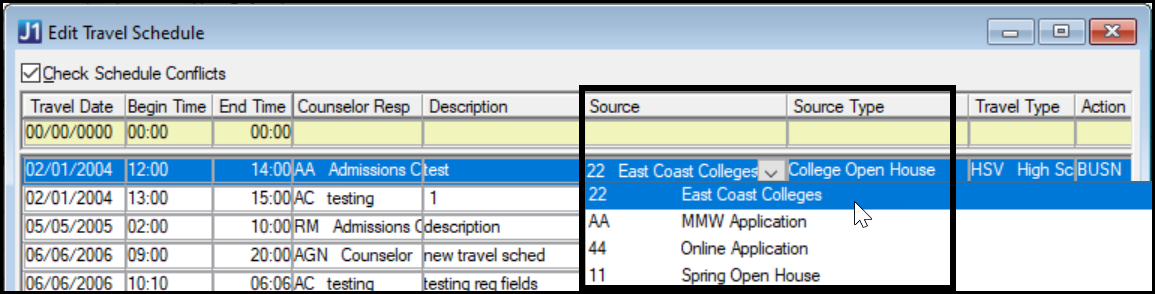
Sources and source types are used in these locations in Desktop:
These Desktop features are planned for a future release of J1 Web.
Both the code and description are required. They both appear in drop-downs on the Source Definition window and the Maintain Candidacy window. On the Edit Travel Schedule window, only the description appears.
Code: Up to 5 characters. Must be unique.
Description: Up to 25 characters.
Permission to manage source type definitions is available in these roles:
Campus-Wide Definitions with the Can manage source definitions permission enabled.
Registrar with the Can manage source definitions permission enabled.
Registration Module Manager with the Can manage source definitions permission enabled.
From the Registration Administration hub, click Hub options.
Click Manage definitions, and select Source Type Definitions. The Source Type Definitions page opens.
To filter the definitions, enter a phrase in the Quick Filters field. To remove a filter, click its Remove icon
 .
.To temporarily sort the definitions, click the heading of the column you want to sort on. Click once for ascending order and again for descending order. The definitions are sorted for this viewing of the page, but the next time you view or refresh the page, it will return to its default sorting.
If the Expand icon
 is there, click it to see hidden columns.
Click the Create definitions button. The Create Source Type Definitions pop-up appears.
In the Code field, enter up to 5 alphanumeric characters. Required. Must be unique. Code appears in drop-downs except on the Edit Travel Schedule window.
In the Description field, enter up to 25 alphanumeric characters. Required. Description appears in drop-downs.
Click either Create and close or Create and save another.
Click the Edit icon
 on the row of a definition. The Edit Source Type Definition pop-up opens.
You can edit the Description by typing or pasting text. The field can contain up to 255 alphanumeric characters, and it can't be blank.
When you're finished, click Update.
Select the checkboxes next to the rows you want to export.
From the Options drop-down, select Download to Excel. The Download to Excel pop-up opens.
Select options for the Excel format and data columns.
Click Download. Your .xlsx or .zip file is saved in the file location that you have set in your browser settings.
A source is a specific channel by which a student makes contact with a school. For example, the Metro Area College Fair on March of 2027. A source type is a category of channels of contact. For example, college fairs.
No. A resource type definition is managed on the Facilities hub. It defines equipment or other types of resources available in facilities.