SMTP Relay Configuration
Important
Information and features vary according to the roles to which you belong and the permissions associated with those roles. For more information, contact your module manager or your campus support team.
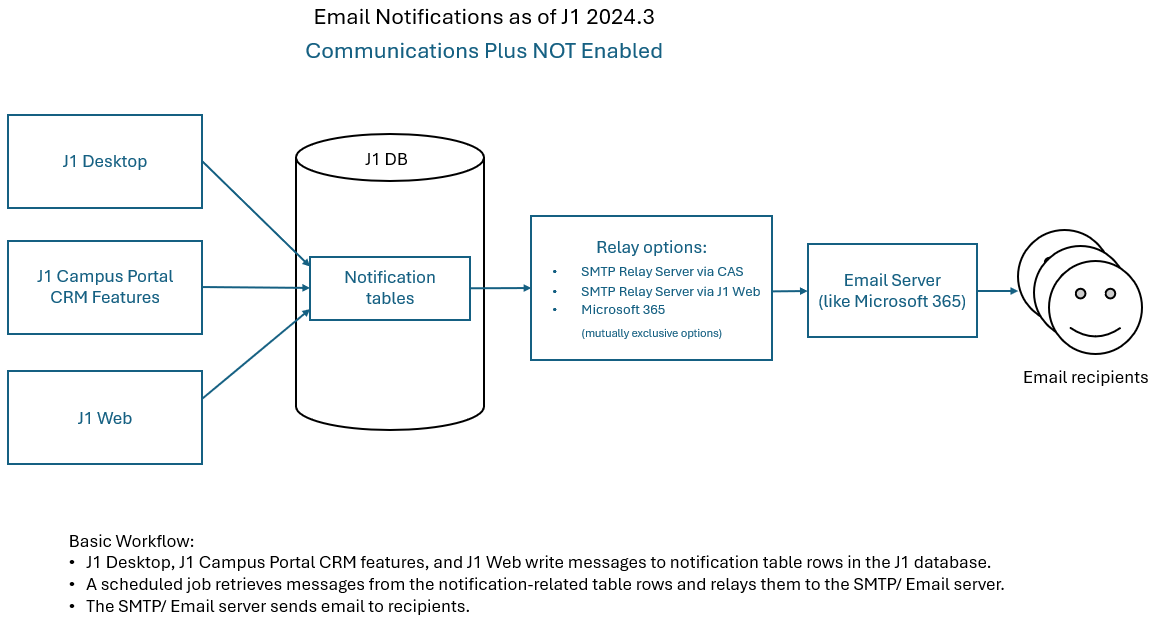
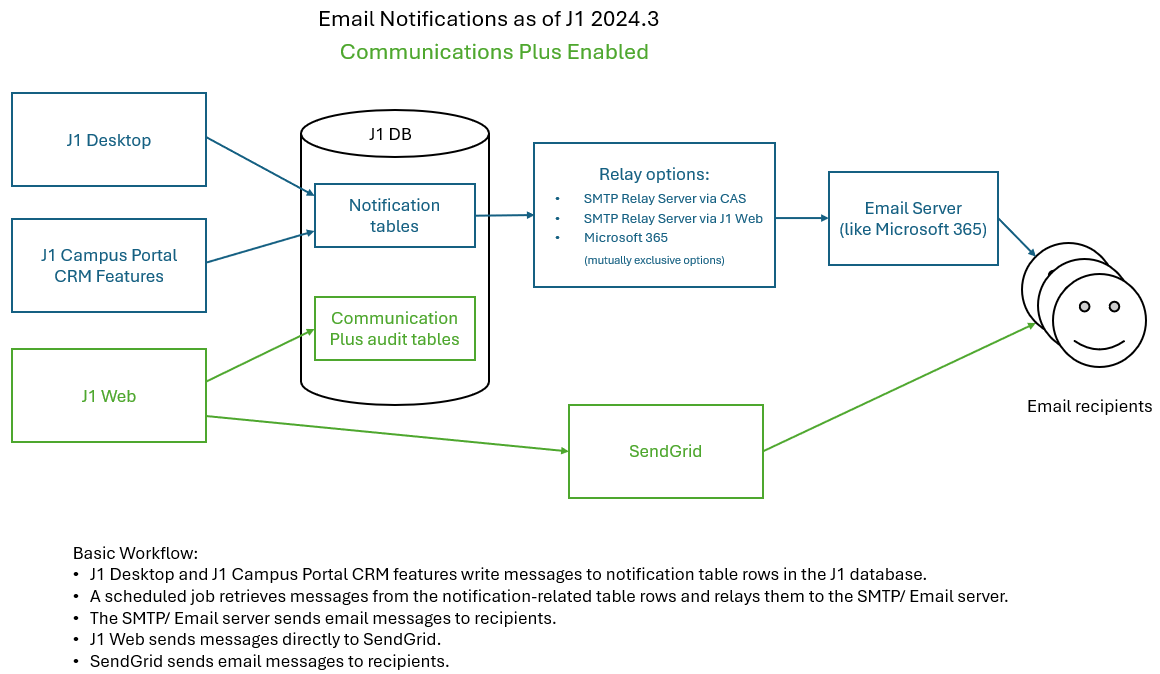
Simple Mail Transfer Protocol (SMTP) is the standard for sending email messages from one server to another. SMTP Relay handles the delivery of these messages to their destination allowing recipients to trust they are from a reputable source.
Caution
To meet Microsoft 365's security enhancements, additional relay options were added in the J1 2024.2.0.5 and 2024.3.0.1 releases. See details below.
The following SMTP Relay Configuration options are available:
SMTP Relay Server via CAS
This option uses CAS, a Windows service installed on your relay server during the J1 setup.
If your school uses CAS to relay messages to Exchange Online (Microsoft 365) you must switch to the new Microsoft 365 option by March 1, 2026.
If your school uses CAS with any SMTP server other than Exchange Online (Microsoft 365), you can continue using the CAS, but Jenzabar recommends migrating to the new SMTP Relay Server via J1 Web option.
SMTP Relay Server via J1 Web (recommended)
This option routes outbound emails through J1 Web using a scheduled job to connect more directly to your SMTP server. The settings match those of the CAS option. Jenzabar recommends schools relaying emails through servers other than Microsoft 365 select this option.
Microsoft 365
This option routes emails through Exchange Online (Microsoft 365) using Microsoft Graph protocols. Any school using Exchange Online must migrate to this option by March 1, 2026. After selecting it, configure your Exchange Online tenant, client ID, and client secret (if not already done for calendar sync), and enable the Exchange Email Relay setting on the Exchange Online Account Settings page.
CAS is a Windows service that runs in the background of a user's machine or a dedicated server with two primary responsibilities:
Running scheduled J1 processes automatically at defined times, and
Relaying outbound email messages
SMTP via J1 Web (recommended) | SMTP via CAS | Microsoft 365 (required for schools using Exchange Online) | |
Description |
|
|
|
Recommended For | Unattended and direct connection to existing server. | Unattended sending from a Windows environment. | Microsoft 365 environments. |
Supports Batch Sending |  | | |
Control the Number of Messages and Relay Interval | | | |
Secure Sending with SSL | | | Managed automatically through Microsoft Graph |
Default Reply Email Address | | | Uses Exchange account settings |
Number of email messages | Determines how many messages are sent at once. Proper batching helps prevent outgoing emails from being identified as spam and reduces the risk of overwhelming the server. |
Relay interval | Determines how often messages are sent. |
Relay email messages securely by using SSL? | When selected, messages are encrypted in transit. Jenzabar strongly recommends using this option. |
SMTP Server Name* | Mail server address (e.g., smtp.yourdomain.com). |
SMTP Server Port* | SMTP traffic port (e.g., 465 or 587 for secure connections). |
Default Reply To/From Address | Email address recipients see when replying. |
Include user credentials when relaying email messages?* | When selected, messages are authenticated using the specified login credentials. This is required if your SMTP server is cloud-hosted outside of your network (e.g., gmail or live.edu). |
Exchange Online Account Settings | Link to the page where you enter your Exchange tenant ID, client ID, client secret, and enable email relay. |
*SMTP Relay Server via J1 Web and SMTP Relay Server Via CAS options
**Microsoft 365 option
Most of the “SMTP via CAS” settings can be managed using the Desktop SMTP Relay Configuration window and J1 Web will honor those settings; however, Jenzabar recommends using J1 Web to manage them.
If the SMTP Relay Configuration window is configured to use any SMTP relay option other than SMTP Relay Server via CAS, the settings will be ignored.
To manage SMTP relay configurations, you must belong to a role with the Can view & edit communication settings permission enabled. Jenzabar provides this permission with the Core, System Administration role.