Student Housing Time Slot Assignment Tab
Important
Information and features vary according to the roles to which you belong and the permissions associated with those roles. For more information, contact your module manager or your campus support team.
Time slots determine when a student can select a room. Using the time slot feature is optional, but it allows admins to prioritize which groups of students may select rooms first. This can be useful if your school allows certain students the privilege of first choice of rooms based on seniority, grades, or other criteria.
Warning
You can only assign time slots if you are using the room selection feature. Time slots allow you to prioritize when students may select a room.
Tip
We recommend auto-generating time slots and auto-publishing them to students.
You can create time slots manually, one at a time, or you can auto-generate a batch of time slots in a given time frame.
Tip
We recommend auto-generating time slots.
Auto-Generate Time Slots
In the Time Slot Management tab on the Manage Housing Application and Assignments page, click on Time Slot Options and select Manage time slots. The Manage Time Slots page opens.
The top section displays the valid periods for auto-generated time slots section. In this section you indicate the time ranges when students can have time slots. For example, if you don't want students to select rooms on weekends, then you can create time periods starting on Monday and ending on Friday for all weeks that room selection will be available.
Edit the default period, if necessary. The default period is set from the start date of the time selection feature and defaults to the session end date.
Click Add another.
Enter the date and time for the second period.
Click Save. Repeat as needed.
After you have set up the valid periods for room selection, click Auto-generate time slots.
Choose the interval that you would like between time slots. For example, if you want each time slot to have a week before the next time slot starts, choose a 7-day interval. The pop-up window message tells you how many time slots will be generated based on the valid periods and the interval.
Click Generate.
When you have scheduled all of your time slots, click Auto-assign time slots to automatically distribute students who have applied across all time slots. This does not publish the time slots to students.
Manually Create Time Slots
In the Time Slot Assignment tab on the Manage Housing Application and Assignments page, click the Time Slot Options drop-down and select Manage time slots. The Manage Time Slots page opens.
Since you are manually creating a time slot, skip the top section; it's for auto-generating time slots.
The first time slot is populated with the earliest date and time, but you can edit it as needed.
Click Add another.
Enter the date and time that you would like the second time slot to start.
Click Save. Repeat as needed.
When you have scheduled all of your time slots, click Auto-assign time slots to automatically distribute students who have applied across all time slots. This does not publish the time slots to students.
When you have scheduled all of your time slots, you can choose to auto-assign time slots to students or manually assign them one by one.
Tip
We recommend auto-assigning time slots to students.
Auto-Assign Time Slots
On the Manage Time Slots page, check to make sure you have created all of the time slots you'll need.
Click Auto-assign time slots to automatically distribute students who have applied across all time slots. Slots are assigned in order of lottery numbers, lowest first.
This does not publish the time slots to students.
Manually Assign Time Slots
On the Manage Time Slots page, check to make sure you have created all of the time slots you'll need.
Click the Back button to go back to the Time Slot Assignment tab.
On the student's row, click the edit icon in the Room Selection Time Slot column.
Select one of the available time slots.
Click Save.
Repeat for all students.
Time slots may be changed any time before they are published to students. Once they have been published to students, they cannot be changed.
Change the time slots themselves
You can edit, delete, or add time slots directly on the Manage Time Slots page.
You can redo the auto-generate time slots process; when you auto-generate new time slots, the old ones are removed.
Change the time slot assignment for a student manually
On the Time Slot Assignment tab, click the edit icon for the student you want to edit. Choose a new time slot and click Save.
Change time slot assignments for students using auto-assign
On the Manage Time Slots page, use the Auto-assign time slots button. As long as time slots have not been published to students, existing time slot assignments will be removed and replaced with the new ones.
You can only update time slots before they are published. After they are published, they can no longer be edited.
The top of the Time Slot Assignment tab shows you how many time slots are already published and how many new time slots assignments are ready to be published.
 |
On the Time Slot Assignment tab, click the Time slot options drop-down and select Publish time slots. The Publish Time Slots pop-up opens, showing you how many applicants will have time slots published.
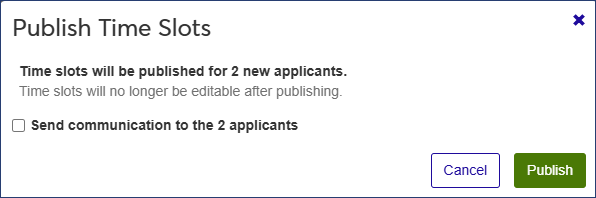
If you want to send a communication to the applicants whose time slots are being published, select the Send communication to the [#] applicants checkbox.
Click Publish to assign the time slots.
If you opted to send a communication, the Create New Communication window opens.
Click in the From field and select the person the message should come from.
Enter a Subject for the message.
The Body field contains a basic message template. Edit the text as needed.
When you are done, click Send.
Lottery numbers provide the order in which students will be assigned available time slots to select rooms. A lower lottery number will get an earlier time slot. Time slots are periods when students can select a room. A student can select a room any time after their assigned time slot starts until the end date for room selection.
Lottery numbers are useful because they allow you to work with the order students will be in. They are automatically assigned on a first-come basis after students have applied, but they can be edited and renumbered based on factors you choose. Time slots are useful to break up the groups of students selecting room. You may use them to reduce burden on your system, or to allow select groups of students the privilege of earlier access to certain rooms.