Manage Student Conduct Settings
On the Student Conduct Settings page, users can set the default status of student conduct incident reports when they are created. The status can then be updated by editing the report status on the Incident Reports page.
To manage this setting, you must be in the Student Conduct Administrator role, or one copied from that role, with the permission "Can manage student conduct settings" enabled.
On the Student Conduct Administration Hub page, click the Hub options drop-down and select Setting options, then Manage student conduct settings. The Student Conduct Settings page opens.
Click Edit this section.
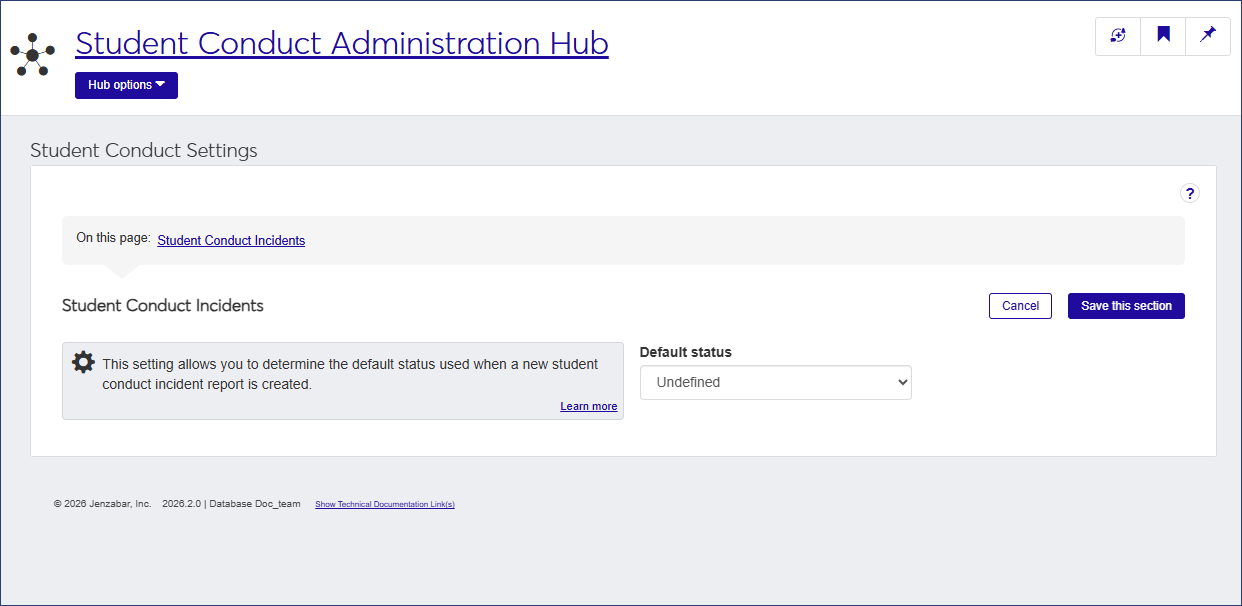
From the Default status drop-down, select the status you would like to have as the default status for all new student conduct incident reports.
Click Save this section.