Copy Role
Important
Information and features vary according to the roles to which you belong and the permissions associated with those roles. For more information, contact your module manager or your campus support team.
From the System Roles page, find the role you want to copy.
Tip
You can search for roles using the search filter or sort them using the top row column arrows.
From the Options drop-down, select Copy. The Copy Role page opens.
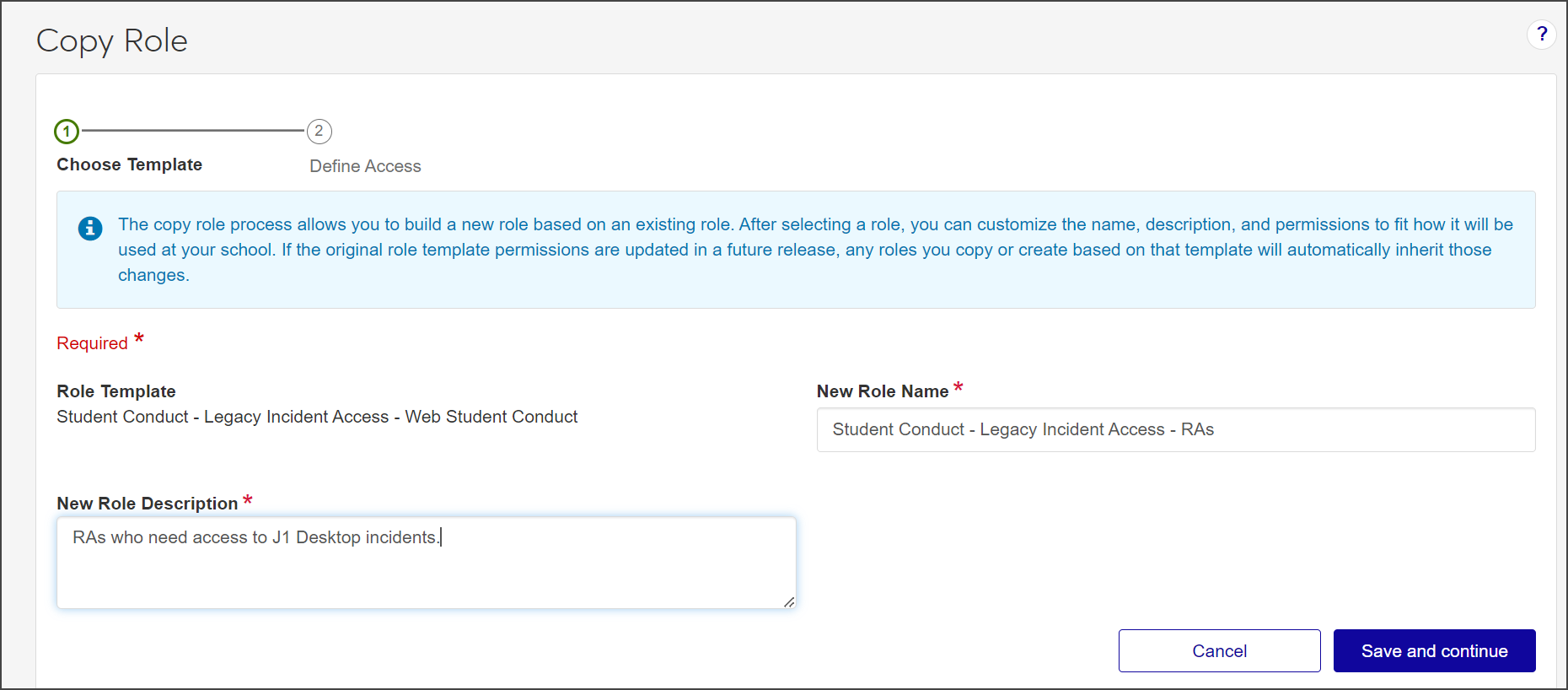
The Role Template field automatically shows the name of the default template the role being created is based upon. This field cannot be updated.
In the New Role Name field, update the role name to an easily recognizable one. The name can be based on how roles and positions are set up at your school, and should distinguish how this role differs from the role being copied.
In the New Role Description field, update the description to highlight permissions or features available to users assigned to the role. The description can help distinguish how the new role differs from the role being copied.
Click Save and continue. The Define Access section opens.
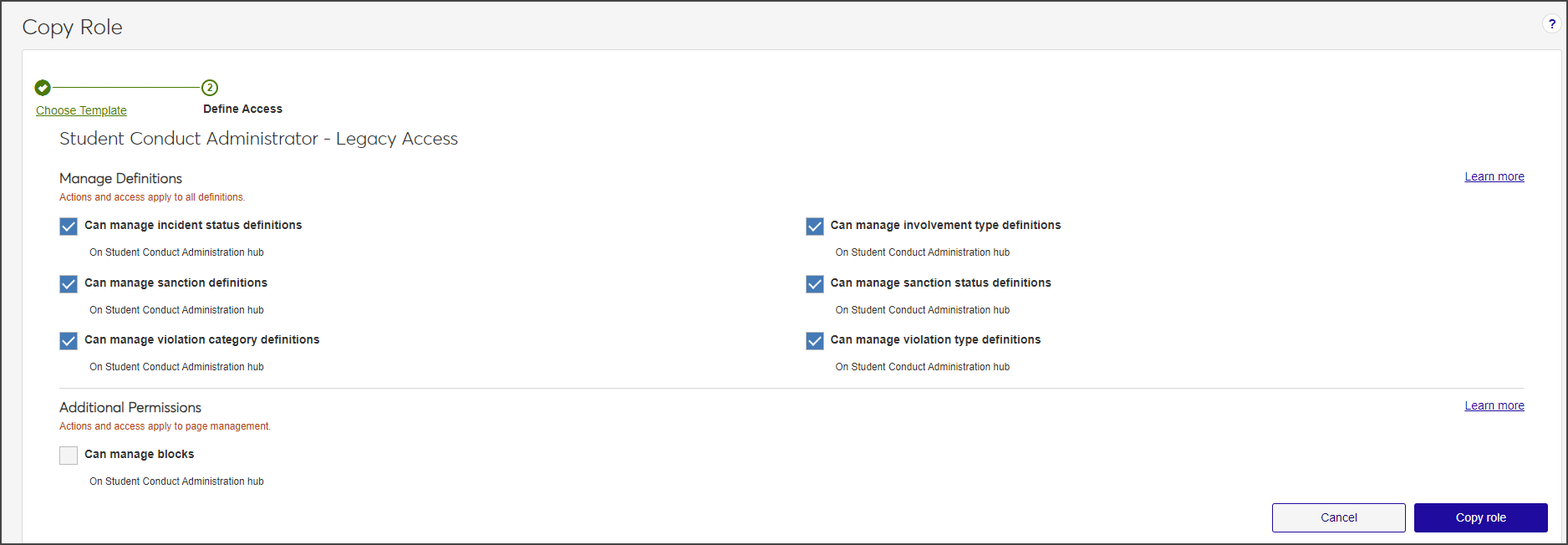
Select the checkboxes next to the permissions you want to enable for this role.
Click Copy role. The Copy Role page closes.
To assign users to the new role:
Select Edit from the Options drop-down. The Edit Role page opens.
Select the Users tab.
Click Add to Role. The Add to Role pop-up opens.
In the Search Users by Name field, start typing the name of the user to be added to the role and select from the names that appear.
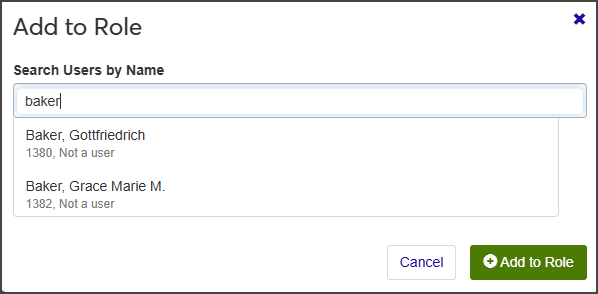
Repeat step d as many times as needed.
Click Add to Role. The Add to Role window closes. The users are added to the role and immediately have access to the information and features associated with that role.
To manage access to interactions (using J1 Web Communications):
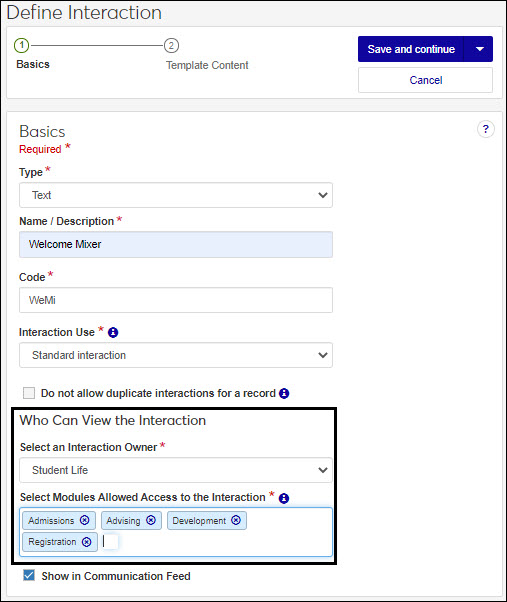
Module Access codes are loosely based on Desktop's Module Code Stamp. They control who can work with different items in the system such as data sets, forms, interactions (emails, texts, To Dos, etc.), and workflows,. Codes are associated with these items when they're created, added to the system, or updated. J1 Web roles can have multiple access codes enabled, and users who belong to multiple roles will have access to the codes available with each.
Select Edit from the Options drop-down. The Edit Role page opens.
Select the Module Access tab.
From the Access column, click No or Yes as appropriate to prohibit or grant access to the interactions associated with that module.
To manage associations:
This option applies only to some roles, including Department Head Course Access (Registration), Secondary Advisor (Advising), Student Conduct - Assistant Director Access by Department (Student Life), Student Conduct - Director Access by Department (Student Life), and Student Activities User by Activity (Student Life).
The Associations tab lets you control access to constituents and information in the system based on the user's relationship to them. For example, you can enable access to selected conduct departments so Residence Life Administrators with those departments enabled can see incident reports and cases assigned to those departments. If a case is reassigned to a different conduct department that is not enabled for the role, the administrator will lose access to that case information.
Select Edit from the Options drop-down. The Edit Role page opens.
Select the Associations tab.
From the group drop-down, select the student, course group, or conduct department you want to enable access to. The groups appear.
Note
For example, the Secondary Advisor - Access to Students by Academic Program role has students grouped by certifications, concentrations, minors, and programs. When you select the certifications group, you see a list of available certifications and can enable access to the appropriate ones.
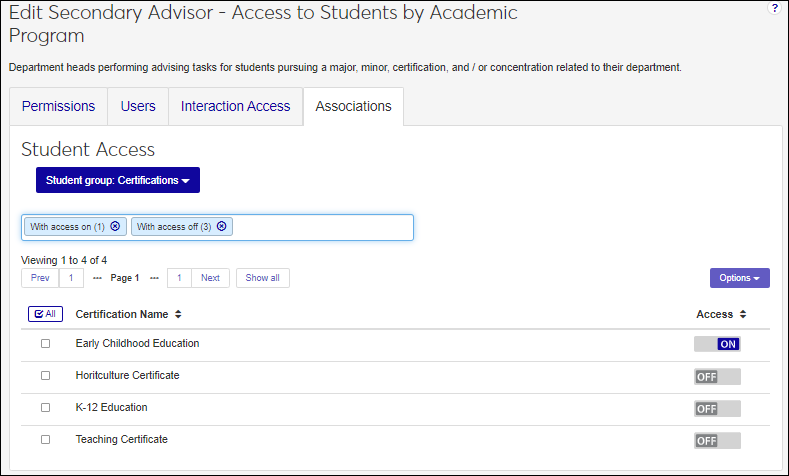
From the Access column, click Off or On as appropriate to disable or enable access to the appropriate groups. Users assigned to the role will have access to constituents or information based on their association to them.
To manage access to user-defined fields:
Select the User-Defined Fields tab.
In the Permissions column for the user-defined field you want to grant or restrict access to:
Select No permissions (default) to restrict users from accessing user-defined fields.
Select Can view UDEF data to allow users to view data only. They will not be able to edit or enter data.
Select Can edit UDEF data to allow users to enter data in user-defined fields.
Select Can configure UDEF data to allow users to design the user-designed field forms (this option grants view and edit permissions as well).
When you create a new role, you are basing it on an unmodified version of the standard role template Jenzabar provides. This means permissions have not been set up and users have not yet been assigned.
When you copy a role, you are basing it on the role template and any customizations you made. The new role automatically inherits the same permissions as the original role.
The role template is based on the role you selected to copy. If you want to copy another role template, select another role based on it.
No, there are no limits to how many times a role can be copied. To eliminate confusion, Jenzabar recommends updating the new role name and description to distinguish the roles from one another.
The Unrestricted User role is used by Jenzabar to automatically provide your system administrator with an unlimited access role so they can set up J1 Web for other users and perform troubleshooting tasks. It is not intended for regular use.