Add Residence Spaces to Assignment Zones
From the Session summary page, you can easily add residence spaces to an assignment zone.
On the Session summary page, click the Add Residence Spaces to Assignment Zones link in the Staff Assignment block. You can also click the Session options drop-down and select Staff assignment options, then Add residence spaces to assignment zones. The Add Residence Spaces to Assignment Zones page opens. The list defaults to show all active residence spaces in the session.
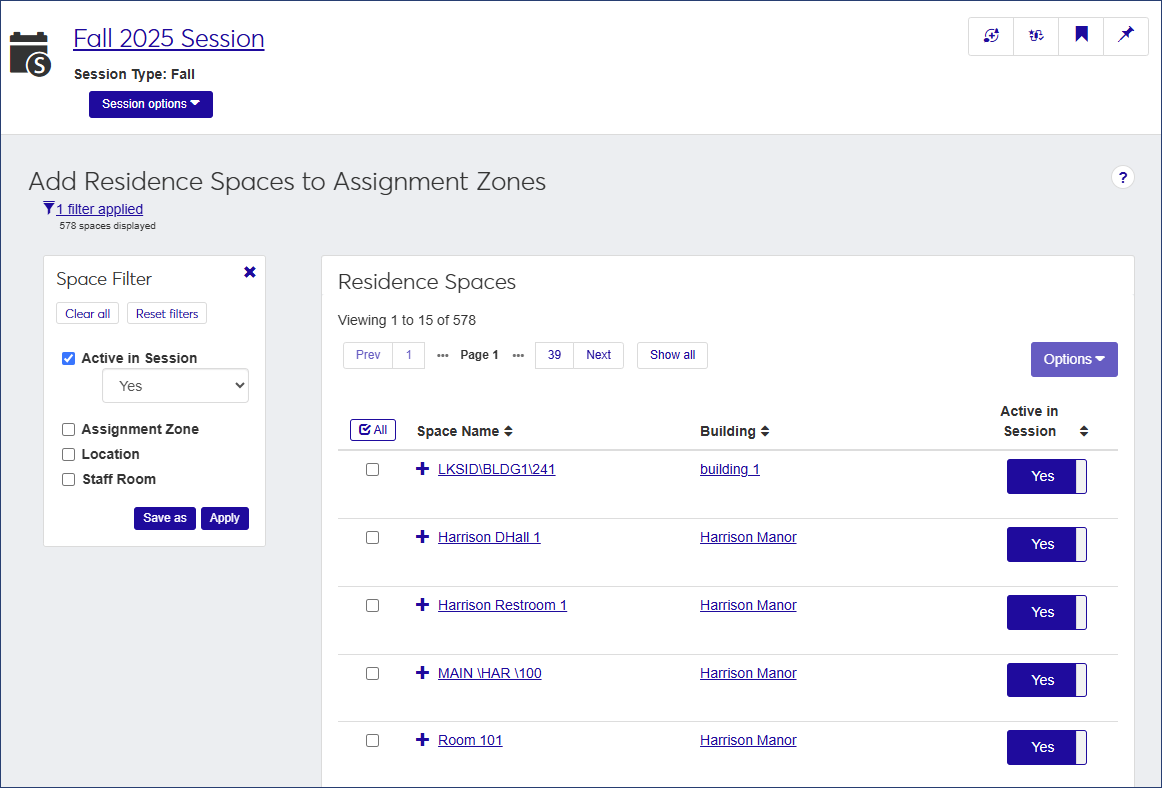
Use the Space Filter to narrow the list to spaces that meet specific parameters (e.g., only inactive spaces, or only those designated as staff rooms). Select the checkbox next to the option you want to filter the list by, select a value for that option, and click Apply.
Select the checkbox next to the spaces you want to add to the assignment zone. To select all the spaces on the list, click the Check All
 button.
From the Options drop-down, select Add to zone. The Add to Zone pop-up opens.
Note
Spaces in a suite must be in the same assignment zone. If one of the spaces you selected is part of a suite, you see a message telling you that the update will also apply to the other spaces in that suite and displaying the names of the affected spaces.
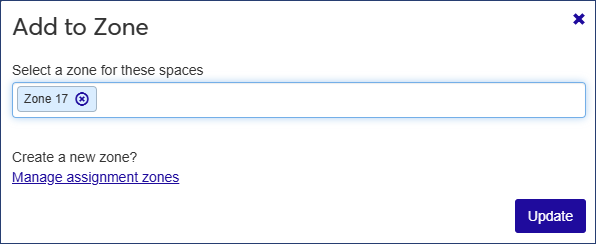
Click in the field and select the zone you want to add the spaces to.
Note
You can add more than one staff room to an assignment zone.
If you need to create a new zone, click the Manage assignment zones link to open the Assignment Zone Definitions page.
Click Update to add the spaces to the selected zone.