Setting Up Degrees with Multiple Completion Time Options
You can set up degrees (and specific programs of a degree) with different completion time requirements. For example, for some of your programs in a Bachelor of Science degree, you might want options for a standard 4-year track, an accelerated 2-year track, and an extended 6-year track. They'd all be the same degree with the same requirements except the time frame in which they're completed.
Your school can make several different time frames available for a single CIP program. For example, you might want an accelerated degree, a regular 4-year degree, and a part-time degree available for certain programs. Here's how (in a broad overview):
Make sure the majors you want to include are associated with the appropriate CIP.
For each time frame you want, create these things:
an IPEDS Award Level definition
an NSC Credential Level definition
A Degree definition
Associate the levels with the CIP for the program and with the degree.
Select the degree and major in the appropriate students' Student Information.
Example screenshots are included in the instructions that follow.
How To
These instructions include examples supposing three different timeframes to complete a BS in Nursing: standard 4-year, accelerated 2-year, and extended 6-year.
Make sure the majors you want to include have the appropriate CIP definitions assigned:
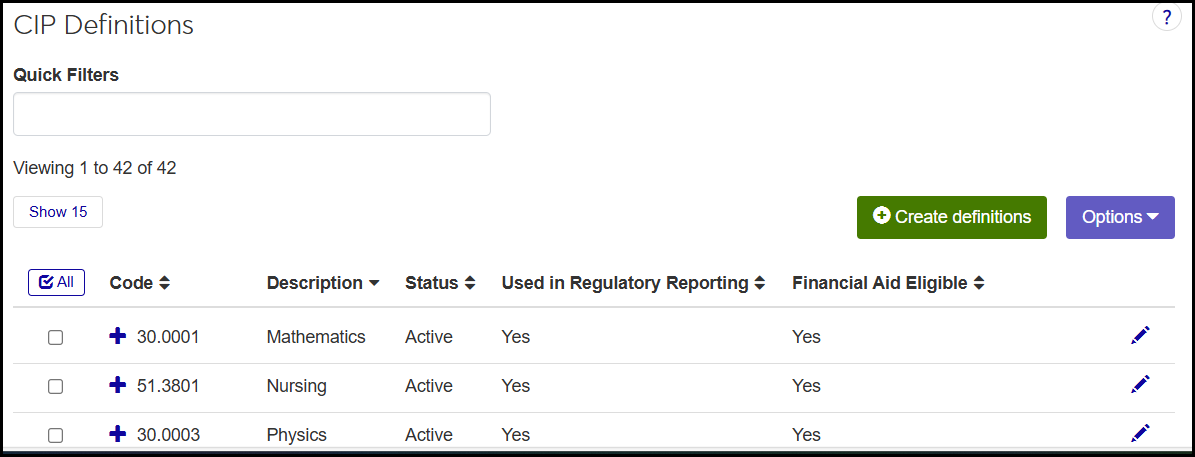
From the Registration Administration hub, click the Hub options drop-down, and select Manage definitions and then CIP definitions. (Or, in the Navigation panel, in the Find a Page field, type CIP, and select CIP Definitions from the results.) The CIP Definitions page opens.
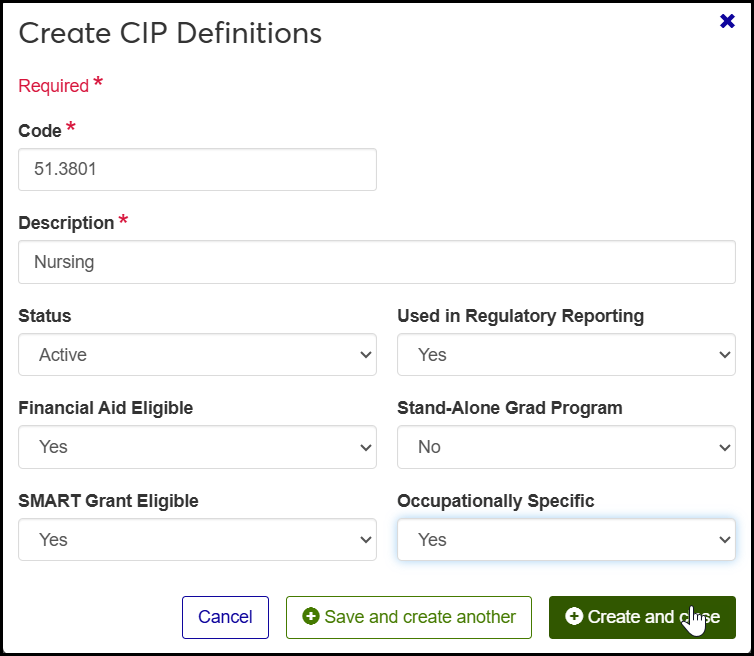
On the CIP Definitions page, make sure the CIP is defined. If it does't exist, create it. Example: 51.3801 Nursing
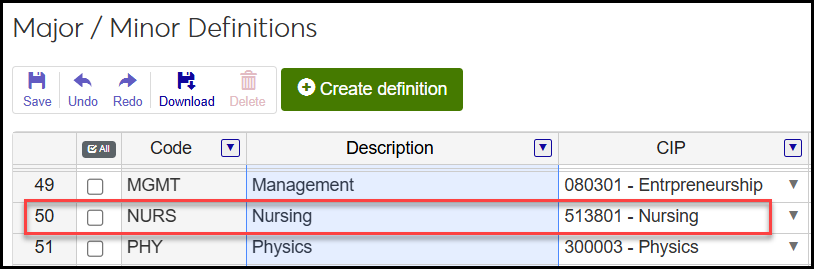
On the Major / Minor Definitions page, make sure the Major exists and has the CIP selected.
Create the IPEDS Award Levels:
Tip
If the award levels you need already exist, skip this step.
From the Registration Administration hub, click the Hub options drop-down, and select Manage definitions and then IPEDS award level definitions. (Or, in the Navigation panel, in the Find a Page field, type IPEDS, and select IPEDS Award Level Definitions from the results.) The IPEDS Award Level Definitions page opens.
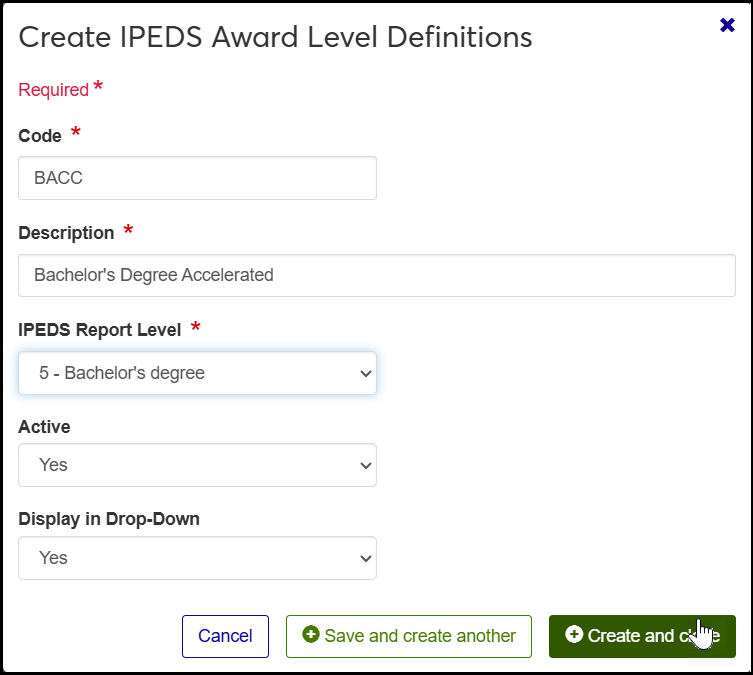
On the IPEDS Award Level Definitions page, click Create definitions button. The Create IPEDS Award Level Definitions pop-up opens.
Enter a Code. Up to 5 characters. Must be unique. Required. Example: BACC (for an accelerated bachelor's program)
Enter a Description. Up to 60 characters. Required. Example: Bachelor's Degree Accelerated
Select an IPEDS Report Level from the drop-down. Required. Example: 5 -Bachelor's degree (This is a Jenzabar-provded report level.)
In the Active field, select Yes.
In Display in Drop-Down, select Yes.
Click Save and create another. The IPEDS Award Level is created, and you can create another. Example: Bachelor's Degree Extended. When you've created all you need, click the Create and close button.
Create the NSC Credential Levels:
Tip
If the credential levels you need already exist, skip this step.
From the Registration Administration hub, click the Hub options drop-down, and select Manage definitions and then NSC program credential level definitions. (Or, in the Navigation panel, in the Find a Page field, type NSC Program, and select NSC Prgram Credential Level Definitions from the results.) The NSC Program Credential Level Definitions page opens.
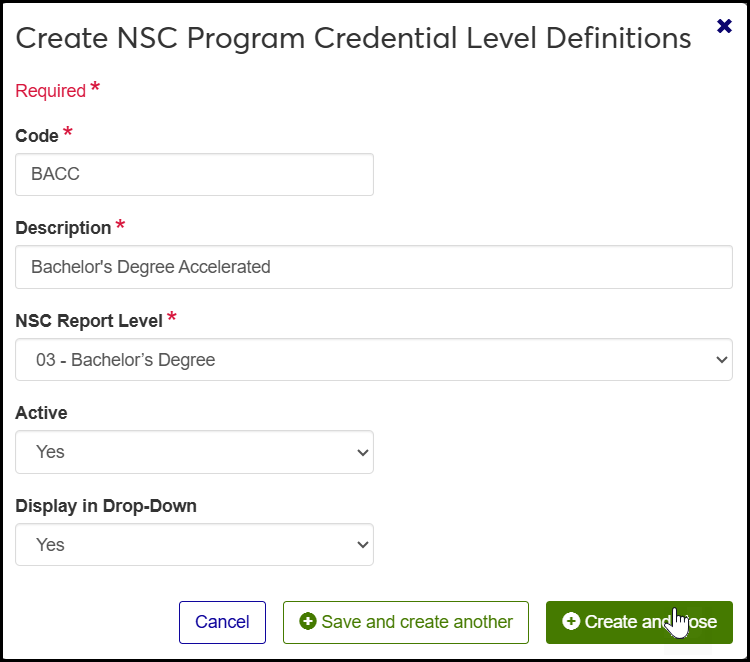
On the NSC Program Credential Level Definitions page, click Create definitions button. The Create NSC Credential Level Definitions pop-up opens.
Enter a Code. Up to 5 characters. Must be unique. Required. Example: BACC (for an accelerated bachelor's program)
Enter a Description. Up to 60 characters. Required. Example: Bachelor's Degree Accelerated
Select an NSC Report Level from the drop-down. Required. Example: 03- Bachelor's Degree (This is a Jenzabar-provided report level.)
In the Active field, select Yes.
In Display in Drop-Down, select Yes.
Click Save and create another. The NSC Credential Level is created, and you can create another. Example: Bachelor's Degree Extended. When you've created all you need, click the Create and close button.
Associate the IPEDS and NSC levels with the CIP definitions:
Associate the IPEDS Award Levels with the CIP definitions:
On the CIP Definitions page, scroll or use the Quick Filters to find the CIP definition you want to give multiple time frames to.
Click the Expand icon
 to expand the row.
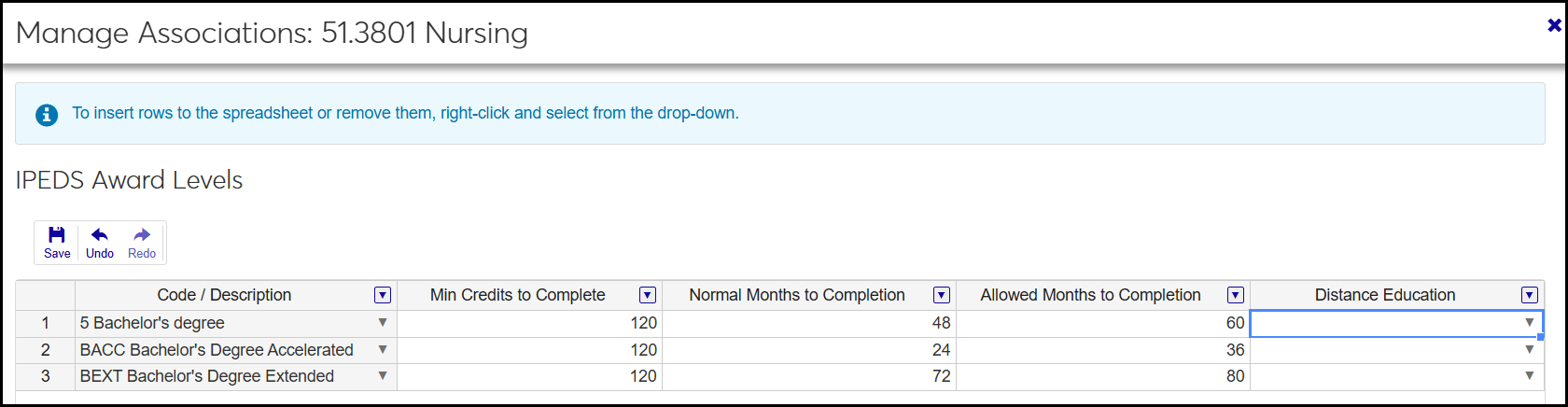
In the IPEDS Award Levels field, click the Manage associations button. The Manage Associations pop-up opens as a spreadsheet listing the award levels assigned so far, if any.
If there's no blank row, right-click in the spreadsheet, and select Insert row below.
In a blank row, select a Code / Description—one of the time frames you want for this program. Example: 5 Bachelor's Degree
Enter a Min Credits to Complete. Up to 6 digits. 0 to 999.99 with up to 2 decimal places.
Enter Normal Months to Completion.
Enter a number in Allowed Months to Completion.
In the Distance Education drop-down, select an option.
Click the Tab key to start a new row. Associate more award levels as needed. Example: Bachelor's Degree Accelerated and Bachelor's Degree Extended.
Click the Save icon, and click the Close button to close the pop-up.
Associate the NSC Credential Levels with the CIP definition:
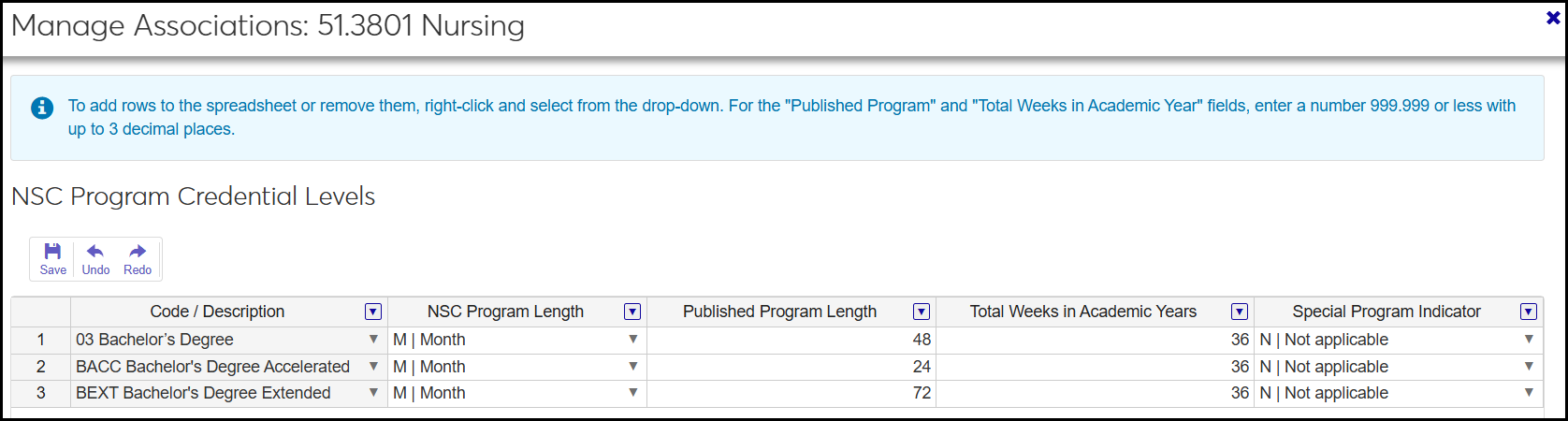
While you're still on the CIP Definitions page, in the NSC Program Credential Levels field, click the Manage associations button. The Manage Associations pop-up opens as a spreadsheet listing the credential levels assigned so far, if any.
If there's no blank row, right-click in the spreadsheet, and select Insert row below.
In a blank row, select a Code / Description. Example: 03 Bachelor's Degree.
Select an NSC Program Length.
Select a Published Program Length.
Enter a number in Total Weeks in Academic Years.
In the Special Program drop-down, select an option.
Press the Tab key to start a new row. Associate more award levels as needed. Example: Bachelor's Degree Accelerated and Bachelor's Degree Extended.
Click the Save icon, and click the Close button to close the pop-up.
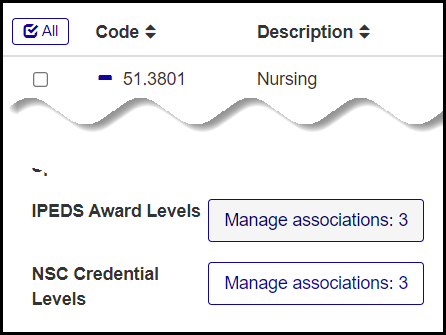
When you're finished, the CIP Definitions page shows that you've added the associated levels to the CIP.
Create the Degree definitions you need:
From the Registration Administration hub, click the Hub options drop-down, and select Manage definitions and then Degree definitions. (Or, in the Navigation panel, in the Find a Page field, type Degree, and select Degree Definitions from the results.) The Degree Definitions page opens.
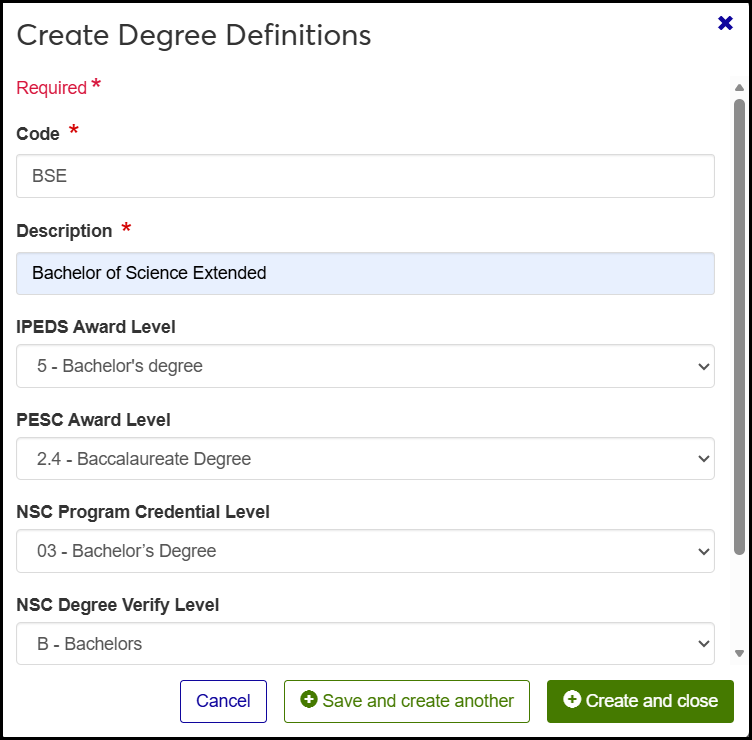
On the Degree Definitions page, click the Create definitions button. The Create pop-up opens.
Enter a Code for the new degree. Up to 5 characters. Required. Example: BSACC
Enter a Description: Up to 100 characters. Required. Example: Bachelor of Science Accelerated
Select the matching IPEDS Award Level you created. Example: BACC - Bachelor's Degree Accelerated
Select a PESC Award Level (optional): Example: 2.4 - Baccalaureate Degree
Select the matching NSC Program Credential Level you created. Example: BACC - Bachelor's Degree Accelerated
Select an NSC Degree Verify Level. Example: B - Bachelors
Select an Enrollment Level. Example: UG - Undergraduate
If you have more degrees to create, click Save and create another. Fill in the new definition. Example: BSE Bachelor of Science Extended. When you're finished, click Create and close. The pop-up closes, and your degree definitions are saved.
Assign the appropriate degrees to the students:
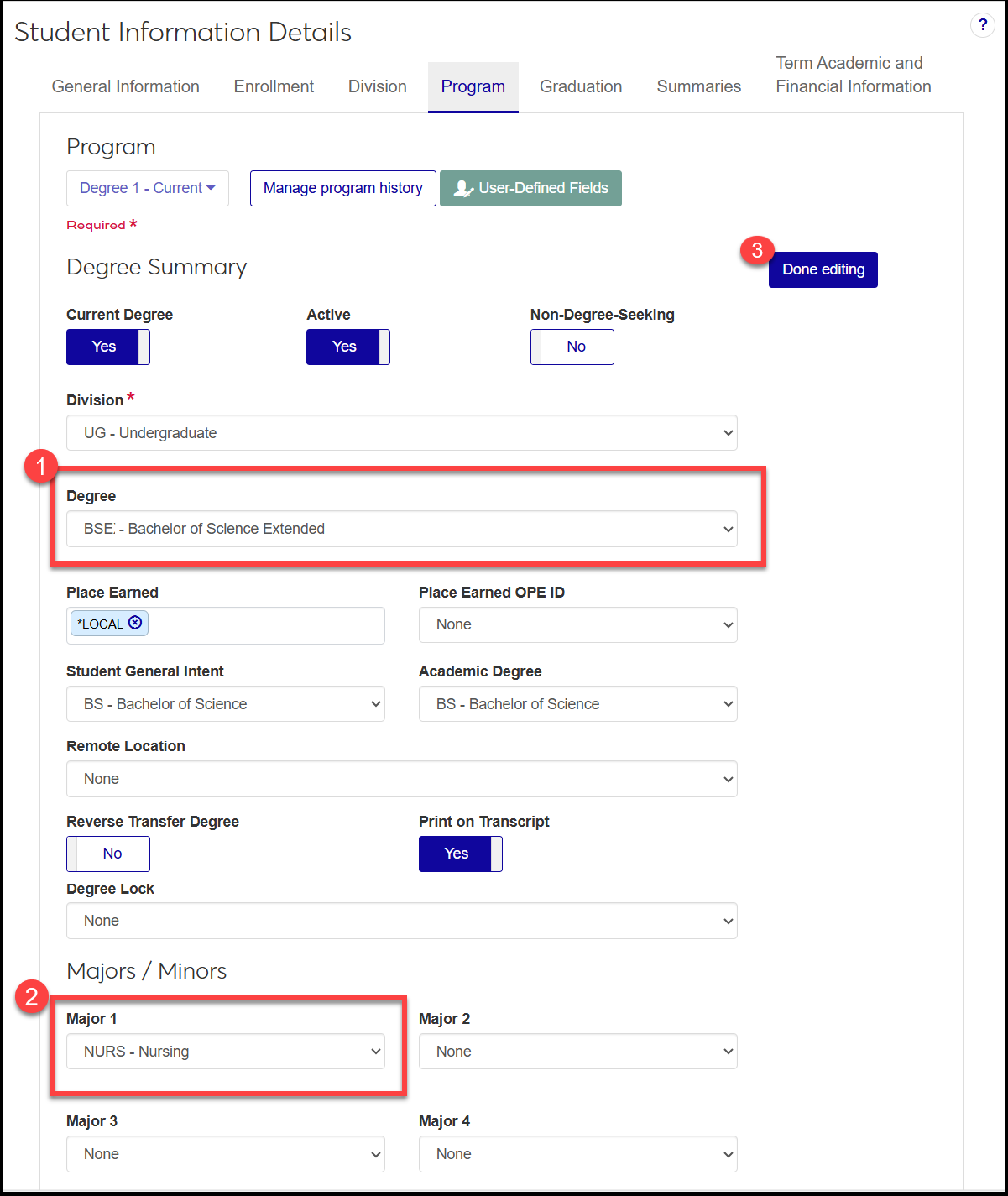
On a student's Student Information Details page, Program tab, click the Edit details button.
In the Degree field, select one of the Degree definitions you created. Example: BSE - Bachelor of Science Extended
In one of the Majors fields, select the major associated with the CIP definition you created. Example NURS - Nursing.
Make other edits as needed, and then click the Done editing button. The major and the degree with the time-needed-to-complete that you selected are now assigned to the student. Check the Program tab to make sure the right program is current and other information is correct.