Secondary Advisor - Access to Students by Athletic Roster Role
Tip
Make as many copies of this role as you need to set up multiple versions of the role and enable one or more sports per version. For example, if you have a compliance officer who needs access to students associated with all sports, you can enable all the sports or if your school has different divisions with several sports falling under those divisions, you can create different roles an enable any and all sports that apply or if you have football coaches who just need to see the football rosters, you can enable just football. Customize the roles to meet your school’s needs.
Overview
The Secondary Advisor - Access to Students by Athletic Roster role gives users access to student information based on the sport (or activity) that the student and advisor are both associated with. For example, women's JV volleyball coaches can be secondary advisors to women's JV volleyball athletes. This ensures athletic coaches, directors, and compliance officers automatically have access to any students participating in a particular sport. Athletic department users can access the Academic Advising hub only if they have been assigned to a role with permission to at least one Academic Advising hub feature.
Tip
Remember to keep the default role as is—unassigned to anyone—so you can use it as a template. Make copies of this role to assign to users.
Tip
Starting with J1 Web 2026.2.1, you can use the Secondary Advisor (athletic) role for other activities as well as sports. You can continue to associate the role with sports in the Desktop Sports Tracking feature, and now you can associate the role with sports and other activities in the J1 Web Student Activities feature.
Important
Associating sports and activities from J1 Web Student Activities with the role requires the Student Life license. If your school doesn't have the Student Life license, you can still associate the role with sports from the Sports Tracking window in Desktop.
Requirements for Access for Advisors
For secondary advisors (athletic) to see student information:
The advisor must be an active J1 Web user in a Secondary Advisor (Athletic Roster) role associated with the advisee's sport.
The student must be an active advisee in the Advisee Master table (adv_master.adv_stud_act). That column is in the following locations:
Desktop: Maintain Advisees window when opened directly from activity centers (the Active checkbox)
J1 Web: Manage Advisees page, Advisee Status column
Campus Portal: Advisee Roster feature, Advisee Status search field
The student must be associated with the sport in either the Desktop Sports Tracking window or in J1 Web Student Activities.
Access to specific information is managed on the Permissions tab.
Requirements for Access for Advisors
For secondary advisors (athletic) to see student information:
The advisor must be an active J1 Web user in a Secondary Advisor (Athletic Roster) role associated with the advisee's sport or activity. See instructions below for associating the role with a specific sport or activity.
The student must be an active advisee in the Advisee Master table (adv_master.adv_stud_act). That column is in the following locations:
Desktop: Maintain Advisees window when opened directly from activity centers (the Active checkbox)
J1 Web: Manage Advisees page, Advisee Status column
Campus Portal: Advisee Roster feature, Advisee Status search field
The student must be associated with the sport or activity in either the Desktop Sports Tracking window or in J1 Web Student Activities.
Access to specific information is managed on the Permissions tab.
The Users Tab
Use the Users tab to view, add, and remove users from the role.
The Module Access Tab
Use the Module Access tab to give users in the role access to Communications in particular modules. For example, you can give advisors access to communications in Advising and Advising Meeting.
In order for users in the role to see student information, the role needs to be associated with one or more teams or activities.
There are several approaches you could take. Typically, you'd associate only one sport or activity to a role. That way all the staff for the women's basketball team have one role, while the staff for the chess club have another role. But if some sports or activities share staff, you could make a role with multiple sports and/or activities associated.
Caution
You must designate some associations for this role to be effective. Without associations, this role doesn't grant access to any student information.
The sports from Desktop Sports Tracking that you can associate with the role are maintained in Desktop on the Sports Tracking window and stored in the sports_tracking table.
The sports and activities from J1 Web Student Activities you can associate with the role are maintained on the Sport / Activity Detail Definitions page and stored in the ActivityDetail table.
Use the checkboxes in the Permissions tab to assign permissions to the users listed on the Users tab for the students in sports and/or activities turned on in the Associations tab.
Permissions | Users with this permission can . . . |
|---|---|
Can view advising summary | View information on the Advising Administration hub page, including academic plans, academic calendars, advising cycles, and more. |
Can view advisee roster NOTE: If your school is not licensed to use Jenzabar Retention, retention information does not appear. |
|
Can view student summary | View an overview of student information related to retention, enrollment, career hours, academic standing, degree, and registration requirements in one place (the student’s Summary page). Access to contact information is also available. NoteIf your school is not licensed to use Jenzabar Retention, retention information does not appear. |
Can view financial aid status | View students' current Satisfactory Academic Progress (SAP) status maintained in J1 Desktop, which ensures students in their classes are completing the required coursework at regulated standards to meet federal aid requirements. |
Can view retention score | View students’ current Jenzabar Retention status to ensure students identified as “at risk” get needed additional attention. Users will only have access to the information they currently have privilege to access in Retention Management System (RMS). |
Can clear to register | Clear students to register for courses. If your school does not require registration clearance, permission is not needed. NoteUsers can have permission to this feature, but it only applies to those students requiring clearance based on the web registration group configuration on the J1 Desktop Year Term Subterm window, Control tabs. |
Can perform registration approval | Approve students’ course loads to complete the registration process. If your school does not require advisees to get registration approval, permission is not needed. NoteUsers can have permission to this feature, but it only applies to those advisees requiring approval based on the web registration group configuration on the J1 Desktop Year Term Subterm window, Control tabs. |
Can view graduation status | Review those students who have applied to graduate and where they are within the process, which ensures students are completing the steps your school requires for graduation. Graduation stages vary according to school and are set up and maintained in J1 Desktop. If your school does not track the IPEDS graduation information, permission is not needed. |
Can view holds | View any students with issues related to their student records (e.g., fines, unpaid tuition, etc.) and access any available resolution information. Holds vary according to your institution’s hold setup, but registration and academic planning can be impacted. NoteUsers will only have access to the holds information they currently have access to in J1 Desktop. |
Can view academic plans |
|
Can edit academic plans and approve student edits |
|
Can view graduate test scores | Review a student's reported undergraduate test scores such as LSATs and information about the score including when the test was taken and if the score is official or self-reported. Assist with determining if students meet prerequisite or admission requirements, aptitude standards, and course level for admission and/or placement. |
Can view undergraduate test scores | Review a student's reported undergraduate test scores such as SATs and information about the score including when the test was taken and if the score is official or self-reported. Assist with determining if students meet prerequisite or admission requirements, aptitude standards, and course level for admission and/or placement. |
Can view other test scores | Review a student's reported test scores including when the test was taken and if the score is official or self-reported. Assist with determining if students meet prerequisite or admission requirements, aptitude standards, and course level for admission and/or placement. |
Can view programs | View-only access to a list of the programs offered at your school. Filter programs by year, status, and degree. View draft and published program information, including how many students are enrolled and CIP code. Determine whether a program is planned, ready for planning, or doesn’t require planning. |
Can view advisee's to do list | Review the advisee's To Do list to identify pressing items. |
Can view success team | View any and all advisors, coaches, faculty members, and location managers assigned to or associated with a student. Team members can contact one another to follow up with tasks related to the student and/or mitigate any issues. |
Can contact success team | Contact any and all advisors, coaches, faculty members, and location managers assigned to or associated with a student to follow up with tasks related to the student and/or mitigate any issues. |
Can view goals | Review a student's progress with their goals to identify goals that aren't yet underway, but have a pending deadline. You can follow up with a student to identify and address issues that might be keeping them from meeting their goals. This helps ensure student success and fosters student retention. |
Can create & edit goals | Create and update student goals to help keep students on track to meet key deadlines. Provide information to help the student meet their goals. |
Can view Career Coach | Can view student's Career Coach results with the Lightcast Integration license. |
Can view student section list | View all students' course history elements including repeats, earned hours, and quality points. This helps ensure that students make progress on their programs. The student's section list can appear on the following pages, which are both accessed from the student's Summary page.
|
Can create/edit meetings | Create new meetings from the calendars they can access in J1 Web. They can also change the location, day, and/or time for meetings they create. |
Can view transfer sections | View a student's sections transferred from another institution. Accessed on the student's Transfer Entry page from their Summary page. |
Permissions | Users with this permission can . . . |
|---|---|
Can register advisees | Register courses for advisees from the My Advisee Roster page in the Academic Advising hub. NoteIn order for advisors to have access to the courses to register, they also need the "Can view courses" permission found in the Course Information - Access to All Courses role. You can assign them to a copy of that role with only "Can view courses" selected if you don't want them to have the other permissions in that role. |
Can drop courses for advisees | Drop courses for advisees from the My Advisee Roster page in the Academic Advising hub. NoteIn order for advisors to have access to the courses to drop, they also need the "Can view courses" permission found in the Course Information - Access to All Courses role. You can assign them to a copy of that role with only "Can view courses" selected if you don't want them to have the other permissions in that role. |
These can be used only for advisees assigned to the advisor in this role. Advisors use these permissions when registering students from the My Advisee Roster page.
Permission | Notes |
|---|---|
Can grant course authorization overrides | This includes course sections that otherwise require the instructor's approval. |
Can grant course corequisite overrides | Content coming soon |
Can grant course full overrides | Content coming soon |
Can grant course prerequisite overrides | Content coming soon |
Can grant course prohibited overrides | Content coming soon |
Can grant course repeat overrides | Content coming soon |
Can grant schedule conflict overrides | This overrides errors with overlapping days and times. |
How To
Manage Users, Permissions, Module Access, and User-Defined Fields
See instructions in the Edit Role help topic.
On the Edit page of a role made from the Secondary Advisor - Access to Student by Athletic Roster role, click the Associations tab.
Click the Athlete group drop-down, and select either Sport (from Sports Tracking in Desktop) or Student Activity (from Student Activities in J1 Web). The sports or activities appear in a list. The filter has selection indicators with the count of sports or activities that have the Access switch on off.
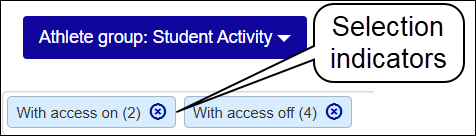
To remove one of those categories from the list, click the Remove icon
 .
.To restore the category, click in the field, and select the category.
To associate a sport or activity, click its OFF button to switch it to ON. To remove an association, click its ON button to switch it to OFF.
To switch multiple sports or activities at once, select their checkboxes, click the Options button, and select either Turn access on or Turn access off.
FAQ
Yes. In the Athlete group drop-down, select Sport to turn on associations for sports in the old Sports Tracking feature. Then, in the same drop-down, select Student Activity to turn on associations for activities (including sports) in the new Student Activities feature.
If the advisee is still actively enrolled in the sport or activity in Desktop or J1 Web, then the advisor still has access.
Desktop Sports Tracking: If the advisee is still associated with the sport on the Sports Tracking window in Desktop, and the advisor is still associated with the sport, then the advisor still has access to the student's information. To block access, you can delete the student's record in that sport.
J1 Web Student Activities: If the student is associated with the sport or activity's roster (Activity Seasons page, Manage Roster pop-up), and if today's date is between the Activity Roster Begin and Activity Roster End dates, then the advisor still has access to the student's information.
The key difference is in what happens when no associations are selected.
Primary advisor roles:
The associations act as a filter. They reduce the number of students the advisors have access to.
If no associations are selected, then advisors in the role have the selected permissions to all advisor sets in which they have advisees.
If any associations are selected, then advisors in the role have the selected permissions only to the selected advisor sets in which they have advisees.
Thus, by using associations in multiple roles, you can give an advisor different permissions for different advisor sets.
Each advisor in a role may have a completely different advisee roster from other advisors in the role. That's because for primary advisors roles, the system restricts advisors to their assigned advisees and then further restricts the permissions to only advisees in the associated advisor sets.
Secondary advisor roles:
The associations allow access.
If no associations are selected, then advisors in the role have permissions for no advisees.
If any associations are selected, then all advisors in the role have access to the students in the selected sports or activities.
All advisors in the same role have identical advisee rosters from that role. That's because in secondary advisor roles, the associations are the way advisees are added to the permissions.