Manage Academic Plan Approvals by Program or Web Group
Use the Manage Approvals page to set whether students can make changes to their academic plans and whether they need approval to do it.
The page is available only if the Approval Process is turned on in the Student Academic Planning category on the Advising Settings page. And those settings also determine whether the options apply to students according to their program or according to their Web Registration group. If Program is selected, then the page is called the Manage Approvals by Program page. But if Web Group is selected, then the page is called the Manage Approvals by Web Group page.
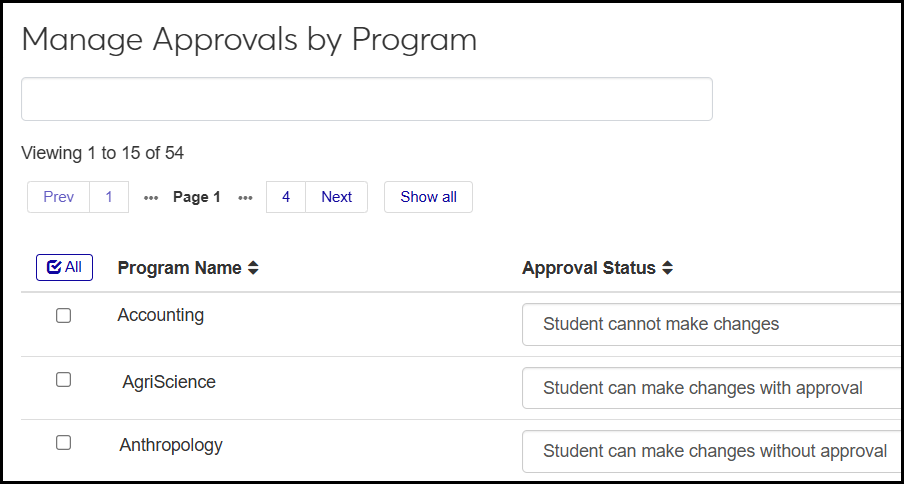
The Manage Approvals by Program page lists all your schools programs (defined on the Program Definitions page). For each program, you select an option:
Student can't make changes
Student can make changes with approval
Student can make changes without approval
The Manage Approvals by Web Group page works the same way, but instead of programs, it's your school's Web Registration Groups (also called Registration Control Groups, Web Groups, and Tel/Web Groups) that are listed. You select an option for each Web Group.

How To
Note
These instructions assume that the Student Academic Planning setting is on and that you want to use the approval process.
Warning
Before making any changes to the Student Academic Planning settings, review closely the information about them in the Advising Settings topic.
From the Registration Administration hub, click the Hub options drop-down, and select Settings and Roles and then Settings. The Advising Settings page opens.
Scroll down or click the anchor link to the Student Academic Planning category.
Click the Approval Process button to make it say Yes.
Under If on, configure by, select either Program or Web Group. Your changes are saved automatically.
If you want to select the settings for the programs or Web Registration Groups now, click the Configure now link. The Manage Approvals by Program (or by Web Group—whichever you selected) opens. You can assign approval options for the programs or web groups either one at a time or multiples at a time.
To assign approval options one at a time, click the Approval Status drop-down on a row, and click your selection (Student cannot make changes, Student can make changes with approval, or Student can make changes without approval).
To assign options to multiple rows at once, select the checkbox on multiple rows. Then click the Options drop-down and select an option. That option is assigned to all the selected programs or web groups.
Your selections are saved automatically.
From the Advising Administration hub, click the Hub options drop-down, and select Advisors and Advising Setup and then Approvals. The Manage Approvals page opens—either the Manage Approvals by Program or the Manage Approvals be Web Registration Group page, depending on the setting selected on the Advising Settings page.
To assign approval options one at a time, click the Approval Status drop-down on a row, and click your selection (Student cannot make changes, Student can make changes with approval, or Student can make changes without approval). Your changes are saved automatically.
To assign options to multiple rows at once, select the checkbox on multiple rows. Then click the Options drop-down and select an option. That option is assigned to all the selected programs or web groups. Your changes are saved automatically.