Unofficial Transcript in Student Information
Important
Information and features vary according to the roles to which you belong and the permissions associated with those roles. For more information, contact your module manager or your campus support team.
On a student's Summary page, you can generate an unofficial transcript. The PDF file opens in a new tab in your browser. You can print it or download it from there.
Jenzabar provides several report layouts for transcripts, and your school may have custom layouts. The layout is selected by an administrator on the Repeat, Transcript, and GPA Settings page in the Registration Administration hub.
From anywhere in J1 Web, click the Person Search icon
 . Use the Person Search to find a student. Click on the student's name or ID. The student's Summary page opens.
In the Person options drop-down, click Student, then Transcripts, and then Unofficial transcript. The transcript opens as a PDF in a new browser tab. From there you can download it or print it.
Important
Access to the folders where Jenzabar-provided original reports are stored is controlled by your institution. For more information, contact your campus support team or see Working with Reports in J1 Web.
Open InfoMaker.
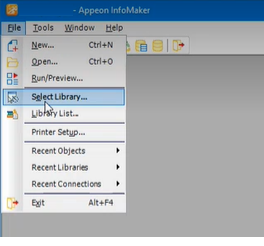
Click File > Select Library.
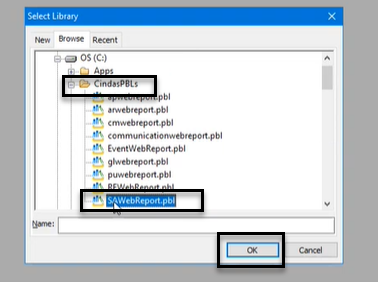
On the Select Library pop-up, navigate to the shared folder where Jenzabar-provided original reports and queries are stored.
Select the PBL (PowerBuilder Library) file that contains the report or query you want to customize.
Click OK.
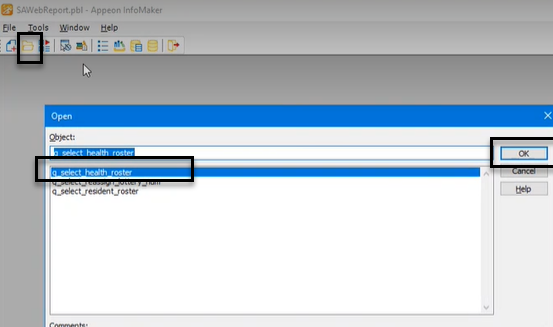
Click the Open icon.
On the Open pop-up, in the Object section, select the report or query you want to customize.
Click OK.
Customize the report or query as needed.
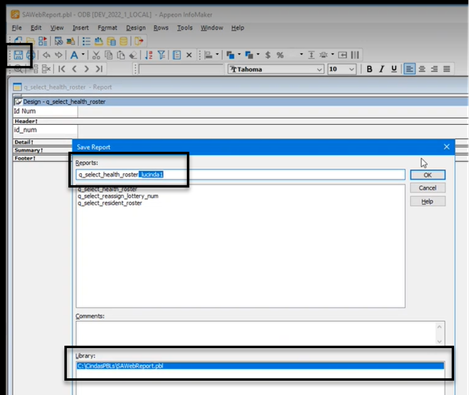
Save the customized version in the shared folder by adding a unique, easily identifiable extension to the file name.
Tip
By default, InfoMaker saves the customized version in the same folder that you opened the original version from. Confirm the file path is correct in the Library section.
On the corresponding report page in J1 Web:
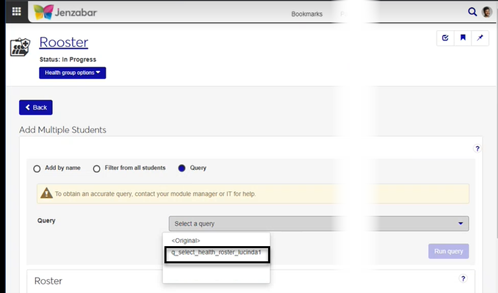
Customized versions of queries will display in the Query or Data Set drop-down.
Customized versions of reports will display in the Report Layout drop-down.