Create a Modification
Important
Information and features vary according to the roles to which you belong and the permissions associated with those roles. For more information, contact your module manager or your campus support team.
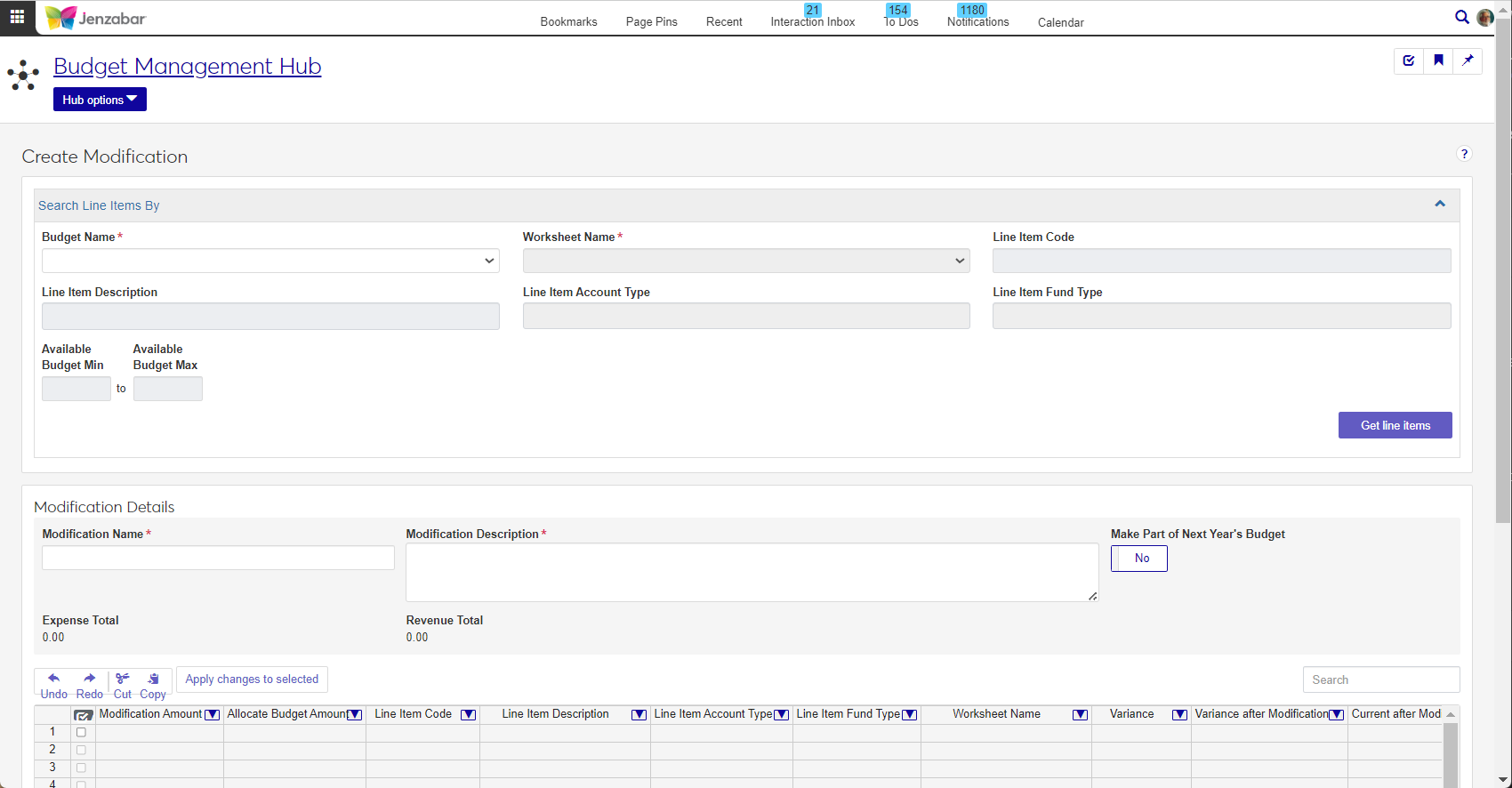
The Create Modification page allows you to create adjustments to a board-approved budget. Budget modifications are direct increases or decreases of income and/or expense funds made to one or more line items that impact the entire budget.
Modifications can be two-sided (expense and income changes) or one-sided (either expense or income changes). Two-sided modifications usually net to zero, but they are not required to. One-sided modifications, by definition, are not required to sum to zero and are typically expense changes.
Notice
Common examples of a of a one-sided modification include increases or decreases in expenses related to released restricted funds or updates to foretasted revenue amounts.
The default Budget Management Worksheet & Adjustment Access role includes permissions to create modifications. Users can make transfers for the worksheets that they have access to.
Note
Worksheets associated with project codes may prevent users with the appropriate worksheet and transfer permissions from working with certain transactions.
How To
Select a Budget Name.
Select a Worksheet Name.
Enter values for one or more line item parameters.
Line Item Code - Enter a G/L account number and select an option from the drop-down.
Line Item Description - Enter a keyword and select an option from the drop-down.
Line Item Account Type - Select either Expense or Revenue.
Line Item Fund Type - Select either Restricted or Unrestricted.
Enter an Available Budget Min and Available Budget Max to search within a specific range.
Click Get line items.
Enter details into the Modification Name and Modification Description fields.
Click the Make Part of Next Year's Budget option to Yes if the transfer is a permanent one. For one-time transfers, click the option to No.
There are two ways you can make a modification:
Enter an amount into the Modification Amount column manually.
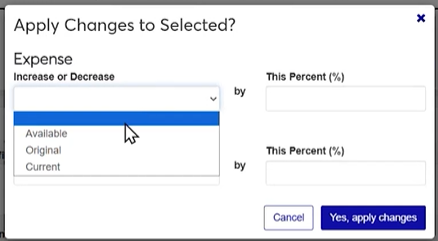
Select one or more line items using the checkboxes, then click the Apply changes to selected button. From the pop-up window, select if you want to affect the Available, Original, or Current budget, then enter the percentage you want the funds to change.
Select a Modification Status. Depending on your permissions, you may see Active, Submitted, or Approved statuses.
Click Create Modification.
FAQ
Yes! You can increase Expenses and Revenue. Once you've pulled up line items to the new modification, you can select one or more line items then the click Apply changes to selected button. When the Apply Changes to Selected? window appears, you can choose to modify the available, original, or current amounts by a percentage.
Yes, however, the Budget feature only allows for modifications on expense line items. For additional information about working in the Budget feature, see the Campus Portal Budget help.